.svg)
Shopify Stock Control: Best Practices to Keep Inventory Accurate


Shopify stock control is the routine that keeps your Shopify stock count equal to what is on your shelves, so you stop overselling, run out less often and free up cash.
- Reorder points: reorder when Available plus Incoming drops to daily sales × (lead time + safety buffer days). Shopify has no native reorder point setting.
- Plan for late suppliers: in Sumtracker's data, about 1 in 5 purchase orders arrived later than expected (July to September 2026).
- One stock count everywhere: only one system should write stock numbers to Shopify across stores and marketplaces.
- Check returns first: restock resellable units and move damaged ones to Unavailable, not back to Available.
- Count often: Shopify added native stock counts in admin on October 20, 2026. Count A items weekly and everything at least once a year.
Shopify stock control is about keeping inventory accurate, maintaining the right stock levels, and ensuring products are available when customers want to buy them.
Poor stock control can lead to stockouts, overselling, excess inventory, and cash tied up in slow-moving products. Having the right processes in place helps you avoid these issues and make better purchasing decisions.
In this guide, we’ll cover nine best practices for Shopify stock control, including optimizing stock levels, setting reorder points, forecasting demand, and preventing overselling.
You’ll also learn how to use Shopify’s inventory features, automate routine tasks, and conduct regular stock audits.
Plus, we’ll share practical examples and a free stock control template to help you manage inventory more efficiently.
What Is Shopify Stock Control?
Shopify stock control is the set of daily, weekly, and monthly habits that keep your Shopify inventory counts accurate and your stock levels healthy.
It covers how stock comes in, how it is reserved for orders, how it leaves, and how you check that the numbers are still right.
It is a narrower job than Shopify inventory management. Inventory management is the whole system: products, suppliers, locations, reports. Stock control is the discipline inside it that protects the count.
Why so many stores still struggle with it
Most small businesses are still running stock control by hand. In an analysis of software buyers, Capterra found that about 34% of small and midsize businesses rely on manual methods for inventory, and another 24% use spreadsheets.
Manual methods can work at low volume. They break when you add variants, locations, or a second sales channel, which is where the practices below come in.
Why Effective Stock Control Matters for Shopify Stores
Poor stock control costs you in three ways: lost sales when you run out, trapped cash when you over-buy, and refunds when you sell stock you do not have. All three start with an inaccurate count or a late reorder.
Stockouts hurt the most, because shoppers do not wait.
In DHL's 2026 E-Commerce Trends Report, a survey of 29,000 shoppers in 29 countries, 65% said a product being out of stock or unavailable had caused them to abandon an online purchase.
That is a sale lost at the very last step, after you already paid to bring the shopper in.
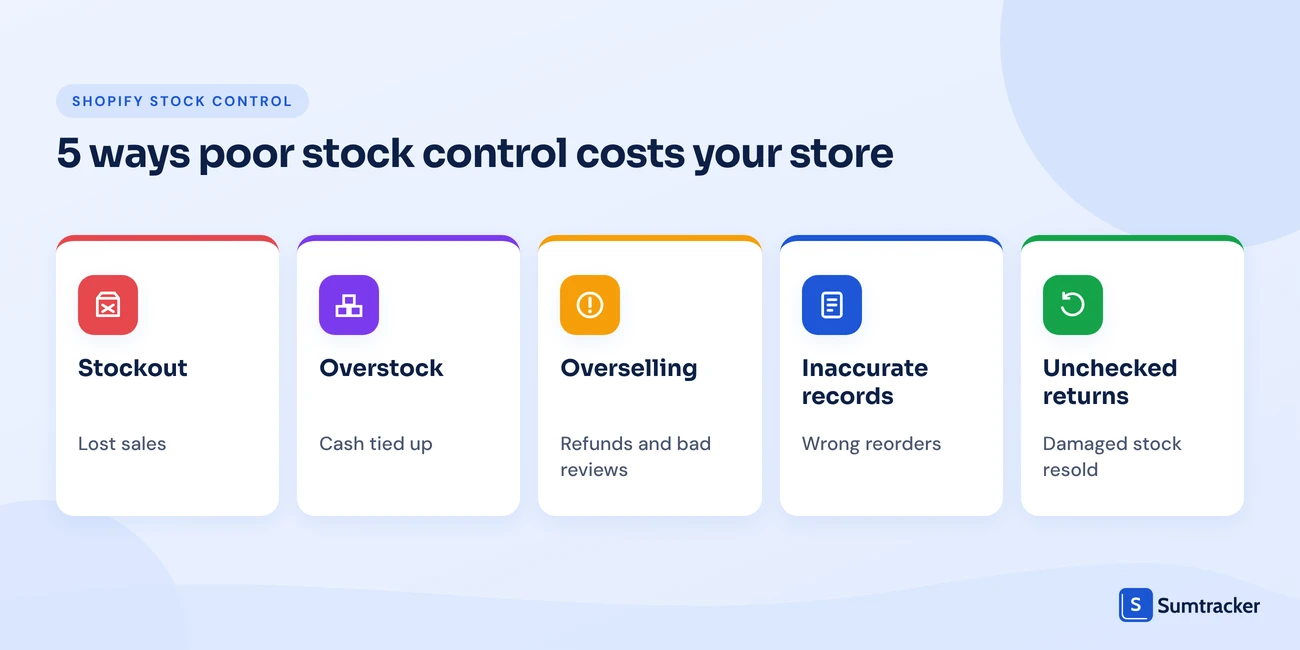
Here is how each type of stock problem shows up in a Shopify store:
Good stock control fixes these at the source. It also makes every other decision easier. You cannot plan a sale, a launch, or a Black Friday buy if you do not trust your stock numbers.
Tip: Before changing anything, pull Shopify's Inventory remaining per product and Products by sell-through rate reports. Together they show your likely stockouts and your slow movers in about five minutes. Our guide to Shopify inventory reports shows where to find each one.
If slow stock is already piling up, read our guide on how to handle dead stock on Shopify. If running out is the bigger problem, start with how to avoid stockouts on Shopify.
Best Practices for Shopify Stock Control
The nine practices below work as one system: set the right levels, reorder on time, keep every channel accurate, and check the count regularly.
Start with the first three if you are new to this. Add the rest as your catalog and channels grow.
Want to put these into practice? The free template asks for a few numbers per SKU and tells you what to reorder, when, and how much. It also has a stock count sheet that tracks your count accuracy and a returns check sheet.
1. Maintain Optimal Inventory Levels to Reduce Overstocking and Stockouts
Optimal stock is enough to cover demand until your next delivery arrives, plus a small buffer, and no more. Too little and you sell out. Too much and your cash sits on a shelf.
The easiest way to judge this is days of cover: how many days your current stock will last at your normal sales rate.
Days of cover = (Available + Incoming) ÷ Average daily sales
A SKU with 120 available, 0 incoming, and 4 sales a day has 30 days of cover. If your supplier takes 21 days, you are fine. If they take 45, you are already late.
Shopify estimates this for you. The Inventory remaining per product report shows roughly how many days of stock each product has left, based on its recent sales rate.
Not every SKU needs the same buffer. Use ABC analysis to decide where to spend your cash. Shopify's built-in ABC product analysis report grades products by their revenue over the last 28 days.
The percentages above are the common convention, not a Shopify rule. Adjust them to your catalog.
Rule of thumb: Set a maximum days of cover as well as a minimum. Many stores flag anything above 90 to 120 days of cover for review. Those SKUs are candidates for bundles, promotions, or a smaller next order. Our inventory turnover guide shows how to spot them with one formula.
Shopify's own team walks through its latest inventory tools, including purchase orders, receiving, and inventory insights, in this short video.
Watch: Enhanced inventory management (Shopify on YouTube)
2. Set Reorder Points for Timely Stock Replenishment
A reorder point is the stock level that tells you to place a new order. When Available plus Incoming drops to it, you order. Set it right and new stock arrives just as the old stock runs out.
Reorder point = (Average daily sales × Average lead time) + Safety stock
Safety stock is the extra stock that covers busy days and late deliveries. The simplest way to set it is in days of sales, called a safety buffer.
Reorder point = Average daily sales × (Lead time + Safety buffer days)
Example: A SKU sells 120 units in 30 days, so 4 a day. Your supplier takes 14 days, and you want a 7-day buffer. The reorder point is 4 × (14 + 7) = 84 units. When Available plus Incoming drops to 84, you order.
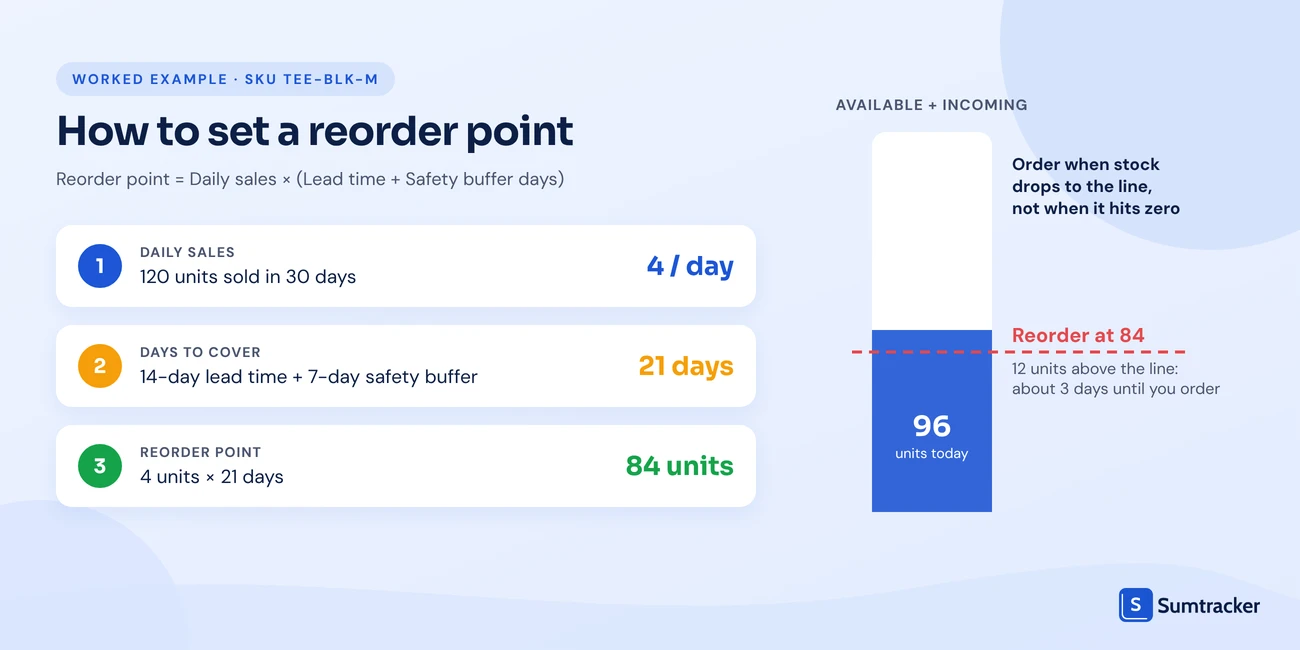
This is the method the free template uses. A good starting buffer is 7 to 14 days for bestsellers or slow suppliers, 5 to 7 days for steady sellers, and 0 to 3 days for slow sellers.
If you want more precision later, there are two common formulas:
Our full guide to reorder points for inventory replenishment works through each one with examples.
Your lead time is probably less reliable than you think.
That is why safety stock should be built from your actual lead times, not the supplier's quote. Check how long your last few orders really took, and use that number in the template.
Tip: Shopify has no native reorder point setting. Store each SKU's reorder point in a spreadsheet, a metafield, or an inventory app. Then use Shopify Flow's "Initiate reorder with vendor when inventory gets low" template so the alert fires on its own. Our guide to automating reordering in Shopify walks through the setup.
3. Use Sales Data to Forecast Inventory Demand
A forecast is your best estimate of how many units you will sell before your next order arrives. It feeds every number above. A wrong forecast gives you a wrong reorder point, however good the formula is.
Shopify does not forecast demand for you, but it gives you the raw data. The Inventory sold daily by product report shows units sold per day, and you can export it to a sheet. A simple, reliable starting forecast looks like this:
Forecast for the next N days = Average daily sales × N × Seasonal index
Seasonal index = Sales in the same month last year ÷ Average monthly sales last year
If a SKU sells 5 a day now, and last December ran at 1.6 times its normal month, your December forecast is 5 × 31 × 1.6 = 248 units.
Pick the method that matches the product:
Tip: Remove stockout days before you average. If a SKU was sold out for 10 of the last 30 days, dividing by 30 understates real demand by a third. Divide by the days it was actually in stock.
Real-time stock data also changes what you buy. On an episode of Shopify Masters, Matthew Burrows, cofounder of the Los Angeles nursery group Plant Material, explains how tracking inventory in real time lets the team buy only what they need and plan around seasonal demand instead of over-ordering.
To go deeper, read our guides to demand forecasting for ecommerce and Shopify inventory planning.
4. Synchronize Stock Levels Across Sales Channels
Every channel you sell on must draw from one shared stock count. If your Shopify store, a second Shopify store, and Amazon each keep their own number, they will drift apart, and the first sign is usually an oversell.
This pressure is now standard across retail. In Zebra's 18th Annual Global Shopper Study, 84% of retail decision-makers said they are under pressure to synchronize real-time inventory across channels.
Here is what Shopify handles natively and where you need help:
Rule of thumb: Only one system should write stock numbers to Shopify. If two apps both update inventory, they overwrite each other and counts bounce back and forth. Pick one source of truth and switch off inventory updates in every other app.
If you run more than one Shopify store, our guide on how to sync inventory between two Shopify stores compares every option, from CSV to apps.
5. Prevent Overselling with Accurate Inventory Updates
You oversell when an order is accepted for stock that is no longer there. It almost always comes from a delay or a skipped step: stock received but not entered, a sale on one channel not reflected on another, or a bundle that did not deduct its parts.
Start with the setting that controls it. Each variant has a "Continue selling when out of stock" option.
Leave it off for normal products, so Shopify marks the variant sold out at zero.
Turn it on only for pre-orders, made-to-order items, or stock you know is on the way. Our guide to the Shopify variant inventory policy explains both choices.
Then fix the update gaps. These are the most common causes and their fixes:
That last fix is worth knowing. Units you move into Unavailable > Safety stock stay in On hand but drop out of Available, so customers cannot buy them. It is a simple, native way to keep a small buffer on a bestseller during a busy launch.
6. Manage Product Variants and SKUs Efficiently
Shopify tracks stock per variant, per location, so every variant needs its own clean SKU. A product with 4 sizes and 5 colors is 20 separate stock counts. Without clear SKUs, those 20 counts are very hard to keep straight.
Shopify now allows up to 2,048 variants and 3 options per product. That gives you room to grow, and more room for errors. A clear SKU format keeps it manageable:
Keep these habits:
- Turn on inventory tracking for every physical variant. Untracked variants never sell out and do not appear on the Inventory page. A product export is the quickest way to find them.
- Give every variant a barcode. The Shopify mobile app's inventory scanner, transfers, and stock counts can all use it.
- Never reuse a SKU for a different product, even after you discontinue the old one.
- Handle bundles with care. In the Shopify Bundles app, a bundle's stock comes from its lowest component, but bundle stock is not tracked by location and bundles cannot be counted in stock counts.
Rule of thumb: If two people on your team would write a different SKU for the same new variant, your SKU format is not clear enough yet. Write the rules down in one short document.
Read more in our guides to Shopify variant inventory and SKU management.
7. Streamline Returns and Damaged Stock Management
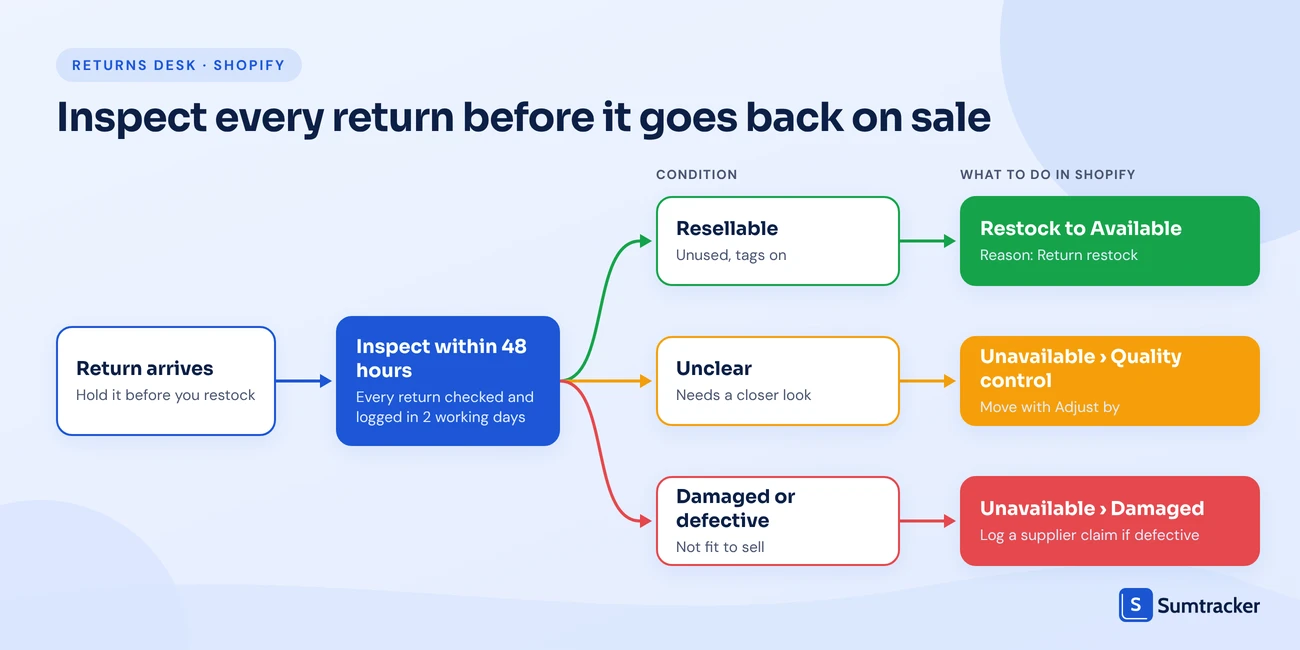
Every return should be inspected before it goes back to Available. If a damaged unit is restocked by default, the next customer receives it, and you get a second return.
Shopify gives you two places to control this. When you refund an order, the "Restock items" box is ticked by default. When you process a return, you choose per item whether to restock it and at which location. Once a return is restocked, it cannot be canceled, so check the item first.
Use this decision table at your returns desk:
Returned stock is a real source of sellable inventory. In Radial and Two Boxes' State of Retail Returns 2025 report, 59% of brands said they resell between 11% and 50% of their returns through their existing channels. Slow inspection keeps that stock off sale for days.
Tip: Set a 48-hour rule for returns. Every return is inspected, logged, and either restocked or moved to Unavailable within two working days. The returns tab in the free template tracks how much of your returned stock is resellable.
Damaged and lost stock is also where shrinkage hides. Our guide to inventory shrinkage prevention on Shopify shows how to record it with Shopify's Damaged and Theft or loss reasons.
8. Automate Routine Stock Control Tasks
Automate the tasks you repeat every day, so your time goes into decisions instead of data entry. Low-stock alerts, receiving, and stock updates across channels are the best places to start.
Shopify covers more of this natively than it used to. Here is what you can automate today and where an app takes over:
Shopify Flow is free on the Basic, Grow, Advanced, and Plus plans. Our Shopify Flow inventory quantity changed guide shows how to fire an alert only once, when stock first crosses your threshold.
9. Conduct Regular Stock Audits to Maintain Inventory Accuracy
A stock audit compares what Shopify says you have with what is actually on the shelf, then fixes the gap. Even with perfect processes, counts drift through damage, theft, picking errors, and missed receipts.
Audits also earn their cost back. In a 2026 study in the Journal of Business Logistics, researchers who tracked about 24,000 SKUs across 11 grocery stores found that running an inventory audit led to an 11% store-wide sales lift, mostly on items where the system showed more stock than the shelf held. It is grocery data, but the lesson carries over: phantom stock blocks reorders and hides sales.
Shopify now has native stock counts. Since October 20, 2026, you can create a count in Products > Inventory > Stock counts, assign it to staff, and review the variances before you approve them.
Counting in Shopify POS arrived on September 28, 2026 and needs POS Pro. Several people can count at once, and approved counts appear in your adjustment history. Bundles cannot be counted.
Track how accurate your counts are over time:
Count accuracy = (Count lines where counted qty matches Shopify ÷ Total count lines) × 100
Choose the right type of count for each job:
Tip: Run blind counts. Do not show counters the system number. People who see the expected quantity tend to find it. Also check the Inventory adjustment changes report every week, because a variant's own adjustment history only shows the last 180 days.
For step-by-step help, use our cycle counting guide and our Shopify inventory audit checklist. The stock count sheet in the free template calculates your count accuracy for you.
How Sumtracker Helps with Shopify Stock Control
Shopify's native tools cover the basics well for a single store.
Sumtracker adds the parts Shopify leaves to you: reorder recommendations, forecasting, multi-store and marketplace sync, and component-level bundle tracking.
You can see plans on the Sumtracker pricing page or start a 14-day free trial. If you are comparing tools, our list of the best inventory management software for Shopify covers the main options side by side.
Frequently Asked Questions
1. What is Shopify stock control?
Shopify stock control is the process of tracking inventory received, sold, returned, and available for sale. It helps maintain accurate stock levels and prevent overselling.
2. Why is stock control important for Shopify stores?
Effective stock control helps prevent stockouts, reduce overstocking, avoid overselling, and minimize losses caused by inaccurate inventory records. It also helps store owners make better purchasing and replenishment decisions.
3. What is the difference between stock control and inventory management in Shopify?
Stock control is the part of inventory management that keeps counts accurate and stock levels healthy: receiving, reorder points, counts, and adjustments. Inventory management is the wider system, including products, suppliers, locations, costs, and reporting.
4. Can I automate Shopify stock control?
Yes. Shopify Flow can automate supported tasks such as low-stock alerts and hiding products when they are out of stock. More advanced requirements, including cross-store synchronization, demand forecasting, and automated reorder recommendations, may require third-party apps.
5. What is the best way to get started with Shopify stock control?
Start with your top 20 products. Calculate their reorder points, review their days of inventory cover, establish a regular stock-count routine, and record supplier lead times. Expand the process to the rest of your catalog as your inventory operations grow.
Conclusion
Good Shopify stock control is a routine, not a one-time setup. Set a reorder point for every SKU, built on real lead times. Keep one stock count across every channel. Inspect returns before they go back on sale. Count your most important stock often.
Start small. Pick your top 20 SKUs, work out their reorder points this week, and run your first cycle count next week. The free template does the reorder math for you.

Bhoomi writes about inventory management and multichannel selling at Sumtracker. Her focus is on solving real operational problems for Shopify, Amazon, and marketplace sellers through well-researched content. She covers everything from multi-location inventory syncing and stock error troubleshooting to replenishment planning and platform comparisons, turning complex eCommerce operations into clear, actionable guidance.
LinkedInRelated Articles
Tool and strategies modern teams need to help their companies grow.


Ready to Simplify Your Inventory Management?
Join hundreds of e-commerce merchants who rely on Sumtracker to save time, eliminate errors, and grow their business.
