.svg)
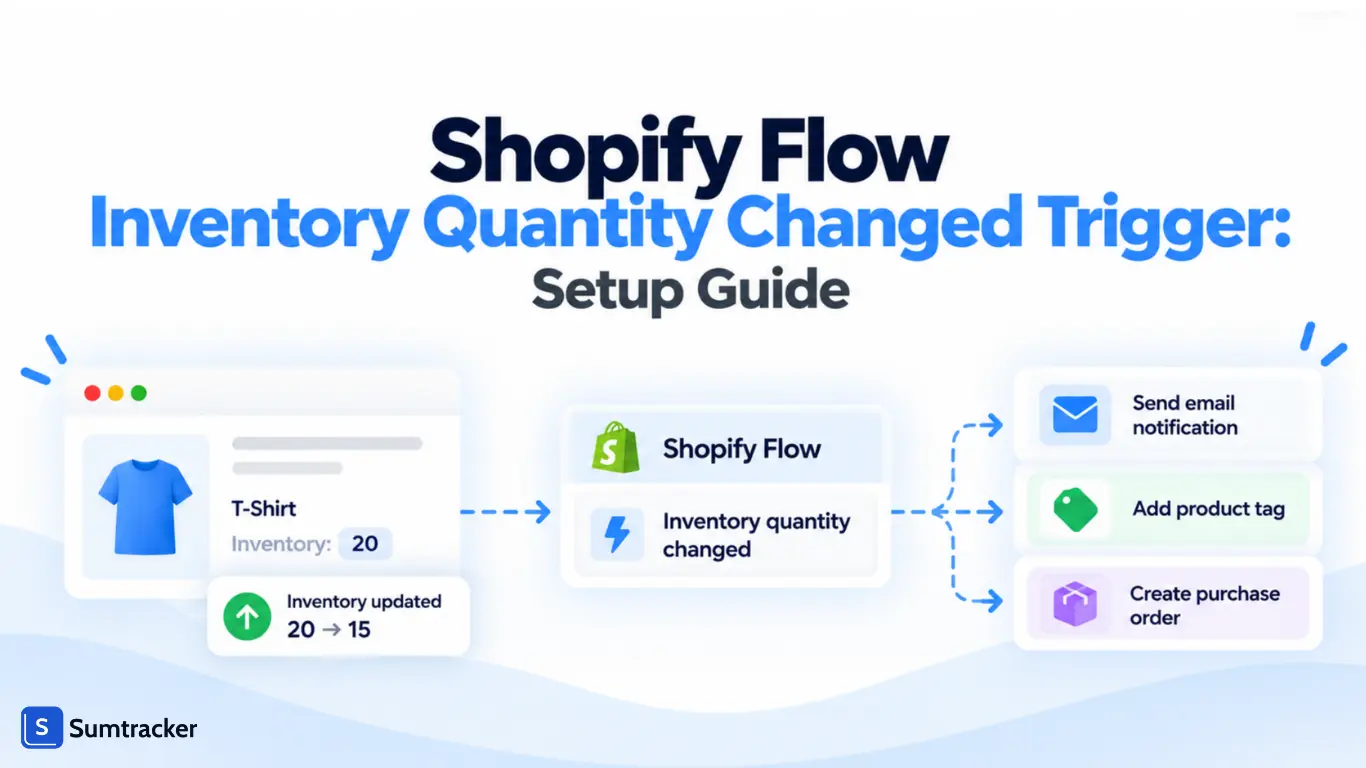
Shopify Flow Inventory Quantity Changed Trigger: Setup Guide


Looking for the Inventory quantity changed trigger in Shopify Flow but can’t find it?
You’re not alone.
Shopify has renamed it to Product variant inventory quantity changed, and it still works the same way.
This trigger helps you automate inventory management by responding to stock changes, whether caused by a sale, a restock, or a manual adjustment.
You can use it to set up low-stock alerts, notify your team when inventory reaches a specific threshold, and reduce the risk of running out of stock.
In this guide, you’ll learn how the trigger works, how to set it up in Shopify Flow, and how to use inventoryQuantityPrior to prevent repeated low-stock alerts.
We’ll also cover practical workflow examples, multi-location inventory considerations, common troubleshooting tips, and best practices for reliable inventory automation.
What Is the Shopify Flow Inventory Quantity Changed Trigger?
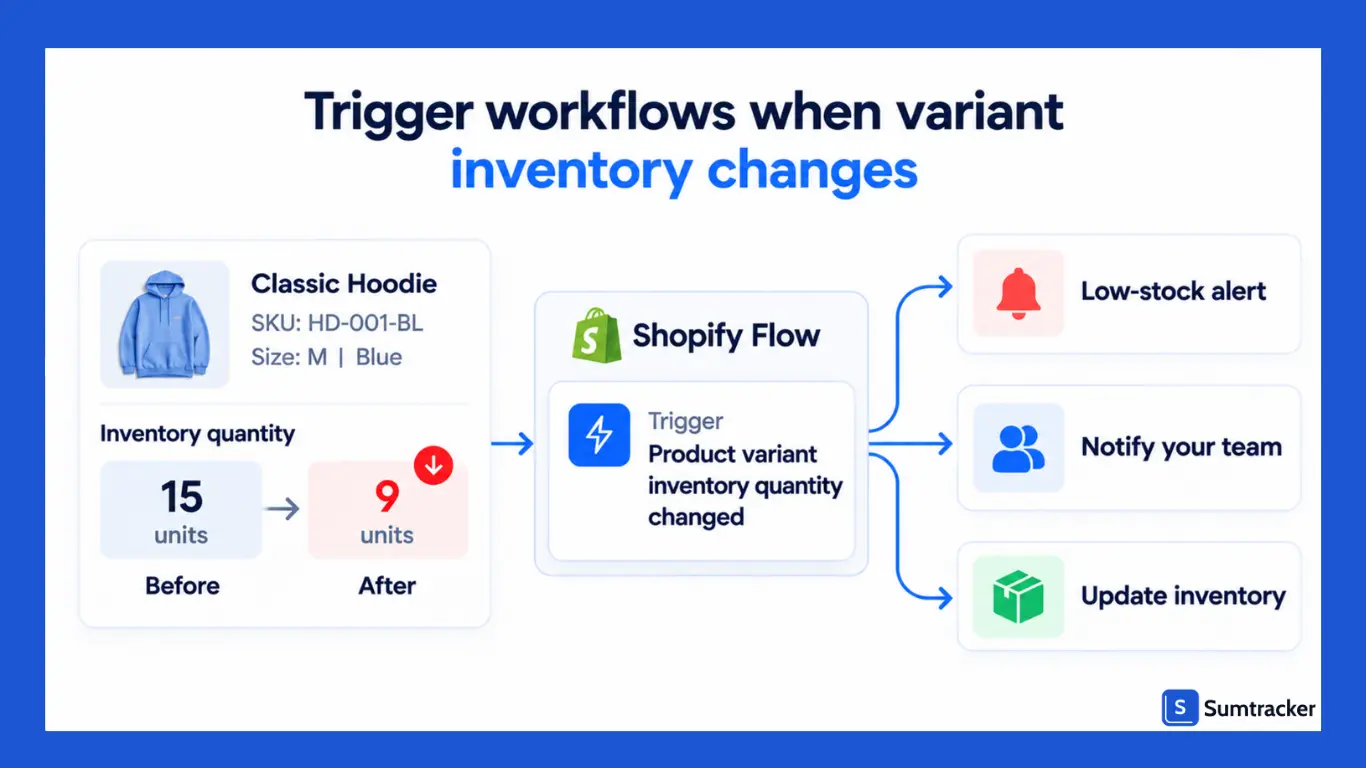
The Shopify Flow Product variant inventory quantity changed trigger is an event trigger that starts a workflow whenever the inventory quantity of a product variant changes in Shopify.
It detects stock changes, such as a quantity decreasing after a sale or increasing after a restock, and makes the current and previous quantities available for use in workflow conditions.
Merchants can use it to automate inventory-related tasks, such as sending low-stock alerts, notifying their team about stock changes, or responding when a variant reaches a specific inventory threshold.
Shopify previously called this trigger Inventory quantity changed, so older tutorials and forum posts may still use its former name.
What data does the trigger provide?
Each time the trigger starts a workflow, it provides three key pieces of data:
For example, you can compare productVariant.inventoryQuantity with inventoryQuantityPrior to send an alert when a variant’s stock drops from above 10 units to 10 or fewer.
Four things to know before using the trigger
- It works at the variant level. A hoodie in Small, Medium, and Large has three separate variants. Each variant can trigger its own workflow run when its inventory quantity changes.
- It can run when inventory tracking is disabled. Shopify confirms that this trigger can fire even when inventory tracking is turned off. If you’re using it for low-stock alerts, account for this behavior to avoid unnecessary notifications.
- Draft orders don’t immediately change inventory. Creating a draft order does not reduce inventory in the same way as a completed order. Inventory changes when the draft is converted into an order, and the relevant inventory is committed.
- It focuses on product variants. If you want a workflow to start when an inventory item is created, Shopify provides a separate Inventory item created trigger.
Why does this trigger matter?
Stockouts cost you the sale, not just the item.
In DHL's 2026 E-commerce Trends Report, 68% of U.S. online shoppers said they abandon carts because products are out of stock or unavailable, the top reason in the survey.
This trigger is the native way to catch low stock before a customer lands on a sold-out page.
You can use it to send low-stock alerts, notify your team when a variant approaches its reorder point, or start other workflows before inventory runs out.
For merchants selling across multiple channels, timely alerts can also help identify replenishment needs before low inventory becomes a stockout.
How to Set Up the Product Variant Inventory Quantity Changed Trigger
You can use the Product variant inventory quantity changed trigger to create low-stock alerts in Shopify.
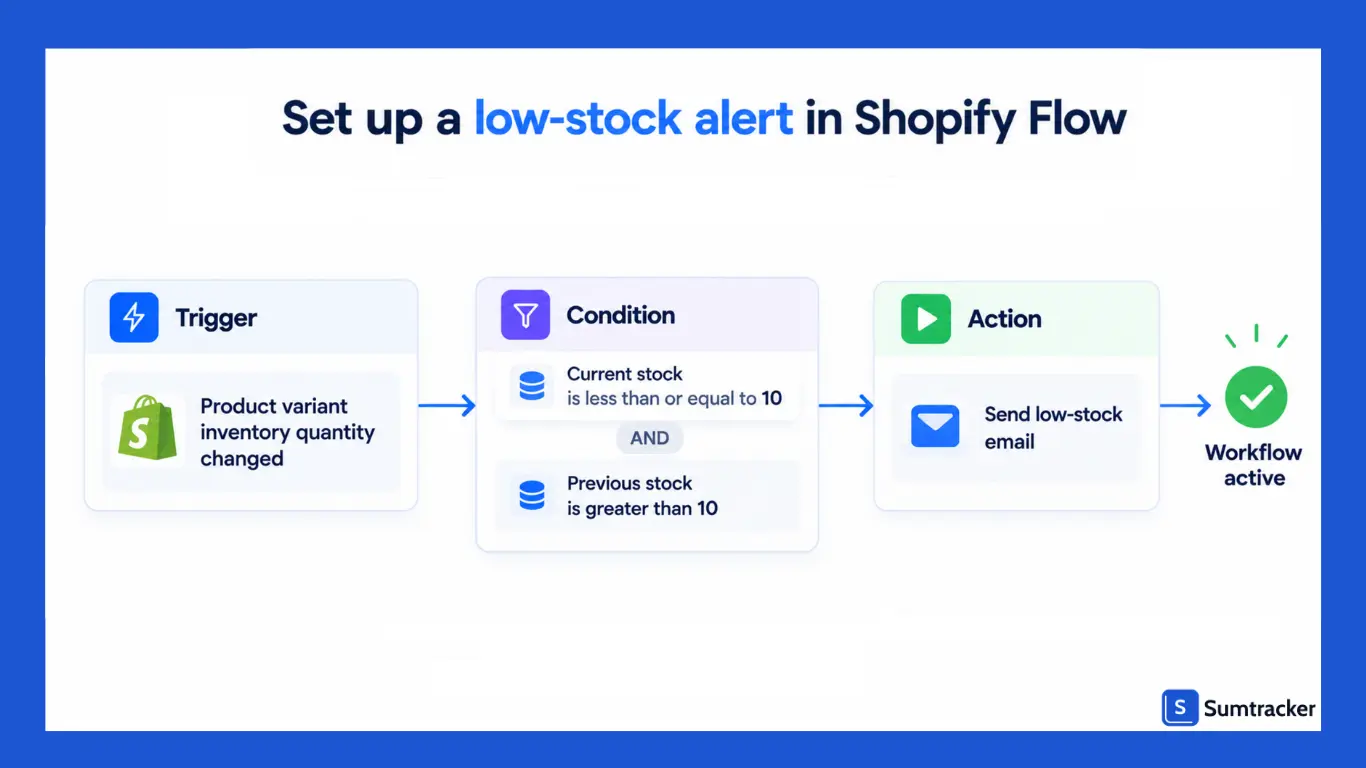
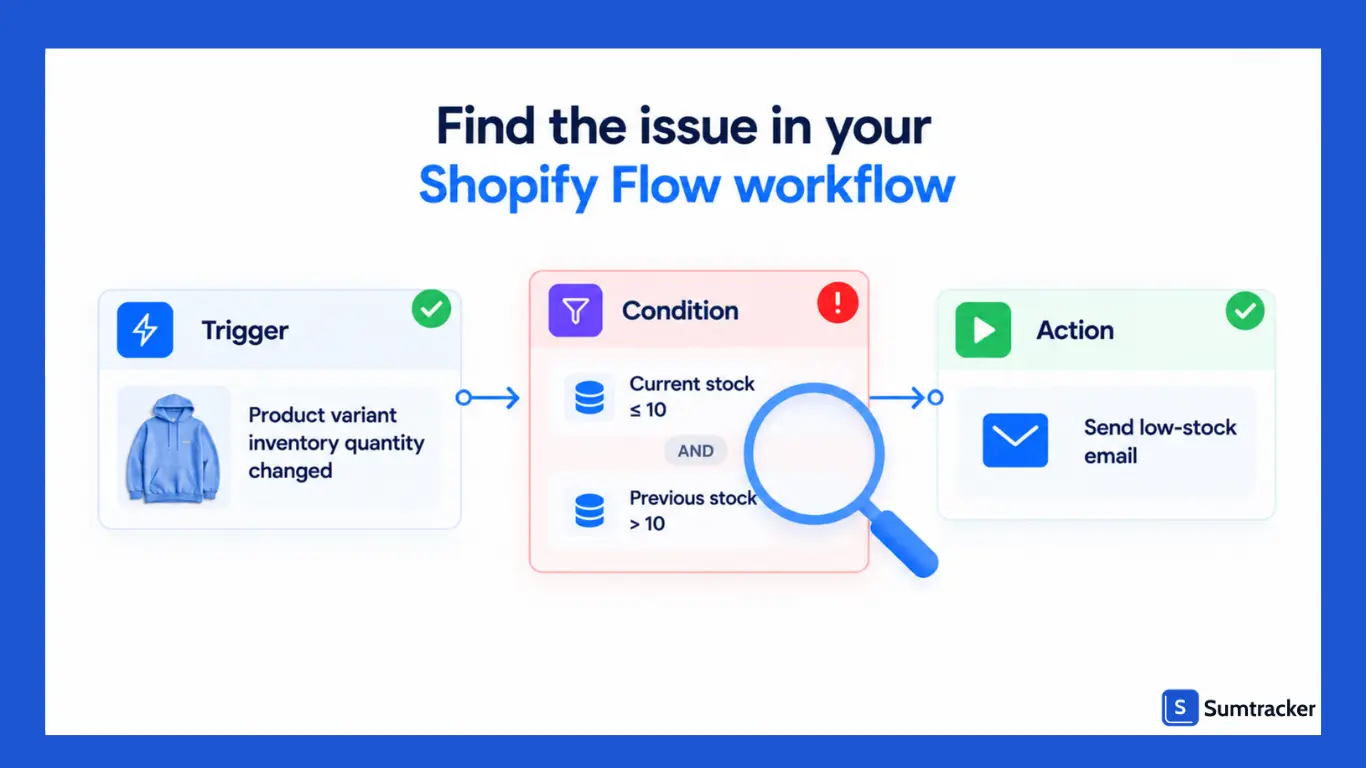
The example below sends an email when a product variant's inventory drops from above 10 units to 10 or fewer, so you receive one alert when the threshold is crossed rather than repeated alerts while stock remains low.
Before you start
- Install the free Shopify Flow app from the Shopify App Store.
- Enable inventory tracking for the products you want to monitor.
- Choose a stock threshold. We’ll use 10 units as an example.
Step-by-step setup
- Open Shopify Flow. In your Shopify admin, go to Apps → Flow and select Create workflow.
- Choose the trigger. Click Select a trigger, search for “inventory quantity,” and select Product variant inventory quantity changed.
- Set the current inventory condition. Add a Condition and set Product variant → Inventory quantity to less than or equal to 10.
- Check the previous quantity. Add an AND condition requiring inventoryQuantityPrior to be greater than 10. This ensures the workflow responds to a threshold crossing rather than every inventory change while stock is already low.
- Add an action. On the True branch, choose Send internal email or another suitable action, such as sending a Slack message or adding a product tag.
- Customize the alert. Include the product name, variant, SKU, and current and previous quantities so your team can quickly identify the item.
- Name the workflow. Use a descriptive name, such as “Low-stock alert: 10 units.”
- Test and activate it. Test the workflow, activate it, and then change the inventory of a test variant. Check Recent runs to confirm that it behaves as expected.
You can use this email template for the alert:
Select the relevant variables from Flow's variable picker to ensure they match the fields available in your workflow.
Build the workflow faster with Sidekick
Shopify’s AI assistant, Sidekick, can help create Flow workflows from plain-English instructions. Open Flow, select the Sidekick icon, and describe the automation you want. For example:
Email me when a product variant’s inventory drops to 10 or fewer units for the first time.
Review the generated workflow in the Flow editor before activating it. Check that it uses the correct trigger, applies the intended comparison operators, and includes the inventoryQuantityPrior condition to detect the threshold crossing. The workflow won’t run until you activate it.
Shopify also reported on its Q1 2026 earnings call that nearly half of the Flows generated during the quarter were built with Sidekick, highlighting its growing role in workflow creation.
Practical tip: You may not need to start from scratch. Search Flow’s template library for “Get notified by email when product variant inventory is low.” If the template is available in your store, use it as a starting point and adjust the threshold, recipient, and conditions to match your needs.
How to Use inventoryQuantityPrior in Shopify Flow?
inventoryQuantityPrior is the variant's inventory quantity before the change that triggered the workflow.
Compare it with productVariant.inventoryQuantity, which gives the current quantity, to see how stock changed and whether it crossed a threshold.
Why you need it
Suppose your only condition is that inventory is less than or equal to 10. If stock drops from 11 to 10, Flow sends an alert. When it drops from 10 to 9, it sends another, and the same happens at 8, 7, and so on.
To avoid repeated alerts, add a condition requiring inventoryQuantityPrior to be greater than 10. The alert then fires only when stock first drops from above 10 to 10 or fewer. Further decreases won't trigger another alert until stock rises above 10 and crosses the threshold again.
Five things inventoryQuantityPrior can help you detect
Here, T is your inventory threshold, prior is inventoryQuantityPrior, and now is productVariant.inventoryQuantity.
Calculate how much inventory changed
Shopify Flow provides the previous and current quantities, but not their difference as a separate value. You can calculate the change using Liquid's minus filter in an email or another action that accepts text:
A negative result means stock decreased; a positive result means it increased.
Another use: keep the old value on the variant
Shopify's storefront Liquid typically exposes current inventory information rather than the previous quantity from a stock change.
One possible workaround is to save inventoryQuantityPrior to a variant metafield using the Update product variant metafield action. A theme can then read that metafield to display information such as a “just restocked” badge.
Keep in mind that the metafield stores the value written by your workflow. You'll need to test the workflow and theme together to make sure the value is updated and displayed as intended.
Tip: Avoid using an exact-equality condition for inventory thresholds. If stock drops from 12 to 8 in a single change, a condition checking whether stock equals 10 will miss it. Instead, use current quantity less than or equal to the threshold and previous quantity greater than the threshold to detect when stock crosses into the low-stock range.
Common Condition Logic Patterns for Inventory Thresholds
Most inventory workflows built on this trigger use one of five condition patterns. Pick the simplest one that fits your catalog.
How to set a threshold that actually works
A round number like 10 is easy, but it ignores how fast you sell and how long restocking takes. A better threshold is your reorder point: the stock level at which you should place a new order so it arrives before you run out.
Reorder point = (average daily sales × lead time in days) + safety stock
Example: a variant sells 4 units a day, your supplier takes 12 days to deliver, and you keep 15 units of safety stock. Your reorder point is (4 × 12) + 15 = 63 units. Set that variant's Flow threshold to 63, not 10.
For a deeper walkthrough of reorder points and safety stock, see Sumtracker's guide on how to prevent out-of-stocks on Shopify.
For a visual walkthrough, P3 Media's Shopify Flow inventory alerts tutorial demonstrates the setup using the trigger's older name, Inventory quantity changed.
Tip: Product tags such as fast-mover and slow-mover can help you apply different thresholds within a workflow. Review your thresholds regularly, especially before peak sales periods, when demand and lead times may change.
Practical Shopify Flow Inventory Automation Examples
Once you've set up the trigger and conditions, you can use them for several inventory tasks. Shopify's Flow template library also offers starting points for some common workflows.
Inventory workflows are also some of the most underused. In MESA's Q1 2026 analysis of Shopify automations, only 3.2% of the 897 workflows merchants built in MESA, a third-party automation app, were stock-aware, such as low-stock or backorder alerts.
That's well behind tagging, at 14.4%. If you don't have one running yet, you're not alone, and the setups below are a quick win.
The exact setup depends on your store and the actions available in Flow. For workflows involving multiple variants or locations, make sure the conditions check the right inventory data before changing product status.
Two examples in detail
1. Add and remove low-stock tags automatically
Create a workflow that adds a low-stock tag when inventory crosses below your threshold and removes it when stock recovers above that threshold. You can then use the tag in your store's collections or other workflows.
2. Notify a supplier when stock reaches the reorder point
Set a condition for the reorder threshold and add a vendor check so the workflow applies to the relevant supplier's products. Include the SKU and current quantity in the email.
This workflow sends a notification; it does not automatically create a purchase order or track incoming inventory unless you connect it to a suitable system that supports those actions.
Case study: Eeveve stops overselling shared stock with Flow
Eeveve, a Shopify Plus brand selling play mats, offers each mat in several sizes. Every size is cut from the same base material, but Shopify treats each variant as its own independent stock.
That meant larger sizes could sell even when there wasn't enough material left, and the team was fixing counts by hand after orders.
Shopify agency Webrex rebuilt the logic inside Flow, as described in its Eeveve case study:
- Trigger: Order created.
- Logic: A Run code step works out how much base material the order used and recalculates availability for every size.
- Action: An Admin API call (inventoryAdjustQuantities) updates all related variants in one step.
Webrex reports zero overselling incidents and no manual inventory corrections after launch.
Alternative Inventory Triggers in Shopify Flow: Quantity Changed vs. Back in Stock vs. Out of Stock
Shopify Flow offers two triggers for specific stock changes: Product variant out of stock and Product variant back in stock.
Unlike the quantity changed trigger, these focus on whether a variant has stock available.
Use them when you only need to detect a sellout or restock; use Product variant inventory quantity changed for custom thresholds.
Shopify's own changelog note on the two newer triggers gives the same advice. Use them when location doesn't matter, and you only need in-stock or out-of-stock. Keep using the quantity changed trigger for low stock or location-based logic.
A fourth option: scheduled checks
If you want a daily stock report rather than an alert every time inventory changes, use the Scheduled time trigger with the Get product data action. Shopify provides a template called Send daily email summary with out-of-stock products.
The Get product data action returns up to 100 items per run, according to Shopify's documentation. If your catalog is larger, narrow the query, for example, by vendor or product tag to keep the results manageable.
Rule of thumb: If the number you care about is zero, use out of stock or back in stock. If it's any other number, or a specific location, use quantity changed. If you want one su
mmary instead of many alerts, use a scheduled workflow.
Multi-Location Inventory Considerations
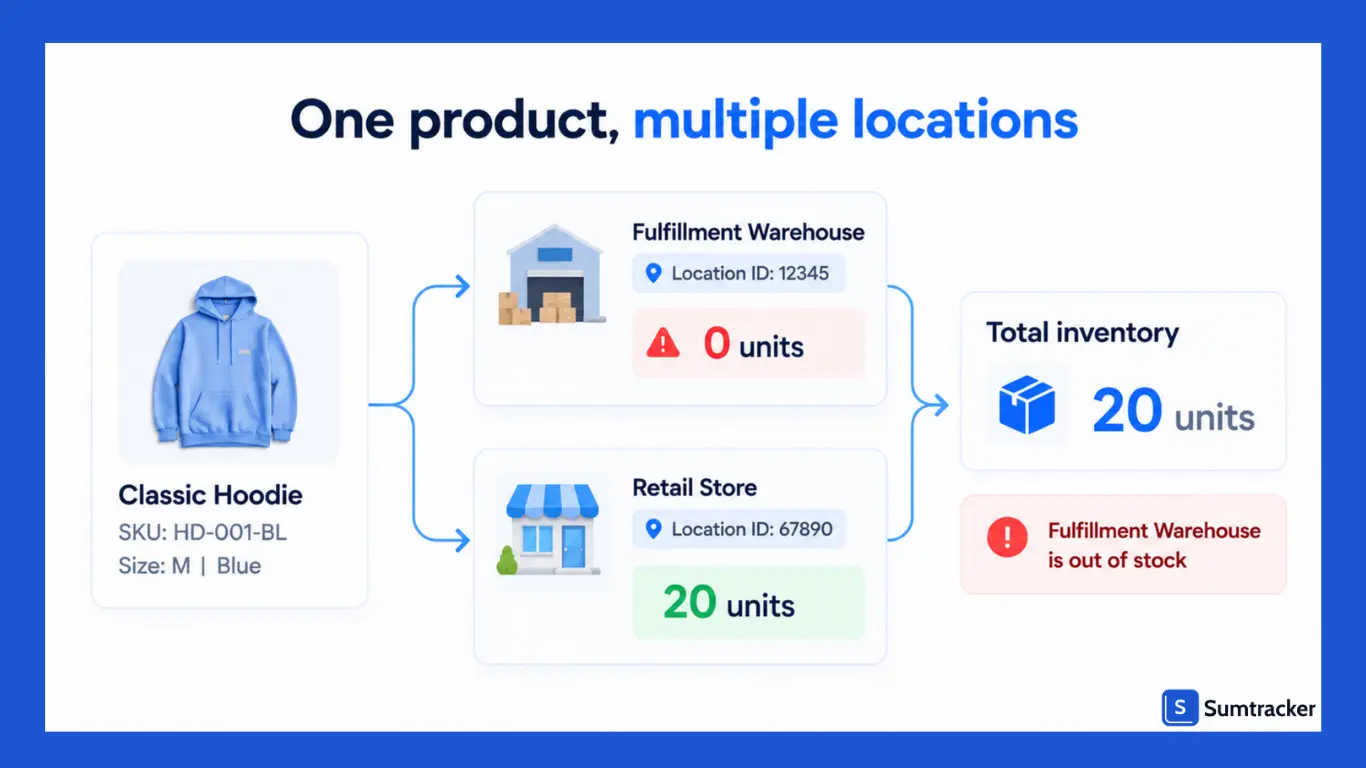
The trigger works at the variant level, and its data doesn't tell you which location changed. If you stock products in more than one place, a workflow that only checks the variant's quantity can miss real problems.
Check inventory at a specific location
Suppose a product has 0 units in the warehouse that fulfills online orders and 20 units in a retail store. Total stock may look sufficient, but the fulfillment warehouse has already run out.
In Shopify Flow, you can check location-level inventory using:
- productVariant / inventoryItem / inventoryLevels / available — available quantity at a location.
- productVariant / inventoryItem / inventoryLevels / location / id — identifies the location.
Use For at least one of inventoryLevels to check that the location matches your warehouse and its available quantity is at or below your threshold. Matching by location ID is more reliable than matching by name if locations are renamed.
Shopify's Flow templates include examples such as Send Slack message when variant inventory is out of stock at a certain location. Check the template library for a suitable starting point.
A limitation to keep in mind
Shopify doesn't provide a location-specific previous quantity through inventoryQuantityPrior. As a result, a workflow may run again when inventory changes elsewhere, even if the warehouse you're monitoring remains below its threshold.
One workaround is to use a product tag such as low-warehouse as an alert flag: send the alert and add the tag if it isn't already present, then remove it when stock recovers.
Important: Product tags aren't location-specific. If you monitor several warehouses, a single tag may not reliably track each location's alert status. Test the workflow carefully before relying on it.
Limitations of the Inventory Quantity Changed Trigger
The Product variant inventory quantity changed trigger is useful for rule-based alerts, but it has limits. Understanding them helps you avoid workflows that generate too many alerts or can’t support your inventory process.
One limit sits outside Flow entirely: the trigger trusts whatever number Shopify holds.
ECR Retail Loss research notes that over sixty percent of retail inventory records contain inaccuracies. If your counts are off, your alerts will fire too early, too late, or not at all, so regular cycle counts matter as much as clean conditions.
Sources: Shopify Flow troubleshooting, Shopify Flow overview, and Send HTTP request.
What’s improving
In May 2026, Shopify introduced the Get analytics data action, which lets workflows query Shopify analytics using ShopifyQL. You can use the results in subsequent conditions and actions, for example, to send reports or respond to sales trends. However, you still need to define the conditions and thresholds for your workflow.
Note that Get analytics data only works with the Scheduled time trigger, so you can't add it to a workflow that starts with the inventory quantity changed trigger. Use it in a separate scheduled workflow instead.
Troubleshooting Common Shopify Flow Inventory Trigger Issues
If a workflow doesn’t behave as expected, start with Apps > Flow > Recent runs.
Review the run details to see which conditions passed, where the workflow stopped, and whether an action failed.
Slow or throttled runs aren’t always caused by the workflow you’re looking at.
Every active workflow shares your store’s Flow resources, so old ones you’ve forgotten about can drag down the rest.
On the Underdog Ecom podcast episode “How We Use Shopify Flow”, hosts Jack and David walk through the 50+ Flows they run and warn about exactly this: “zombie” flows that quietly slow a store down.
If your inventory alerts start lagging, check your full workflow list, not just the alert itself.
Check email actions before activating a workflow
If you’re using Sidekick to generate a workflow, review its email steps before activation. Shopify Engineering reported that email workflows accounted for 25% of failures in its evaluation of Sidekick’s workflow generation.
This statistic refers to the generator’s failures during Shopify’s own testing, not to all email workflows built in Shopify Flow. Shopify has since added email-specific training examples to address the gap, but a quick review before activation is still good practice.
Check that the recipient addresses and subject are correct and that the variables in the email body return the expected values.
Tools that help with debugging
- Test workflow: Test with sample event data before activation to check the workflow’s behavior.
- Retry failed runs: After fixing the underlying issue, you can manually retry eligible past runs.
- Workflow error notifications: Use the Workflow error occurred trigger to notify your team when a workflow fails. Shopify limits this to one notification per workflow version within 30 days, so it won’t send an alert for every failed run.
- Templates: Shopify provides templates such as Get notified by email when workflow run errors are detected.
Practical tip: Set up workflow error notifications for automations that affect stock availability or customer communication. A failed workflow can otherwise go unnoticed until someone checks the run history.
Best Practices for Reliable Inventory Automation
Reliable inventory workflows share a few habits. They fire once, they reach the right person, and someone checks them before peak season.
- Detect threshold crossings. Use inventoryQuantityPrior alongside the current quantity to avoid repeated alerts while stock remains below a threshold.
- Filter out irrelevant products. Check whether inventory tracking is enabled and, where appropriate, whether the product is active before sending alerts.
- Use branches instead of duplicating workflows. Combine related conditions and actions where practical. Shopify warns when more than 10 active workflows use the same trigger.
- Use clear workflow names. Names such as “Low stock: fast movers at 25” make each workflow's purpose obvious.
- Send alerts to a shared channel. Use a team inbox or Slack channel so notifications remain accessible when team members are unavailable or change roles.
- Match locations by ID. For location-specific workflows, use location IDs rather than names, which can change.
- Test before every sales event. Run a test run, then adjust a test variant's stock and confirm the alert arrives.
- Turn on error alerts. Use the Workflow error occurred trigger so a broken workflow doesn't fail silently.
- Audit your workflows regularly. Deactivate or delete workflows nobody uses anymore.
Conclusion
Shopify Flow’s Product variant inventory quantity changed trigger makes inventory management easier by automating low-stock alerts, restock notifications, and other stock-related tasks.
By combining the current inventory quantity with inventoryQuantityPrior, you can detect threshold crossings, reduce repeated alerts, and respond to stock changes more efficiently.
For reliable results, set thresholds based on your reorder points, account for multi-location inventory, and test each workflow before activating it.
Whether you manage a small catalog or a large Shopify store, the right inventory automation can help your team stay informed, replenish stock on time, and reduce the risk of stockouts.
Start with a simple low-stock alert, then expand your workflows as your inventory needs grow.
Frequently Asked Questions About the Inventory Quantity Changed Trigger
1. What is the Shopify Flow Inventory Quantity Changed trigger?
The Product variant inventory quantity changed trigger in Shopify Flow starts a workflow whenever a product variant's inventory quantity changes. It can be used to automate low-stock alerts, restock notifications, inventory tagging, and other stock-related tasks.
2. How do I set up low-stock alerts in Shopify Flow?
Create a workflow using the Product variant inventory quantity changed trigger, set your inventory threshold, and add an email or notification action. Use inventoryQuantityPrior to avoid repeated alerts.
3. What is inventoryQuantityPrior in Shopify Flow?
It represents the inventory quantity before the change that triggered the workflow. Comparing it with the current quantity helps detect threshold crossings, stock increases, and sellouts.
4. How can I prevent repeated low-stock alerts in Shopify Flow?
Set a condition requiring the previous inventory to be above your threshold and the current inventory to be at or below it. This triggers an alert when stock crosses the threshold rather than on every subsequent sale.
5. Why is my Shopify Flow inventory workflow not working?
Check that the workflow is active, review Apps → Flow → Recent runs, and verify that your trigger and inventory conditions are configured correctly. For location-specific alerts, check your location-level inventory conditions.
Conclusion

Bhoomi writes about inventory management and multichannel selling at Sumtracker. Her focus is on solving real operational problems for Shopify, Amazon, and marketplace sellers through well-researched content. She covers everything from multi-location inventory syncing and stock error troubleshooting to replenishment planning and platform comparisons, turning complex eCommerce operations into clear, actionable guidance.
LinkedInRelated Articles
Tool and strategies modern teams need to help their companies grow.
.avif)
.avif)
.avif)
Ready to Simplify Your Inventory Management?
Join hundreds of e-commerce merchants who rely on Sumtracker to save time, eliminate errors, and grow their business.
