.svg)

Inventory Shrinkage Prevention for Shopify: Stop Stock Loss



Inventory shrinkage prevention on Shopify involves tracking physical stock against recorded inventory, documenting losses, and identifying discrepancies.
- Measure it: Shrinkage rate = (On hand − counted units) ÷ On hand × 100. Shopify won't calculate it for you.
- Record it: use Shopify's built-in Theft or loss and Damaged reasons; unlabelled adjustments hide the cause.
- Review it: 15 minutes a week in Shopify's inventory adjustment reports shows who changed stock and why.
Integrating Sumtracker, an inventory management software, with Shopify helps businesses identify discrepancies faster, making shrinkage prevention easier and more efficient.
If your Shopify admin says 260 tote bags and the shelf holds 251, those nine units didn't vanish without a trace. They left a record somewhere: a manual edit, an unreceived transfer, a return restocked without inspection, or a stock loss that was never recorded.
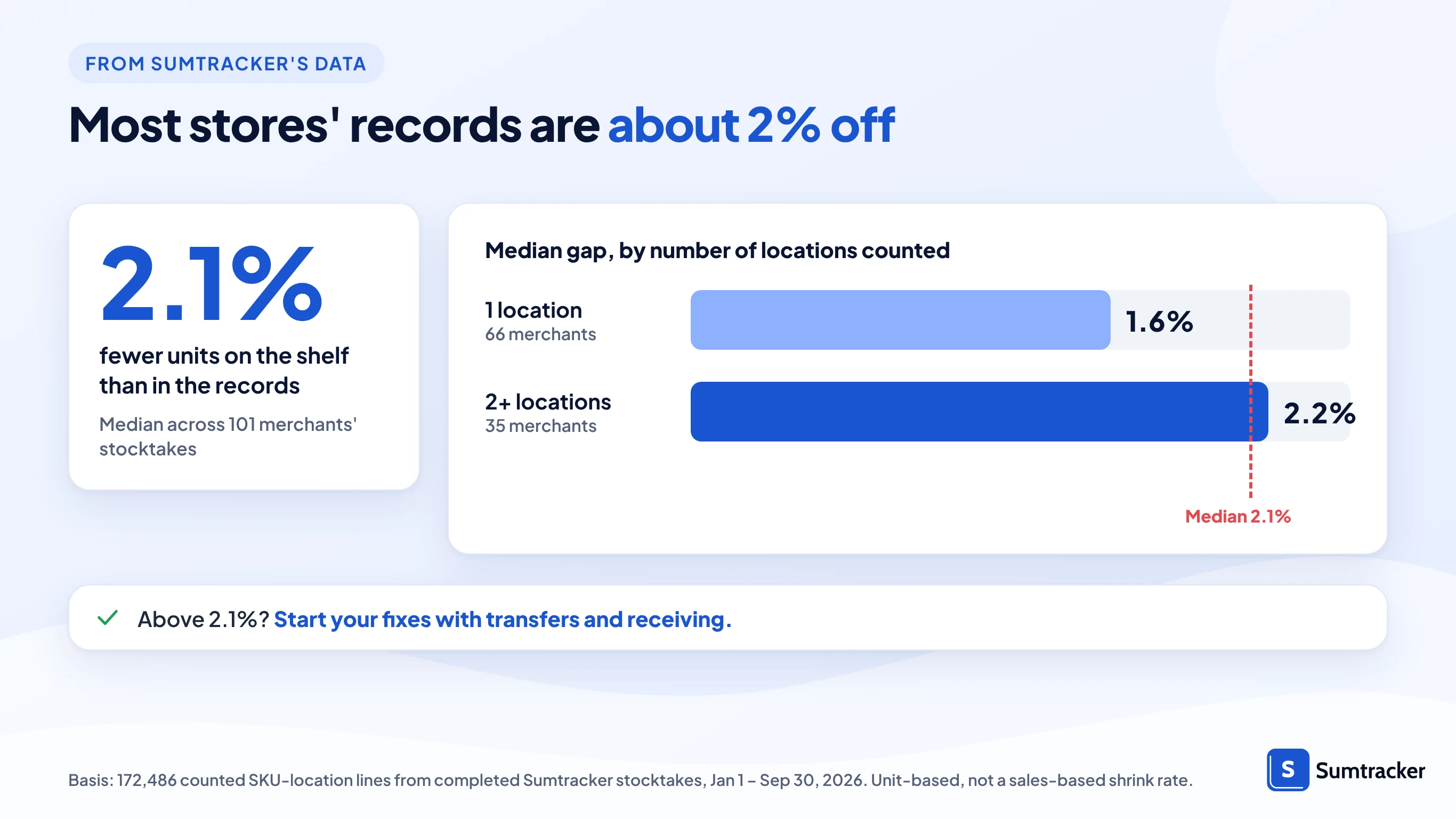
Retail shrinkage is a wider retail problem, too. According to the National Retail Federation's 2023 National Retail Security Survey, average U.S. retail shrink reached 1.6% of sales in fiscal 2022, representing an estimated $112.1 billion in losses.
This guide shows Shopify merchants how to measure inventory shrinkage, investigate discrepancies, and prevent losses across their online store and Shopify POS.
How to calculate your Shopify shrinkage rate from an On hand count?
Your inventory shrinkage rate measures the share of recorded stock that you can't account for during a physical count. Compare your actual inventory with Shopify's On hand quantity for the same product, location, and point in time.
Use On hand rather than Available because On hand includes Available, Committed, and Unavailable inventory, while Available only represents stock that can be sold.
Shrinkage rate = (Shopify On hand − Counted units) ÷ Shopify On hand × 100
Before you start: Shopify only keeps adjustment history for products with Inventory tracked turned on.
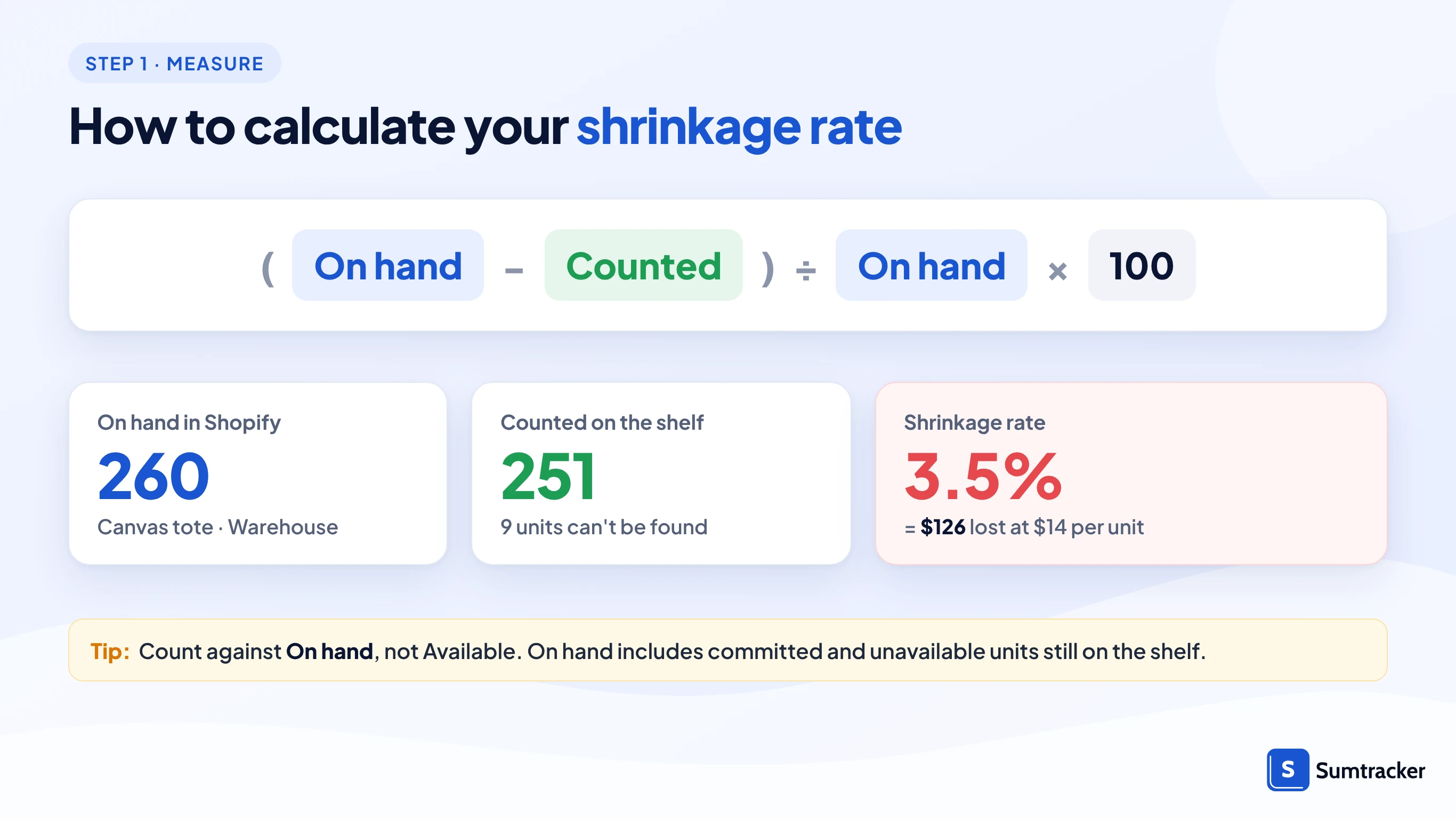
If you count more than On hand: the rate turns negative. Don't net those extra units against your losses. An overage often points to administrative errors, such as an unrecorded delivery, a return that was never restocked, or a transfer assigned to the wrong location. Trace the issue in the adjustment history before correcting it with the reason "Count".
Unit shrinkage shows how much stock is unaccounted for; multiplying missing units by Shopify’s Cost per item estimates the financial loss. Our Shopify inventory audit checklist helps you track both after each full count.
If you use Sumtracker for stocktakes, you can compare counted and expected quantities by SKU and location, making discrepancies easier to spot during a physical count.
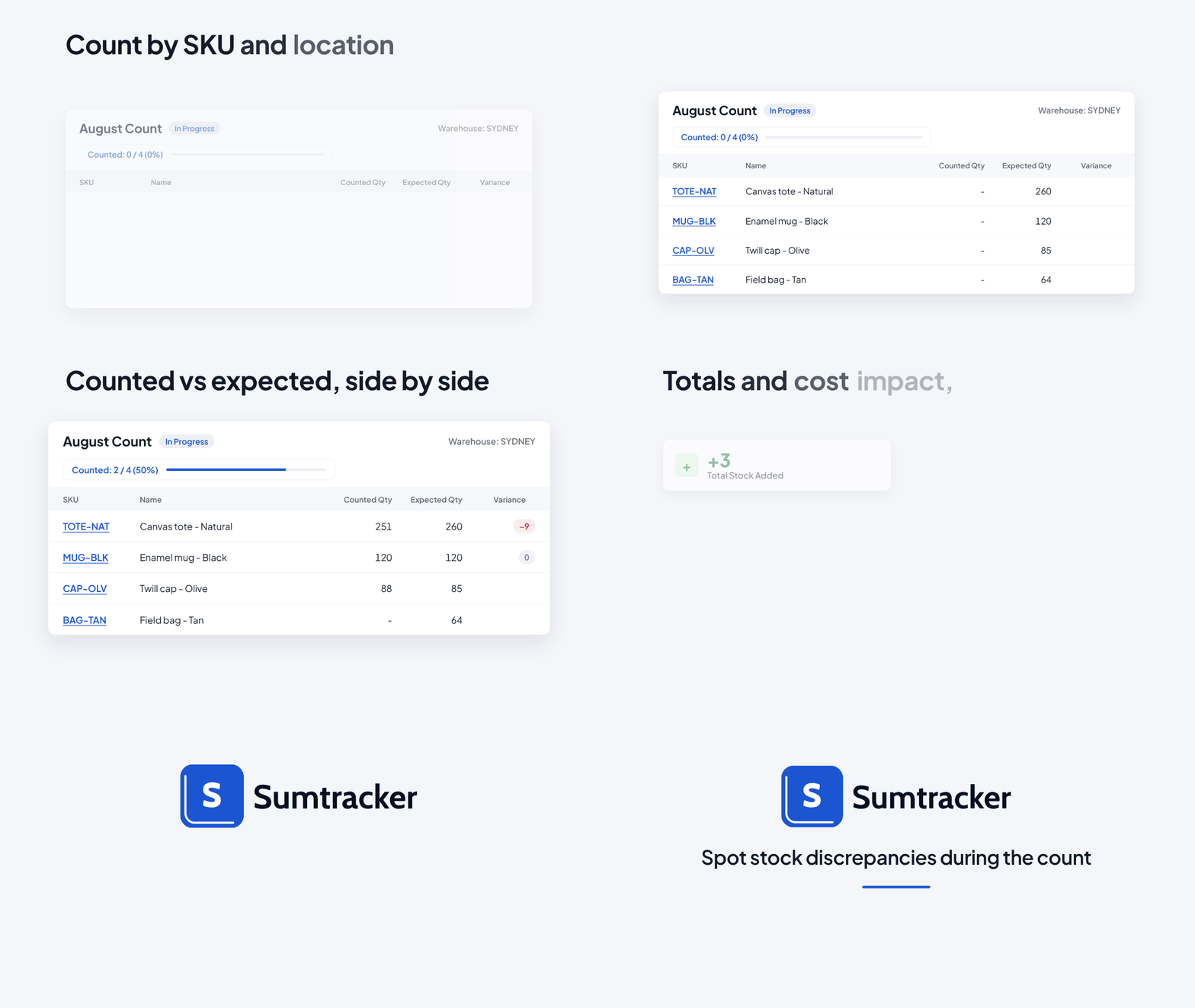
Where to get each input in Shopify:
- Go to Products → Inventory in your Shopify admin and select the location.
- Note or export the On hand column for the SKUs you'll count, right before counting.
- Freeze stock movements at that location while you count: pause fulfillment, receiving, returns, transfers and, if you can, POS sales.
- If you can't pause, note the count's start and end time, then reconcile every movement in that window from the product's adjustment history.
- Enter the count next to On hand and calculate the gap per SKU.
Why this matters: from October 1, 2026, Shopify's inventory reports measure stock by On hand instead of Available, according to Shopify's inventory reports documentation. Counting against On hand keeps your numbers comparable with Shopify's own reports. Report data from before that date still shows Available, so don't compare old and new figures directly.
Plug your own counts into the tracker below; it uses the same formula as this guide.
Where Shopify stores lose stock: 6 causes and the record each one leaves
Shrinkage on Shopify comes from six places, and each one leaves a different trace in your adjustment history. Knowing the trace helps you identify inventory errors and investigate discrepancies before assuming theft.
One look-alike isn't shrinkage at all: overselling can also push stock negative, so check orders before assuming loss.
Common mistake: moving stock with two manual adjustments instead of a transfer. It makes one location look like it lost units, and it pollutes the history you'll later use to investigate. Our guide to moving inventory between Shopify locations covers the transfer flow.

Record every loss with Shopify's 7 adjustment reasons
Shopify lets you attach a reason to every inventory change, and two of them, Theft or loss and Damaged, exist specifically for shrinkage. The full list is Correction, Count, Damaged, Promotion or donation, Received, Return restock, and Theft or loss, per Shopify's adjusting inventory guide.
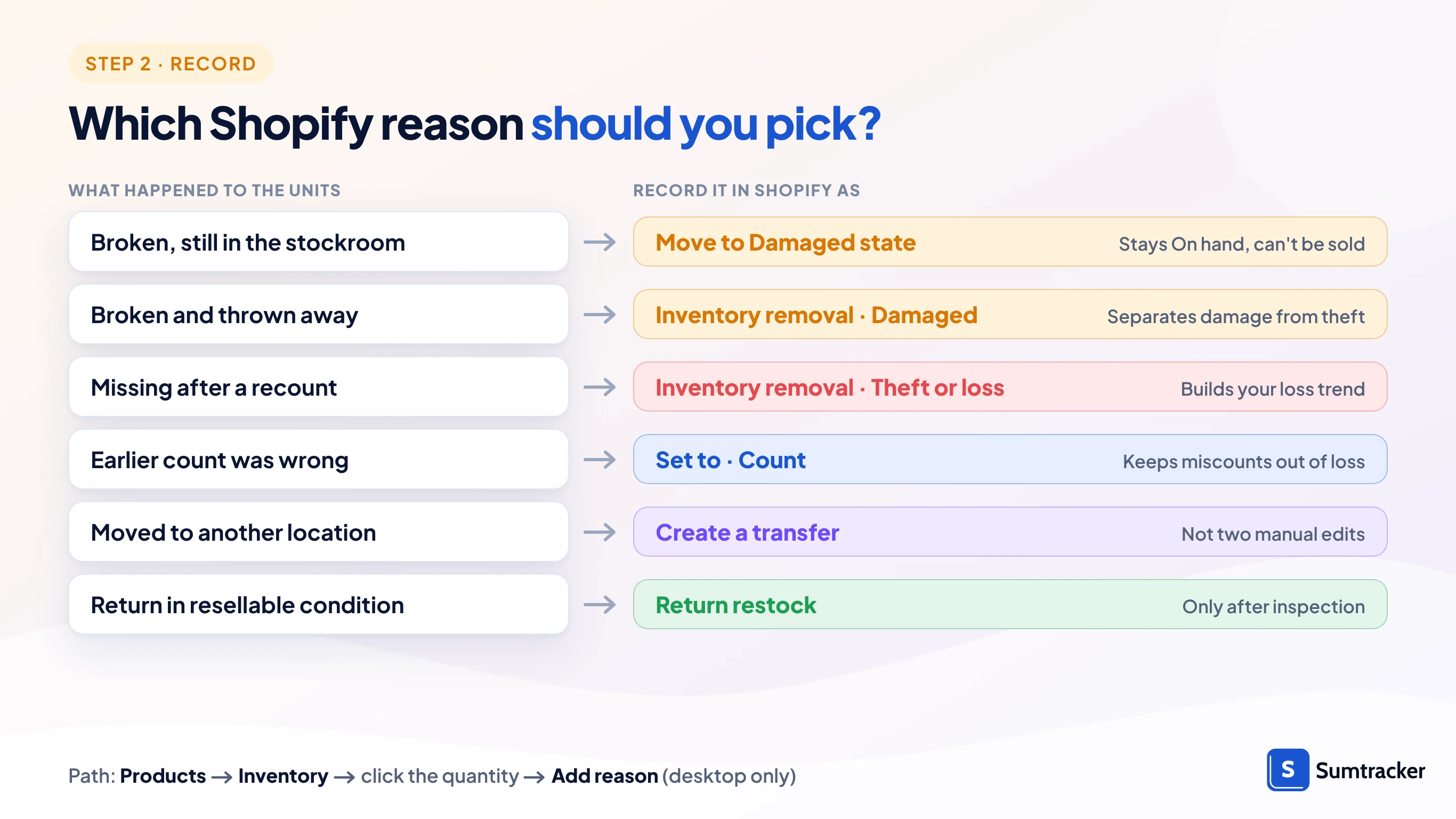
To record units you've confirmed are lost:
- Go to Products → Inventory and choose the location.
- Click the SKU's Available or On hand quantity.
- Switch Set to to Adjust by and enter the quantity.
- Choose your location as the origin and Inventory removal as the destination.
- Click Add reason, pick Theft or loss or Damaged, click the check icon, then Save.
Damaged state vs. Damaged reason:
- Moving units to the Damaged state (origin: your location, destination: Damaged) keeps them On hand but stops them selling, which is right while they're still on your shelf.
- When you throw them away, remove them from the Damaged state (origin: Damaged, destination: Inventory removal, reason Damaged).
- Removing them from your location instead leaves the Damaged count showing units you no longer have.
After a count where the gap is a counting error, use Set to with the reason Count. That keeps miscounts out of your theft-and-loss figures.
Common mistake: fixing counts in the bulk editor. Shopify notes that the bulk editor doesn't record inventory movements, and Add reason isn't available in the Shopify mobile app. Make shrinkage adjustments on desktop, from the Inventory or product page.
Find who changed stock in a 15-minute weekly adjustment review
Shopify answers "who changed this and why" in two reports under Analytics → Reports (filter Category to Inventory): Inventory adjustment changes and Inventory adjustments by count.
- Open Inventory adjustments by count for the last 7 days and group by staff member and reason.
- Flag any account with many adjustments and no reason, or adjustments outside working hours.
- Open Inventory adjustment changes, filter to the reasons Theft or loss and Damaged, and note SKUs that repeat.
- Check the Transfers page for transfers still open or partly received after a week.
- For any SKU you're investigating, open the product, then View adjustment history for its timeline.
The product-level history only covers the last 180 days; the adjustment reports go further back, per Shopify's adjustment history page.
Rule of thumb: a shared login makes this review useless. If one account appears on most adjustments, fix staff access (next sections) before investigating potential employee theft.
How Sumtracker helps prevent inventory shrinkage?
Shopify's adjustment history is useful for investigating individual stock changes. When you manage inventory across multiple locations or sales channels, however, tracing discrepancies across those movements can become harder to manage manually.
Sumtracker's inventory management system helps Shopify merchants synchronize stock across channels, manage transfers and purchase orders, and compare expected stock with physical counts. These capabilities help teams spot discrepancies, improve stock accuracy, and build a more consistent inventory audit process.
Shrinkage Prevention Strategies
To reduce inventory shrinkage, focus on handover points, when stock changes hands between a supplier, a location or a customer. Each handover needs a check before the units become sellable.

Receive deliveries against the order, not the invoice
- Open the purchase order or incoming transfer before unpacking.
- Count each SKU and compare it with the ordered quantity to spot short shipments or potential vendor fraud.
- Receive only what's on the dock; Shopify transfers accept full or partial receipt, per Shopify's transfers guide. Supplier deliveries work the same way with Sumtracker purchase orders, which accept partial shipments, so you only receive what actually arrived.
- Move damaged arrivals to the Damaged state and raise the shortfall with the supplier the same day.
Move stock with transfers only
- Create a transfer from the Transfers page, never two manual adjustments.
- Mark it in transit when it leaves; units show as Incoming at the destination.
- Receive at the destination by counting, accepting partial receipt if units are missing.
- Chase any transfer still open after 7 days in your weekly review.
Inspect returns before restocking
- Approve or decline online return requests in the order page; Shopify needs the store owner or the Orders permission to review them, per its returns documentation.
- When the parcel arrives, check tags, parts and serial numbers against the original order.
- Restock only resellable items, with the reason Return restock.
- Move unsellable returns to the Damaged state; when you discard them, remove them from Damaged with the reason Damaged.
Give every staff member their own login and POS PIN
Individual accounts are a simple loss prevention measure on Shopify because every adjustment and POS sale is tied to whoever made it. When staff enter their PIN on Shopify POS, their name is connected to the order, per Shopify's POS staff guide.
- Create a staff account for each person in Settings → Users; retire shared logins.
- Give inventory editing only to people who count, receive or transfer stock.
- On Shopify POS, assign POS roles and set refunds and exchanges to Approval required, so a manager PIN is needed.
- Remove access the day someone leaves.
Honest limit: POS roles only apply at locations with a POS Pro subscription, and Shopify doesn't offer location-specific inventory permissions. Our guide to controlling inventory access in Shopify covers the workarounds.
Get a Shopify Flow alert for negative stock on any plan
Shopify Flow can email or message you the moment a variant's stock drops below zero, which is the earliest sign of a missing unit or a sync problem. Flow has been available on the Basic plan since July 2023, so you don't need Shopify Plus.
- Install Shopify Flow and create a new workflow.
- Choose the trigger Product variant inventory quantity changed.
- Add a condition: the variant's inventory quantity is less than 0.
- Add an action: send an internal email or Slack message with the SKU and location.
- Turn the workflow on, then test it by adjusting a test product.
Why this matters: Flow sees the new quantity, but not who changed it or why. Use the alert to know when to look, and the weekly review to find out who and why. Once negative-stock alerts work, add low inventory alerts in Shopify on the same trigger.

A 30-day inventory shrinkage prevention plan for small Shopify teams
You don't need to fix everything at once. This plan takes a 1–10 person team from no visibility to a weekly routine in four weeks.
Once your stocktake routine is established, managing inventory movements across multiple locations and sales channels can become the next challenge. Sumtracker can help centralize that work, making it easier to coordinate stock levels and investigate discrepancies as your business grows. For a longer rotation once this routine sticks, see our guide to cycle counting in Shopify.
FAQs
Does Shopify track inventory shrinkage automatically?
No. Shopify records every adjustment, with the reason and the staff member or app that made it, but it doesn't calculate a shrinkage rate. You calculate shrinkage by comparing a physical count with the On hand quantity Shopify recorded.
Can I still use Stocky to prevent shrinkage?
No. Shopify says the Stocky app is no longer available after August 31, 2026, and it can't be installed from the Shopify App Store. Shopify's own inventory features in the admin, including adjustments with reasons, transfers and inventory reports, keep working and are where Shopify tells merchants to move.
Is overselling the same as inventory shrinkage?
No. Overselling happens when the same unit is sold twice because stock didn't update in time across channels. Shrinkage is stock that physically disappeared through theft, damage or errors. Both can show as negative stock, so check orders before assuming loss. Syncing stock across every channel, as Sumtracker does, removes the overselling cause.
How often should I count inventory to catch shrinkage?
Count your highest-revenue SKUs every week and the rest on a rotating schedule. A once-a-year count finds losses too late to trace them, because product adjustment history in Shopify only goes back 180 days.
Conclusion
Inventory shrinkage prevention on Shopify starts with measurement: one count against On hand tells you whether shrinkage is a 1% nuisance or a 5% leak. Then fix the handover where your adjustment history shows the gap, and keep the 15-minute weekly review to long after the first numbers improve.
Related Articles
Tool and strategies modern teams need to help their companies grow.
.avif)

.avif)
Ready to Simplify Your Inventory Management?
Join hundreds of e-commerce merchants who rely on Sumtracker to save time, eliminate errors, and grow their business.
