.svg)
How to Avoid Stockouts on Shopify: A Complete Guide for 2026


A stockout rarely looks like a crisis when it happens.
A product page switches to "Sold out," and the customer leaves quietly. Most don't wait.
In a 2026 survey of 1,000 U.S. consumers by DOSS, 45% said they buy from a different retailer when a stockout happens, and 32% temporarily switch to a competing brand (DOSS Stockout Stigma Index).
The good news: most stockouts are predictable. They come from the same few problems.
These include no reorder point, lead times that are longer than you planned for, demand spikes you could have seen coming, and inventory counts that don't match reality.
This guide shows you how to identify these risks, calculate realistic reorder points, set up Shopify's inventory tools, and handle stockouts when they happen.
What Is a Stockout and Why Does It Happen on Shopify?
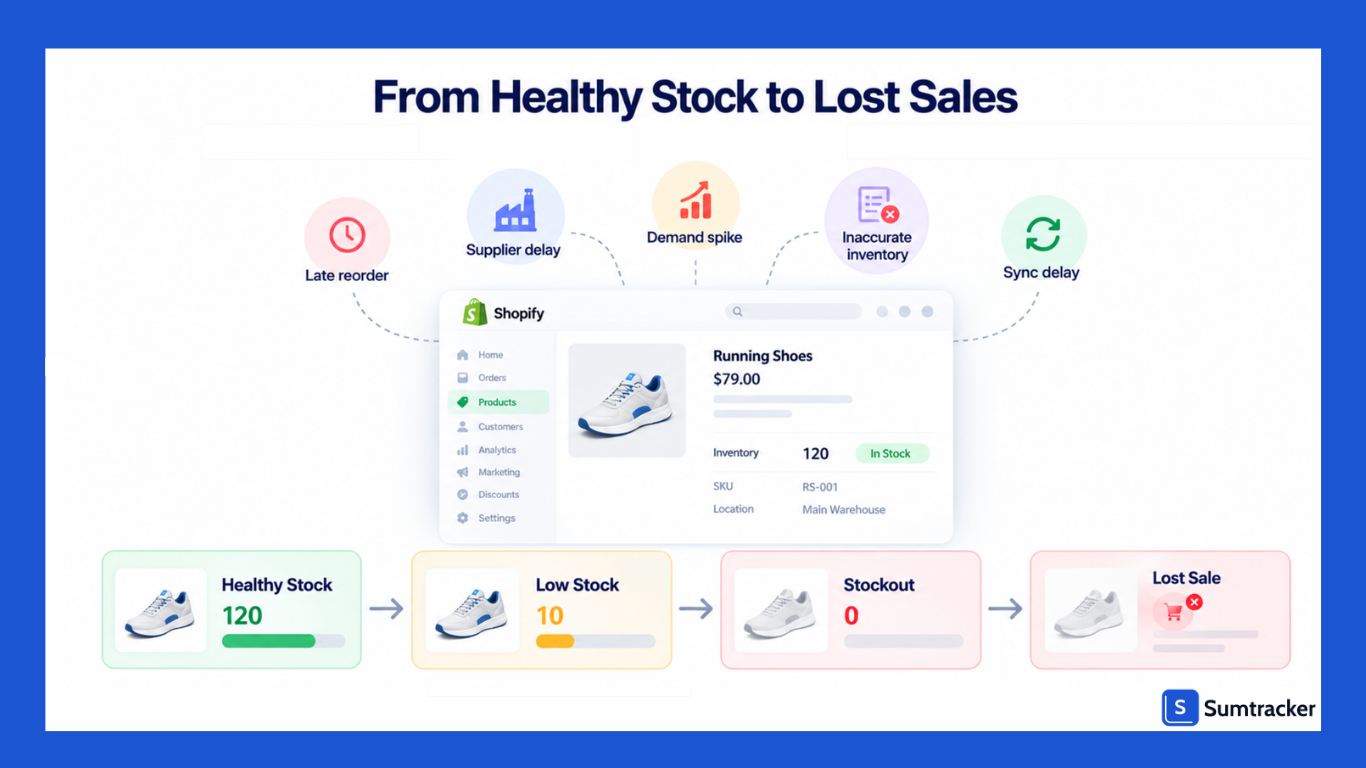
A stockout happens when a product or variant has no inventory available to sell.
On Shopify, this usually means the Available quantity for that variant has reached zero, so customers can no longer purchase it unless you've enabled the option to continue selling when out of stock.
It helps to separate three related problems:
- Low stock: You're still selling, but you'll run out before new stock arrives unless you act.
- Stockout: Available inventory is zero, and sales for that variant have stopped.
- Overselling: Orders came in for units you don't have. This usually happens because of sync delays across channels or inaccurate counts.
Stockouts on Shopify tend to come from a short list of causes. Which ones matter most depends on how your store runs.
Some stockouts are really setup problems. A product may have units available at one location but still be unavailable online if that location isn't configured to fulfill online orders.
Shopify's inventory and location settings determine which stock can fulfill orders. (Shopify Help Center: Selling out-of-stock products)
What Stockouts Actually Cost Shopify Merchants (Beyond Lost Sales)
Research suggests around 70% of shoppers move to another retailer after running into three stockouts at the same store.
So, one stockout might cost you a sale, but a pattern of them costs you the customer.
At the industry level, IHL Group's 2026 Inventory Distortion Study puts the annual worldwide cost of out-of-stocks and overstocks at $1.7 trillion, equal to 6.2% of global retail sales (IHL Group). Although this is for retailers and isn't a benchmark for a Shopify store.
For an individual merchant, the costs look like this:
The last row deserves extra attention.
When a product is out of stock for two weeks, your sales report shows two weeks of zero sales. It doesn't show two weeks of zero demand.
If you forecast from that data without adjusting, you'll order too little next time and run out again.
Practical tip: Keep a simple log of every stockout: SKU, start date, end date, and cause. When you forecast later, exclude or adjust those periods so your averages reflect real demand.
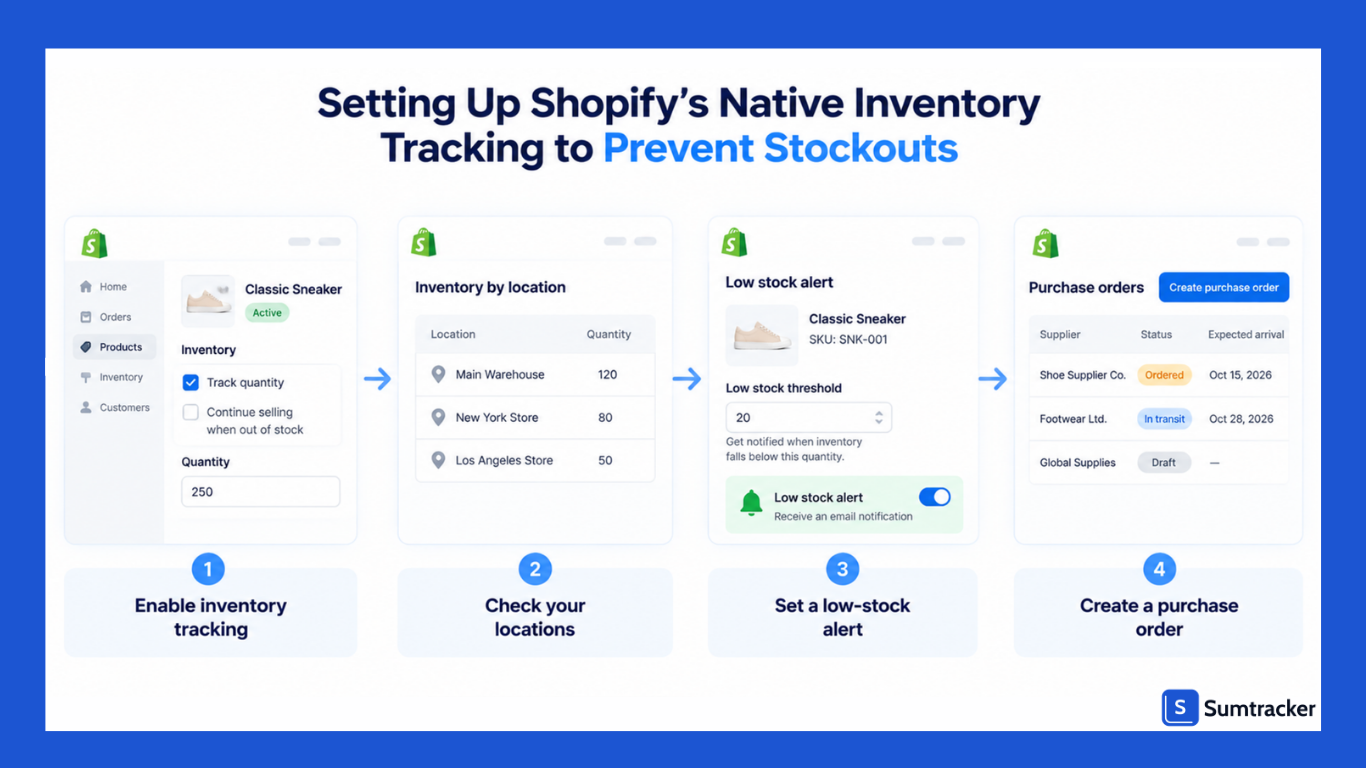
Setting Up Shopify's Native Inventory Tracking to Prevent Stockouts
Before you buy any app, make sure Shopify's built-in tools are set up properly. Many stockouts come from basic configuration gaps.
Step 1: Turn on tracking and check your locations
For every variant, turn on Track quantity. Then confirm each variant is stocked at every location that fulfills online orders.
Also learn the inventory states Shopify uses. Available is what you can sell. Committed is reserved for unfulfilled orders. Incoming is on its way through a transfer or purchase order.
Mixing these up is a common reason a store thinks it has more stock than it does. (See our guide to Shopify committed inventory for how these states interact.)
Step 2: Set up low-stock alerts with Shopify Flow
Shopify Flow can notify you when a product variant's inventory falls below a defined threshold. Shopify also provides ready-made workflows for inventory-related alerts.
The Product variant inventory quantity changed trigger can be used to create a low-stock workflow that notifies you when inventory falls below your chosen threshold. (Shopify Help Center).
Basic setup:
- Open Flow and browse templates for "low stock."
- Choose a template that starts with the inventory quantity changed trigger.
- Set the condition, for example: variant inventory quantity is less than or equal to your reorder point.
- Choose the action: an email, a Slack message, or a tag on the product.
- Test it by manually lowering a test product's stock below the threshold.
One threshold rarely fits your whole catalog. A Shopify Flow product manager suggested in the Shopify Community using product tags to group products with the same behavior rather than targeting individual products.
Rule of thumb: Set your alert threshold slightly above your reorder point, not at it. That gives you time to review the alert, confirm with your supplier, and place the order before you actually cross the line.
Step 3: Use the inventory reports that predict stockouts
Shopify's inventory reports live under Analytics > Reports, filtered by the Inventory category. The most useful reports for stockout prevention include:
These reports help identify risk, but they don't replace a replenishment system based on demand, lead time, and safety stock. For a deeper walkthrough, see our guide to Shopify inventory reports.
Step 4: Create purchase orders in Shopify admin
Once you've identified a product that needs replenishment, the next step is to get the purchase order out early enough to cover supplier lead time.
Shopify lets you create and receive purchase orders from the admin. When deciding when to place one, consider:
- Current available inventory
- Expected sales during supplier lead time
- Incoming inventory
- Safety stock
- Supplier lead-time variability
- Minimum order quantities
The goal is to place the order before inventory reaches zero, rather than waiting until Shopify marks the product as sold out.
When native tools stop being enough: Shopify's tools work well for single-channel stores with simple catalogs. You'll likely need dedicated software once you sell on several channels, manage bundles, work with multiple suppliers per SKU, or need reorder suggestions based on lead times and safety stock rather than raw sales history.
Calculating Realistic Reorder Points Using Your Shopify Data
Three terms often get used as if they mean the same thing. They don't, and keeping them separate makes your process clearer.
Reorder points sit in the replenishment layer. They depend on good forecasting, and your planning decisions set the service level. (For the forecasting side, see our guide to demand forecasting for ecommerce.)
The reorder point formula
Reorder point = (average daily sales × lead time in days) + safety stock
The first part covers the demand you expect while you wait for stock to arrive. Safety stock covers the surprises: demand spikes and late shipments.
Step 1: Get your average daily sales from Shopify
Open Inventory sold daily by product in Analytics. It shows the average number of units sold per day for each variant, calculated as quantity sold divided by the number of days in the period.
Export at least 8–12 weeks of data. Remove any days when the variant was out of stock, because those days drag the average down. (Shopify Help Center)
Calculate demand variability with STDEV.S() in Google Sheets or Excel.
Step 2: Measure lead time and how much it varies
Calculate the average and standard deviation of lead time using your last 5–10 POs per supplier. Include production, shipping, customs, and receiving. Our guide to lead time in inventory management covers what to include.
Step 3: Calculate safety stock from variability
Instead of using a flat percentage, account for both demand and lead-time variability:
Safety stock = Z × √[(lead time × σd²) + (average daily sales² × σLT²)]
- Z = service level factor
- σd = standard deviation of daily demand
- σLT = standard deviation of lead time
Service level is the target probability of avoiding a stockout during a replenishment cycle. Higher service levels require more safety stock, so use them selectively based on the cost of a stockout.
For more detail, see our safety stock guide.
Case study: from frequent stockouts to planned replenishment
UrbanTroos, a U.S. home decor brand selling across several channels, struggled to know when and what to reorder. After moving replenishment into Sumtracker, the brand reports cutting stockouts by 99%.
Managing Variant-Level Stockouts
A product can look healthy while its best variants are gone. Picture a T-shirt with 200 units in stock. It looks fine until you notice that 180 are XS and XXL, while Medium and Large sold out a week ago.
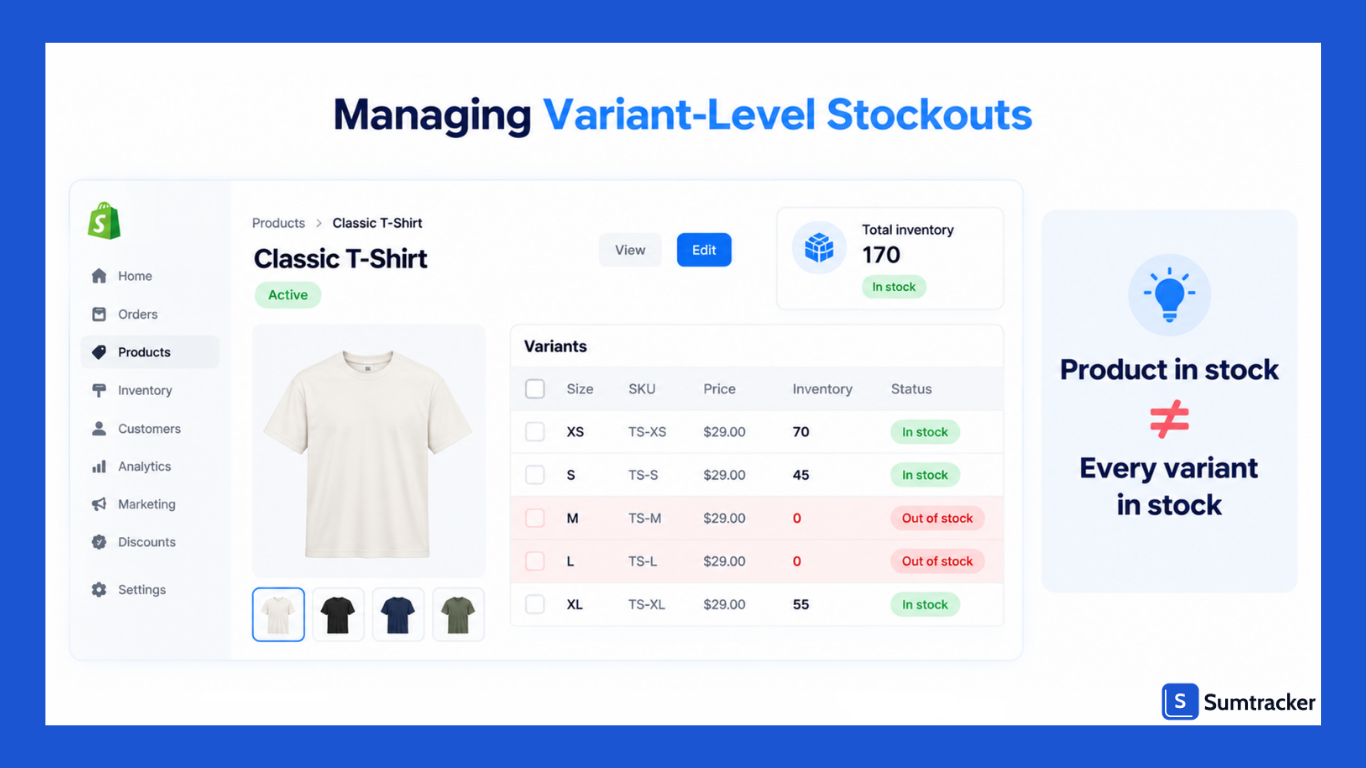
Shopify tracks inventory per variant and per location, so stockout prevention needs to work at the variant level too.
How to manage it:
- Set reorder points per variant, not per product. Shopify's inventory reports already break down by variant, so use that detail.
- Reorder by size curve. Look at the share of sales each variant contributed over the last 8–12 weeks. Use that ratio for your next order instead of ordering equal quantities across sizes.
- Watch for "broken" size runs. When core sizes sell out, the remaining sizes often slow down too. Customers see a product page with most options greyed out and leave. Your sell-through for the whole product drops, even though the problem is only a few variants.
- Check location assignment. Each variant needs stock at a location that fulfills online orders.
Rule of thumb: If one variant makes up more than roughly a third of a product's sales, give it its own alert threshold and a higher service level than the other variants.
Case study: one product, many listings
Crafter's Lab, a Miami-based custom hat and apparel brand, struggled to link the same products across different styles, bundles, and seasonal collections. Without low-stock alerts or forecasting, restocking often happened only after products ran out.
After linking listings to single products in Sumtracker and adding alerts and PO management, the brand reports that restocking became 2x faster and that it expanded from 2 to 5 stores.
More on variant setup in our Shopify variant inventory guide.
Preventing Stockouts During BFCM and Peak Seasons
Peak season makes every weakness in your inventory process worse. Demand spikes, supplier lead times stretch, and 3PLs get busier.
The scale is real. Shopify merchants generated a record $14.6 billion in sales over BFCM weekend 2025, up 27% from the year before, and sales peaked at $5.1 million per minute at 12:01 p.m. EST on Black Friday.
Build a BFCM forecast with a multiplier
A simple way to estimate peak demand is to compare last year's BFCM sales with a normal baseline.
BFCM multiplier = units sold during last year's BFCM period ÷ average weekly units in a normal period before it
Work backward from the date
Receiving cutoffs vary by 3PL and warehouse, so confirm the actual dates with yours.
Practical tip: Your alert thresholds are based on normal daily sales. During BFCM, a product selling 5x faster could go from "fine" to zero in hours. Adjust thresholds temporarily or check the days-of-inventory-remaining report daily during the event.
Connect marketing to inventory
A product can quickly become a stockout risk when a major promotion drives more demand than expected. Share a simple list with your marketing team: SKUs with enough stock to feature, SKUs to feature carefully, and SKUs to avoid promoting.
Seasonal peaks beyond BFCM follow the same pattern: Valentine's Day, back-to-school, summer, and other recurring events. Our guide to seasonal inventory planning covers how to spot repeatable patterns.
Coordinating Inventory Across Bundles, Subscriptions, and Sales Channels
Apps that sell your inventory in different ways can create stockouts that don't show up in normal reports. Each one needs its own setup.
Bundles
If a bundle has its own stock count, selling it won't automatically reduce its components' inventory. Components can therefore sell out through bundle sales while their individual product pages still show stock.
Shopify Bundles is a free first-party app for fixed and multipack bundles. However, check its current compatibility requirements. Shopify lists restrictions involving Shopify POS and purchase options such as subscriptions and pre-orders.
Rule of thumb: A bundle's sellable quantity equals the lowest available quantity among its components, adjusted for how many of each component the bundle uses. Set your low-stock alerts on the components, not just on the bundle.
Subscriptions
Subscription renewals are predictable future demand. If you don't account for them, inventory that looks available today may be needed for upcoming renewals.
To avoid failed renewals:
- Export upcoming renewals from your subscription app each week.
- Add them to your forecast for the matching SKUs.
- Keep a buffer for subscription SKUs through a separate location or higher reorder point.
- Consider a higher service level for critical subscription SKUs based on the cost of failed renewals and the cost of holding additional stock.
Marketplaces and multiple channels
Shopify's Marketplace Connect supports Amazon, Target Plus (U.S.), Walmart (U.S.), and eBay. Existing Etsy connections can continue, but Shopify currently doesn't allow new Etsy connections through Marketplace Connect.
Whatever tool you use, the main risk is timing. When the last few units sell on two channels within minutes of each other, one order may not have stock.
Two protections help:
- Channel buffers: Stop listing a SKU on marketplaces when stock drops to a small number, and keep those last units for your own store. See our guide to close-at-quantity settings.
- One source of truth: Only one inventory management system should write inventory counts. When two apps both update stock, they can overwrite each other.
Working With Suppliers to Reduce Stockout Risk
Your reorder point is only as good as your supplier's reliability. If lead times swing from 14 to 40 days, no formula will fully protect you.
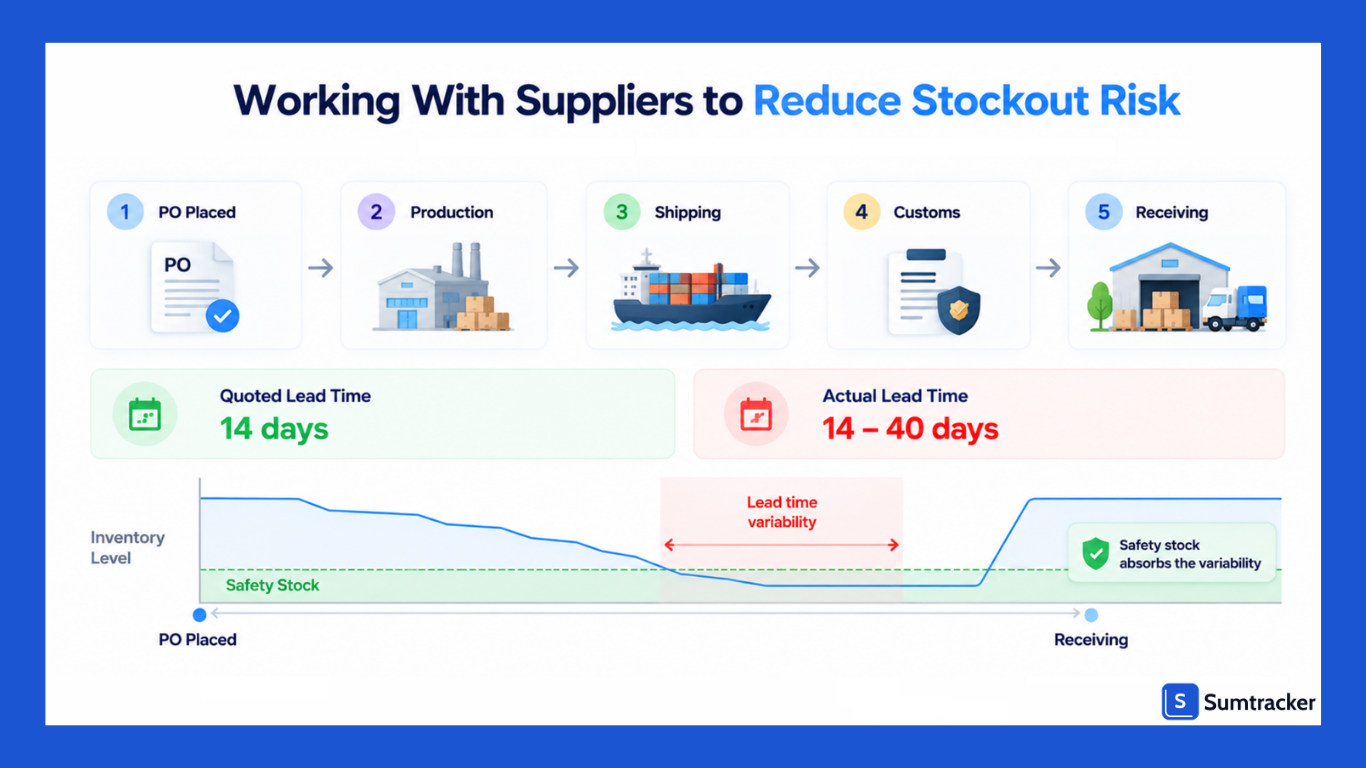
Practical ways to reduce supplier risk:
- Track actual lead times, not quoted ones. Record the PO date and the date you received the stock on every order. After a few orders, you'll know each supplier's real average and variability.
- Share forecasts with key suppliers. A supplier who knows you'll need 2,000 units in October can plan production. One who finds out in September can't.
- Keep a backup supplier for A-grade products. Even a more expensive backup can be worth it if it keeps your best sellers in stock. Shopify's single Vendor field makes this harder to track natively. Our guide to managing multiple suppliers in Shopify covers workarounds.
- Agree on minimum order quantities (MOQs) and case packs in advance. A reorder point is useless if the supplier won't accept the order size you need.
- Plan around predictable disruptions. Many Asian factories close for Lunar New Year, which falls between late January and mid-February. Order earlier for anything you'll need in Q1.
Practical tip: Score suppliers each quarter on two numbers: on-time rate (POs received by the promised date ÷ total POs) and fill rate (units received ÷ units ordered). Suppliers who score low on either one need bigger safety stock, a backup, or a conversation.
For more on how lead times and marketing plans can contribute to stockouts, listen to the Winning With Shopify podcast, including the 2026 episode featuring Alan Grimsley.
What to Do When a Product Goes Out of Stock
Even with good planning, some products will sell out. How you handle that moment decides whether you lose the customer or just delay the sale.
Setting up pre-orders and backorders
Shopify's Continue selling when out of stock setting requires Track quantity to be enabled and doesn't apply to Shopify POS orders (Shopify Help Center).
Shopify doesn't natively limit how far past zero you can sell. For specific incoming shipments, use a pre-order app that caps orders to the expected quantity.
For U.S. customers, the FTC's Mail, Internet, or Telephone Order Merchandise Rule generally requires a reasonable basis for stated shipping times. If you can't ship on time, you must notify customers and give them the option to cancel.
See our guides to managing pre-orders in Shopify and backorder management for step-by-step setup.
Practical tip: Don't unpublish a temporarily sold-out product with valuable search traffic. Keep it live with a back-in-stock signup and links to alternatives.
After the stockout
Once stock is back, do three things:
- Notify waitlist customers before general promotions.
- Log the stockout: SKU, dates, and root cause.
- Fix the cause: Review the reorder point, lead time, forecast, or inventory count and update the relevant input.
Inventory KPIs to Monitor for Early Stockout Warnings
KPIs help you spot trouble before a product hits zero. Track these at the variant level for your A-grade SKUs, and at the product or category level for everything else.
The first two use Shopify's own definitions from its inventory reports.
There's no universal "good" target for most of these. A healthy sell-through for fast fashion looks very different from one for furniture.
Compare each KPI against your own trend over time, and set targets by category.
Rule of thumb: The simplest early warning is this: if days of inventory remaining is less than your supplier lead time plus a few days of buffer, you should already have a PO placed.
Inventory accuracy deserves special attention. Safety stock can't protect you from stock that doesn't exist. Regular cycle counts on your top SKUs catch drift early. See our guide to cycle counting in Shopify.
Conclusion
Stockouts are rarely caused by one bad decision. They usually come from a combination of inaccurate inventory data, late reordering, supplier delays, demand spikes, and inventory spread across multiple channels.
The solution is to build a replenishment process around real demand, supplier lead times, safety stock, and accurate inventory data.
Shopify's native tools can cover the basics, while growing multichannel stores may need dedicated inventory software for forecasting, bundles, purchase orders, and real-time inventory sync.
Your next step: Pick your top 10 SKUs, check their current stock against expected sales during supplier lead time, and place POs for any that could run out before the next shipment arrives. Then set reorder points and low-stock alerts for those SKUs so the process runs automatically.
Frequently Asked Questions
How can I prevent stockouts on Shopify?
Set reorder points based on average demand and supplier lead time, maintain safety stock, monitor inventory regularly, and account for demand spikes, supplier delays, and inventory across multiple channels.
How do I prevent Shopify stockouts during BFCM?
Use previous BFCM sales to estimate peak demand, place orders according to actual supplier lead times, increase or adjust low-stock thresholds, and monitor inventory closely during the event. Also avoid promoting products that are likely to run out.
What should I do when a Shopify product goes out of stock?
Keep the product page live when appropriate, offer back-in-stock notifications, pre-orders, backorders, or relevant substitutes, and log the stockout so you can identify and fix its root cause.
Can Shopify prevent stockouts across multiple sales channels?
Shopify can manage inventory across supported channels, but fast sales can create timing and sync risks. Channel buffers and a clearly defined inventory source of truth can help reduce overselling and stockouts.
How can I monitor Shopify inventory before a stockout happens?
Track days of inventory remaining, sell-through rate, stockout rate, supplier on-time rate, lead-time variability, and inventory accuracy. Comparing these metrics over time can reveal stockout risk before inventory reaches zero.
Conclusion

Bhoomi writes about inventory management and multichannel selling at Sumtracker. Her focus is on solving real operational problems for Shopify, Amazon, and marketplace sellers through well-researched content. She covers everything from multi-location inventory syncing and stock error troubleshooting to replenishment planning and platform comparisons, turning complex eCommerce operations into clear, actionable guidance.
LinkedInRelated Articles
Tool and strategies modern teams need to help their companies grow.

![10 Best Shopify Inventory Sync Tools for 2026 [Tested & Reviewed]](https://cdn.prod.website-files.com/67907f49647e48895e5dc266/6a8ec5f1a733015478e1a0e3_Screenshot%202026-08-26%20at%204.17.26%E2%80%AFPM.png.avif)
Ready to Simplify Your Inventory Management?
Join hundreds of e-commerce merchants who rely on Sumtracker to save time, eliminate errors, and grow their business.
