.svg)
Shopify Inventory Management: A Complete 2026 Guide


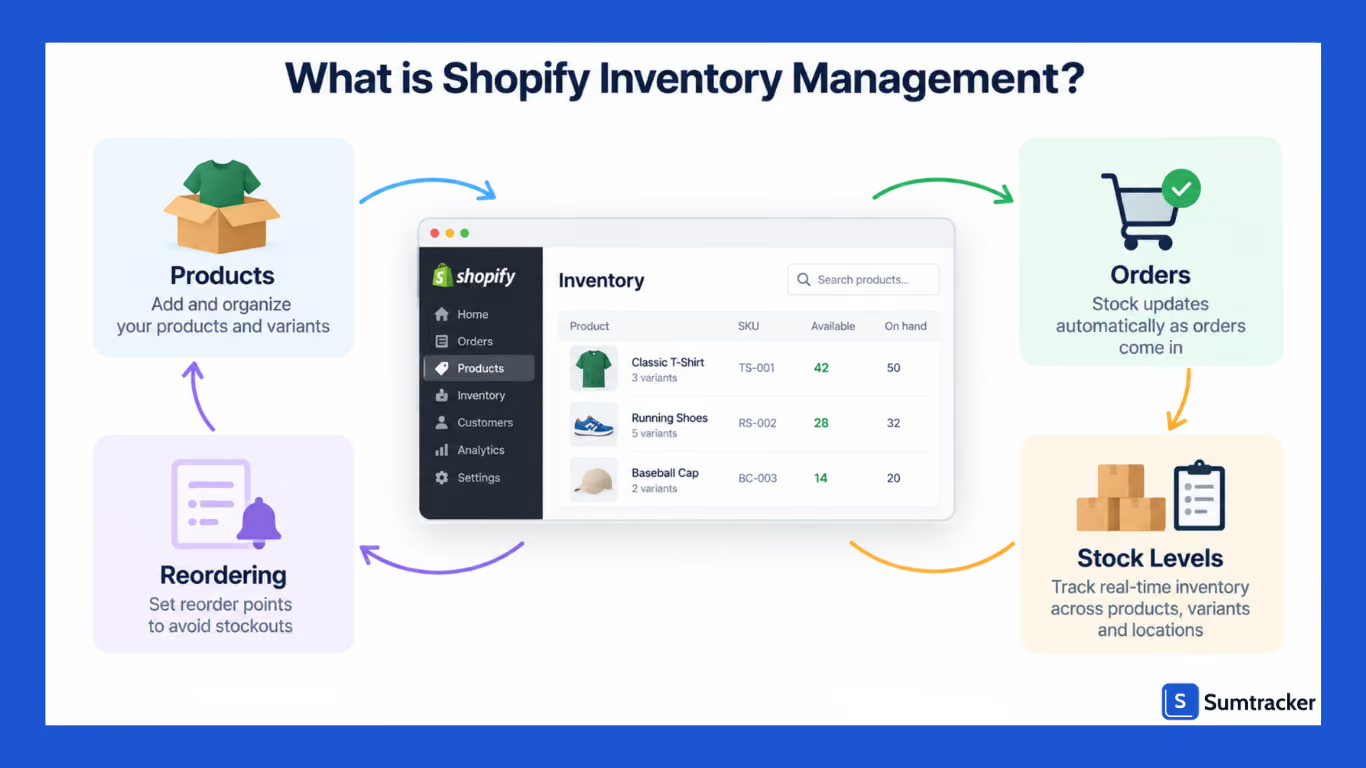
Shopify inventory management is the process of tracking and managing the stock that you sell through Shopify. It involves keeping quantities accurate across products, variants, and locations, updating stock as orders come in, and reordering before you run out.
Shopify provides built-in tools for handling these tasks, while inventory management apps offer additional features and more advanced workflows as your inventory becomes harder to manage.
Inventory mistakes can lead to stockouts, excess inventory, and inaccurate stock levels. A stockout can mean losing sales, while carrying too much inventory ties up money that could be used elsewhere.
In this guide, we'll start with Shopify's five inventory states and how to set up inventory tracking.
Then we'll cover reorder points, inventory costing, and key inventory metrics. We'll also look at managing inventory across multiple locations and when Shopify's built-in tools may no longer be enough.
What you’ll learn: the concepts, the Shopify admin workflow for setting inventory quantities and keeping stock levels accurate, the formulas, and the honest limits of Shopify’s native inventory control — plus how a dedicated app fits when you outgrow spreadsheets.
New to Shopify? Start with inventory states, setup, and reorder points. You can come back to costing, metrics, and multi-location inventory once your store is up and running.
Already selling and managing stock daily? Jump straight to reorder points, costing, and the metrics section.
What is Shopify Inventory Management?
Shopify inventory management is the practice of tracking your stock and keeping inventory levels accurate in Shopify. This includes adding products, setting inventory quantities, tracking stock as orders come in, and deciding when and how much to reorder. It helps you prevent overselling, keep fulfillment reliable, and protect your cash flow as your store grows.
Shopify handles inventory tracking natively. It also supports purchase orders, barcode receiving, and AI-assisted reorder recommendations through Sidekick. But if you need more control over forecasting, reorder points, or costing, you may need a dedicated inventory management app.
Before starting, make sure your Shopify inventory is set up correctly:
- Tracking is on for every product (Shopify admin → Products → select a product → Inventory → Track quantity). Untracked products sell forever.
- Every variant has its own SKU and its own quantity — not just the parent product.
- A reorder point is set for your top sellers so you restock before you stock out (the formula is below).
If any of those three is missing, fix it before reading on — the rest of this guide builds on them.
Understanding Shopify’s Five Inventory States
Shopify tracks each product across five inventory states, defined in Shopify’s own Help Center.
Many guides cover only three; the two that get skipped—committed and unavailable—are exactly the ones that cause overselling.
The important distinction is between on-hand and available inventory. For example, you might have 40 units on hand but only 22 available to sell because some are committed or unavailable.
When deciding whether to reorder, look at available inventory rather than just what's on hand. Also check your incoming inventory so you don't place a second order for stock that's already on its way.
Shopify keeps an adjustment history for the last 180 days, which you can use to see how your inventory levels changed.
How to Set Up Inventory Tracking in Shopify
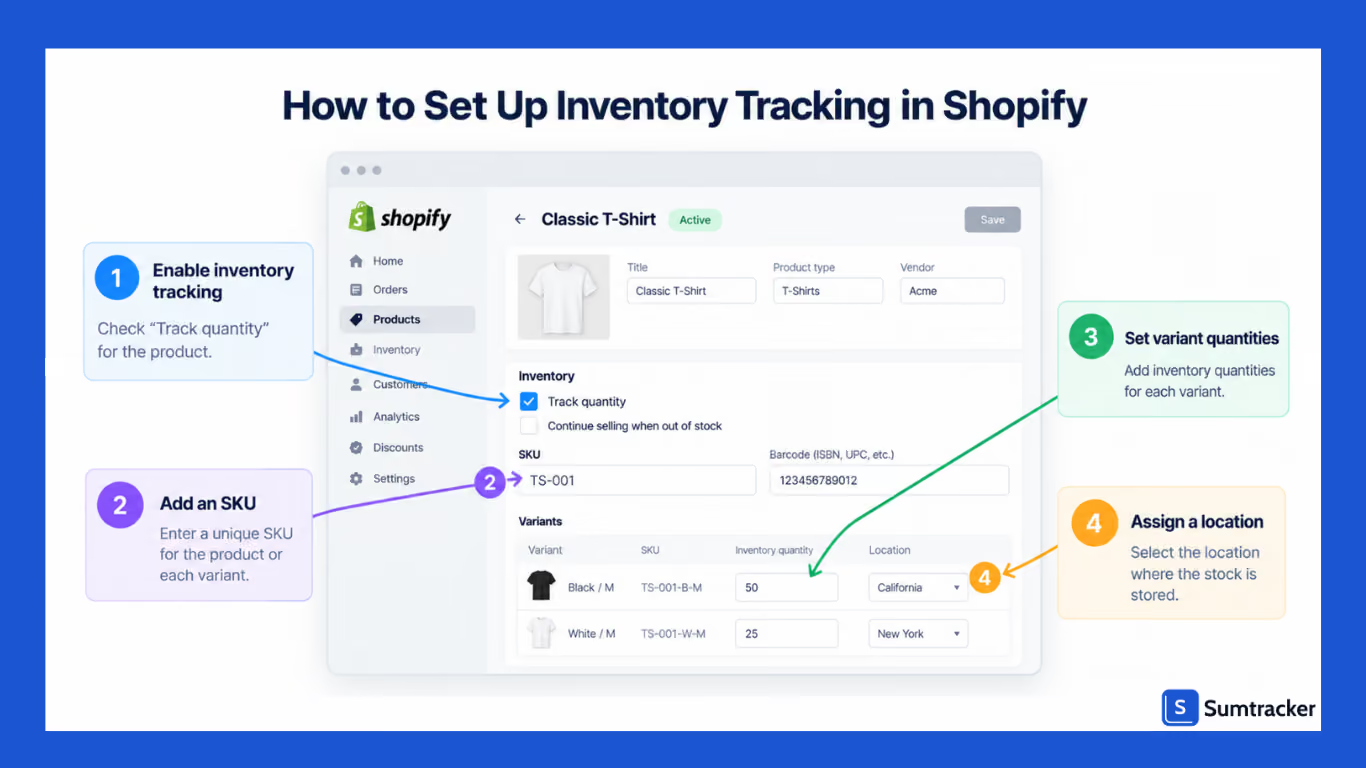
Before you start managing inventory, you need to turn on inventory tracking in Shopify. You can do this from Products in your Shopify admin.
- Enable tracking. Go to Shopify admin → Products → select a product → Inventory section → check Track quantity. Without this, Shopify won’t deduct stock as orders are placed.
- Add inventory quantities. In the Shopify admin, enter the units you currently hold. From then on, Shopify automatically adjusts inventory quantities and updates your inventory levels as orders come in.
- Set SKUs and variants. Give every product and every variant a unique SKU using a consistent naming convention (for example,
TSH-BLK-M,TSH-BLK-L). Shopify tracks inventory for each variant separately, so size- and color-level stock levels stay accurate. If you scan stock, put the barcode (Barcode/ISBN/UPC field) on the variant too, so pickers and stocktakes read the right unit. - Assign inventory to locations. Shopify admin → Settings → Locations to define each place you hold stock, then set quantities per location on the product so Shopify knows where to fulfill from and can track inventory levels per location.
Setting up inventory for the first time?
Start with a one-time full physical count of your current stock, then move to rolling cycle counts. If you have stock on the way from a supplier, record it as incoming, not on hand, so you don't count inventory you haven't received yet.
For more than a few dozen SKUs, export Shopify’s inventory CSV, fill in quantities and SKUs offline, and bulk-import them instead of entering them manually.
One common cause of stock errors is variant tracking.
Enabling tracking on the parent product but not on its variants. A product with sizes or colors tracks inventory at the variant level — miss one, and that variant keeps selling with no stock ceiling, overselling indefinitely while your reports look fine.
After enabling tracking, open a multi-variant product and confirm every variant shows a quantity, not a blank.
For large catalogs, don’t do this by hand. Use the bulk editor or a CSV import to update inventory quantities across hundreds of SKUs at once.
It’s the fastest way to update quantities and keep inventory accurate when a shipment arrives or a new season starts. This will save a lot of time once your catalog grows past a few dozen products.
How to Set Reorder Points and Safety Stock
Reordering based on gut feel can leave you with too much or too little stock. A reorder point tells you the exact stock level at which to place a purchase order before you run out.
Here’s the formula:
Reorder point = (average daily sales × supplier lead time in days) + safety stock
Imagine you sell 8 units a day and your supplier takes 14 days to deliver. You’ll need 112 units to cover the lead time. If you keep one week of safety stock, that adds 56 units, giving you a reorder point of 168 units.
Stable products may need one to two weeks of safety stock, while more volatile products may need three to four weeks.
Remember, low stock alerts are not the same as reorder points.
Shopify can flag low stock, and you can automate low stock alerts with Shopify Flow. But a flat “alert at 10 units” ignores lead time and sales velocity. The same 10 units is a crisis for a bestseller and irrelevant for a slow mover.
Set the reorder point for each product based on its sales and lead time, rather than using one threshold across the catalog. Also factor in incoming inventory so you don't reorder stock that's already on the way.
Inventory Forecasting and Replenishment
Forecasting helps you estimate how much stock you’ll need in the future. Start with your past sales, then account for trends, seasonality, and supplier lead times. This gives you a better idea of how much inventory you may need and when you’ll need it.
Use the forecast to plan replenishment. Compare expected demand with your available and incoming inventory. If you won’t have enough stock to cover the expected demand, it’s time to reorder.
Forecasts are estimates, so review them regularly. Sales can change, especially during seasonal periods or promotions. Update your plans when demand or supplier lead times change.
Managing Purchase Orders
Once you know what you need to reorder, create a purchase order for your supplier. Include the SKUs, quantities, costs, and expected delivery date. This gives you a clear record of what you’ve ordered and when it should arrive.
Track incoming stock after placing the order. When the shipment arrives, check the quantities against the purchase order before adding the stock to your available inventory. This helps catch shortages or errors before they affect your stock levels.
Keep open purchase orders in mind when reordering. If you already have stock on the way, ordering the same quantity again can leave you with more inventory than you need.
Inventory Costing: FIFO, LIFO and Weighted Average
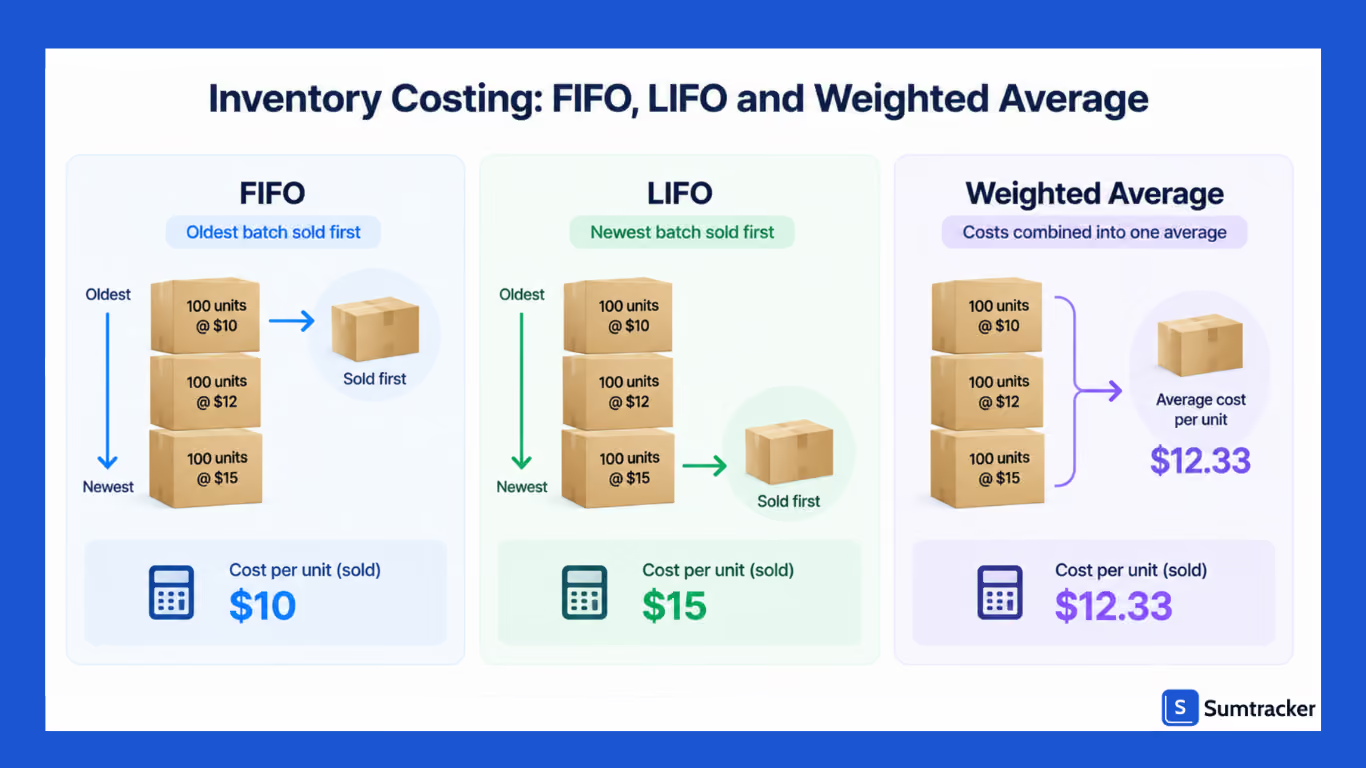
Shopify lets you track product costs and calculate COGS. But when you buy the same product at different prices, you need to decide which cost to use when calculating the cost of the units you sell. This is where methods such as FIFO, LIFO, and weighted average come in. The method you use can affect your reported profit and taxable income.
- FIFO (first in, first out): oldest units sold first. Most intuitive; best for perishable or dated goods.
- LIFO (last in, first out): newest units sold first. Permitted in the U.S. under IRS rules and GAAP, but not allowed under IFRS — a genuinely U.S.-specific option.
- Weighted average: Uses the average cost of all units. Simplest to maintain when costs are stable, and SKUs are few.
Why does the method matter?
The IRS expects a consistent method; if costs are rising and you apply FIFO, your reported COGS lags and profit looks higher than it is. For a store doing $50,000/year with fluctuating supplier costs, FIFO versus weighted average can swing taxable income by thousands.
Pick a method, apply it consistently, and track COGS by method outside Shopify — a spreadsheet from your CSV exports works until an app doesn’t.
How to actually do this in Shopify?
Shopify lets you add a Cost per item and uses it in its profit and COGS reports. However, each variant has a single Cost per item, so if you need weighted-average costing or want to include landed costs such as freight and duties, you may need a third-party inventory or costing app.
Choosing a method: FIFO for perishable or dated goods, weighted average when costs are stable and you want the least upkeep, and LIFO only with a CPA, since it is U.S.-only and commits you to extra filing.
This is general information, not tax advice. Inventory valuation affects your taxes, and electing LIFO in the U.S. means filing IRS Form 970 (“Application to Use LIFO Inventory Method”). Confirm your method with a CPA before you file.
Inventory Metrics That Actually Matter
Basic stock levels tell you how much inventory you have. These metrics tell you whether that inventory is healthy or whether too much cash is sitting in stock.
According to APQC benchmarking data, inventory carrying costs have a median of 10% of average inventory value. The Institute for Supply Management notes that there is no single standard benchmark, but many companies aim for 20–30% of inventory value.
And according to U.S. Census Bureau data, U.S. businesses hold roughly $1.30 in inventory for every $1 of sales — so a significant amount of cash is tied up in stock.
ABC Inventory Analysis
Not every SKU deserves equal attention. ABC analysis groups products by how much revenue they generate, so you can focus more time and stock on your best sellers.
Shopify's ABC analysis puts products into three groups: A-grade products account for around 80% of revenue, B-grade products for the next 15%, and C-grade products for the remaining 5%. Shopify calculates these grades using the last 28 days of revenue and updates the report daily.
Give A products the closest attention and reorder them before they run out. B products need regular monitoring, while C products are often slow-moving and may not need reordering as often.
You can find the ABC analysis by product report in Shopify admin and export it for further analysis. Shopify also lets you export reports as CSV files if you want to work with the data in a spreadsheet.
Seasonal Inventory and Cash-Flow Planning
Seasonal demand is where inventory and cash flow collide. Buying for a Q4 spike means committing working capital months early. Buying too much can tie up cash, and buying too little can mean missing the biggest sales window.
For example, a store projecting $200,000 in Q4 revenue might place $80,000–$120,000in inventory orders 60–90 days before Black Friday. Roughly 40–60% of a quarter’s working capital is locked into stock weeks before the first sale clears.
If sell-through is slow in the first week, that cash stays tied up. You may then have less cash available for restocking.
Plan backward from your peak. Look at last year’s sell-through. Negotiate supplier terms early. Order based on lead times. Stage deliveries so stock arrives close to when you need it, not months too early.
A poor safety-stock decision can make this worse. Set it too low, and you risk stockouts on bestsellers. That can mean lost sales while the product is unavailable.
Managing Inventory Across Multiple Locations
If you hold stock in multiple warehouses, retail stores, or 3PLs, Shopify lets you assign and track inventory by location and transfer units between them.
Shopify also offers order routing, which can automatically decide where to fulfill an order based on rules such as inventory availability, location, and split shipments.
Even with all these capabilities, keeping stock balanced across locations is still your responsibility. You can have too much stock at one location while another is running low.
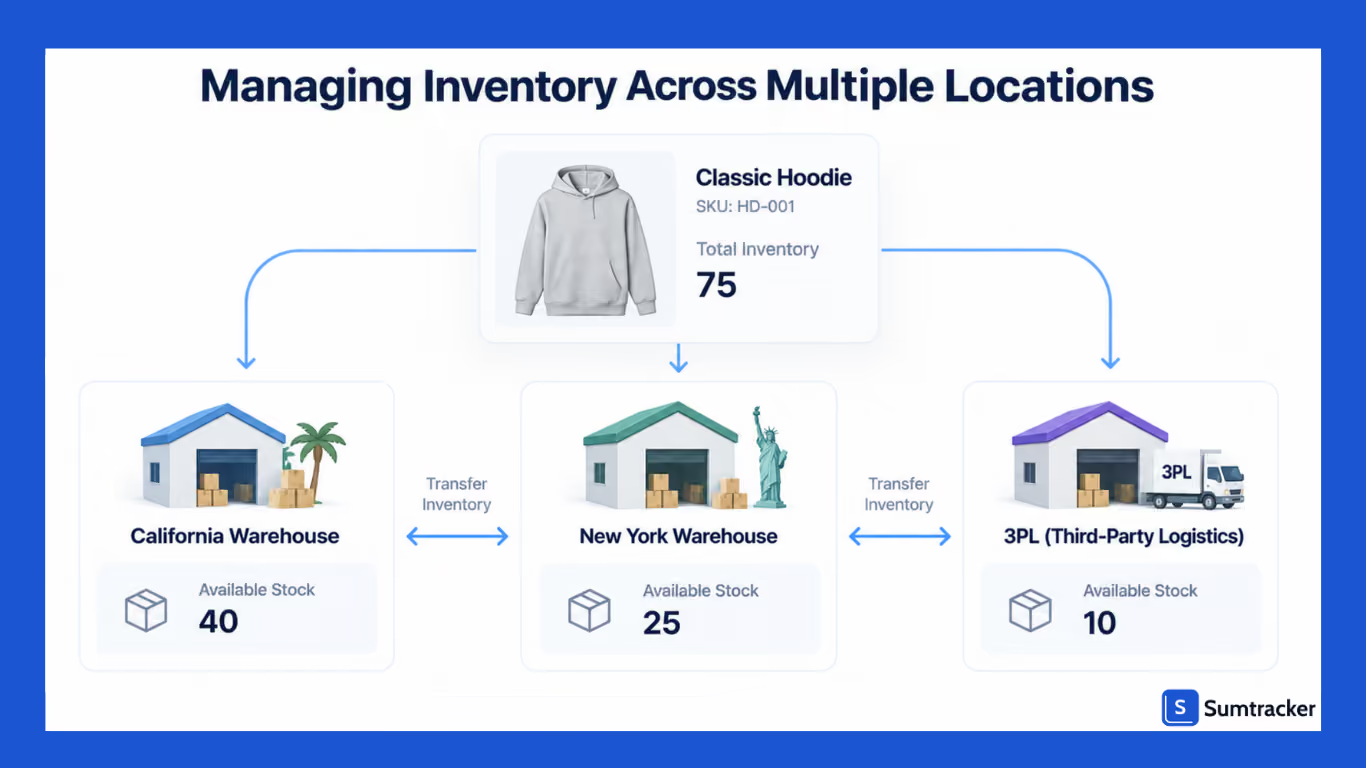
Three practical moves:
- Set your fulfillment priorities. Shopify lets you rank locations and choose which ones should fulfill orders first. You can also use the closest-location rule; for example, shipping an order from a West Coast warehouse to an East Coast customer can cost several dollars more per order than shipping from a closer site.
- Set a transfer trigger. Set a stock level that tells you when to move inventory between locations. This helps you transfer stock before one location runs out while another still has enough to spare.
- Keep unsellable stock separate. Use Shopify's Unavailable inventory state or a separate location for damaged goods, quality holds, or safety stock. These units aren't available for sale, so they won't be counted as available inventory.
If you need more control over how much stock each location should hold and when to move inventory between locations, a dedicated inventory app can add those on top of Shopify's native tools.
Case study — Babymaxi. The Amsterdam-based Shopify brand scaled from a single warehouse to two third-party logistics providers while the store stayed live. Managing inventory across those locations manually held accuracy at roughly 85–90% and produced 5–7 overselling incidents a month.
After moving to automated, real-time syncing with Sumtracker, accuracy rose above 99%, overselling dropped to near zero, and time spent managing inventory fell from ~10 hours a week to ~3.
Handling Returns and Damaged Stock
Returns are an inventory problem as much as a customer-service one, and online returns run high. The National Retail Federation estimated that 19.3% of online sales were returned in 2025.
The best approach is to route every return to a dedicated return-hold location and inspect it before restocking.
Once a return comes back, check its condition before updating the stock. If it's in good condition, add it back to available inventory. If it's damaged or can't be resold, keep it out of available stock. This keeps your inventory count closer to what you can actually sell.
Common Shopify Inventory Mistakes to Avoid
- Reordering too late. Waiting until stock is visibly low ignores supplier lead time. Use reorder points instead.
- Ignoring slow movers. Dead stock ties up cash and space. Review low-velocity SKUs and discount, bundle, or reorder them less often.
- Living in spreadsheets. Spreadsheets can work for a small catalog. As your SKUs and sales channels grow, they can lead to discrepancies, duplicates, and outdated stock numbers.
- Adjusting stock without a reason code. If you change a stock count, record why. Was it damaged, stolen, or a counting error? Without that record, it becomes harder to find and fix recurring inventory problems.
- Skipping cycle counts. Inventory accuracy can drift 2–3% per month when stock isn't regularly checked. Cycle counting means counting a subset of SKUs regularly instead of waiting for a full physical count. This helps keep your recorded stock closer to what you actually have.
When to Move Beyond Shopify’s Native Tools
Shopify’s built-in inventory tools are genuinely good for getting started. The question isn’t whether they work; it’s when you’ve outgrown them. As a rough guide:
You’ve likely outgrown native tools when you need demand forecasting, inventory planning, or sync across multiple sales channels and locations.
The right time to switch depends less on your SKU count and more on how much time you spend managing inventory manually.
At ~200 orders a month, reconciling stock by hand can take 8–12 hours a week. That can cost around $600–$1,200 a month in staff time, compared with dedicated inventory apps that often start at $30–$50 a month.
If you're spending more on manual inventory work than you would on an app, the app can pay for itself.
Choosing an Inventory App
The market of Shopify inventory management apps includes options suited to different jobs:
Choose based on the specific capability you’re missing, not on the longest feature list.
How Sumtracker Helps You Manage Shopify Inventory
Sumtracker is an inventory management app built for Shopify and multichannel brands that turns the strategy layer Shopify leaves out into daily workflow. It lets you:
- Sync inventory in real time across Shopify, Amazon, Etsy, eBay, and Walmart, so you never oversell the same unit twice.
- Manage bundles and kits while automatically updating the inventory of their components. You can also set low-stock alerts for individual SKUs.
- Forecast demand and plan replenishment using sales history, trends, seasonality, and supplier lead times. Sumtracker suggests what to reorder, how much to order, and when to order it.
- Create and manage purchase orders, track incoming stock, calculate landed costs, and manage stock transfers.
- Track inventory and costs with inventory reports, COGS reports, inventory valuation, stocktakes, and SKU-level sales and inventory data.
Where it fits: Sumtracker is built for e-commerce inventory management and replenishment. It works well for Shopify and multichannel sellers that need inventory syncing, forecasting, replenishment, purchase orders, and inventory reports in one place.
Where it doesn’t. Sumtracker isn't a full manufacturing system. If you need multi-level BOMs, work orders, or MRP, a manufacturing-focused tool like Katana may be a better fit.
Sumtracker currently has two plans: Manage, starting at $59/month, and Replenish, starting at $119/month. Pricing increases with annual order volume, so higher order tiers cost more. Check current tiers on the pricing page.
Manage covers core inventory management, including inventory syncing, bundles, reports, and stock management. Replenish adds forecasting, replenishment planning, purchase orders, stock transfers, and AI reorder suggestions. Both plans include a 14-day free trial.
Conclusion
Good Shopify inventory management is about decisions: reorder before you stock out, track your costs consistently, watch turnover and dead stock, plan for seasonal demand, and keep unsellable stock out of your available inventory.
Shopify gives you the tools to track your inventory. As your store grows, you may need additional tools for forecasting, replenishment, purchasing, and managing inventory across channels.
Your next step this week: Open Shopify’s ABC analysis report and review your A-grade products. Set a reorder point for your top sellers based on their sales and supplier lead times. Then review your C-grade products to find slow-moving stock that may need less frequent reordering.
Frequently Asked Questions
Q1. Can I use Shopify for inventory management?
Yes. Shopify has built-in inventory tracking that deducts stock as orders are placed, supports variants and multiple locations, and keeps a 180-day adjustment history. It covers day-to-day needs for most small and mid-sized stores; larger or multi-channel operations often add an app for forecasting and purchase orders.
Q2. How do I manage inventory in Shopify?
Enable Track quantity on each product in your Shopify admin, enter accurate inventory quantities, assign unique SKUs and variant-level stock, and assign inventory to locations. Then manage it over time with reorder points, low stock alerts, and regular cycle counts to keep stock levels accurate.
Q3. How do I set up inventory tracking in Shopify?
In your Shopify admin, open a product, scroll to the Inventory section, and enable Track quantity. Repeat for each variant, or use the bulk editor / CSV import to enable tracking and set quantities across many products at once.
Q4. How do I set low stock alerts in Shopify?
Shopify can surface low-stock information in inventory reports, and you can automate low stock alerts with Shopify Flow. If you need more advanced alerts based on factors such as sales velocity, lead time, or reorder points, a dedicated inventory app can provide additional options.
Q5. How do I prevent overselling in Shopify?
Reorder against available inventory (not on hand), keep tracking enabled on every variant, and sync inventory in real time across every sales channel. Multi-channel sellers oversell most often because a sale on one channel isn’t reflected on another fast enough — real-time sync closes that gap.
Q6. How does Shopify handle inventory during a POS (in-person) sale?
If you use Shopify POS, in-store sales draw from the same inventory as your online store and decrement it in real time, as long as the POS device is assigned to the location the stock sits in. The common trap is location mapping: if a register is tied to the wrong location, in-store sales won’t reduce the right stock, and you can oversell online. Check that each POS location matches the physical stock it sells.
Q7. What is the best inventory app for Shopify?
There’s no single best app — it depends on your needs. Shopify’s native tools suit basic stock control; for demand forecasting, purchase orders, bundles, or multi-channel sync, dedicated inventory management apps like Sumtracker, Prediko, or Inventory Planner add the capabilities Shopify doesn’t. Match the tool to the specific job you’re missing.
Q8. How often should I update inventory in Shopify?
Shopify updates automatically as orders are placed when tracking is on. Beyond that, update whenever you receive stock, process returns, or make manual adjustments — and run regular cycle counts so your records stay accurate.
Conclusion

Bhoomi writes about inventory management and multichannel selling at Sumtracker. Her focus is on solving real operational problems for Shopify, Amazon, and marketplace sellers through well-researched content. She covers everything from multi-location inventory syncing and stock error troubleshooting to replenishment planning and platform comparisons, turning complex eCommerce operations into clear, actionable guidance.
LinkedInRelated Articles
Tool and strategies modern teams need to help their companies grow.


Ready to Simplify Your Inventory Management?
Join hundreds of e-commerce merchants who rely on Sumtracker to save time, eliminate errors, and grow their business.
