.svg)
How to Sync Inventory Between Two Shopify Stores (2026 Guide)


Quick answer: Shopify does not sync inventory between two separate stores, even on Shopify Plus. To share one stock pool, you need an inventory app, a custom API integration, or a manual CSV routine. Most growing brands use an app that keeps one master count and pushes it to every store.
Running two Shopify stores is common. You might have a retail store and a wholesale store, a US store and a UK store, or two brands that share a warehouse.
The problem starts the moment both stores sell the same physical units.
If store A sells the last unit, store B still shows it in stock.
A customer buys it, and now you have an order you can't ship.
That hurts more than one sale: in AlixPartners' Consumer Sentiment Index, two-thirds of the 9,000 shoppers surveyed said they go to another retailer when an item is out of stock.
This guide covers what Shopify can and can't do natively, the three ways to sync, and how to handle variants, bundles, locations, and international stores. You'll also get a troubleshooting table, best practices, when syncing is the wrong move, and apps worth shortlisting.
Can Shopify Natively Sync Inventory Between Two Stores?
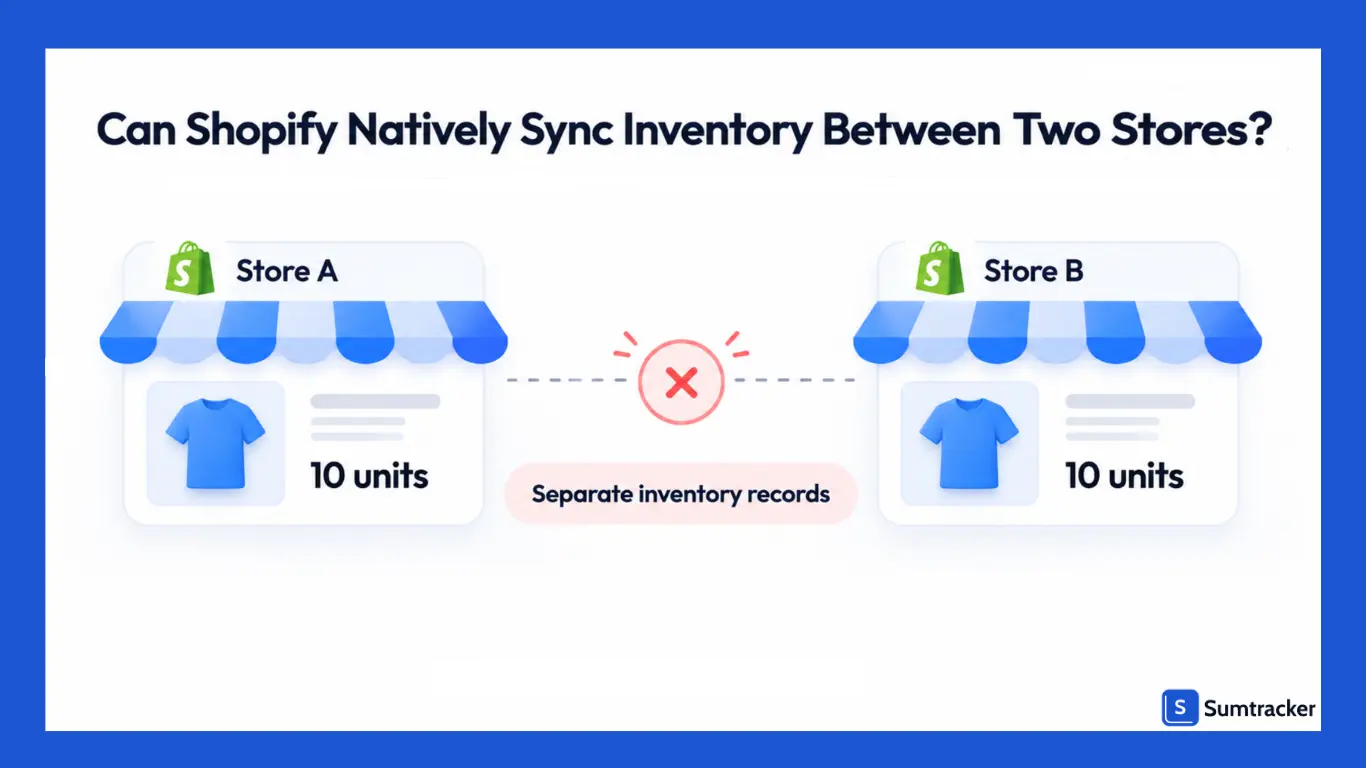
No. Shopify syncs inventory across supported sales channels within a single store, but it doesn't have a built-in feature to synchronize stock between two separate stores.
Within one store, inventory is managed across locations and supported sales channels. Across separate stores, each store maintains its own inventory records and orders.
If Store A sells the last unit of a product, Store B can still show it as available, leading to overselling.
This limitation applies to Shopify Plus as well. According to Shopify's expansion stores documentation, products, inventory, collections, and store settings aren't automatically synchronized between stores in a Plus organization.
Shopify lets you copy themes, products, collections, and files when creating an expansion store. However, this is a one-time setup step, not ongoing synchronization. After the stores are created, changes made in one don't automatically carry over to the other.
Shopify's location limits are worth considering before setting up a second store. If you only need to manage stock across multiple warehouses or retail locations, one store with multiple locations may be enough.
Apps that stock inventory for you, such as 3PL or dropshipping apps, show up as locations but don't count toward these limits.
Rule of thumb: If your only reason for a second store is a second warehouse, you probably don't need a second store. Add a location instead, and let Shopify route orders between them.
For more on this setup, see Sumtracker's guide to Shopify inventory locations.
3 Ways to Sync Inventory Between Two Shopify Stores
You have three real options: manual CSV updates, a custom API integration, or an inventory sync app. They differ mostly in speed, cost, and how much can go wrong.
1. Manual CSV export and import
You export inventory from one store, edit the file, and import it into the other. Shopify's inventory CSV works per location, so you can do this without any app.
The catch is timing. An inventory import sets quantities; it doesn't adjust them. Any sale that happens between your export and your import gets overwritten, so the numbers are wrong the moment you finish.
This method only makes sense for a tiny catalog, slow sales, and a team that can tolerate a daily lag.
2. Custom API integration
A developer builds a small service between the stores. It listens for inventory changes in one store through Shopify webhooks and writes the new quantity to the other store through the Admin API.
Shopify has made this safer in 2026. The Spring '26 Edition added idempotency protection to inventory API calls, so a retried request after a network error doesn't write twice. Webhooks can now also be set to fire only when a specific field changes, which cuts noise.
You still own everything else: API rate limits, retries, product matching, bundle logic, monitoring, and every Shopify API version update. Budget for ongoing developer time, not just the build.
3. An inventory sync app
An app connects both stores and handles the updates for you. Apps follow one of two designs:
- Store-to-store (source and destination): One store holds the master stock. The app copies its quantities to the other store. Syncio works this way.
- Central hub: An inventory system holds the master count. Every store reports its sales to the hub, and the hub pushes the new count back to all stores. Sumtracker works this way.
The hub design matters once you add a third store, a marketplace, bundles, or several warehouses. Every channel talks to one record instead of to each other.
Practical tip: Before you pick a method, count your shared SKUs, not your total SKUs. If only 20 products overlap between the two stores, your sync job is much smaller than it looks.
One-Way vs. Two-Way Inventory Sync: Which Is Right for You?
The difference comes down to who can change stock. In one-way sync, one location or system acts as the master. In two-way sync, inventory changes made in any connected store can update the others.
Sales still need to flow back to the master in both models. If Store B sells a unit but the master doesn't receive that update, Store A may continue showing the unit as available and oversell it. The main difference is how manual edits, returns, and incoming stock are handled.
One-way sync means one master record controls inventory quantities. The master can be your main Shopify store or a central inventory app. If someone edits stock directly in a secondary store, the next sync may overwrite that change.
Two-way sync allows inventory changes made in either store to propagate to the other. This can suit businesses where separate teams receive stock or count inventory at different locations, provided the system handles simultaneous changes and conflicts correctly.
Rule of thumb: One SKU, one place to edit it. Even with two-way sync, agree which team owns stock edits for each product line. Most sync errors start with two people fixing the same number in two places.
Case study: one master record for retail and wholesale
Sweet Wink, a New York children's apparel brand, runs two Shopify stores: one for retail customers and one for wholesale boutiques. The catalog has more than 10,000 SKUs and over 5,000 bundles, and many overlap across both stores. Wholesale orders often carry 100 to 400+ line items.
Before centralizing, retail and wholesale stock drifted apart, and warehouse staff spent 10 to 20% of their time counting stock to check the system. After moving both stores onto one master record in Sumtracker, the brand reports a 99.5% drop in bundle-related inventory errors. Manual correction work fell from 12 to 15 hours a week to under one hour.
How to Sync Inventory Between Two Shopify Stores
Before turning on inventory sync, prepare your products, quantities, and location mappings. These checks help prevent incorrect stock updates once both stores are connected.
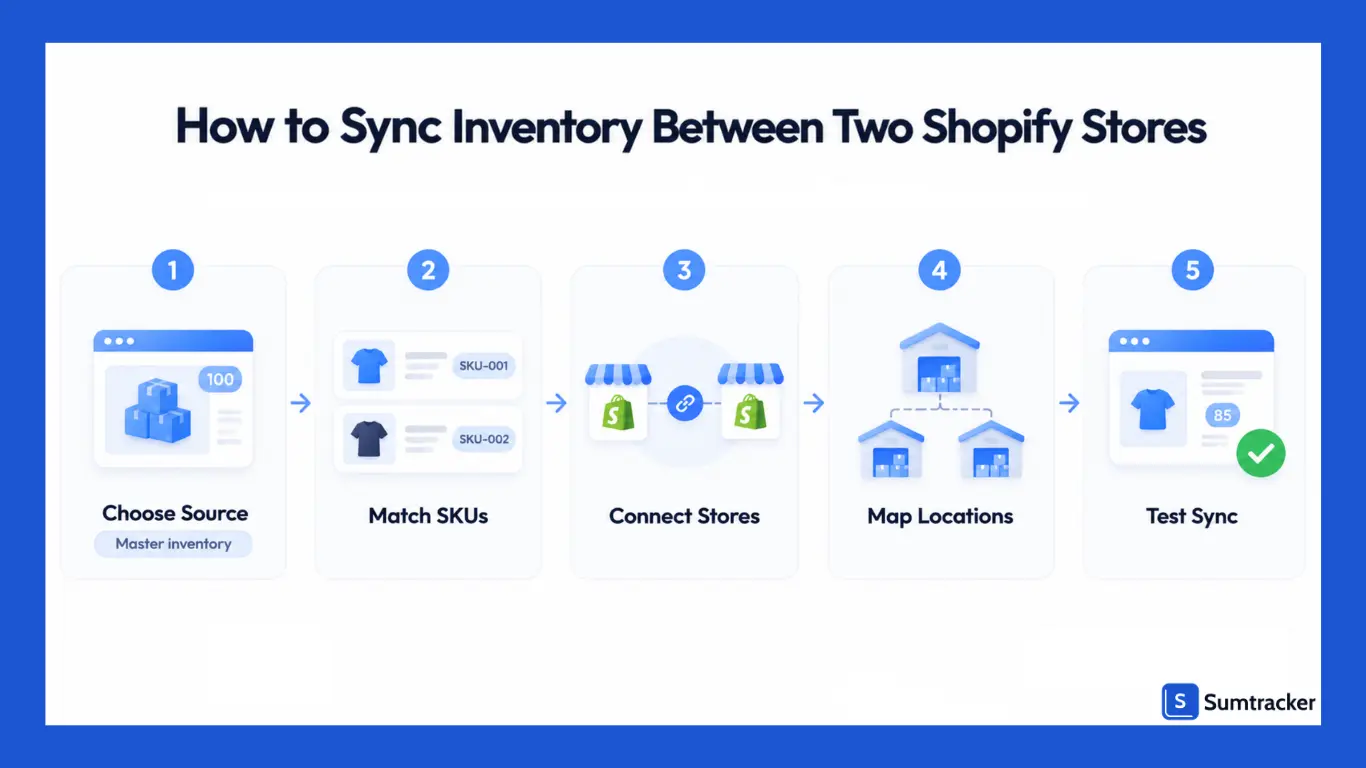
- Pick your master. Decide where the true stock number lives: your main store, or a central inventory app. Write it down and tell the team.
- Clean up your SKUs. Every sellable variant needs a unique SKU. The same physical item must use the same SKU in both stores. Fix blanks, duplicates, and typos like "TSHIRT-BLK-M" vs "TSHIRT-BLACK-M" first.
- Set your starting quantities. Choose which store has the accurate count, or do a stock count. Copy from that source only. Never add the two stores' counts together.
- Connect both stores. Install the app on both stores, or connect both to your central system.
- Match products. Let the app match variants by SKU, then review every unmatched item by hand. An unmatched SKU simply won't sync, and nothing will warn the customer.
- Map your locations. Link each Shopify location to the corresponding warehouse or inventory location in your app. Incorrect location mapping can cause stock to appear at the wrong location.
- Set a safety buffer for fast sellers (see the formula below).
- Test with 5 to 10 SKUs. Place a test order in each store, then cancel one, refund one, and edit one. Check that every action updates both stores correctly.
- Go live and watch the logs. Check the sync log daily for the first two weeks. After that, a weekly spot-check of your top sellers is usually enough.
How big should your buffer be?
No sync is truly instant. Webhooks, queues, and polling intervals all add a delay. A buffer hides a few units from sale so two stores can't sell the same last unit during that gap.
Peak sales move fast. During BFCM 2025, Shopify merchants hit $5.1 million in sales per minute at peak. More than 94,900 merchants had their best sales day ever. On days like that, a few minutes of sync delay matters.
Buffer (units) = Ceiling [Average hourly sales across all stores × Sync delay in hours]
Example: A best seller moves 12 units an hour across both stores during a sale. Your app syncs every 10 minutes (0.17 hours). 12 × 0.17 = 2.04, so round up to a buffer of 3 units for that SKU. Slow sellers rarely need a buffer at all.
Practical tip: For synced products, turn off Shopify's "Continue selling when out of stock" setting unless you truly take preorders. If that box is ticked, a stock count of zero won't stop a sale, and no sync app can protect you.
How Inventory Sync Handles Variants, Bundles, and Multiple Locations
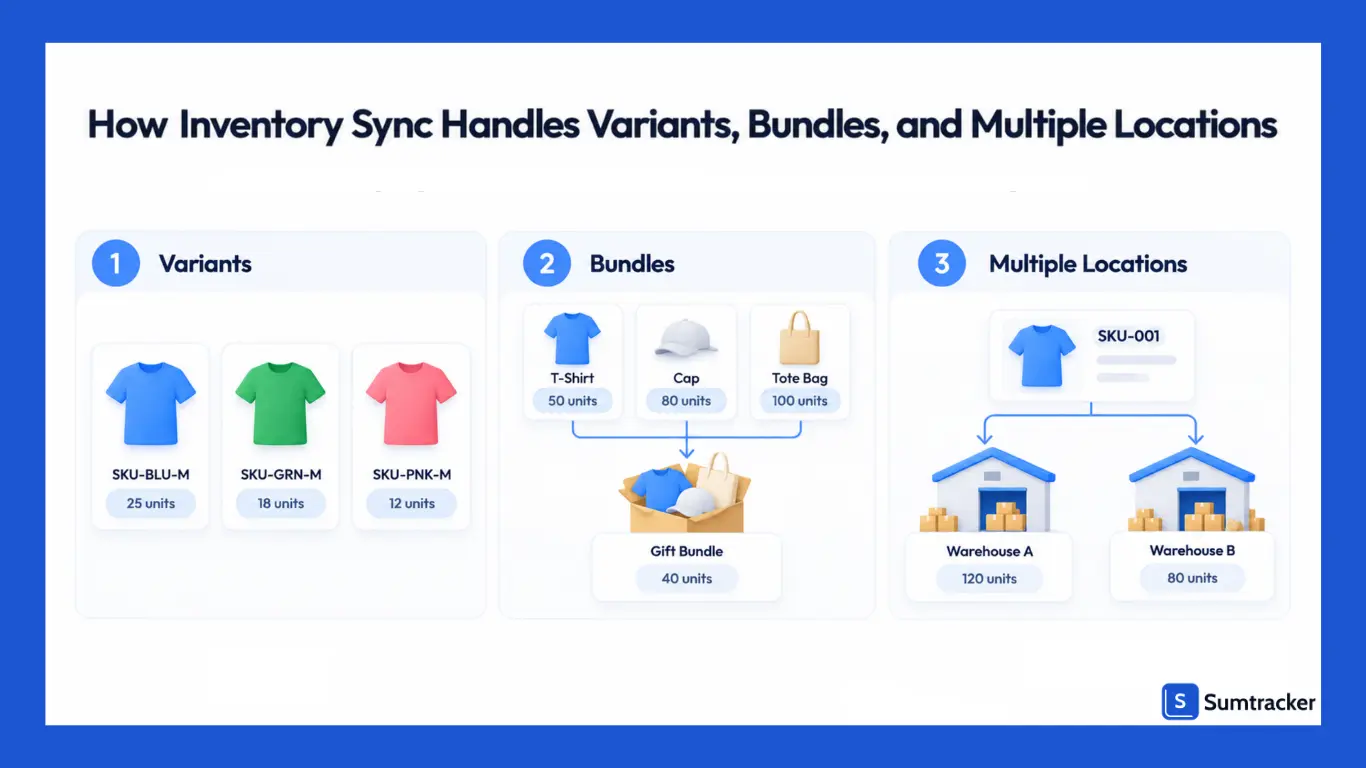
Inventory sync needs to match the right variants, account for bundle components, and determine which locations can supply each store. Getting these three things right helps prevent overselling.
Variants: match on SKU, not on names
Shopify tracks inventory for each variant at each location. A T-shirt with three colors and four sizes has 12 variants, each with its own inventory.
Product names and variant labels can differ between stores. Your UK store might use "Grey" while your US store uses "Gray."
A consistent SKU across both stores makes it easier to match the same physical product, regardless of its name.
Bundles: sync the components, not the bundle
For component-based bundles, availability depends on the stock of the individual components.
Shopify's Bundles app calculates bundle availability from component inventory within a store, but that doesn't automatically sync component stock across separate stores.
Your sync system must account for each bundle's components and quantities. Otherwise, a bundle sold in Store B might not reduce the corresponding component inventory available in Store A.
Bundle availability formula:
Bundle availability = Minimum of (Available units of each component ÷ Units of that component per bundle), rounded down to a whole number.
Shared parts make this harder. If the same soap bar sits in three different bundles, one sale of any bundle changes the count for all three.
Multiple locations: decide which stock each store can sell
Not every unit should be available to every store. Inventory at a retail shop might be reserved for walk-in customers, while stock at a third-party logistics (3PL) warehouse might serve online orders from both stores.
Map your locations before enabling sync:
Shopify's Spring '26 Edition introduced inventory management improvements for locations that stock products without fulfilling online orders. This can help merchants manage inventory at locations that serve specific purposes rather than every sales channel.
Case study: syncing stock across several 3PLs
Babymaxi, an Amsterdam-based baby carrier retailer, moved from its own warehouse to two 3PL partners. With stock split across locations, it saw 5 to 7 overselling incidents a month and no single view of where stock sat.
After syncing every location through one central record, overselling dropped to near zero. The team's weekly inventory work fell from about 10 hours to about 3. Stock transfers also gave them a clear trail while goods moved between warehouses.
Practical tip: Record warehouse movements as stock transfers rather than separate manual adjustments. Transfers track stock moving between locations, helping prevent the same units from appearing available at both warehouses while they're in transit.
International Stores and Regional Inventory Considerations
For international selling, first ask whether you need a second store at all. Shopify Markets lets one store sell in many countries, and one store means one inventory with nothing to sync.
Shopify keeps adding to Markets. The Spring '26 Edition added variant-level publishing by channel and market, discounts by market, and gift cards in local currencies. It also brought Managed Markets, which handles duties and taxes, to businesses based in the UK and Canada.
Separate regional stores still make sense in some cases. International stores are a pre-approved expansion store type on Shopify Plus, per Shopify's expansion stores page.
Regional stock pools
Currency doesn't determine whether inventory can be shared. What matters is whether the same physical units can fulfill orders from both stores.
For example, shipping a product from the US to Germany may be too expensive or slow. If your EU store has its own warehouse, US inventory shouldn't automatically count toward the stock available to EU customers.
Rule of thumb: A practical setup for many brands uses three types of stock pools:
- Shared pool: Products held in one central warehouse and available to customers across regions.
- Regional pool: Products held in local warehouses and reserved for customers in those regions.
- Ring-fenced stock: Units reserved for a product launch, wholesale customer, or specific sales channel and made available only where they're allocated.
Troubleshooting Shopify Inventory Sync Issues
Most sync problems come from setup, not from the app. Mismatched SKUs, wrong location mapping, and two tools writing to the same store cause the bulk of them.
This isn't just a Shopify problem. IHL Group estimates internal inefficiencies cost retailers nearly $500 billion in 2025. Many of those errors start with process, not technology.
Returns deserve extra attention
Returns are a quiet source of sync drift. A returned item may be restocked at the wrong location, restocked before anyone checks it, or never restocked at all.
Restock returned items only after inspection. Damaged products should remain unavailable for sale until they're suitable for resale.
Practical tip: When inventory numbers don't match, check the inventory adjustment history for the affected variant in both stores before changing quantities. Finding what caused the discrepancy helps prevent it from happening again.
Best Practices for Managing Inventory Across Multiple Shopify Stores
Sync keeps the numbers aligned. Good habits keep the numbers right. These practices matter more as you add stores, channels, and people.
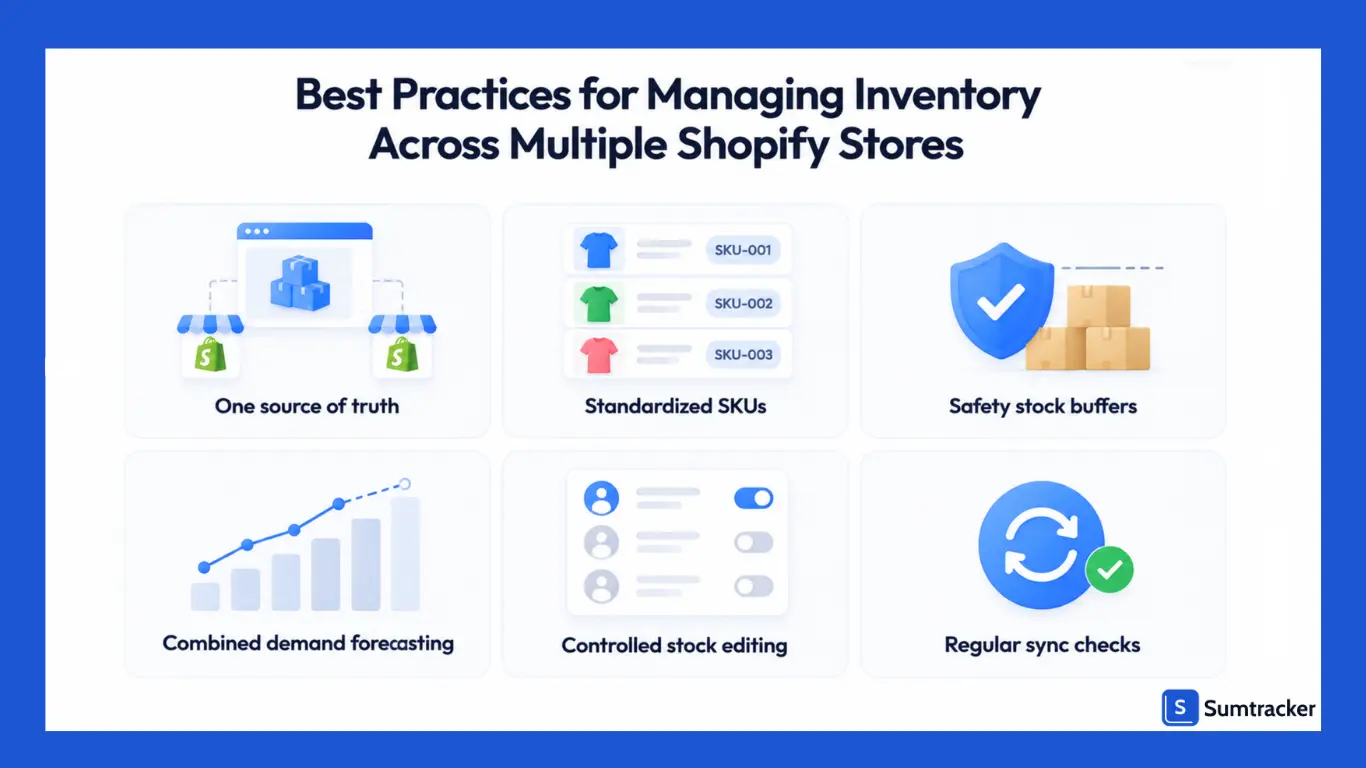
1. Keep One Source of Truth
Maintain one authoritative inventory record for shared stock. This prevents different stores from maintaining conflicting quantities and makes it easier to identify where adjustments should be made.
Chris Hondl talked about this on the Ecommerce Coffee Break podcast (episode #382). He explains why inventory gets harder once you sell on more than one platform, and how inaccurate records lead to overselling on one side and overstock on the other.
2. Standardize SKUs Before You Scale
Use a consistent SKU format, such as BRAND-PRODUCT-COLOR-SIZE, across your stores. Use barcodes where appropriate. Consistent identifiers make product matching easier when you add another store or marketplace.
3. Reorder From Combined Demand
When two stores share inventory, calculate replenishment needs using sales from both stores. Planning purchases separately can underestimate demand and lead to late reorders.
Reorder point = (Average daily sales across both stores × Supplier lead time in days) + Safety stock
Example: Store A sells 6 units a day, and Store B sells 4. If supplier lead time is 21 days and safety stock is 30 units, the reorder point is (6 + 4) × 21 + 30 = 240 units.
Reorder when your inventory position reaches 240 units. Inventory position accounts for stock on hand and incoming purchase orders, minus outstanding demand. Use actual supplier lead times from your order history rather than relying only on quoted delivery times.
Sumtracker's guide to the inventory order cycle explains how lead time and replenishment timing affect stock availability.
4. Ring-Fence Stock That Has a Job
If 200 units are promised to a wholesale customer, don't leave them in the shared pool. Allocate them to the relevant order, location, or inventory reservation so your retail store doesn't sell stock intended for wholesale.
5. Limit Who Can Edit Stock
Give inventory-editing permissions only to team members who need them. Clear ownership reduces accidental changes and conflicting adjustments across stores.
6. Run a Simple Check Rhythm
Inventory records drift more than most teams think. Auburn University's RFID Lab found average retail store inventory accuracy sits around 65%.
Practical tip: Before Black Friday, run a sync test a week before the sale. Place, cancel, and refund a test order in each store, then check that inventory updates correctly. Fixing a mapping error before peak sales is easier than troubleshooting it during a rush. For more preparation advice, see Sumtracker's seasonal inventory planning guide.
When Should You NOT Sync Inventory Between Two Shopify Stores?
Skip syncing when the two stores don't actually sell the same physical units. Syncing stock that isn't shared creates fake stockouts or sells units a store can't ship.
Here are the most common cases:
- The catalogs don't overlap. Two brands with different products have nothing to sync. Each store can manage its own stock.
- Each store has its own stock that can't serve the other. A regional warehouse with its own stock, or products that can't legally ship across a border, should stay in its own store's pool.
- The stock belongs to someone else. Consignment or supplier-held dropship stock is usually managed by the owner's feed, not by your shared pool.
- Products are made to order. Print-on-demand or custom items often have no fixed quantity. Turn off quantity tracking instead of syncing a made-up number.
- One store is a test or staging store. Syncing a staging store into live stock can create phantom sales and real stock drops.
- Units are promised to one channel. Contracted wholesale stock or a launch allocation should be ring-fenced, not shared.
- The second store isn't really needed. If you only split stores for another warehouse or another currency, one store with more locations and Shopify Markets may be simpler.
Rule of thumb: Sync only what is truly shared. Most sync apps let you choose which products to sync, so a partial sync of the overlapping SKUs is often the right answer.
Separate legal entities need a note too. If each store belongs to a different company, shared stock can blur who owns what for tax and accounting. Talk to your accountant before you share one stock pool across companies.
3 Best Apps for Multi-Store Inventory Management
The right app depends on how your stores relate. A central hub suits brands with bundles, warehouses, or marketplaces. A source-to-destination app suits a simple main store feeding other stores.
1. Sumtracker: Best for Multi-Store Inventory Management
Sumtracker centralizes inventory management across multiple Shopify stores, warehouses, and supported marketplaces. It synchronizes inventory across connected channels and supports merchants who need more than basic stock syncing.
Key features:
- Multi-store inventory sync: Synchronize stock across multiple Shopify stores and supported marketplaces, including Amazon, eBay, Etsy, and Walmart.
- Bundle and kit management: Automatically update bundle availability based on component inventory, including products that share components.
- Multi-location inventory: Track stock by warehouse and manage inventory across locations.
- Order change handling: Account for order edits, cancellations, refunds, and returns in inventory updates.
- Stock control tools: Use barcode scanning, stocktakes, low-stock alerts, inventory adjustments, and reporting.
- Replenishment planning: Create purchase orders, manage stock transfers, forecast demand, and receive reorder suggestions on the Replenish plan.
Pricing: The Manage plan starts at $59/month. The Replenish plan starts at $119/month and adds purchase orders, forecasting, and reorder suggestions. Both include a 14-day free trial. Pricing varies with annual order volume. See Sumtracker's pricing.
Best for: Shopify merchants managing shared inventory across stores, bundles, warehouses, and marketplaces who also need inventory planning and replenishment.
2. Syncio: Best for a Simple Source-to-Destination Setup
Syncio makes one store the "source" of products and stock, and other stores "destinations." It also works with stores you don't own, which suits brands selling through partner retailers.
Key features:
- Real-time inventory sync: Update stock in destination stores when inventory changes in the source store.
- Product importing: Import products from a source store rather than creating each listing manually.
- Product detail synchronization: Sync product titles, images, prices, variants, tags, and other details through the Product Settings add-on.
- Order synchronization: Forward destination-store orders to the source store for fulfillment through the Order Sync add-on.
- Multiple store connections: Connect destination stores to source stores and manage product availability across the network.
Pricing: Offers free tiers for source and destination stores, with paid plans starting at $19/month. Product-detail syncing and order forwarding are available as paid add-ons.
Best for: Brands supplying products to partner retailers or destination stores that need to import listings and synchronize inventory from a source store.
3. Multi-Store Sync Power: Best for Syncing Products and Collections Too
Multi-Store Sync Power syncs inventory, product information, and collections across multiple Shopify stores. It supports two-way inventory synchronization and lets merchants control which product fields are shared between stores.
Key features:
- Two-way inventory sync: Propagate inventory changes across connected Shopify stores, including changes caused by orders, refunds, cancellations, and restocks.
- Product and collection sync: Synchronize product titles, descriptions, images, pricing, variants, metafields, and collections.
- Automatic product creation: Create products in connected stores when they are added to another store.
- Field-level sync controls: Choose which product details should synchronize and which should remain different across stores.
- Multi-location synchronization: Configure inventory syncing rules for different Shopify locations.
Pricing: Offers a free plan for up to 25 products per connected store, with paid plans starting at $19.99/month. Paid plans include a 14-day free trial.
Practical tip: Whichever app you pick, test it on a copy of 5 to 10 products before syncing your whole catalog. A wrong master setting can overwrite real stock counts in seconds, and an undo isn't always possible.
Conclusion
Syncing inventory between two Shopify stores helps prevent overselling, maintain accurate stock levels, and simplify inventory management as your business grows.
But Shopify doesn't natively synchronize inventory between separate stores, so you'll need a manual CSV workflow, a custom API integration, or a dedicated inventory sync app.
The right approach depends on how your stores share stock. A simple source-to-destination app may be enough if one store supplies products to another.
Before enabling sync, standardize SKUs, map inventory locations, set safety buffers for fast-selling products, and test order cancellations, refunds, and returns.
Most importantly, only synchronize inventory that is genuinely shared between stores.
For Shopify merchants who need more than basic stock syncing, Sumtracker helps centralize inventory across multiple stores, manage bundles and warehouse stock, and plan replenishment from combined demand.
Choose a setup that fits your current operations and can scale as you add stores and sales channels.
Frequently Asked Questions
1. Can Shopify sync inventory between two separate stores?
No. Shopify doesn't natively sync inventory between separate stores, including Shopify Plus expansion stores. You need an inventory sync app, a custom API integration, or manual CSV updates to keep stock levels aligned.
2. How do I sync inventory between two Shopify stores?
Choose a master inventory source, standardize SKUs across both stores, connect the stores using an inventory sync app or custom integration, and map the relevant locations. Test sales, cancellations, refunds, and returns before syncing your entire catalog.
3. What is the best app to sync inventory between multiple Shopify stores?
The right app depends on your needs. Sumtracker is suitable for managing shared inventory across multiple Shopify stores, warehouses, bundles, and marketplaces. Syncio works well for source-to-destination syncing, while Multi-Store Sync Power supports two-way inventory and product data synchronization.
4. Can I sync inventory between Shopify stores without an app?
Yes. You can export and import inventory using CSV files or build a custom integration with Shopify's APIs and webhooks. CSV is suitable for small catalogs with slow sales, while custom integrations can support more frequent updates but require ongoing maintenance.
5. How do I prevent overselling between two Shopify stores?
Use a single source of truth for shared inventory, ensure sales from both stores update the master quantity, and set safety buffers for fast-selling products. Also, standardize SKUs, verify location mappings, and disable "Continue selling when out of stock" unless you accept preorders.
6. Can I sync inventory between Shopify stores in different countries?
Yes. You can synchronize inventory across international stores using an app or custom integration. However, only share stock when the same physical units can fulfill orders in both regions at an acceptable cost and delivery speed. Otherwise, maintain separate regional inventory pools.
7. Can I sync product variants and bundles between two Shopify stores?
Yes, but variants should have consistent SKUs across both stores. Bundles require additional inventory logic to account for their components. When a bundle sells in one store, the shared component inventory must update so other bundles and individual products display accurate availability.
Conclusion

Bhoomi writes about inventory management and multichannel selling at Sumtracker. Her focus is on solving real operational problems for Shopify, Amazon, and marketplace sellers through well-researched content. She covers everything from multi-location inventory syncing and stock error troubleshooting to replenishment planning and platform comparisons, turning complex eCommerce operations into clear, actionable guidance.
LinkedInRelated Articles
Tool and strategies modern teams need to help their companies grow.


.avif)
Ready to Simplify Your Inventory Management?
Join hundreds of e-commerce merchants who rely on Sumtracker to save time, eliminate errors, and grow their business.
