.svg)
Shopify Variant Inventory: Complete Guide to Tracking & Management


If you sell a T-shirt in three sizes and four colors, Shopify doesn't see one product. It sees twelve.
Each size-color combination is its own variant, with its own stock count, its own SKU, and its own risk of running out or being oversold.
Most merchants find out how variant inventory actually works the hard way: a bestselling color sells out while the rest of the sizes still show "in stock," or a warehouse count doesn't match what Shopify says is available.
This guide covers how Shopify tracks inventory at the variant level, how to check and update it, and how to stop the stockouts and overselling that come with managing hundreds of SKUs.
What Is Shopify Variant Inventory?
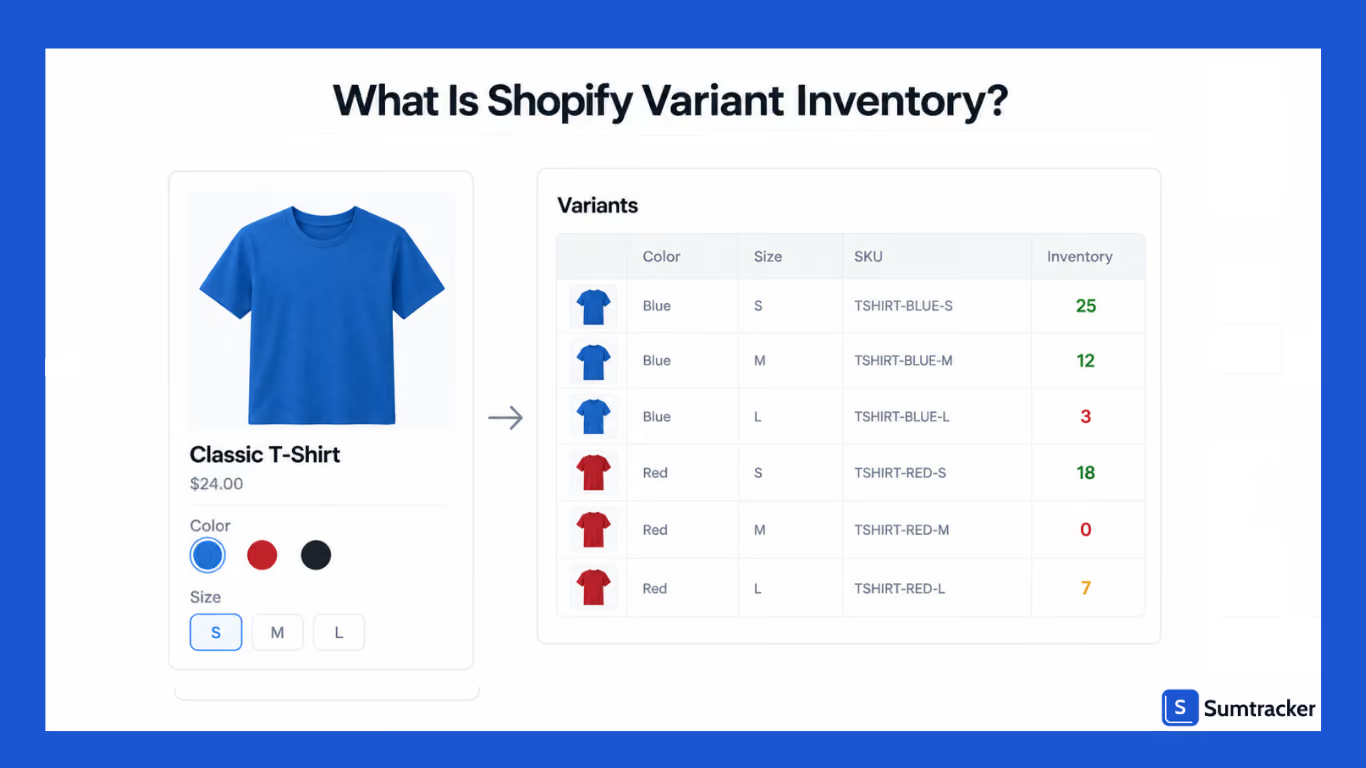
Shopify variant inventory is the stock quantity tracked for each specific version of a product, rather than one quantity for the entire product.
For example, if you sell a T-shirt in three sizes and four colors, each size-and-color combination is a separate variant. Red, Large and Blue, Small are two different variants, and each can have its own SKU and inventory quantity.
Shopify supports up to three product options, such as size, color, and material, and a product can have up to 2,048 variants based on those options.
When you enable Track quantity for a variant, Shopify tracks its inventory separately. If you have multiple locations, Shopify can maintain a different inventory quantity for that variant at each location.
For example, a hoodie with three sizes stocked across two warehouses can have a separate inventory quantity for each size at each warehouse.
This is why it's important to look at inventory at the variant level. A product can have 12 variants, while some variants are in stock and others are sold out. Looking only at the product as a whole can hide which specific size, color, or other option is running low.
Here are the actual rules Shopify enforces around variants and inventory tracking, worth knowing before you build out a large catalog:
Rule of thumb: Use a consistent SKU structure that makes variants easy to identify, such as TSHIRT-RED-L instead of TSHIRT-042. A descriptive SKU makes it easier to identify a variant in inventory reports, spreadsheets, and connected apps without opening the product in Shopify.
How Does Shopify Variant Inventory Work?
Shopify tracks inventory for each variant separately. So if a T-shirt comes in Small, Medium, and Large, Shopify keeps a separate inventory quantity for each size.
If you sell the same variants from multiple locations, Shopify also keeps track of the quantity at each location. For example, if you have 10 Small T-shirts in your warehouse and 5 in your retail store, Shopify keeps those quantities separate.
The number that matters when you're selling a variant is its Available quantity. This is the stock that Shopify considers available for sale. For example, if you have 10 units on hand but all 10 are committed to orders, the available quantity is 0.
Shopify also lets you choose what happens when a variant runs out of stock. By default, customers can't buy a tracked variant once its available quantity reaches zero.
You can turn on Continue selling when out of stock if you want to keep accepting orders after the inventory reaches zero, which can be useful for pre-orders or made-to-order products.
If you sell through multiple locations, Shopify also considers which locations can fulfill an order when determining whether a product can be purchased.
So having stock at one location doesn't always mean that stock can be used to fulfill every customer's order.
In simple terms, Shopify variant inventory comes down to three things: which variant you're selling, how many units you have, and where those units are stored.
How to Check Inventory for Shopify Variants
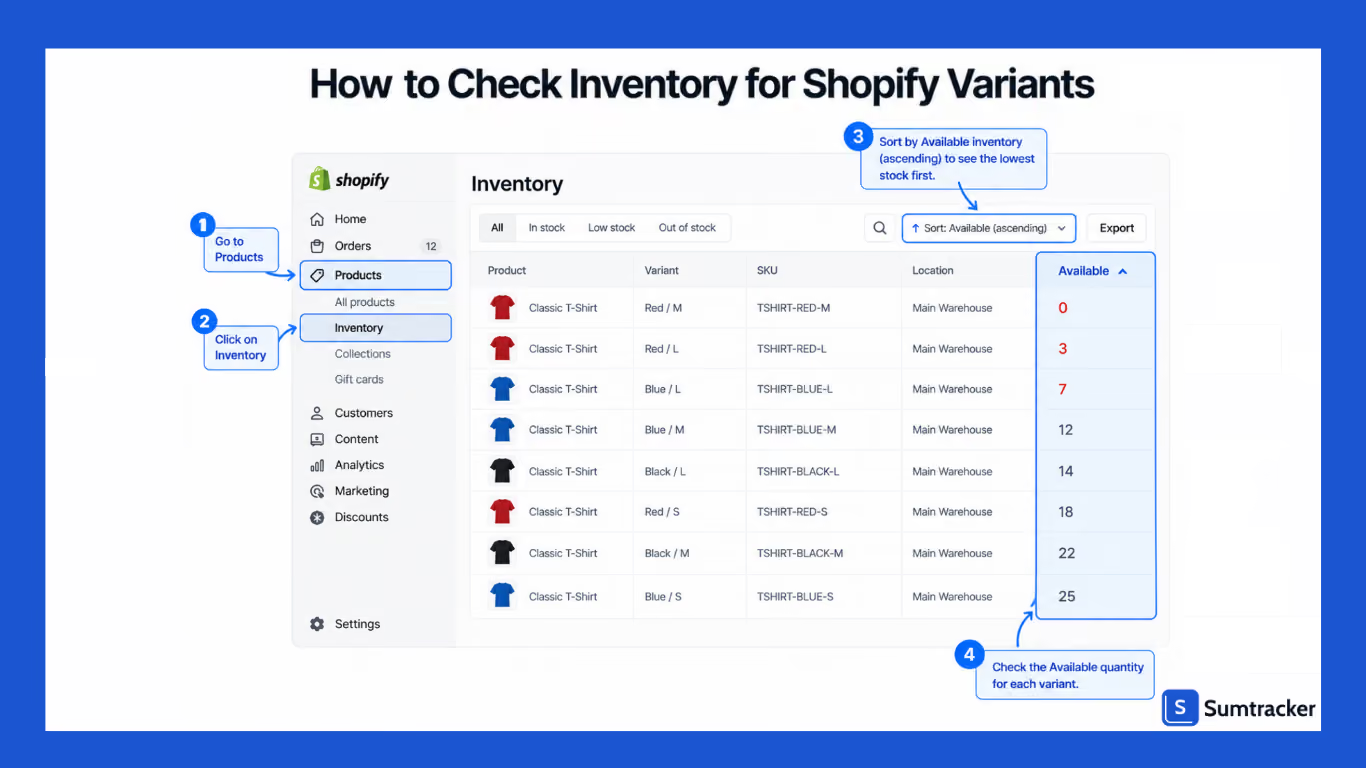
You can check inventory for all your variants from Shopify's Inventory page.
- From your Shopify admin, go to Products > Inventory.
- If you have multiple locations, select the location you want to check from the location dropdown.
- Use the search bar and filters to narrow down the inventory list.
- Sort the list by Available to find variants with the lowest stock.
Shopify also lets you check inventory for a specific product. Go to Products, open the product, and view its variants. You can filter the variants by location to see the available quantity at a specific location.
If a variant isn't being tracked, it won't appear on the Inventory page. To check it, open the product and make sure Track quantity is enabled for that variant.
For large catalogs, you can also save an inventory search or filter as a custom view. For example, you could create a view that shows variants with Available inventory below a certain quantity.
The next time you open that view, Shopify will show the same filtered list without you having to set the filters again.
Your next step: If you regularly check for low stock, save an inventory view with a filter for variants below the quantity you consider your reorder point—for example, Available < 10.
Once saved, you can open the view whenever you need to check which variants are running low instead of filtering your inventory list from scratch.
How to Update Shopify Variant Inventory
To update inventory for one variant:
- Go to Products and open the product.
- Click the variant you want to change.
- In the Inventory section, select the location you want to update.
- Choose Set to to enter the new quantity, or Adjust by to add or remove units.
- Save your changes.
Shopify records inventory changes made this way in the inventory adjustment history.
If you're moving stock between locations, use an inventory transfer instead so Shopify records where the inventory came from and where it went.
For a single variant, updating inventory from the variant page is the simplest option. If you're changing inventory for many variants, use Shopify's bulk editor or CSV instead.
If you're changing an inventory policy from Stop selling to Continue selling when out of stock, test the setting on one variant first to make sure it works as expected.
How to Bulk Edit Variant Inventory in Shopify
If you need to update inventory for multiple variants, Shopify's bulk editor lets you make the changes without opening each product separately.
From a single product with multiple variants:
- Go to Products and open the product.
- In the Variants section, select the variants you want to update.
- Click Bulk edit.
- Update the inventory quantities in the spreadsheet-style grid.
- Click Save.
Across multiple products:
- Go to Products > Inventory.
- Select the location you want to update.
- Select the variants you want to change.
- Click Bulk edit.
- Enter the new inventory quantities.
- Click Save.
For a large catalog, you can also use Shopify's CSV import and export to update inventory in bulk. Export your inventory, make the changes in a spreadsheet, and import the updated file back into Shopify.
Keep in mind that bulk editing changes the inventory quantity directly. It doesn't record where stock was moved from or to like an inventory transfer does.
Tip: Export your inventory before making a large bulk change. This gives you a copy of the previous quantities in case you need to check or restore them later.
How to Manage Variant Inventory Across Multiple Locations
If you stock inventory in more than one place, such as a warehouse, retail store, or 3PL, Shopify tracks each variant's quantity separately at each location. The number of locations you can use depends on your Shopify plan.
To set this up:
- Go to Settings > Locations and add each location.
- On the product or variant page, make sure Track quantity is turned on and assign the variant to the locations where you stock it.
- Set the quantity for the variant at each location.
- Configure your order routing settings to control how Shopify assigns orders to your locations.
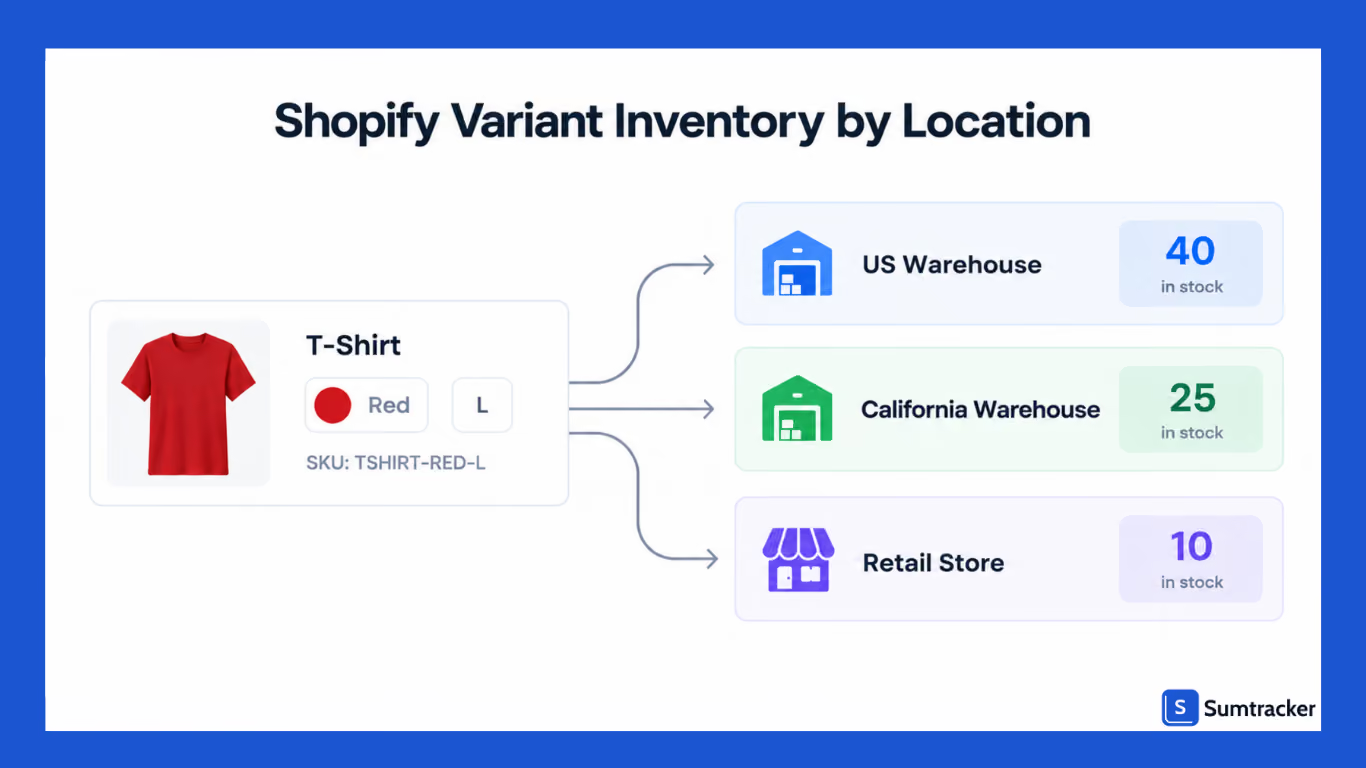
When a variant sells out at one location but is available at another, Shopify can use the other location to fulfill the order. Depending on your inventory and fulfillment setup, an order can also be split across multiple locations.
Tip: Give your locations clear names based on their purpose, such as US-East Warehouse or California Retail Store. This makes it easier to identify the right location when managing inventory and fulfillment.
Shopify shows you how much inventory you have at each location, but it doesn't calculate when you should reorder based on how quickly each location is selling.
If you need location-specific replenishment recommendations, you'll need additional inventory management tools.
This can become a real issue as your catalog and sales volume grow. Ozdingo, an Australian retailer selling thousands of SKUs across Shopify and Amazon, previously managed its bundle-heavy, multi-location inventory with spreadsheets.
Manual updates during busy periods caused delays and stockouts. After switching to Sumtracker, automated inventory and bundle tracking reduced the need for manual reconciliation.
How to Track Shopify Variant Inventory Across Sales Channels
If you sell through multiple sales channels, Shopify can sync inventory across connected channels. Shopify supports channels such as Facebook and Instagram, TikTok Shop, and marketplaces through Shopify Marketplace Connect, including Amazon, Walmart, eBay, and Target Plus.
When a sale comes through a connected channel, Shopify updates the inventory based on the channel and integration you're using.
The challenge comes when you sell through a channel that isn't connected to the same Shopify inventory.
For example, if you run a second Shopify store or sell through a marketplace without an inventory connection, Shopify can't automatically use those sales to update inventory in your other stores.
You can update inventory manually on each channel, but this becomes difficult as the number of channels and variants grows. Another option is to use a multichannel inventory tool that keeps inventory quantities in sync across your stores.
Sumtracker, for example, pushes available inventory to connected stores every 10 minutes and pulls new orders from each channel on the same interval.
For any channel that doesn't sync inventory with Shopify, consider keeping a small buffer instead of making your full physical stock available for sale.
The right buffer depends on your sales volume and how quickly inventory updates between channels.
How to Set Low-Stock Alerts for Shopify Variants
Shopify doesn't have a simple low-stock alert setting on the Inventory page, but you can set up low-stock notifications using Shopify Flow.
Flow can trigger a workflow when a variant's inventory falls below a threshold and send you an email or another notification. You can also use a dedicated inventory alert app if you need more advanced alerts.
Before setting a threshold, it's better to base it on your reorder point rather than choosing an arbitrary number like 10 units.
Reorder point = (average daily sales × lead time in days) + safety stock
For example, if a variant sells 4 units a day and your supplier takes 15 days to deliver, you would need 60 units to cover expected sales during the lead time. If you keep another 15 units as safety stock, your reorder point would be 75 units.
The right threshold can vary by variant. A slow-moving size may need a lower reorder point than a bestselling size, so using the same threshold across every variant can lead to alerts that are too early or too late.
How to Prevent Stockouts for Shopify Variants
Stockouts aren't just a Shopify problem; they're a persistent one across retail. IHL Group's 2026 Inventory Distortion Study puts the global cost of inventory distortion (stockouts and overstocks combined) at $1.7 trillion a year, or 6.2% of global retail sales, and attributes the majority of that to out-of-stocks rather than overstocking.
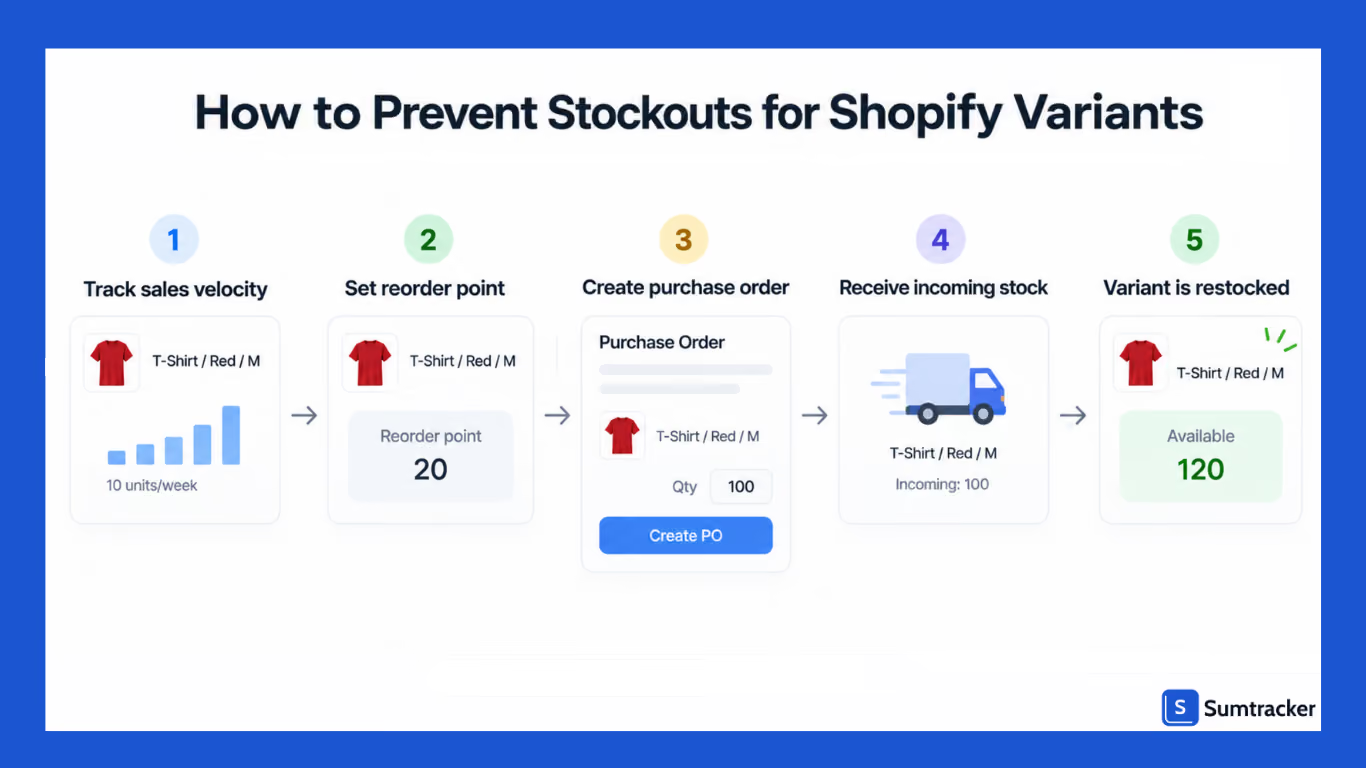
A few things reliably reduce stockouts at the variant level:
- Set a reorder point per variant, using the formula above, rather than reordering on a fixed schedule regardless of how fast a variant is actually selling.
- Review sales velocity by variant, not by product. A product might look healthy overall while its most popular size or color is already gone.
- Keep purchase orders and incoming stock visible. If Shopify shows a variant as "incoming," factor that into how urgently you need to reorder.
- Watch variants shared across bundles or kits. If a component sells out but the bundle itself still shows in stock, you'll oversell the bundle. Shopify doesn't automatically deduct stock from individual components when a bundle sells; that requires either manual tracking or an app built for it.
Crafter's Lab is a useful example of what fixing this looks like in practice. Running inventory across multiple Shopify stores with real-time sync, bundle tracking, and automated reordering, the brand cut overselling by 99.7% and saved 8 to 10 hours of manual work a week.
If you'd rather hear this from a founder's perspective than read about it, the Winning With Shopify podcast episode "50% of Stores Will Fail Due to These Reasons" covers the mistakes that lead Shopify brands to lose money on inventory, including running out of stock, overstocking, and treating marketing and inventory planning as separate problems. It's worth a listen if you're trying to figure out where your own process is leaking.
How to Fix Common Shopify Variant Inventory Issues
Most variant inventory problems trace back to a small set of causes. This is the quick-reference version:
Tracking is on for the product but not every variant. Shopify tracks each variant separately, so check each variant to make sure Track quantity is enabled. You can also use the bulk editor to check multiple variants at once.
A variant is missing from the Inventory page. This usually means tracking is off for that specific variant. Open the variant and check its inventory settings.
Stock numbers don't match your physical count. This can happen because of a manual adjustment, a sync delay from a connected sales channel, or inventory sold through a channel that isn't connected to Shopify. Regularly comparing your physical count with Shopify's on-hand quantity makes these differences easier to trace. For a full walkthrough of tracking down where counts diverge, see how to fix inventory mismatches in ecommerce.
The same SKU is used on more than one variant or product. Shopify allows duplicate SKUs, but they can cause confusion in reporting and with apps that match inventory by SKU. Keep SKUs unique and use a consistent naming pattern.
A bundle's inventory changes when a component sells. Shopify's bundle inventory is based on its component inventory. If a component runs out, the available quantity of the bundle can also drop. For more complex bundle setups, additional inventory management tools may be needed.
How to Automate Shopify Variant Inventory Management
Shopify handles the basics well: variant tracking, multi-location stock, bulk editing, and CSV imports and exports.
As your store grows, you may need automation for:
- Multi-channel sync: Keep variant stock updated across connected sales channels.
- Bundle tracking: Keep component inventory accurate when bundles sell.
- Low-stock alerts: Get notified when a variant reaches its reorder point.
- Purchase orders: Track incoming stock and update inventory when shipments arrive.
Sumtracker automates these tasks by syncing variant inventory across Shopify, Amazon, Etsy, eBay, and other channels. It also supports bundle tracking, variant-level low-stock alerts, and purchase order management.
If you want a broader look at what Shopify's inventory system does and doesn't cover before deciding whether you need something layered on top, this breakdown of Shopify's native inventory management capabilities is a good starting point.
Shopify Variant Inventory Management Best Practices
- Track every sellable variant, not just the product. Make sure inventory tracking is enabled for every variant you want Shopify to monitor.
- Use a consistent SKU structure so you can tell variants apart in exports, reports, and any app you connect.
- Document manual adjustments. Add a note when changing inventory so you can understand the reason later.
- Set variant-specific reorder points, rather than using the same threshold across your entire catalog.
- Keep inventory synced across sales channels. If you sell through multiple stores or channels, make sure they share the same inventory data to avoid overselling.
- Check bundles and kits separately from their components. A healthy bundle count with a depleted component is an oversell waiting to happen.
- Review your Inventory page on a schedule, not only when something goes wrong. Weekly is reasonable for most catalogs; daily if you run frequent promotions or have long supplier lead times.
Conclusion
Shopify makes it easy to track inventory by variant, but managing hundreds of sizes, colors, locations, and sales channels can quickly become difficult.
Start by tracking every sellable variant, using consistent SKUs, and setting reorder points based on actual sales velocity. Then review your low-stock variants regularly and make sure inventory stays synced across your sales channels.
If manual updates are becoming time-consuming, consider adding an inventory management tool to automate syncing, bundle tracking, alerts, and replenishment.
Your Next Step: Go to Products → Inventory, sort by Available, and identify variants nearing their reorder point. Check their sales velocity and incoming stock, then reorder before they hit zero.
FAQs About Shopify Variant Inventory
1. How does Shopify track inventory for variants?
Shopify tracks inventory separately for each variant, such as size, color, or material, and can track quantities separately at each location.
2. How do I update inventory for a Shopify variant?
Go to Products in your Shopify admin and open the product. Select the variant, choose the location, and update the quantity using Set to or Adjust by. For multiple variants, you can use Shopify's bulk editor or CSV import.
3. Why is a Shopify variant missing from the Inventory page?
The variant may not have inventory tracking enabled. Open the product, select the variant, and check whether Track quantity is turned on. Variants that aren't being tracked won't appear on the Inventory page.
4. Can Shopify send low-stock alerts for variants?
Yes. You can use Shopify Flow to create a workflow that checks a variant's inventory against a threshold and sends a notification when stock falls below it. You can also use a dedicated inventory app for more advanced alerts.
5. How can I prevent Shopify variant stockouts?
Set a reorder point for each variant based on its sales rate, supplier lead time, and safety stock. Regularly review variant-level inventory, track incoming stock, and keep inventory synced across your sales channels to reduce the risk of running out.
Conclusion

Bhoomi writes about inventory management and multichannel selling at Sumtracker. Her focus is on solving real operational problems for Shopify, Amazon, and marketplace sellers through well-researched content. She covers everything from multi-location inventory syncing and stock error troubleshooting to replenishment planning and platform comparisons, turning complex eCommerce operations into clear, actionable guidance.
LinkedInRelated Articles
Tool and strategies modern teams need to help their companies grow.


.avif)
Ready to Simplify Your Inventory Management?
Join hundreds of e-commerce merchants who rely on Sumtracker to save time, eliminate errors, and grow their business.
