.svg)
Linking Suppliers to Shopify Inventory: A Practical Guide



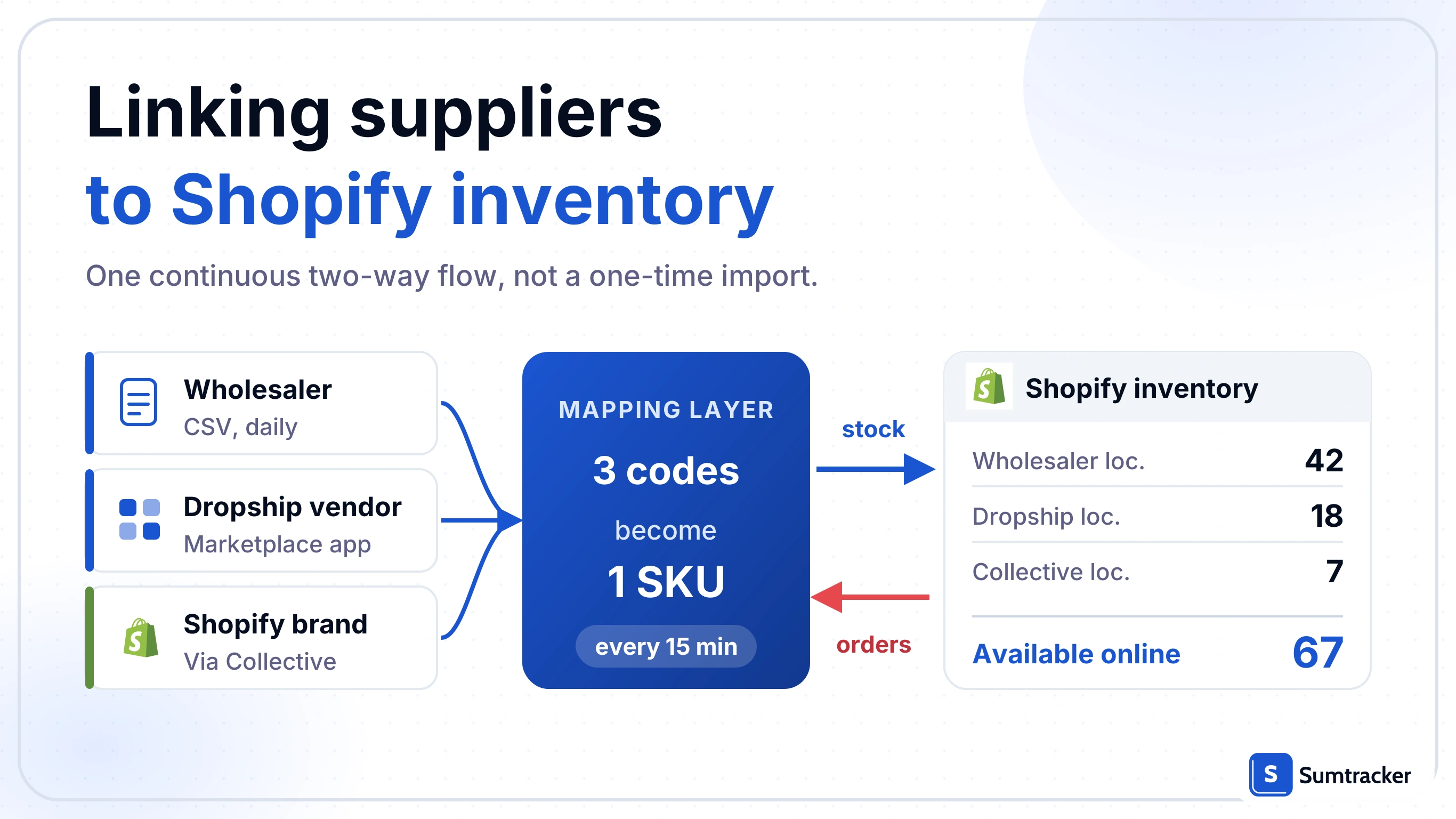
Linking suppliers to Shopify inventory means a two-way flow: supplier stock comes in, orders and purchase orders go out. Four methods cover most suppliers: a dropship app, a feed app, a direct API or Shopify Collective.
- Treat integration as an ongoing channel, not a one-time import.
- Maintain a stock buffer to account for synchronization delays.
- Define conflict rules to determine whether supplier or Shopify inventory takes priority.
- Ensure supplier SKUs map correctly to Shopify products.
Where Sumtracker fits: Sumtracker supports purchasing workflows, including supplier SKUs, MOQs, purchase orders, and receiving, alongside the chosen integration method.
If you sell on Shopify and your stock lives with a wholesaler, a drop-ship vendor, a 3PL, or another Shopify store, you probably already know what happens when the link between the two breaks. Someone buys the last unit twice. A product shows "available" on your storefront for a week after your supplier ran out. Or you spend a Monday morning pasting a CSV into the inventory page before you can approve any orders.
This guide covers the four main Shopify supplier integration methods, how to choose the right one, and what to configure before connecting. It also explains two essentials for reliable synchronization: accurate SKU mapping and clear inventory conflict rules.
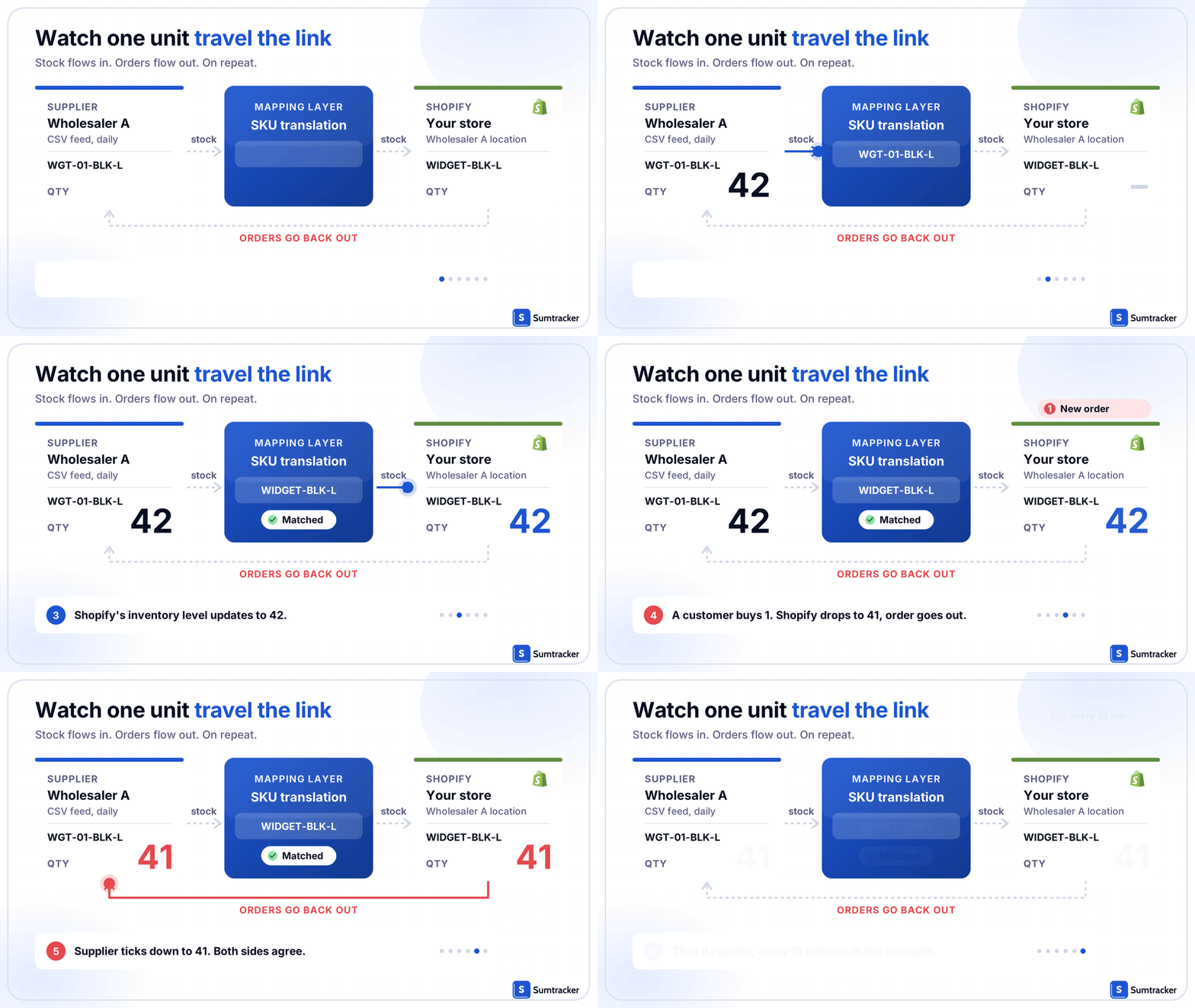
Here’s how a complete sync cycle works, from supplier stock updates to customer orders and replenishment:
Before you start: this guide assumes you already have inventory tracking turned on in Shopify and at least one location set up. If you don't, start with Shopify's inventory setup docs and come back.
Why Supplier Integration Is a Two-Way Data Flow?
Linking a supplier to Shopify means creating a continuous connection between the supplier’s inventory system and your Shopify store—not performing a one-time import.
Four things typically cross the link:
- Inbound: stock counts. How many units of each SKU the supplier currently has, updated on a schedule.
- Inbound: cost and sometimes retail price. When supplier costs move, your margin moves. You decide whether to let retail prices move automatically.
- Outbound: orders or purchase orders. Either individual customer orders (dropship model) or batched POs when you hit a reorder point.
- Outbound: cancellations and returns. Less glamorous, but the one that breaks trust fastest when it doesn't flow.
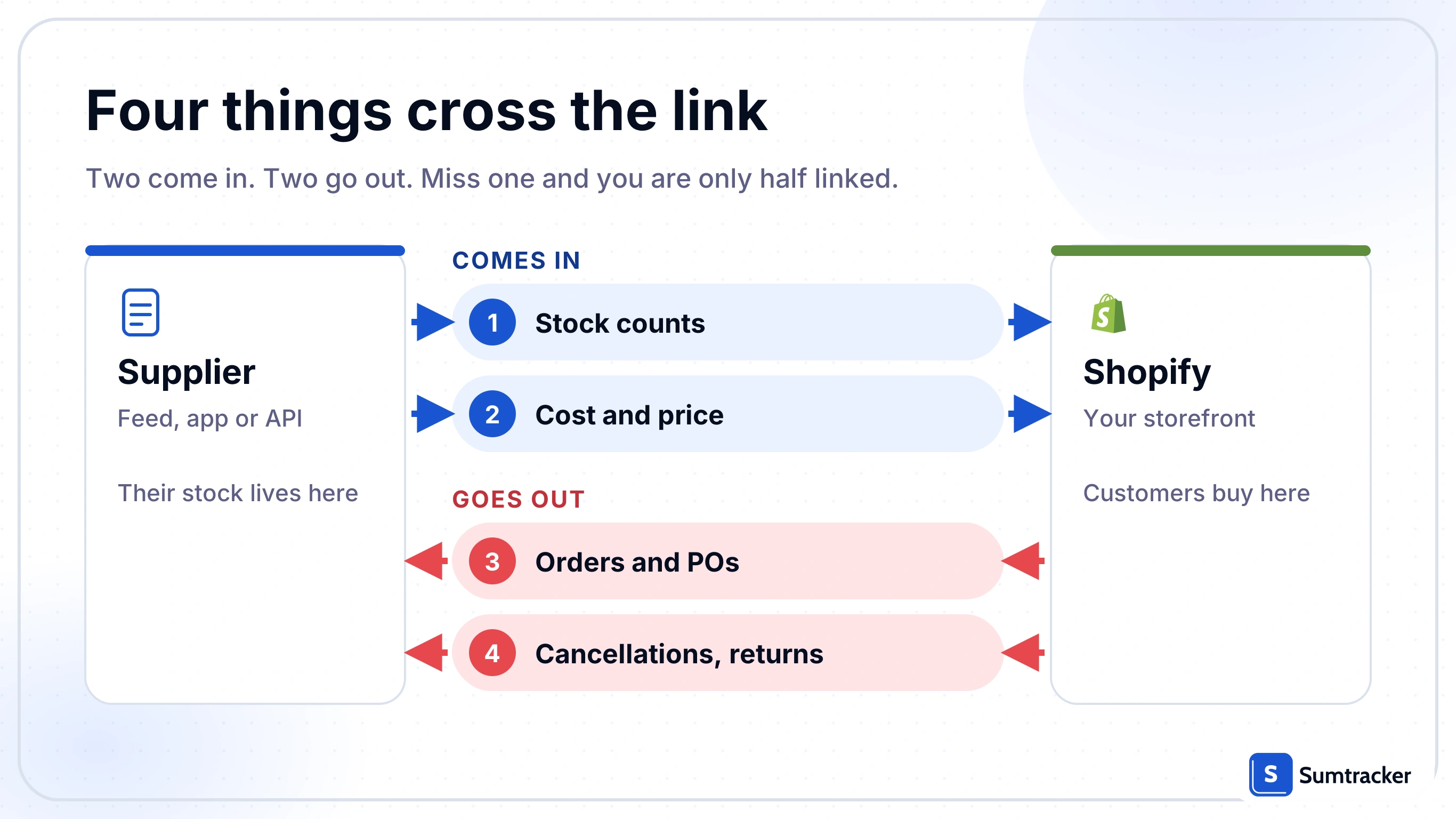
If any of those four isn't automated, you're half-linked, and the gap is where the mistakes live. The key is to keep both sides aligned. If stock updates flow into Shopify but orders do not reach the supplier, the integration is incomplete—and the risk of overselling remains.
The four ways to link supplier inventory to Shopify (and when each one fits)
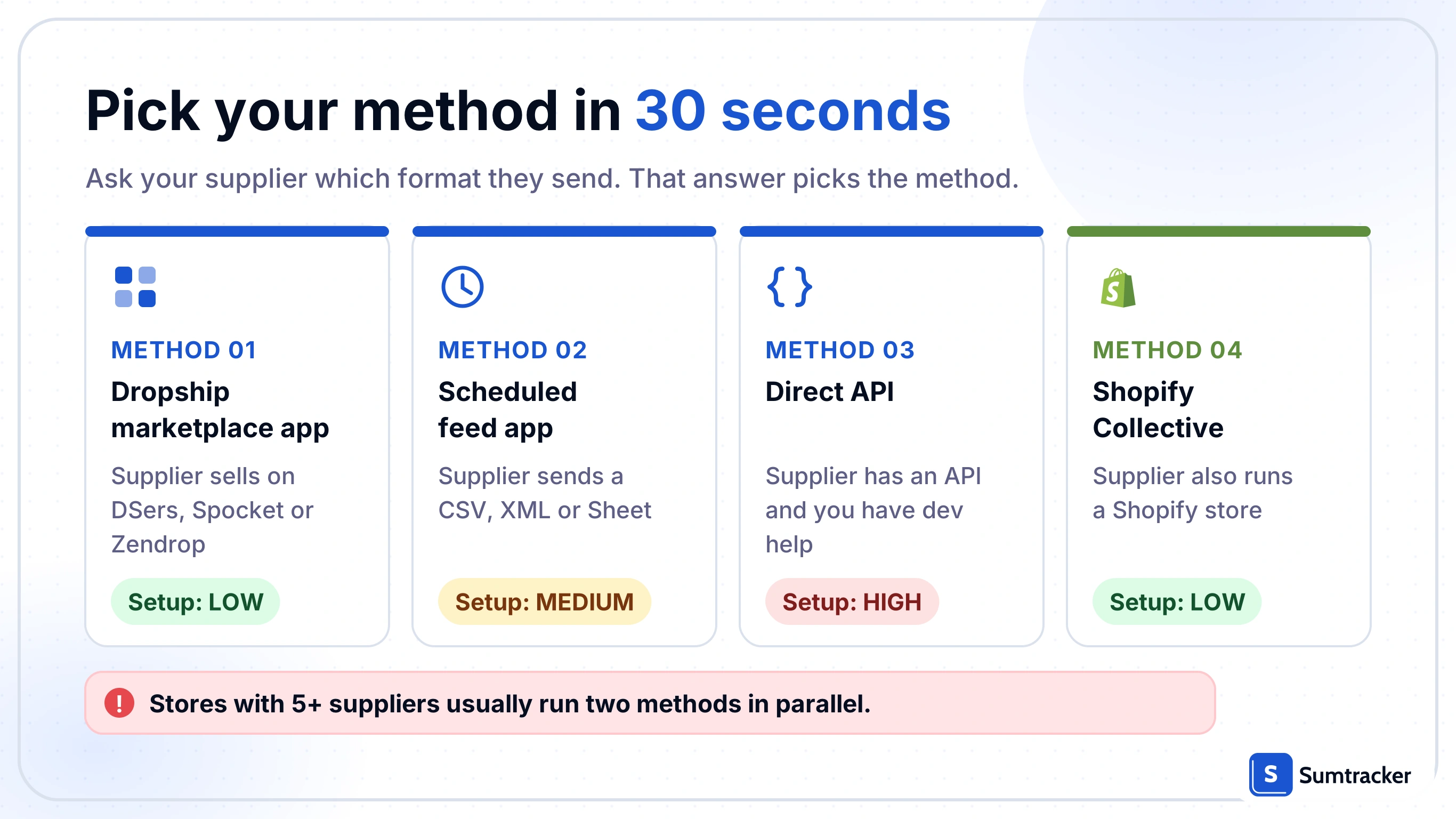
There are four integration families that cover almost every supplier scenario on Shopify: a native dropshipping marketplace app, a scheduled feed app, a direct API connection, or Shopify Collective. Each method fits a different supplier setup. Depending on your suppliers' systems and fulfillment workflows, you may need to combine multiple integration methods as your business grows.
Rule of thumb: if your supplier can tell you which of CSV, XML, FTP, Google Sheets or API they support, you've already picked the method.
- Most wholesale suppliers answer "CSV emailed daily" or "Google Sheet we update". For those, a scheduled feed app is the shortest path.
- For a Shopify-based supplier, Collective wins on simplicity.
- For a dropship marketplace, use their native app.
- Build an API integration only when nothing else fits or when your transaction volume makes 15-minute sync gaps unaffordable.
If your model is dropshipping, our dropshipping inventory tracking guide goes deeper on the DSers, Zendrop and Spocket workflow. For Shopify-to-Shopify specifically, our connected inventory setup for Shopify covers the Collective and multi-store setup end to end.
What to Check Before Connecting a Supplier to Shopify?
Before choosing an app or building an API integration, work through these steps in order. Together, they can save hours of rework and help you avoid two costly mistakes: choosing a tool your supplier cannot support and letting two systems disagree on how a product is identified.
1. Run a supplier capability audit
For each of your top five suppliers, write down the answers to this short checklist. Email the supplier if you don't know.
- Available formats: API, CSV, XML, Google Sheets, FTP, or none?
- Update frequency: Real-time, hourly, daily, or on request?
- Delivery method: Direct URL, email, SFTP server, or the supplier’s own Shopify app?
- Available fields: SKU, barcode, quantity, cost, retail price, and lead time?
- Testing options: Is a sandbox or test feed available to validate before going live?
- Purchasing constraints: What is the minimum order quantity (MOQ), and does it affect automatic purchase order generation?
If three or more of your five suppliers cannot provide data in a machine-readable format, address that gap before investing in an integration tool. Ask suppliers for structured, regularly updated data first.
2. Build a SKU mapping table
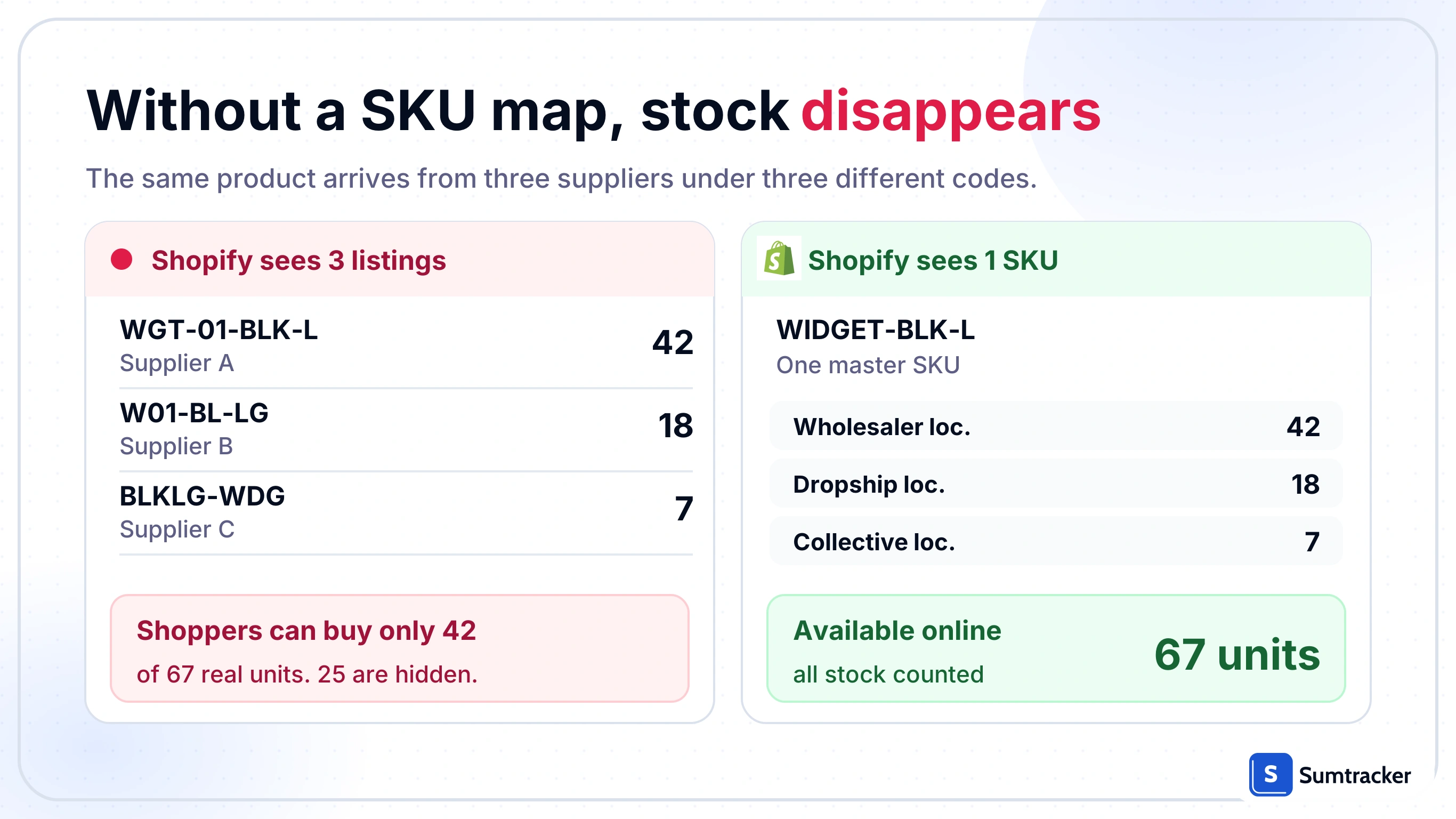
Supplier SKUs rarely match Shopify SKUs exactly. For example, a supplier might identify a large black widget as WGT-01-BLK-L, while your Shopify catalog uses WIDGET-BLACK-LARGE.
Without an explicit mapping, inventory updates may fail, products may be duplicated, or stock counts may be assigned to the wrong variant.
The solution is a SKU mapping table that translates each supplier SKU into the corresponding Shopify SKU before inventory data is written to your store.
Use a worksheet to record each supplier’s SKU, its matching Shopify SKU, and any relevant variant details. This gives your integration a consistent reference for matching products and updating inventory accurately.
3. Establish Your Supplier Lead Times
An inventory integration can keep stock counts in sync, but it can't fix an unreliable supplier. If a supplier delivers in three days most of the time but takes fourteen days when an item is backordered, you need to account for that variability.
Start by reviewing the last 20 purchase orders for each supplier. Record the order date, received date, and total days elapsed. The results will help you understand typical lead times, identify delays, and determine how much safety stock you may need to reduce stockout risk.
Once you've established your baseline, use it to set reorder points and communicate more realistic delivery expectations to customers.
For the formula, a worked example, and a reusable template, see our reorder point formula guide.
How to connect each type of supplier?
Pick the subsection that matches the method you chose above.
Connecting a wholesale supplier via scheduled feed (Stock Sync, Spark Shipping)
- In Shopify admin, create a location for the supplier (Settings → Locations → Add location). Give it the supplier's name. This lets you track their stock separately from your own warehouse.
- Install the feed app from the Shopify App Store and give it access to inventory and products.
- Configure the feed source. Paste the URL, FTP credentials, Google Sheet link or email address the supplier sent you.
- Map the fields using the worksheet from the prep step. The two fields that matter most are supplier SKU → Shopify SKU and quantity → inventory level at this location.
- Set the sync scope. Toggle quantity and cost on; toggle product title, description and images off, so your SEO-optimised content is not overwritten on every sync.
- Pick the frequency the supplier's data refresh actually supports. Running a 15-minute sync against a daily CSV just repeats stale data.
- Dry-run against a Shopify development store copy for 72 hours before you point it at production.
Connecting via Shopify Collective (your supplier runs a Shopify store)
- Confirm eligibility. Both stores need to meet Shopify's Collective requirements. Rules vary by region, so check first; the eligibility rules have changed since launch.
- Install Shopify Collective in both stores and send a connection invitation from the retailer side.
- Import products from the supplier's catalog and set your retail margins.
- Decide what syncs: inventory levels and prices sync automatically; product content is yours to control.
- Test with a $1 order to validate the fulfillment handoff before you promote the products.
Connecting via API (direct)
- Confirm the supplier has a REST or GraphQL API that exposes inventory and accepts orders.
- Build or buy middleware (Celigo, n8n, Zapier for low-volume, custom code for high) that reads the supplier API and writes to Shopify's InventoryLevel API.
- Choose push or pull. Push is near real-time but costs more; pull on a 5 to 15 minute poll is usually enough.
- Build in idempotency and retries. Supplier APIs go down more than Shopify's does.
- Log every write. You'll need the log the first time a customer complains about a stock mismatch.
Connecting a dropshipping marketplace vendor
Follow the vendor-specific flow in each marketplace app (DSers for AliExpress, Zendrop and Spocket for curated catalogs). The main integration is already built; your job is to pick products, map variants and set a routing rule for when the same product is available from two vendors.
Deciding who wins when supplier stock and Shopify stock disagree
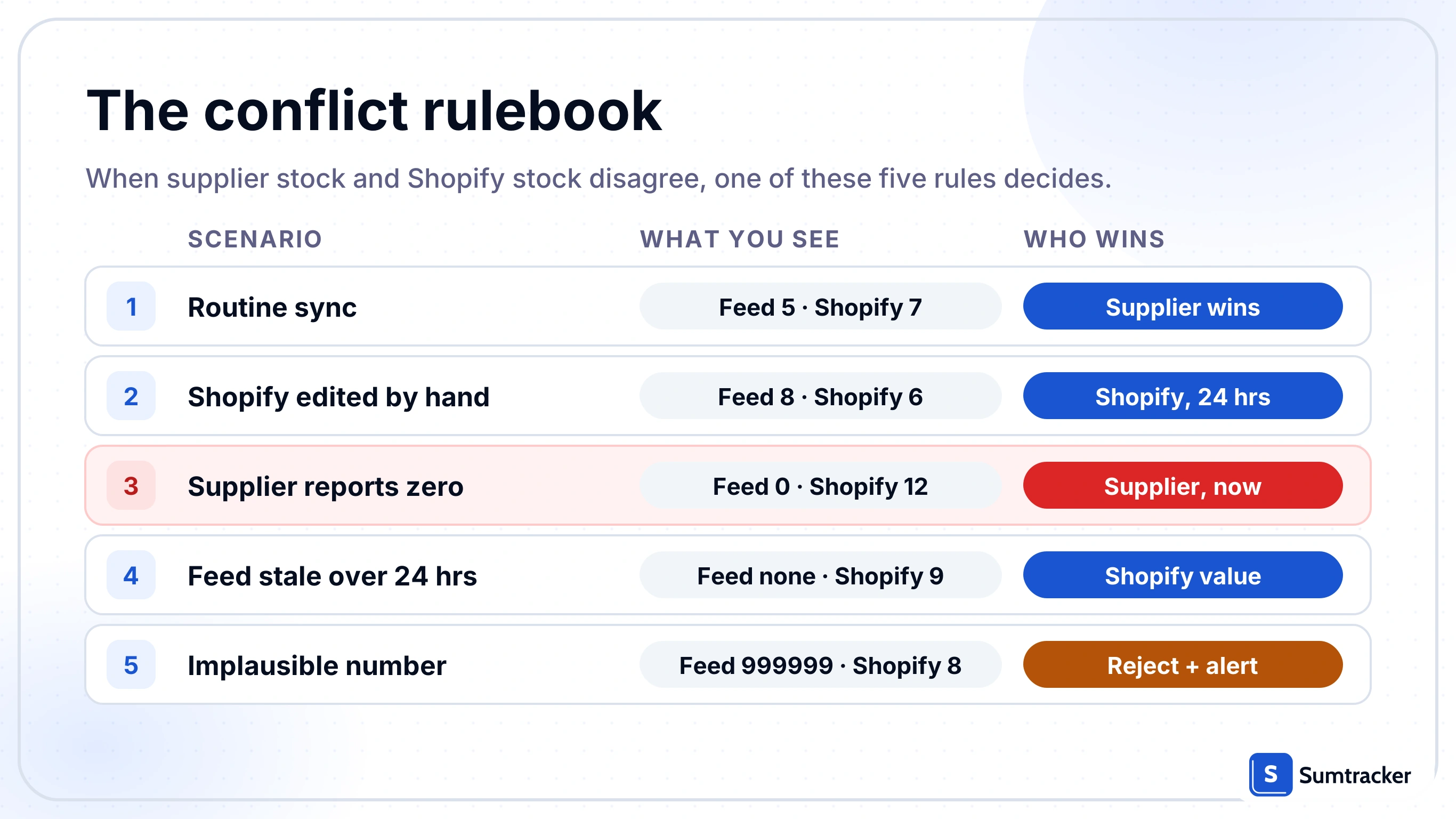
At some point, your supplier feed will say the SKU has 2 units and Shopify will say 5. Decide now, in writing, which number wins, and when. This is the single most-skipped step in supplier integration guides, and it's the one that quietly causes months of overselling or phantom stockouts.
Use this table as a starting point. Adjust to your business.
Most feed apps let you set a version of this. The important thing is that the rule exists and your team knows it, not which tool implements it.
How to prevent overselling during the sync gap?
Even a well-configured feed sync runs on a schedule, which means there is always a window where your Shopify stock is out of date with reality. The fix is to display less than the supplier shows, not more. A simple safety buffer per supplier handles most overselling incidents.
Use this formula, in plain words:
Shopify-displayed stock = Supplier reported stock − (Sales velocity per hour × Sync frequency in hours) − Safety buffer
Worked example: a widget sells about 2 units per hour on good days, your supplier feed syncs every 4 hours, and you want a 3-unit safety buffer. If the supplier reports 50 units, show 50 − (2 × 4) − 3 = 39 on your product page. Over the next sync window, up to 8 units could sell before the next feed arrives; the 3-unit buffer absorbs the race condition when two customers click Add to Cart in the same second.
If overselling is still happening after a buffer is in place, our deep dive on why Shopify products oversell covers bundle components, split carts and the Shopify "continue selling when out of stock" setting.
How Sumtracker handles the supplier side
Feed apps and Collective mainly sync inventory counts to Shopify. They don’t manage your purchasing process.
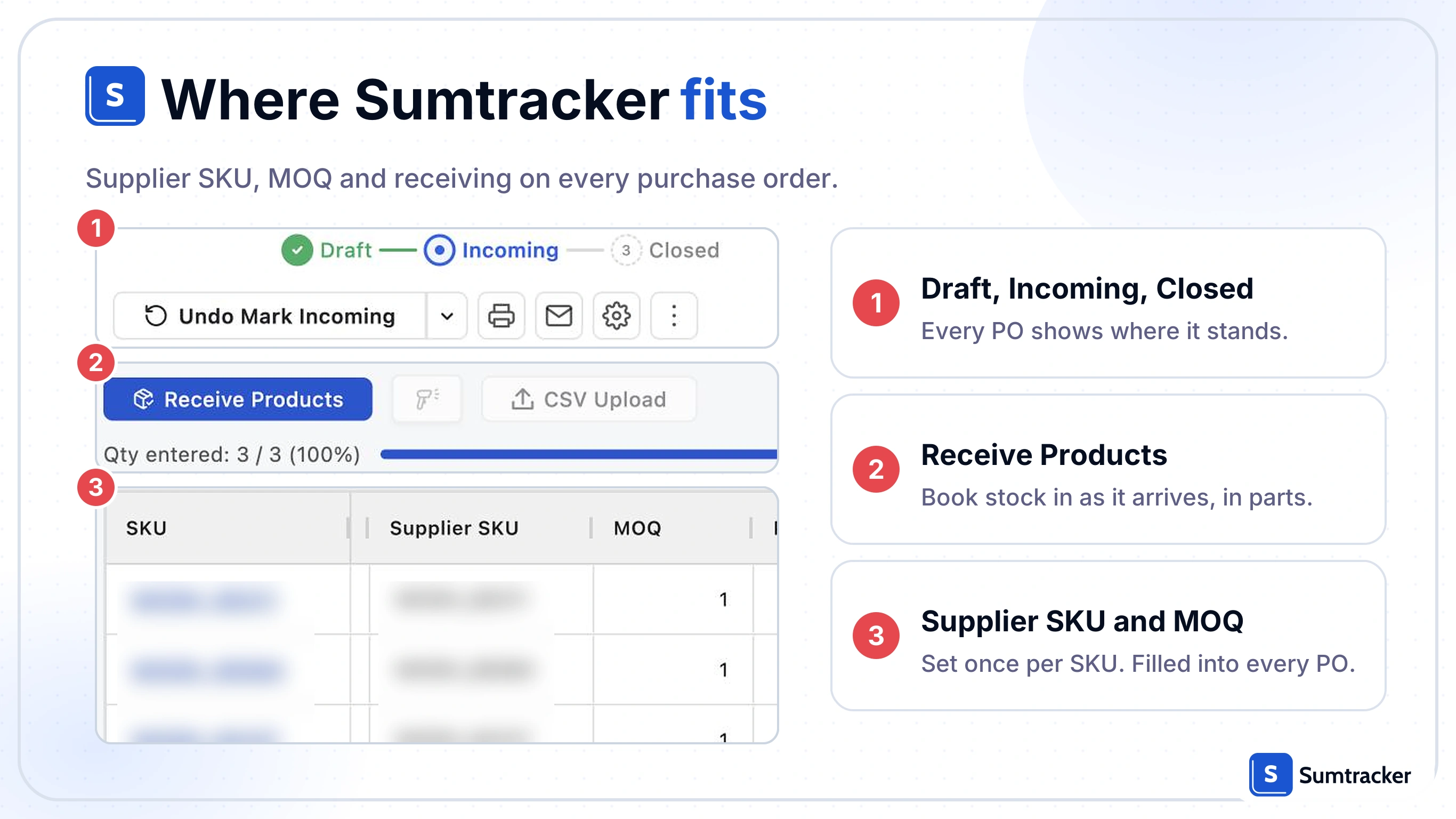
Sumtracker imports your suppliers and purchase prices from Shopify, then lets you configure supplier SKUs, lead times, pack sizes, and minimum order quantities (MOQs) for each product. It also tracks purchase orders by due date and supports partial receiving.
The screen below shows a purchase order in Sumtracker, including the Draft, Incoming, and Closed statuses, the Receive Products button for recording arriving stock, and supplier SKU and MOQ details on each line.
Use Sumtracker alongside whichever linking method you chose above.
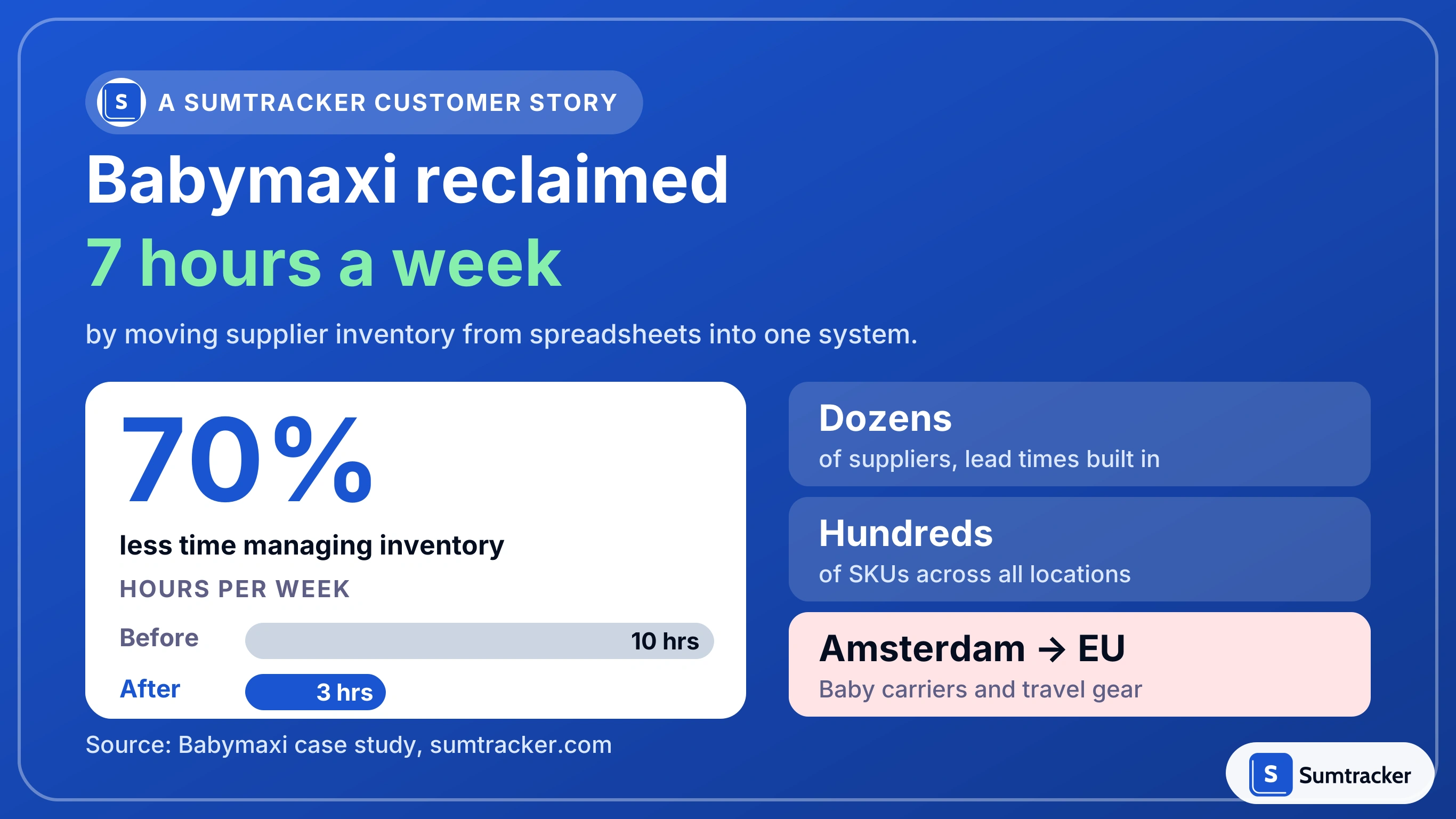
Source: published Babymaxi case study. See the full Babymaxi case study.
When the same product sits with more than one supplier
If you buy the same SKU from Supplier A and Supplier B, Shopify sees one inventory number, not two. Without a routing rule, the first integration you installed quietly claims all the stock and the second supplier's units never appear. Fix it with a priority rule, not by hoping.
Three patterns work:
- One primary, one backup. Pick A as primary. B's stock is only exposed in Shopify when A's drops to zero. Simplest to configure; wastes some of B's inventory.
- Split by location. Give A and B each a Shopify location. The customer's shipping zone decides which location fulfils. Keeps both pools visible but needs well-set-up locations.
- Weighted by cost or margin. Expose the cheaper supplier first; failover to the more expensive one. Protects margin but needs an integration that supports it.
Whichever pattern you pick, document the minimum order quantity for each supplier inside your reorder trigger. Auto-generating a PO for 5 units from a supplier whose MOQ is 50 is a classic silent failure: the PO sits unread and you discover the stockout from a customer complaint. For the full PO side of this, see our purchase order, supplier and replenishment workflow. For the relationship side (vetting, communication and routing orders between suppliers), our guide to managing multiple suppliers on Shopify is the companion piece.
What usually breaks after launch (and how to catch it in the sync log)
The integration will run clean for about two weeks and then one of these things will happen. The pattern of errors in your sync log tells you which.
Set a weekly 15-minute calendar check of the sync log while the integration is young. It's cheap insurance. If you need help diagnosing a mismatch pattern that keeps repeating, our guide to fixing inventory mismatches walks through the audit.
One note on legacy tools: if your supplier workflow used to run on Stocky, Shopify has sunset that app for most merchants. Our Stocky sunset migration guide covers the move.
Merchants on the Shopify Community forum frequently describe the same end state before switching to a proper tool: a split workflow of spreadsheets, email threads and a half-connected app. If that's where you are, you're not alone, and the "pin down three things first" step above is the one that unblocks it.
Conclusion
The decision rule for linking a supplier to Shopify is simple once the four methods are visible: pick the method the supplier can actually support, map SKUs before you turn sync on, and write down the conflict rule. Everything else is tooling choice. When supplier deliveries, POs and Shopify stock sit in one place with lead times built in, the manual Monday-morning upload stops being part of the job.
FAQ
How often does inventory sync between a supplier and Shopify?
Feed-based methods typically refresh every 15 minutes to several hours, depending on the schedule you set and how often the supplier updates their file. Direct API integrations can run in near real-time, within seconds. Shopify Collective syncs between the two Shopify stores on Shopify's own cadence. In practice, a 15-minute sync against a once-daily CSV just repeats stale data, so match sync frequency to the supplier's refresh rate.
Do I need a developer to link a supplier to Shopify?
No, for most cases. Scheduled feed apps and Shopify Collective are no-code. You only need a developer when you're building a direct API integration against a supplier's custom API, or stitching middleware between a supplier ERP and Shopify. Low-code platforms like n8n or Celigo cover much of the gap.
Can I connect multiple suppliers to one Shopify store?
Yes. Shopify handles multiple suppliers natively through its vendor field and multiple-location setup, and most stores past the five-supplier mark run two or more integration methods in parallel (for example, a feed app for two wholesalers and Collective for a Shopify-based brand). The two things to decide up front are a Shopify location per supplier and a routing rule for products available from more than one supplier.
What's the difference between API and CSV supplier integration?
An API connection is a direct, programmatic channel: Shopify or your middleware queries the supplier whenever needed and the supplier replies in seconds, which supports near real-time sync and two-way flows like POs and cancellations. A CSV integration pulls a scheduled file (over HTTPS, FTP or email) and processes it in batches, which is simpler to set up but introduces a sync gap and usually only handles inbound stock, not outbound orders.
What happens when supplier inventory runs out?
If your conflict rule is set correctly (supplier zero wins immediately), the SKU moves to zero in Shopify at the next sync and the product shows out of stock on your storefront. The default Shopify behaviour then stops orders unless you've turned on "continue selling when out of stock", which you should not do if the supplier is the only source. The gap between the real stockout and the next sync is the window in which overselling happens, which the safety buffer formula above is designed to cover.

.avif)
