.svg)
Shopify Inventory Tracking: How to Set Up and Manage Stock in 2026


Shopify inventory tracking lets you monitor the stock quantity of every product and variant automatically. To turn it on, open a product in your Shopify admin, scroll to the Inventory section, check Track quantity, and enter available units.
Shopify then updates inventory levels as orders, returns, and edits happen, so you prevent overselling and always show customers accurate availability.
For a growing business, this is foundational. Analyst firm IHL Group estimates the global cost of inventory distortion — out-of-stocks and overstocks — at $1.7 trillion a year, roughly 6.2% of retail sales, and a 2025 GS1 US study of 500+ supply chain professionals found companies using real-time tracking were 68% more likely to report better inventory control.
This guide covers setting up inventory tracking for single products, variants, and multiple locations, what native tools can’t do, and how to fix issues.
Shopify admin product page showing the Inventory section with the Track quantity checkbox enabled.
What Is Shopify Inventory Tracking?
Inventory tracking in Shopify monitors how many units you have and adjusts stock levels as you sell, restock, or make inventory adjustments. Once you track quantity on a product, Shopify records every change and shows available inventory in the Inventory section.
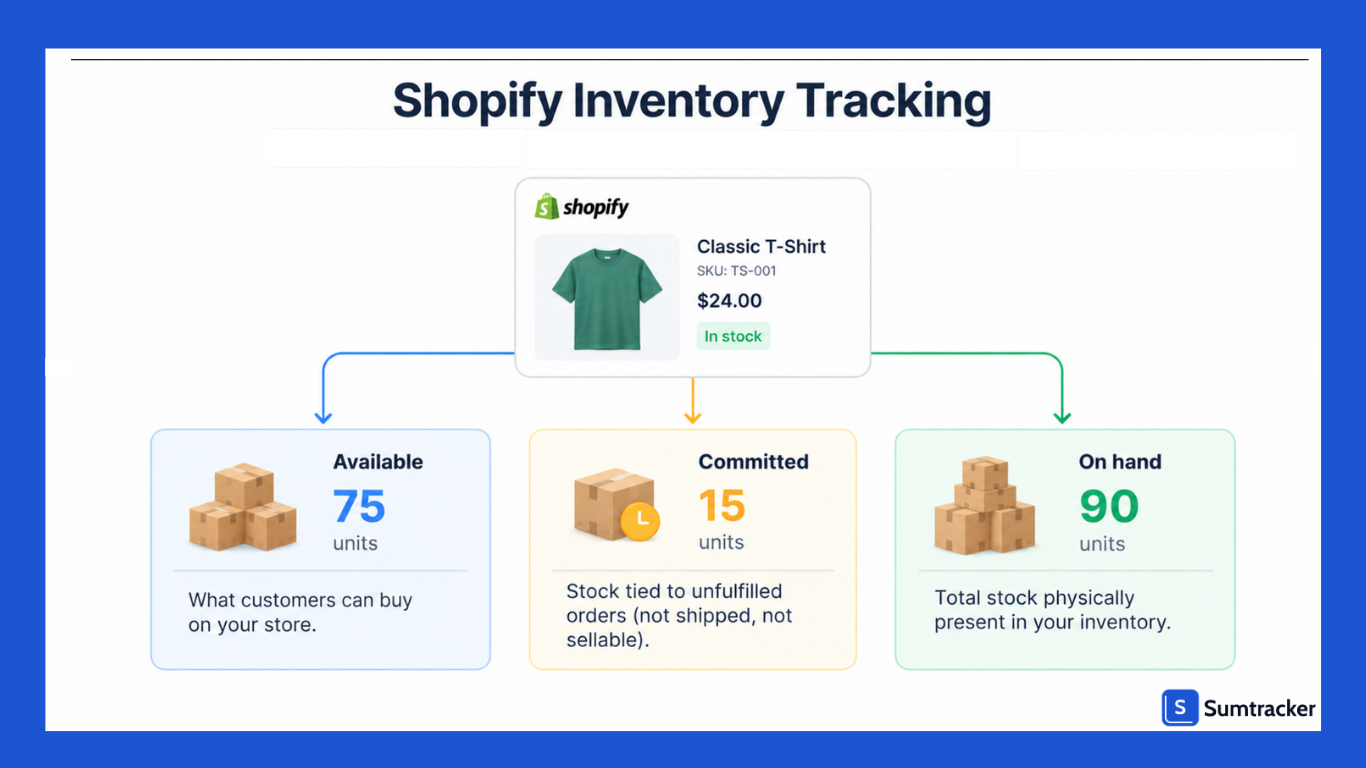
Shopify manages several inventory states, and the difference causes most confusion. Available is what customers can buy; Committed is stock tied to unfulfilled orders (not shipped, not sellable); On hand is everything physically present.
If available inventory looks lower than your shelves, unfulfilled orders are usually the reason — understand committed inventory before treating a discrepancy as an error.
How to Set Up Inventory Tracking in Shopify
There are three ways to set up inventory tracking, depending on your catalog. Pick the path that fits:
All three live in the same Inventory section of the Shopify admin.
Track Inventory for a Single Product
- From your Shopify admin, go to Products.
- Click the product you want to edit.
- Scroll to the Inventory section.
- Check Track quantity.
- Enter the current stock in the Available field, then click Save.
Shopify’s official steps match this, and the same section is where you later adjust inventory levels.
One gotcha: if you check Track quantity but leave Available blank, Shopify sets it to 0, and the product shows out of stock, so make sure to always enter a starting count.
Set Up Inventory Tracking in Bulk
To manage inventory across a large catalog, bulk editing saves hours:
- Go to Products and select multiple items using the checkboxes.
- Click Edit products to open the bulk editor.
- Click Columns and add Track quantity and Available.
- Check Track quantity for each product and enter the stock quantity.
- Click Save.
For larger updates, export your catalog, edit it in a spreadsheet, and re-import — see how to use an inventory CSV in Shopify.
One caution: the CSV screen offers Set and Adjust columns. Set replaces the count, while Adjust adds or subtracts from it. There’s no undo, so check the column before importing.
Track Inventory for Product Variants
If a product comes in multiple sizes or colors, Shopify tracks each variant separately:
- Each variant has its own SKU and stock level.
- Inventory is updated individually as each variant sells.
- You can restock and report on variants separately.
The common mistake is tracking the main product but not every variant. A store with 8 T-shirt designs in 5 sizes and 4 colors has 160 variants.
If tracking is off for red while it’s on for black, customers can order unlimited red shirts while black sells out. Turn on Track quantity for every variant; see tracking variant inventory without stock errors.
Setting Up Multi-Location Inventory Tracking
If you hold stock in multiple locations, such as warehouses, a retail store, or fulfillment centers, Shopify’s multi-location feature tracks inventory levels per location.
Add each location under Settings > Locations, assign quantities, and configure order routing to control where orders are fulfilled. Shopify uses available inventory and your routing rules to decide which location fulfills an order.
Rank your locations so orders ship from the nearest or cheapest warehouse first, and only overflow to a 3PL or backup location when the primary runs out. That keeps shipping costs down and stops a distant warehouse from fulfilling an order your local one could have covered.
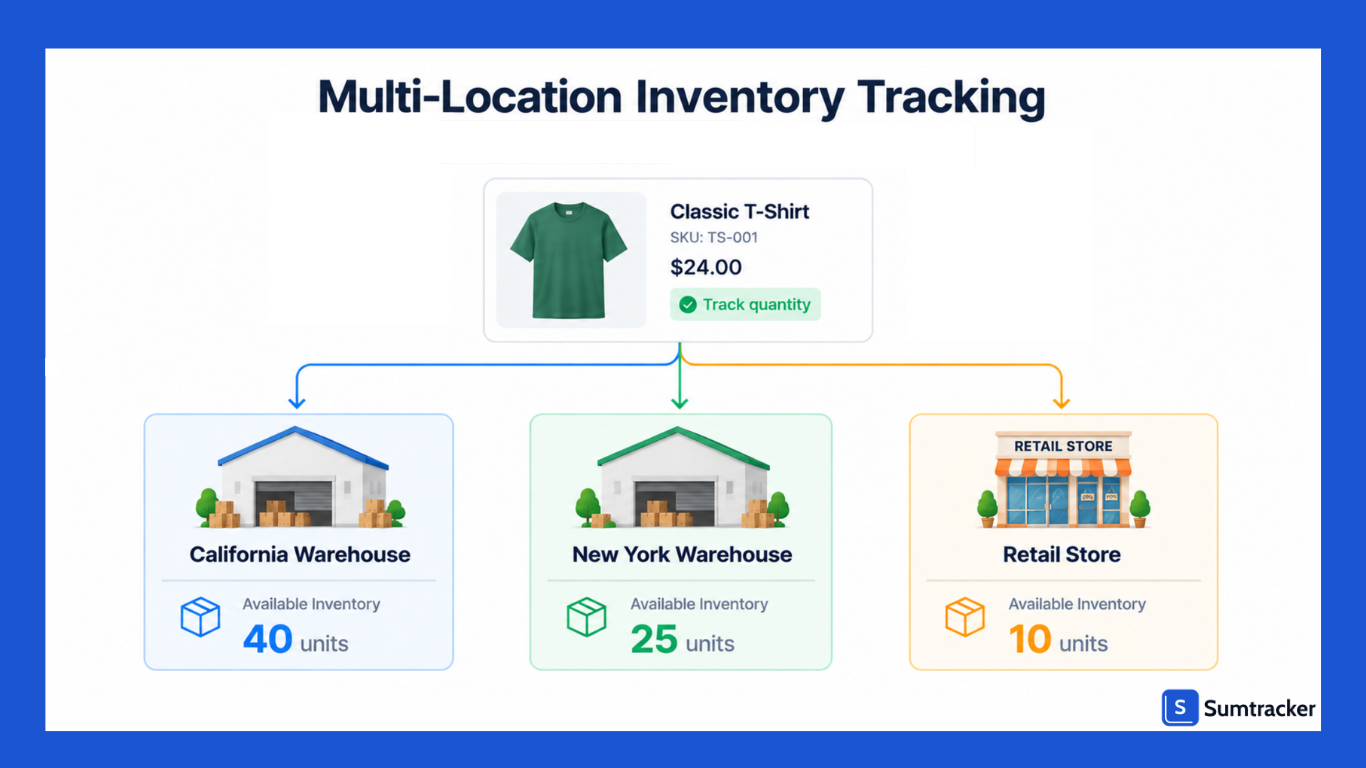
Two things trip merchants up. When you add a second location, existing products aren’t automatically stocked or activated there, so the new location can show 0 available until you add stock and activate those products for that location.
CSV inventory updates are location-specific, so stock can appear in the wrong place if you update the wrong location.
Moving stock between warehouses needs Shopify’s transfer feature so counts stay accurate in transit. Our Shopify inventory locations guide covers multi-location setup.
“One of the biggest challenges Babymaxi faced was moving inventory from their own warehouse to two different third-party logistics providers. Without proper tracking, it would have been difficult to know which products were stored at which location during the transition.”
— How Babymaxi manages multi-location inventory on Shopify
Managing and Adjusting Inventory Levels
Shopify automatically updates inventory levels after every sale, return, or fulfillment. To adjust inventory levels manually after a count, damage, or return, go to Products > Inventory in your admin, use Adjust by, and pick a reason (damaged, theft, received, correction).
The reason matters: tagging 15 missing units as damaged versus correction changes what your shrinkage report shows and whether they flow into your next purchase order, so records stay auditable and purchasing decisions stay sound.
Inventory History and the 180-Day Limit
Shopify keeps the last 180 days of inventory adjustment history per product or variant, showing who changed what and when. For older data, use the Inventory adjustment changes report under Analytics, which retains it by SKU, location, staff, and reason. You can use the report to investigate older inventory discrepancies without a third-party app. To keep accurate inventory records long-term, export your Shopify inventory on a schedule.
Tracking Inventory for Bundles and Kits
Bundles are where native tracking shows its limits. By default, Shopify treats a bundle as a standalone product and does not deduct its components when it sells. However, if you use Shopify Bundles, bundle availability is calculated from the inventory of its components, and Shopify updates that inventory in real time.
The main native limitation is that Shopify Bundles tracks inventory by overall stock rather than by location, so more complex bundle or kit workflows may still require a third-party inventory app. WMS&Co. is one example of a business that improved inventory control after turning to a third-party tool for more advanced bundle management.
Pre-Orders and Backorders: Continue Selling When Out of Stock
Shopify’s Continue selling when out of stock setting lets customers keep buying after a product hits zero, which can be useful for pre-orders and made-to-order items. You enable it in the Inventory section of a product or variant.
Keep in mind that it requires Inventory tracked to be turned on, doesn’t apply to Shopify POS, and multi-location fulfillment settings can affect whether an item is shown as available online.
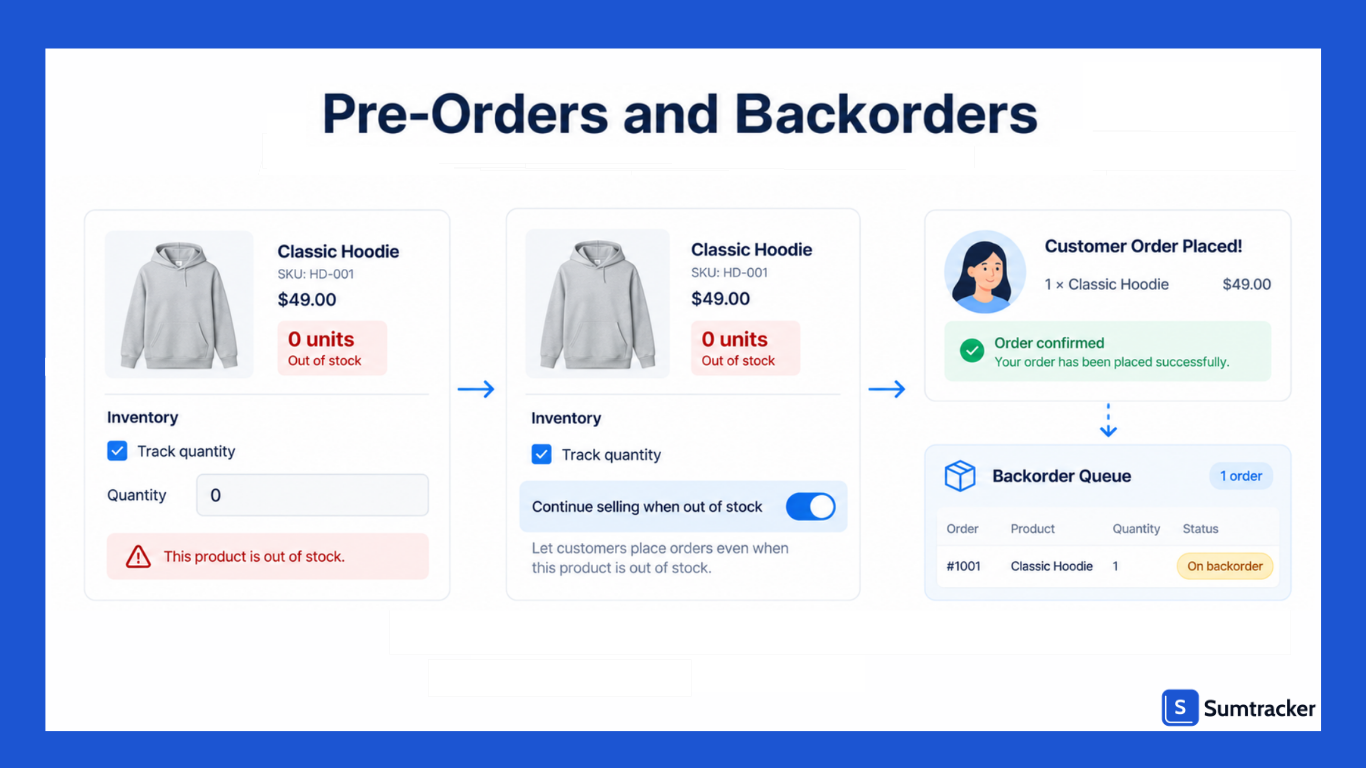
The trade-off: Continue Selling has no native way to flag backorders or show customers a ship date, so Continue Selling without a clear fulfillment process invites “where’s my order” tickets. Pair continue selling with a backorder management workflow so customers know what to expect.
Low Stock Alerts and Reorder Points
Shopify doesn’t provide built-in low-stock notifications by default, but you can use Shopify Flow to set up notifications or install an inventory alert app.
Shopify also supports manual purchase orders, while Sidekick can suggest items to reorder and draft a purchase order or inventory transfer.
A reorder point is the stock level at which you should reorder:
Reorder point = (daily sales velocity × lead time in days) + safety stock
If a product sells 8 units a day, your supplier’s lead time is 10 days, and you hold 15 units of safety stock, the reorder point is (8 × 10) + 15 = 95 units. When stock hits 95, reorder.
Automating this from suppliers’ lead times is one of the best ways to minimize stockouts and protect customer satisfaction. Shopify’s benchmarks show top SMBs keep stockouts below 2%, far easier with automated alerts than manual checks. Our reorder points guide covers safety-stock math in depth.
Shopify Inventory Tracking Across Multiple Channels
Track quantity turns on inventory tracking for a product or variant in Shopify and across its own channels such as the Online Store and Shopify POS, but it does not automatically sync stock across external marketplaces like Amazon, Etsy, or eBay.
If you sell the same products on external marketplaces, you typically need a connector or third-party inventory sync app to keep quantities aligned and reduce overselling.
How to Sync Inventory Across Channels
- Install a multichannel sync app that connects Shopify to your marketplaces.
- Map each product to its listing on every channel by SKU.
- Set one location as the master stock source so counts don’t conflict.
- Pick a sync frequency — real-time is safest during peak sales.
When you compare apps, weigh three things: which channels they support, how fast they sync, and whether they also handle bundles. Centralizing data across multiple channels prevents mismatches as your business scales.
Shopify's built-in tracking works for a single store. If you sell on Amazon, Etsy, eBay, or Walmart too, Sumtracker syncs inventory across every channel in real time.
Common Inventory Tracking Mistakes to Avoid
- Not enabling tracking for every variant. Use the bulk editor so all variants track quantity.
- Duplicate or missing SKUs. Keep a consistent SKU structure and audit it with an inventory audit checklist.
- Adjusting stock without a reason. Log an adjustment reason so audits stay possible.
- App conflicts. If multiple apps update inventory, they can cause mismatched stock. Make sure you know which system is responsible for updating inventory.
- Ignoring transfers between locations. Always log transfers with Shopify’s transfer feature.
Troubleshooting: Why Inventory Isn’t Tracking on Shopify
If Shopify shows inventory as not tracked, work through these in order:
- Check Track quantity on the product — and on each variant, since they’re set separately.
- Check Settings > Apps for a fulfillment or sync app controlling stock outside Shopify; a mismatch there leaves stock unmanaged.
- Review the inventory timeline for sync timestamps — when inventory isn’t updating in real time, event delays, app sync lag, and platform limits are usually to blame, and they worsen as you add channels or locations.
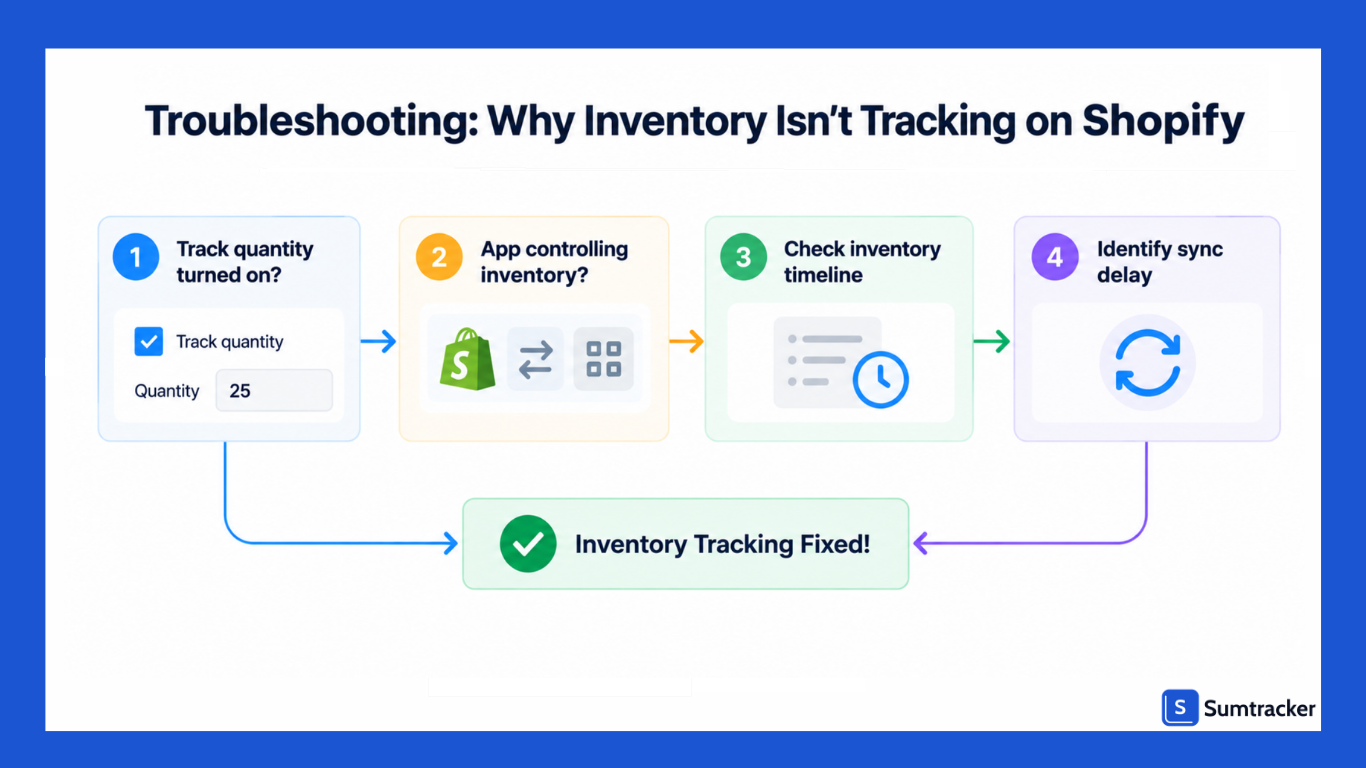
This takes about a minute and catches most tracking failures.
When You Shouldn’t Track Inventory in Shopify
Not every product needs tracking. Shopify itself notes that some product types work better without it.
Digital downloads, services, and made-to-order items with effectively unlimited stock don’t benefit from tracking.
Leave it off for those; track inventory for anything with finite stock. One nuance: for made-to-order goods built from finite raw materials, track the components, such as fabric, oils, or parts, rather than the finished item.
When Native Shopify Inventory Management Isn’t Enough For Inventory Tracking
Shopify’s built-in inventory management is an excellent starting point. Once you run bundles, sell across multiple channels, or manage inventory in multiple warehouses, a dedicated inventory management system adds real-time inventory sync, automatic component deduction, low stock alerts, purchasing and purchase orders, and inventory reports in one place.
Sumtracker fits here — it connects to your Shopify store and keeps stock accurate across every channel your business sells on. The simple test: when the hours you lose to manual tracking, or the revenue you lose to overselling, cost more than an app’s monthly fee, it’s time to switch.
The results are measurable: Crafter’s Lab cut overselling by 99.7% and saved 8–10 hours a week after moving to real-time sync and automated reordering.
Conclusion
Shopify inventory tracking removes the guesswork: enable Track quantity for every variant and location, log adjustments with reasons, and watch available inventory.
Native tools cover the basics; bundles, multiple channels, forecasting, and purchasing are where dedicated inventory management earns its place for a growing business.
Your first move: export your product list and check for items with tracking turned off.
Frequently Asked Questions
Q1. Can I track inventory with Shopify?
Yes. Shopify has built-in inventory tracking. Open a product, go to the Inventory section, check Track quantity, and enter available units. Shopify then adjusts stock automatically as orders and returns come in.
Q2. How do I activate inventory tracking on Shopify?
Go to Products, select the product (and each variant if it has options), scroll to the Inventory section, and check Track quantity. Enter the available quantity and click Save, or use the bulk editor for many products at once.
Q3. Why is inventory not tracked on Shopify?
Usually, Track quantity is unchecked on the product or some variants — each is tracked separately. If you use a fulfillment or inventory app, also check whether it manages inventory outside Shopify.
Q4. How do I enable inventory tracking for existing products?
Use the bulk editor: go to Products, select them, click Edit products, add the Track quantity and Available columns, tick Track quantity for each, enter quantities, and save your whole existing catalog at once.
Q5. What is the best inventory tracking app for Shopify?
Sumtracker syncs inventory in real time across Shopify, Amazon, Etsy, eBay, and Walmart, tracks bundle components automatically, and sets reorder points with low-stock alerts. Try Sumtracker Free
Q6. How much do Shopify inventory tracking apps cost?
Pricing varies by app and usually depends on factors such as order volume, features, or the number of channels. Sumtracker plans start at $59/month for around 2500 yearly orders. It also offers a 14-day free trial.
Conclusion

Bhoomi writes about inventory management and multichannel selling at Sumtracker. Her focus is on solving real operational problems for Shopify, Amazon, and marketplace sellers through well-researched content. She covers everything from multi-location inventory syncing and stock error troubleshooting to replenishment planning and platform comparisons, turning complex eCommerce operations into clear, actionable guidance.
LinkedInRelated Articles
Tool and strategies modern teams need to help their companies grow.
.avif)

Ready to Simplify Your Inventory Management?
Join hundreds of e-commerce merchants who rely on Sumtracker to save time, eliminate errors, and grow their business.
