.svg)
Dropshipping Inventory Tracking Shopify: Complete Guide to Stay in Sync


Dropshipping inventory tracking on Shopify means keeping your store's stock numbers matched to stock you do not own.
Your supplier holds the products. Shopify only knows what your app, feed, or spreadsheet tells it.
When those numbers drift, you sell items that are already gone.
That gap costs you customers. In Alchemer's 2026 Holiday Shopper Report, a survey of 1,002 US consumers, 41% named out-of-stock items as their biggest shopping frustration, ahead of hidden fees and slow checkout.
Dropshippers feel this in a specific way: canceled orders, refunds, and angry reviews for products they never touched.
This guide covers how Shopify actually tracks dropship inventory in 2026, how to set it up, and how to keep it accurate with one supplier or many. You will also find buffer formulas, a troubleshooting table, an app comparison, and a final checklist.
Before you start: Check how your supplier shares inventory data and how often it updates. This will determine how quickly Shopify can reflect supplier stock changes and help you choose the right way to keep inventory in sync.
If you are still deciding between dropshipping and holding your own stock, start with Sumtracker's breakdown of Shopify dropshipping vs. own inventory.
How Dropshipping Inventory Tracking Works on Shopify
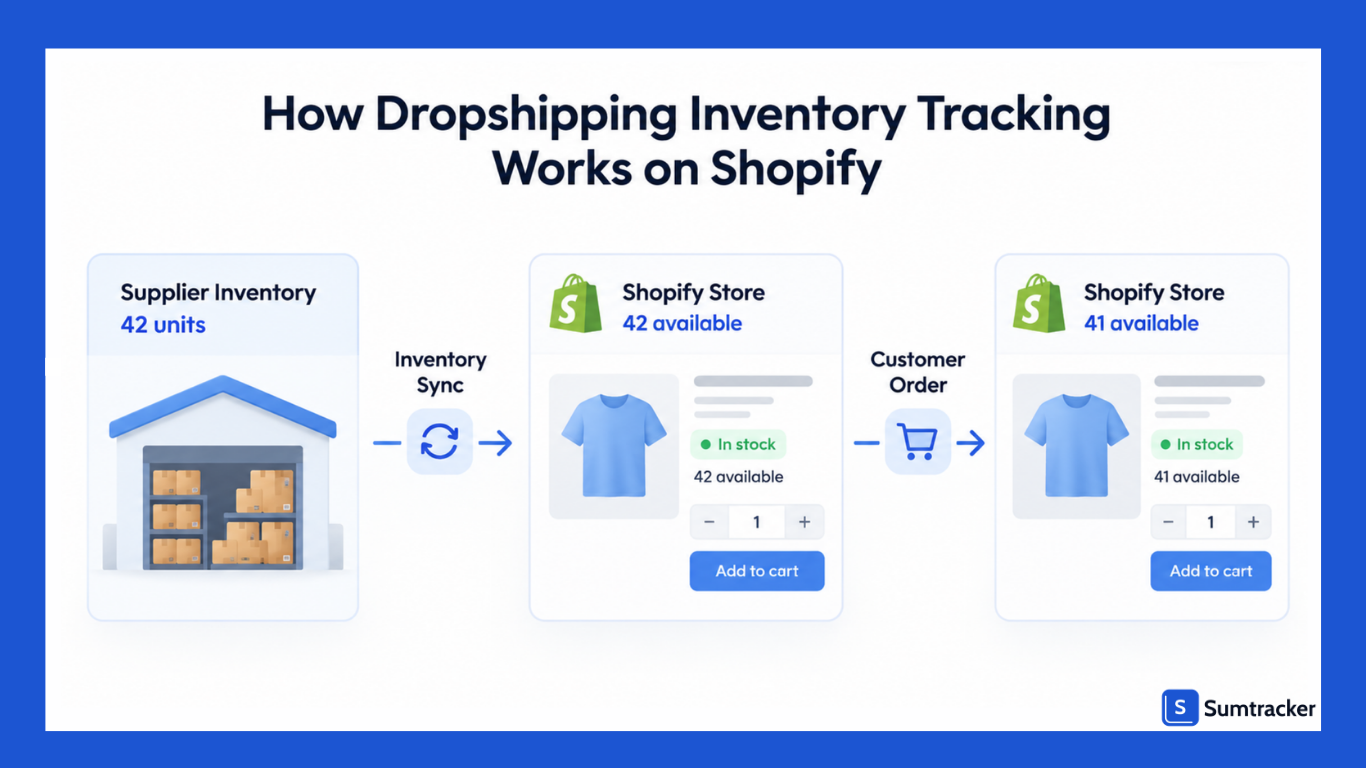
Shopify dropshipping inventory tracking is the process of keeping the inventory shown in your Shopify store aligned with the stock available from your dropshipping suppliers.
Since you don't hold the products yourself, your Shopify store needs a way to receive your supplier's inventory data and update product availability when that stock changes.
Shopify tracks inventory by product variant and location, but it doesn't automatically know how much stock your supplier has.
Your supplier's inventory therefore needs to be passed into Shopify through a dropshipping app, inventory feed, Shopify Collective, or a manual update process.
Shopify estimates dropshipping will generate more than $476 billion in ecommerce sales in 2026, and every dropship order in that total depends on this inventory data being accurate.
The Basic Flow
- Your supplier's inventory changes.
- Your dropshipping app or inventory feed checks the supplier's stock based on its sync schedule.
- The integration updates the relevant inventory quantity in Shopify.
- Shopify uses the available quantity to determine whether customers can purchase the product.
- When a customer places an order, the ordered units move into Shopify's Committed inventory state until the order is fulfilled.
- Depending on the integration, the order is then sent to the supplier or fulfillment service for processing.
The main risk is the gap between when your supplier's inventory changes and when Shopify receives that update. For example, if a supplier sells its last unit shortly after your app checks inventory, your Shopify store may continue showing that product as available until the next sync.
App Locations and Multi-Location Inventory
If you're using a dropshipping app, the app may manage inventory through its own Shopify location. If you also hold some inventory yourself, Shopify can track the same product across multiple locations, with each location maintaining its own quantity. Shopify's order-routing settings determine which location is used to fulfill an order.
This makes it possible to use a hybrid model—for example, keeping your bestsellers in your own warehouse while dropshipping slower-moving products from suppliers.
Practical takeaway: The important thing isn't just whether your Shopify store tracks inventory. It's knowing where the inventory number comes from, how often it is updated, and what happens when your supplier's stock changes.
How to Set Up Inventory Tracking for Your Shopify Dropshipping Store
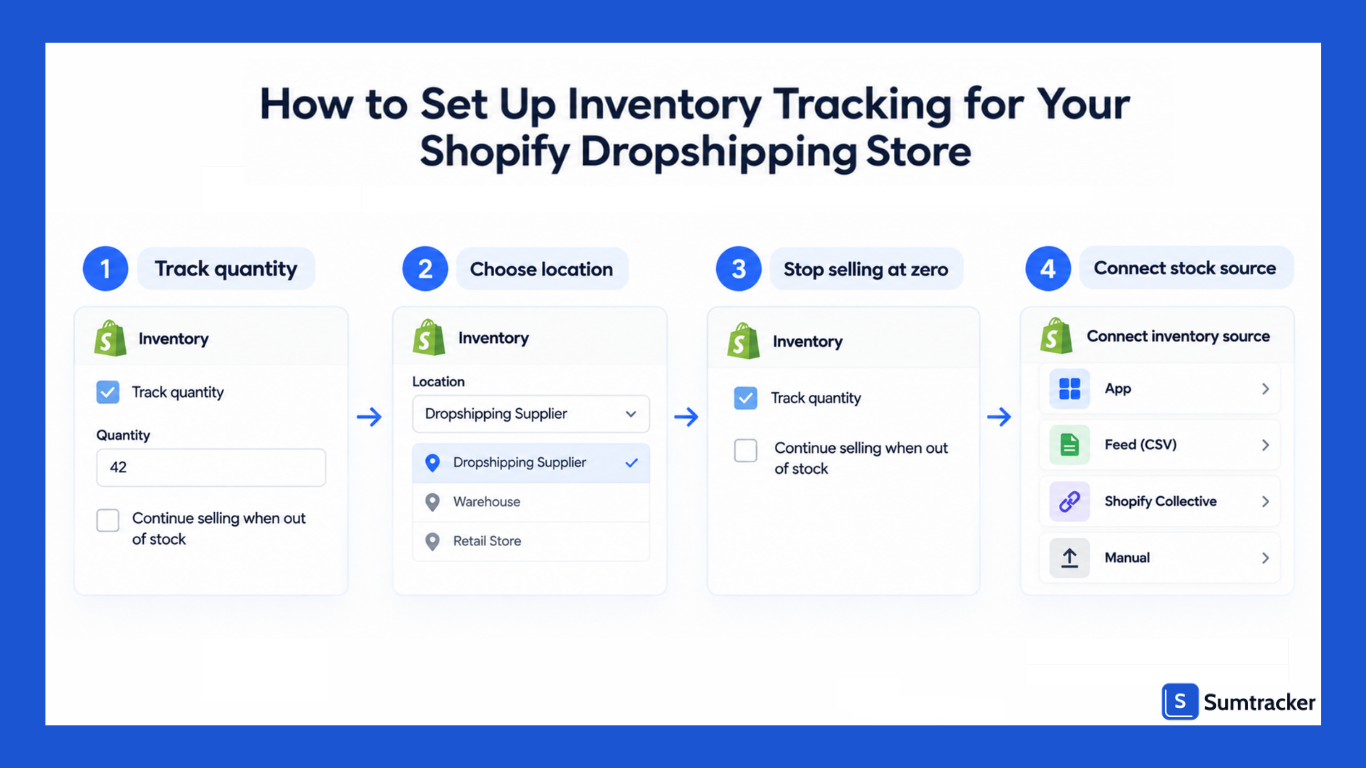
Dropshipping stores have grown from 5.16% to 12.82% of all Shopify stores, and each one needs the same four setup decisions: turn tracking on, pick the location, block out-of-stock sales, and connect a stock source. Do them in this order so your first sync lands in the right place.
Step 1: Turn on tracking for each variant
- In your Shopify admin, go to Products and open the product.
- If it has variants, open the variant you want to track.
- In the Inventory section, switch the Inventory not tracked setting on.
- Enter the Available units and click Save.
These steps are based on Shopify's inventory tracking guide. Shopify may update the wording of settings over time.
For many products at once, use the bulk editor. It updates up to 50 products at a time. For catalogs over 100 products, Shopify suggests an inventory CSV import.
Step 2: Check which location holds the stock
When you install a dropshipping app, products managed by it are typically assigned to the app's location. Open a few products and confirm that the location is the one your app updates.
If a product is assigned to the wrong location, its inventory may not sync correctly.
Also check that the location fulfills online orders. Inventory at locations that don't fulfill online orders may not count toward the quantity available on your online store.
Step 3: Leave “Continue selling when out of stock” off
This option lets customers buy a product when its inventory reaches zero. While useful for preorders, it can cause problems with dropshipping because you may accept orders for products your supplier no longer has.
Keep it off unless you have a confirmed reason to continue selling the product.
Step 4: Connect a stock source
Each dropship product needs a source that updates its inventory. This could be a dropshipping app, a feed sync app, Shopify Collective, or a manual update process.
The right option depends on how your supplier provides inventory data and how frequently it needs to be updated.
How to Keep Shopify Inventory in Sync With Your Suppliers
There are four ways to sync supplier stock into Shopify, and they differ mostly in speed. The right one depends on where your supplier publishes stock data.
Know your real sync interval
Inventory syncing isn't always real time. The time between a supplier changing its stock and Shopify receiving that update depends on the sync method and the supplier's data source.
For example, a supplier may provide a stock feed that updates every few hours, while another may provide data only once a day. During that gap, Shopify can show inventory that is no longer available from the supplier.
Before relying on a sync method, check how often inventory is actually updated, whether updates happen automatically, and what happens when a product reaches zero stock.
Turn on the right automation settings
If you're using an automated inventory source, check how it handles stock changes before going live. Important settings include:
- What happens when a product goes out of stock
- Whether inventory changes are pushed to Shopify automatically
- What happens when a supplier removes a product
- What happens when product or variant mapping breaks
Rule of thumb: Record the actual sync interval for each supplier. If you don't know how frequently their inventory is updated, verify it before relying on the stock data.
Managing Inventory With Multiple Dropshipping Suppliers
With several suppliers, give each one its own clear lane: its own location or app, its own SKU pattern, and its own sync schedule. Most multi-supplier errors come from two sources writing to the same variant.
Avoid Conflicting Inventory Updates
Each variant should have a clear source for its inventory quantity. If two systems update the same variant at the same location, one update can overwrite the other, causing the Shopify quantity to keep changing between different values.
If you use multiple suppliers for the same product, decide which supplier's inventory should control the Shopify quantity and keep that setup consistent.
Wide catalogs make this harder. Hygo, a general Shopify dropshipping store that Sell The Trend estimates makes close to $15 million a month, sells across many product categories and adds “Frequently Bought Together” upsells to its product pages.
A single order can include several products, and each one needs an accurate stock source.
Set up each supplier the same way
Vet stock claims before you list
A supplier showing stock is not the same as a supplier holding stock. On an episode of Shopify Masters, “6 Dropshipping Tips from the Ecom King,” Kamil Sattar advises asking suppliers directly whether the product you plan to list is in their warehouse.
Shopify still quotes that advice in its September 2026 guide to dropshipping suppliers. Some suppliers resell from other suppliers, which adds delay and makes their stock numbers less trustworthy.
On the Drop Ship Lifestyle Podcast, host Anton Kraly discussed his 2026 framework for finding, vetting, and getting approved by high-quality dropshipping suppliers.
Practical tip: For your top 20 products by revenue, keep a second supplier mapped and ready. When one supplier sells out, you switch the mapping instead of pulling the listing.
Manual Inventory Tracking for Private Dropshipping Suppliers
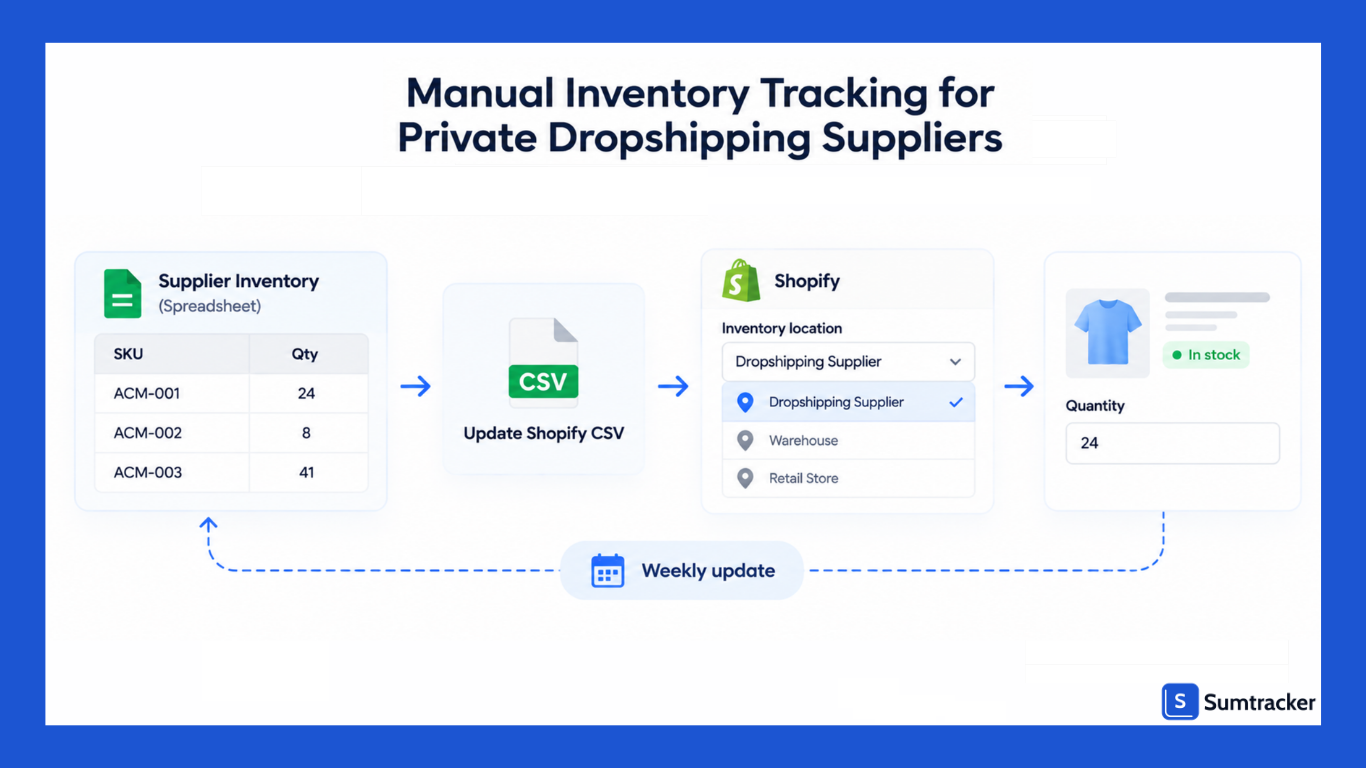
When a private supplier has no app or inventory feed, a fixed routine becomes your way of keeping Shopify inventory in sync. The goal is to make manual updates predictable, quick, and easy to check.
Manual work is also where inventory errors can creep in. In a DOSS survey of 1,003 U.S. operations professionals, 53% reported dealing with spreadsheet errors every week, while 59% identified manual data entry as the most common mistake.
Respondents spent an average of 3.6 hours a week fixing these errors.
A consistent update routine can help reduce these errors when you're managing supplier inventory manually.
Set Up a Dedicated Location
Create a custom location in Shopify named after the supplier, such as “Supplier: Acme.” Make sure it fulfills online orders, or its stock may not count toward the quantity available on your online store. Location limits vary by Shopify plan, so check yours before adding multiple supplier locations.
A Weekly Update Routine
- Ask the supplier for a stock sheet on a fixed day, with SKU and quantity columns.
- Match their SKUs to yours. Keep a mapping sheet if their codes differ.
- Export your Shopify inventory CSV for that supplier's location.
- Update the quantities and import the file.
- Spot-check a few SKUs in Shopify to confirm the import worked correctly.
- Note the date of the update so you know how current the inventory data is.
For smaller catalogs, Shopify's bulk editor can be faster than using a CSV.
How Often to Update
The right update frequency depends on how quickly your supplier's stock changes. Use the following as practical starting points, then adjust based on your actual sales and inventory changes.
These are starting points rather than fixed standards. A fast-moving supplier may require more frequent updates even with a small catalog.
Add Alerts So Nothing Slips
Manual stock becomes stale between updates. Low-stock alerts can help you identify products that need attention before they reach zero. Shopify Flow includes low-stock workflow templates that can automate these notifications.
For more options, see Sumtracker's roundup of low stock alert apps.
Practical tip: Once a supplier sends the same stock sheet every week, ask whether they can share it as a live Google Sheet. An inventory feed can then read the data on a schedule, reducing the need for manual updates.
How to Troubleshoot Shopify Dropshipping Inventory Sync Issues
Most inventory sync problems come down to five things: settings being turned off, the wrong location, broken product mapping, sync delays, or multiple systems updating the same inventory.
Check these first before looking for more complicated causes.
Start With the Adjustment History
Open the product in Shopify and view its inventory adjustment history. Shopify keeps inventory adjustment history for tracked products, and the Activity column can show changes caused by orders, returns, apps, and other inventory actions.
- No recent app entries? The app may not be pushing updates. Check its inventory settings and plan.
- Two apps alternating? Multiple systems may be updating the same inventory. Check which tools are connected and remove conflicting updates.
- Updates look correct, but the store says sold out? Check the product's location and storefront settings.
When an Order Slips Through
If an inventory sync issue allows an order to come through for a product your supplier can't fulfill, check the order and fulfillment status first. If the fulfillment service did not receive the order correctly, follow its recovery process and make sure the order's inventory location and fulfillment status are accurate.
Once the immediate issue is resolved, identify why the sync failed and report the problem to the app or integration provider.
For wider inventory issues on Shopify, see Sumtracker's guide to the top 5 common Shopify inventory problems.
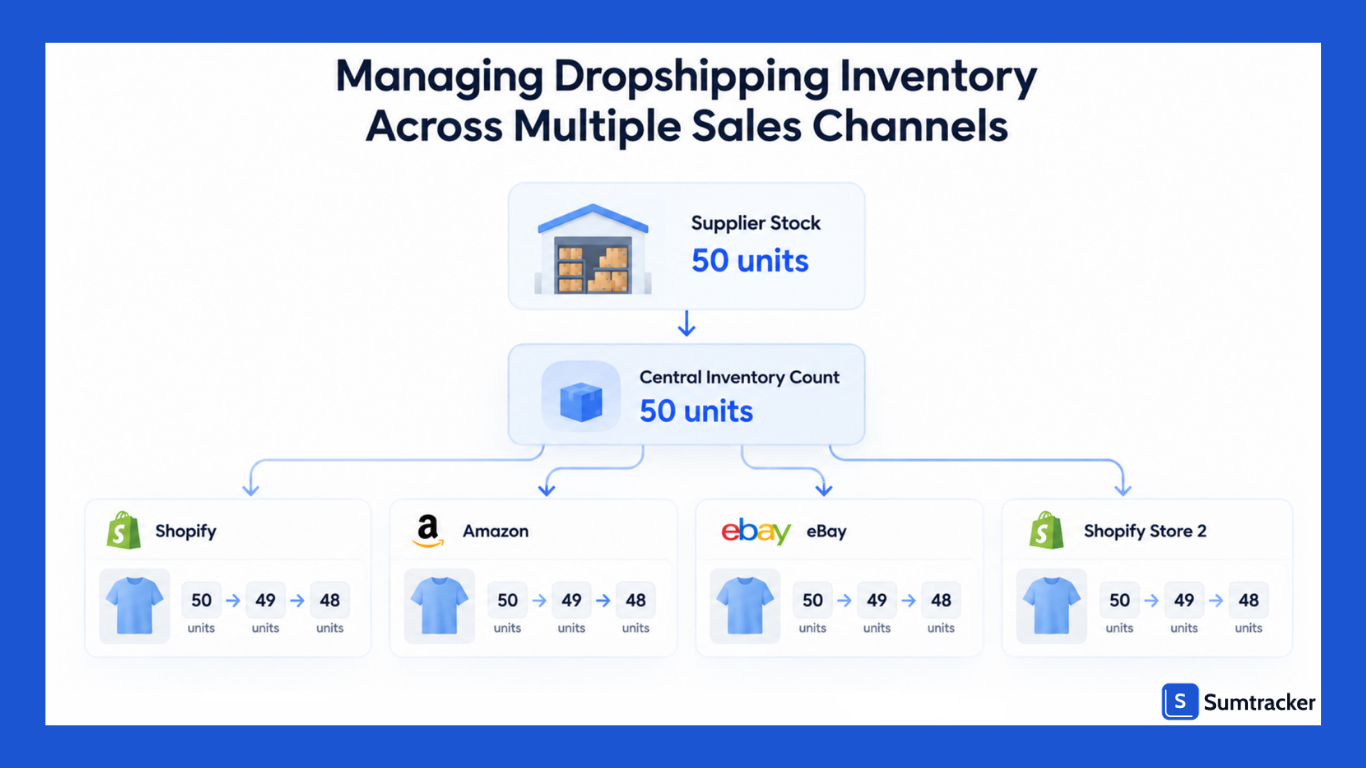
Managing Dropshipping Inventory Across Multiple Sales Channels
Selling the same dropship product on Shopify, Amazon, eBay, or a second store means multiple channels can draw from the same supplier inventory.
For the roughly 27% of ecommerce stores that use dropshipping as their primary fulfillment model, there is little or no stock of their own to fall back on.
If each channel updates on a different schedule, they can all sell the last available units before the next inventory update.
Pick One Source of Truth
Decide which system holds the master inventory count for each SKU. This can be Shopify or a central inventory management system. Other sales channels should receive their inventory from that source rather than maintaining separate counts.
Having one source of truth gives you one place to update inventory and resolve discrepancies.
Check Each Marketplace's Dropshipping Rules
Marketplaces have their own dropshipping requirements. Amazon's Dropshipping Policy requires you to be the seller of record.
Buying products from another online retailer and having them shipped directly to your customer is prohibited if the other retailer's name appears on the packing slip, invoice, or packaging.
Review each marketplace's current dropshipping policy before listing products there, as requirements can vary between channels.
Size Buffers for the Slowest Channel
Inventory can take time to move from your supplier to your central inventory system and then to each sales channel. If one channel updates more slowly than the others, account for that delay when deciding how much inventory to make available for sale.
For example, if your supplier updates every 12 hours and a sales channel takes another hour to receive the inventory update, your total potential delay is around 13 hours. The longer this delay, the greater the risk of selling inventory that is no longer available.
Best Shopify Apps for Dropshipping Inventory Tracking
The best app depends on how your supplier provides inventory data.
Shopify Collective works when you're sourcing products from other Shopify stores, while dropshipping apps such as DSers and AutoDS connect your Shopify store with external suppliers and automate inventory updates.
Prices and features can change over time. Check each app's current plan details before subscribing.
How to choose
- Count the update frequency you actually get on your plan, not the headline feature.
- Check what happens at zero stock. Draft the product, hide the variant, or show zero.
- Avoid stacking tools that write to the same variants.
- Read recent reviews that mention sync errors, not just setup.
For a wider framework, see Sumtracker's guide to choosing inventory apps for Shopify.
Best Practices for Shopify Dropshipping Inventory Management
Good dropship inventory management is a routine, not a one-time setup. These habits keep your numbers honest as you add products and suppliers in a market that Polaris Market Research expects to grow at a CAGR of 23.4% from 2026 to 2034.
- Track every dropship variant. Untracked products can always be bought, even when the supplier is out.
- Keep one writer per variant. One app or one feed sets each quantity. Never two.
- Size buffers to your real sync interval. Use the formula above and revisit it monthly.
- Review supplier performance. Track cancellations caused by supplier stockouts. Drop suppliers who cause repeated cancellations.
- Raise buffers before promotions. Ads and sales compress a week of orders into a day. Your sync interval does not speed up.
- Audit weekly. Compare 10 random SKUs in Shopify against the supplier's live stock. Fix any gap at its source.
- Plan for hybrid stock. If you start holding your bestsellers, give that stock its own location and its own reorder plan.
Conclusion
Dropshipping inventory tracking on Shopify comes down to one thing: keeping the inventory your customers see as close as possible to the stock your supplier actually has.
Because you don't hold the products yourself, the accuracy of your store depends on how reliably supplier inventory data reaches Shopify.
Start by turning on inventory tracking for your dropship products, connecting each supplier through the right sync method, and understanding how often inventory updates.
As your store grows, pay closer attention to multiple suppliers, sales channels, sync delays, and high-demand products that are more likely to oversell.
If overselling is already a problem, see Sumtracker's guide on why products oversell and how to prevent it.
Also, you don't need a complicated setup from day one.
Choose a reliable inventory source, test your sync, monitor stock levels, and fix discrepancies before they become customer problems.
That gives you a more accurate view of product availability while reducing cancellations, refunds, and lost customer trust.
FAQs
1. How do you track dropshipping inventory on Shopify?
Shopify can track the inventory available in your store, but dropshippers also need a way to monitor their supplier's inventory. You can connect Shopify to supplier inventory data through a dropshipping integration, inventory feed, API, or manual updates to keep product availability and stock levels aligned.
2. How does Shopify sync inventory with a dropshipping supplier?
Shopify does not automatically sync with every supplier. A dropshipping integration or inventory management system can pull the supplier's inventory data and update the corresponding Shopify products. Sync frequency depends on the supplier and the system you use.
3. What happens when a dropshipping supplier runs out of stock?
When a supplier runs out of stock, your Shopify store needs to reflect that change quickly to prevent customers from ordering unavailable products. A connected inventory system can update the product's available inventory or mark it as unavailable when the supplier's stock reaches zero.
4. How do you prevent overselling when dropshipping on Shopify?
To prevent overselling, keep your Shopify inventory levels synchronized with your supplier's available stock. Also account for delays between supplier updates and Shopify, especially for high-demand products. Monitoring inventory minimums adds an extra safeguard.
5. Can you track inventory from multiple dropshipping suppliers in Shopify?
Yes. If you work with multiple suppliers, you can track their inventory separately and link each supplier's products to the correct Shopify SKUs. An inventory management system can consolidate supplier inventory data and keep stock levels accurate across your store.
6. How often should a dropshipping store update supplier inventory?
There is no single ideal frequency because it depends on how quickly your supplier's inventory changes. Fast-moving products and high-demand items require more frequent updates. If supplier inventory changes frequently but your store updates slowly, you risk selling products that are already out of stock.
7. What is the best inventory management system for Shopify dropshipping?
The best system depends on your number of products, suppliers, sales channels, and inventory processes. For a growing dropshipping business, look for features such as supplier inventory syncing, real-time or frequent inventory updates, multi-channel inventory tracking, stock alerts, inventory reports, and automation.
Conclusion

Bhoomi writes about inventory management and multichannel selling at Sumtracker. Her focus is on solving real operational problems for Shopify, Amazon, and marketplace sellers through well-researched content. She covers everything from multi-location inventory syncing and stock error troubleshooting to replenishment planning and platform comparisons, turning complex eCommerce operations into clear, actionable guidance.
LinkedInRelated Articles
Tool and strategies modern teams need to help their companies grow.

.avif)
Ready to Simplify Your Inventory Management?
Join hundreds of e-commerce merchants who rely on Sumtracker to save time, eliminate errors, and grow their business.
