.svg)

Inventory Not Tracked in Shopify: How to Fix It?



“Inventory not tracked” in Shopify means inventory tracking is disabled for a product variant. Shopify won’t maintain stock counts or automatically mark items out of stock based on inventory levels.
- The fix takes about a minute: open the variant, switch tracking on in the Inventory section, enter quantities, and save.
- Tracking is set per variant, so a product can be tracked in one size and untracked in another.
- Untracked variants don't appear on Shopify's Products > Inventory page; a product export is the reliable way to find them all.
Shopify's own tools fix the setting for free. A dedicated inventory system such as Sumtracker becomes useful once the same stock sells across several Shopify stores or marketplaces like Amazon. It builds on Shopify's tracking and keeps counts in sync across every channel within minutes.
A Shopify product marked “Inventory not tracked” can keep selling even when you have no stock left. Because Shopify isn't counting available units for that variant, it can't automatically stop sales when inventory runs out. The result? Oversold orders, cancellations, refunds, and frustrated customers.
The problem is easy to miss, especially in stores with multiple sizes, colors, or hundreds of variants. Untracked inventory can slip in during product creation, CSV imports, or app integrations, and those variants don't appear on Shopify's Products > Inventory page.
In this guide, you'll learn how to enable inventory tracking, find every untracked variant in your store, fix them in bulk or via CSV import, and decide which products should remain untracked.
How to enable inventory tracking in Shopify for one product?
To fix “Inventory not tracked,” open the product variant in your Shopify admin, enable inventory tracking, enter the correct stock quantities, and save. Tracking is set per variant, so enabling it for one size or color doesn't enable it for the others.
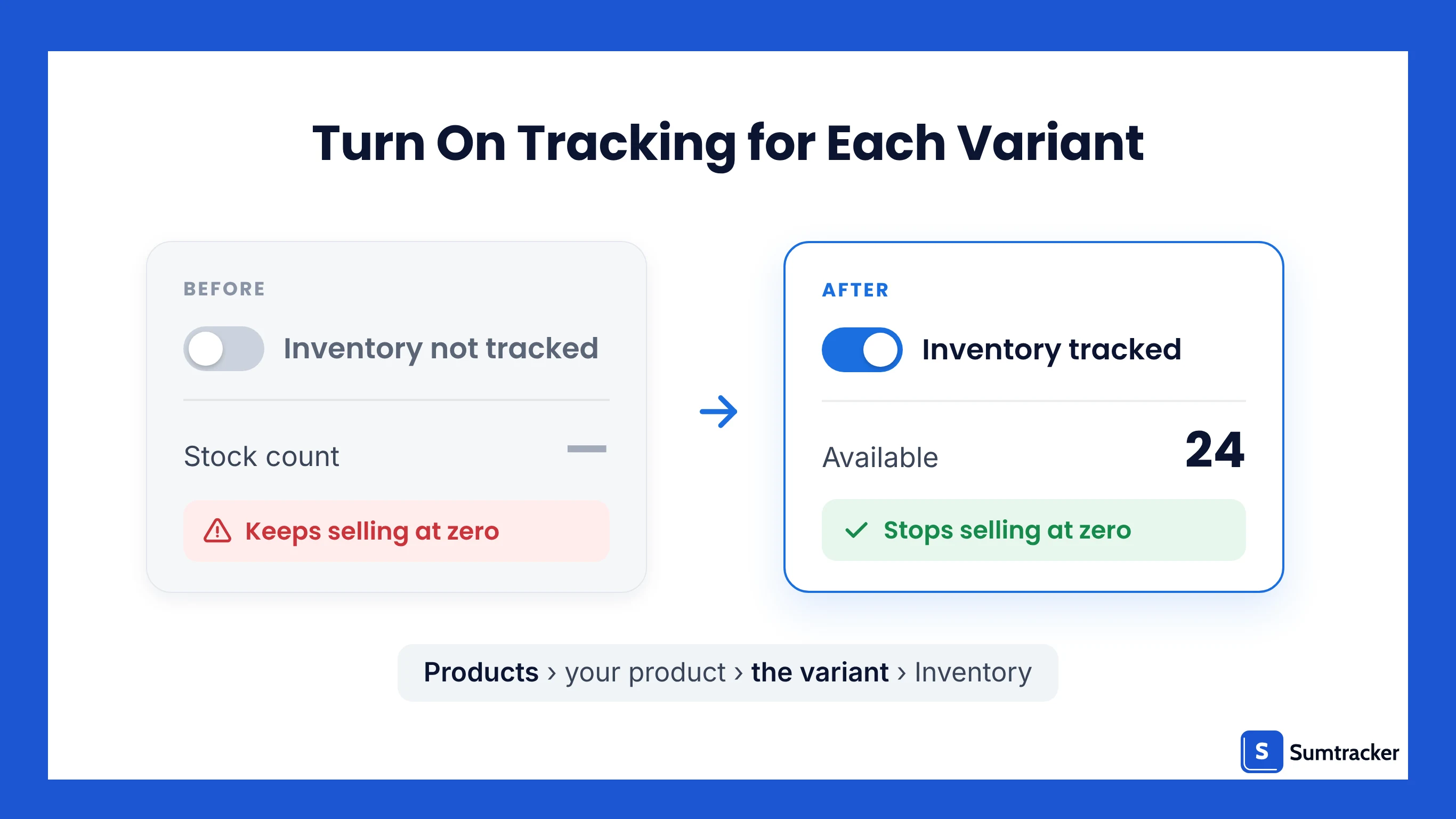
- In your Shopify admin, go to Products and open the product.
- If it has variants, click the variant you want to fix.
- In the Inventory section, enable tracking. On desktop, look for the Inventory not tracked setting; in the Shopify mobile app, look for Track quantity.
- Enter the Available units at each location, your initial stock level.
- Leave Continue selling when out of stock disabled unless you intentionally accept backorders.
- Click Save.
Tip: count the shelf before step 4. The number you enter becomes the stock Shopify sells against, so a guess can lead to overselling or false sold-out messages.
One important distinction: Enabling tracking lets Shopify maintain a stock count; it doesn't guarantee that the count stays accurate. Make sure the variant is stocked at the correct location, that location is configured to fulfill the relevant orders. Incoming stock, returns, and sales from other channels are recorded or synchronized appropriately.
To verify the change, go to Products > Inventory and check that the variant appears with its inventory quantity.
Fixing one product? You're done. If you suspect other variants are affected, continue to the catalog-audit section below.
Not tracked vs. Continue selling vs. Not stocked: what Shopify does at zero stock

Shopify's behavior at zero stock depends on two things: whether inventory tracking is enabled and whether the variant can sell when its inventory reaches zero. A location's stock availability is a separate consideration.
The key distinction is that inventory tracking controls whether Shopify counts stock, while the Continue selling setting controls whether sales can continue below zero. “Not stocked” refers to a location, not necessarily to the variant's overall tracking status.
Tracking also affects three things beyond the storefront:
- Shopify POS: Shopify's help center says Continue selling doesn't apply to POS and that POS warns staff before they sell a tracked item that isn't available. That warning is documented for tracked items, so don't rely on it for untracked ones.
- Inventory history: Shopify says that once you track a product, you can view its inventory history for up to 180 days.
- Reports: Shopify's days-of-inventory-remaining report estimates how long your tracked inventory will last, so untracked variants don't inform it.
Why Shopify shows inventory not tracked?
When Shopify shows “Inventory not tracked,” it usually means tracking was never enabled, a variant was missed, a CSV import changed the setting, or an app manages inventory separately. A missing location is different: it can result in a “Not stocked” status rather than “Inventory not tracked.”
- Never switched on. The product was created manually or duplicated from another product without tracking. In one Shopify Community thread, a merchant whose product was created without tracking had to enable tracking on each variant or through the bulk editor's Track quantity column.
- A variant was missed. A size or color added later has its own tracking setting.
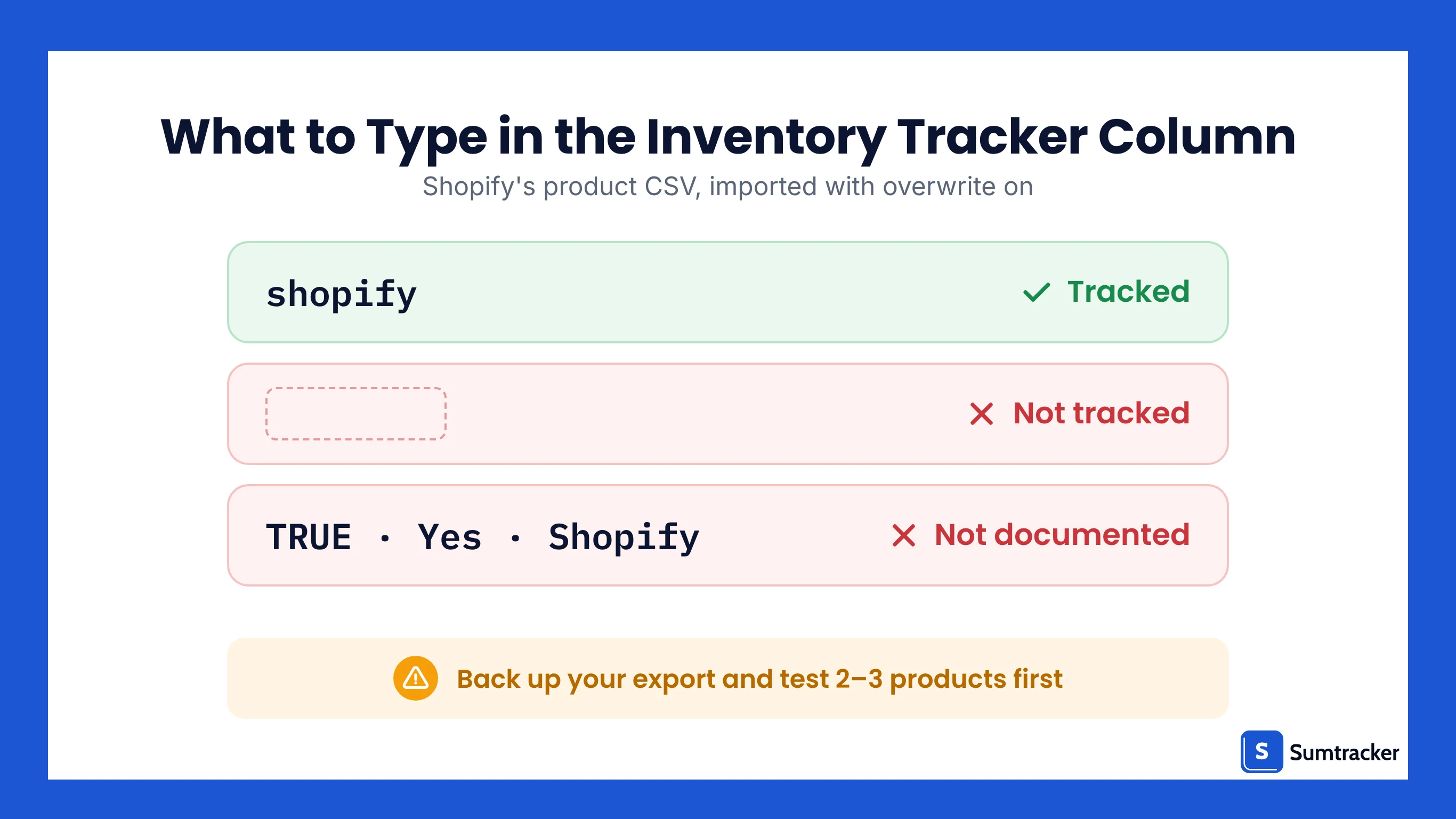
- A CSV import switched it off. Importing a blank Inventory tracker cell with overwrite on sets the variant to not tracked (see the CSV section).
- An app manages the stock. If the Inventory section shows an app's name, change the setting in that app. In a Shopify Community discussion, Printify and Printful sellers said they leave such products untracked, which caused problems when TikTok Shop asked for quantities.
How to find every untracked variant in your Shopify store?
Shopify's Products > Inventory page doesn't show variants that aren't tracking inventory quantities. To audit your entire catalog, export your products and filter the Inventory tracker column for blank values.
- Go to Products and click Export. Choose All products and Plain CSV file, then click Export products.
- Save an untouched copy of the export as your backup.
- Open a working copy in Google Sheets, which Shopify recommends for viewing CSV files.
- Filter the Inventory tracker column for blank cells.
- Paste those rows into the triage sheet and mark each one Track or Leave untracked, using the table in the "leave it off" section.
Take a skincare brand with 60 products and 180 variants that migrated from another platform by CSV. Its export shows 45 blank Inventory tracker cells. That means 45 variants—25% of its catalog—need reviewing to determine whether tracking should be enabled.
A blank cell doesn't automatically mean something is wrong. Some products are intentionally untracked, so review each result before changing settings.

Want to speed up the review? Use the free untracked-variant triage sheet to organize the export, classify variants, and prepare for the next step.
SUMTRACKER DATA
Untracked variants are more common in larger Shopify catalogs
In a sample of 765 Shopify stores connected to Sumtracker, 44% had at least one active product variant with inventory tracking switched off.
The likelihood increased with catalog size. Among stores with fewer than 100 active variants, 21% had at least one untracked variant. That rose to 41% for stores with 100–999 variants and 66% for stores with 1,000 or more.
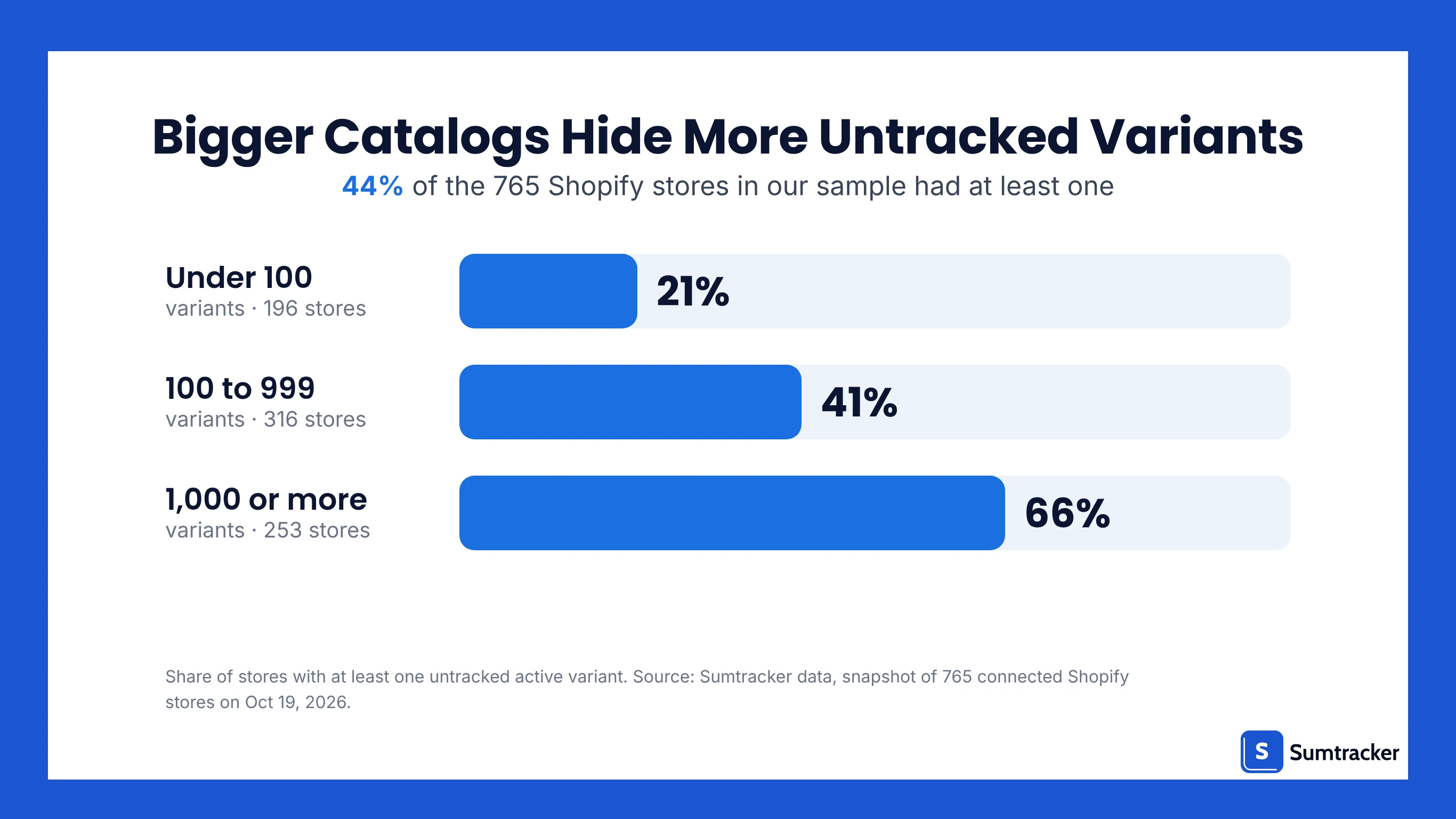
Untracked variants typically represented a small share of each affected store's catalog. The median was approximately 7 untracked variants in the smallest catalog group, 8 in the middle group, and 22 in the largest. Even a handful of untracked variants can go unnoticed during routine product checks, making a catalog-wide export a useful way to identify them.
What the data shows: Larger catalogs in this sample were more likely to contain untracked variants, reinforcing the value of auditing inventory settings across the entire catalog rather than checking products individually.
Source: Sumtracker snapshot of product settings across 765 Shopify stores with an active connection to Sumtracker (2.27 million active variants), taken October 19, 2026. These stores use an inventory app, so they may not represent all Shopify merchants, and some untracked variants are intentional.
In the same snapshot, 25% of the 2.14 million active variants with inventory tracking enabled were configured to Continue selling when out of stock. That means Shopify's inventory policy allowed sales to continue even when inventory reached zero or fell below it.
If you enable this setting to avoid showing products as sold out too early, consider whether a stock buffer would be more appropriate than allowing sales below zero.
Enable tracking for multiple variants with Shopify's bulk editor
If several variants need tracking, you can enable it through Shopify's bulk editor instead of opening each variant individually.
- In your Shopify admin, go to Products and open the product.
- In the Variants section, tick the variants you want to fix and click Open bulk editor.
- Click Columns and add Track quantity.
- Tick Track quantity on every row that should be tracked. Drag across cells to tick many at once.
- Enter the quantity for each location. Shopify shows a dash in the location field until tracking is ticked.
- Click Save, review the confirmation dialog, then click Save changes.
For multiple products with one variant each, Shopify Community merchants use the same column via Products > select products > Bulk edit. The bulk editor sets absolute quantities without an audit trail, so use it for set-up.
Fix hundreds of variants with a Shopify CSV import
For large catalogs, Shopify's product CSV lets you update inventory tracking across many variants in one import. If you're fixing only a handful, use the bulk editor instead.
Before you start: Export your products from Products > Export and save an untouched copy. Use the product CSV to change tracking settings; Shopify's separate inventory CSV updates quantities by location.
An overwrite import can replace existing values in any included column. Blank cells can clear existing data, and omitting required variant-identification columns can remove variant data. Test the process on two or three products before importing your full catalog. Shopify's product CSV documentation explains these risks.
Import the changes
- In a working copy of your export, enter
shopify(all lowercase) in the Inventory tracker column for variants you want to track. - Preserve existing tracking values for variants you're not changing. Leave the tracker blank only for variants you intentionally want untracked.
- Preserve the original URL handle (Handle in older exports) and the Option1, Option2 and Option3 name and value columns wherever applicable. Do not edit variant option names or values when your goal is only to enable inventory tracking, because changing option values can create new variant IDs and disrupt third-party app integrations.
- Go to Products > Import, upload the CSV, and select Overwrite products with matching handles. Keep all required columns in Shopify's product CSV format, along with the fields needed for your changes. Do not remove columns or leave cells blank unless you understand how the import will affect existing data.
- Test the import and verify the affected variants before processing the rest of your catalog.
For multiple locations, update quantities afterward using Shopify's separate inventory CSV. If you use an app such as Matrixify, follow its own import format and matching requirements.
Important: Keep an untouched copy of your original export. If you're unsure whether your edited CSV preserves existing variant data, test it on a small number of products first and verify their options, SKUs, prices, inventory tracking settings, and app integrations before importing the full catalog.
When to leave inventory untracked in Shopify
Leave inventory untracked only when stock can't run out, or when another system owns the count. Shopify's setup guide names digital products, services, made-to-order items and gift cards, and says dropshipped products can be tracked in Shopify or left to a dropshipping app. For made-to-order goods, track the components instead.
Rule of thumb: if a customer could buy something you'd have to refund for lack of stock, track it.
Deciding product by product, or switching some products off on purpose? Our guide to turning off inventory tracking in Shopify has a decision table by product type and covers what changes on your storefront and in your apps.
When Shopify's tracking isn't enough?
Everything above, from switching tracking on to fixing hundreds of variants by CSV, happens in Shopify at no extra cost. For a single store selling its own stock, Shopify's built-in tracking usually covers it.
Keeping that count right gets harder once the same physical stock sells in more than one place, such as a second Shopify store or Amazon. Each store and marketplace keeps its own count, so a sale in one doesn't reduce the others unless something connects them. Bundles and multi-packs that draw on the same units add another layer. That's the point where a dedicated inventory system becomes useful.
Sumtracker, inventory management and replenishment software for Shopify and Amazon merchants, builds on Shopify's tracking rather than replacing it. It only updates variants that have tracking switched on, so fix the setting first. On top of that, it:
- Syncs stock across channels: keeps tracked counts aligned across your Shopify stores and marketplaces within minutes, including bundle and multi-pack deductions.
- Adds a buffer before zero: Close at Quantity marks a SKU sold out once available stock falls to a threshold you choose, a safer alternative to Continue selling.
- Flags low stock: sends a daily low-stock email based on the min level you set for each SKU and location.
- Plans reorders: recommends when and how much to reorder.
- Keeps counts honest: runs stocktakes with barcode scanning.
Organics Best, a Shopify baby-products brand selling multi-packs, went from 6–10 overselling cases a month to 0–1 after automating bundle deductions and stock sync across its stores with Sumtracker.
Fixes for Shopify tracking issues
After any fix, place a test order on one product and confirm its quantity drops. For multiple locations and the rest of your set-up, see our Shopify inventory tracking guide.
"Inventory not tracked" is a setting, not an error, so the real question is which variants should have it. Your next step: export your products and filter the Inventory tracker column for blanks.
FAQ
Will customers see a difference after I turn Shopify inventory tracking on?
Yes, once stock reaches zero. With the default stop-selling setting, Shopify won't let customers add the variant to their cart, so most themes show it as sold out. Some themes and apps may also start showing stock messages, so check a product page after switching.
Do I need to track inventory separately for each location?
No. Tracking is one setting per variant. Locations hold the quantities, and a variant that isn't assigned to a location shows Not stocked there, not Not tracked.
Should I set untracked dropshipping products to 9,999 instead?
No. A made-up 9,999 looks tracked but never reflects the supplier's real stock, so it hides supplier stockouts rather than solving them. Leave the product untracked, or use an app that syncs the supplier's actual quantities.
Conclusion
Related Articles
Tool and strategies modern teams need to help their companies grow.
.avif)
Ready to Simplify Your Inventory Management?
Join hundreds of e-commerce merchants who rely on Sumtracker to save time, eliminate errors, and grow their business.
