.svg)
How to Turn Off Inventory Tracking in Shopify: Complete Guide


Want to sell products on Shopify without manually tracking stock levels?
Turning off inventory tracking lets you sell products without Shopify counting units sold or marking items as out of stock based on quantity.
This can be useful for digital products, gift cards, services, and made-to-order items with no fixed production limit.
Made-to-order selling in particular is growing. Grand View Research estimates the global print-on-demand market, one common made-to-order model, at $10.8 billion in 2025 and projects $57.5 billion by 2033.
You can disable tracking for individual products or multiple variants at once using Shopify’s bulk editor or a product CSV file.
However, turning it off also removes quantity-based stock visibility and overselling protection, which can create problems if you sell physical products or rely on inventory management apps.
In this guide, you’ll learn how to turn off inventory tracking in Shopify, when it makes sense to do so, and what to check before making the change.
What Does Turning Off Inventory Tracking Mean in Shopify?
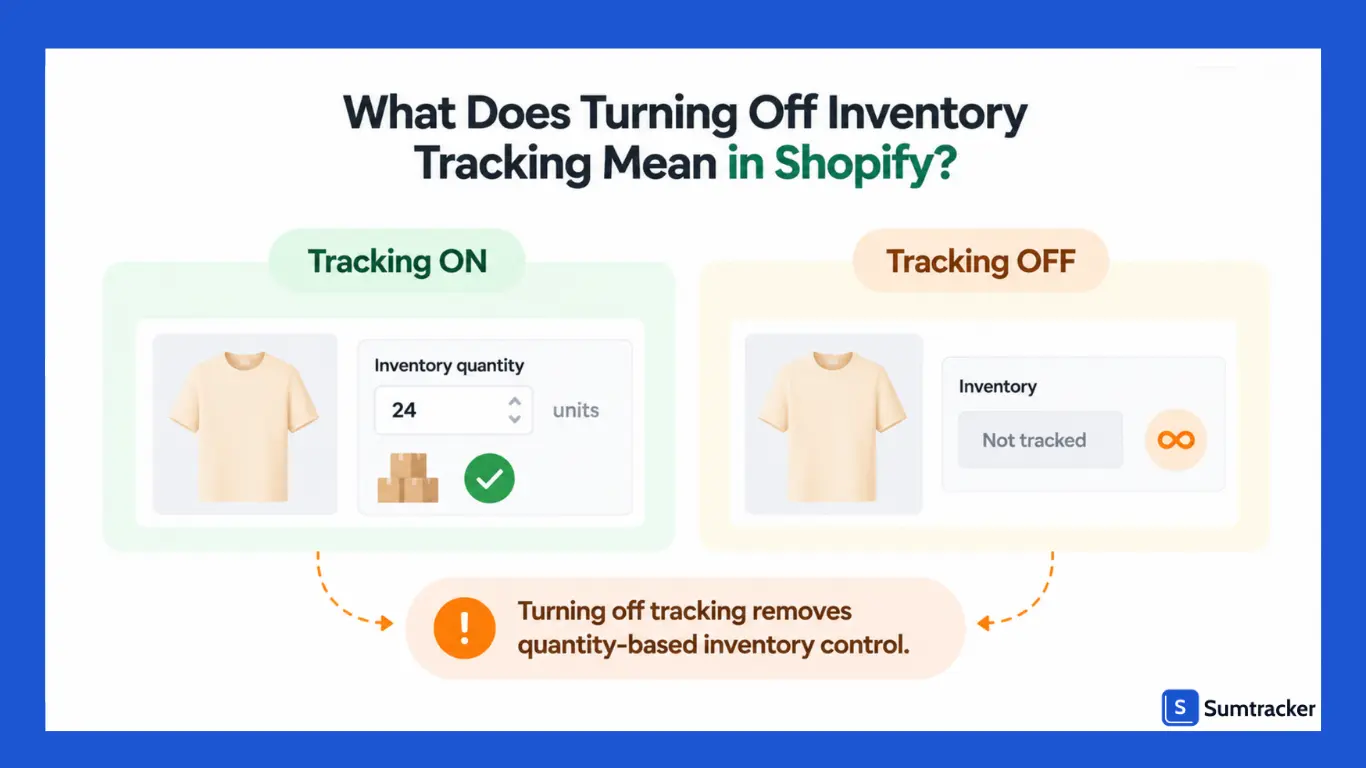
When tracking is off, Shopify holds no stock number for that variant. Sales don't reduce stock. Returns don't add it back. The item never sells out because of quantity.
Case Study: Print-on-demand stores are a clear example of a business where a Shopify stock count adds little. Chris Heckman built a portfolio of four Shopify brands that reached $20 million in total sales, with Printify fulfilling all the products.
Each item is printed after the customer orders it. No finished units sit on a shelf, so there is no number for Shopify to count down.
That doesn’t mean nothing can run out. In a setup like this, the limits sit with the provider: which blank products it carries, in which sizes and colors, and how fast it can print.
So before you turn off tracking for print-on-demand items, check how your provider’s app handles stock. Some apps keep Shopify quantities in sync for you, while others ask you to leave tracking off.
A few things are worth knowing before you change anything:
- Tracking is set per variant: Each size, color, or other product variant has its own tracking setting. You can disable tracking for specific variants without changing the others.
- Untracked variants disappear from the Inventory page: You won't see them listed alongside products with tracked inventory.
- Inventory history is no longer recorded: Shopify's inventory history applies to tracked inventory, so you won't have the same quantity adjustment records for untracked variants.
- The overselling setting no longer applies: The Continue selling when out of stock option is available only when inventory tracking is enabled.
Here is how the two states compare:
Turning off tracking is different from enabling Continue selling when out of stock. The latter keeps inventory tracking active but allows customers to order even when the available quantity reaches zero. Disabling tracking removes quantity-based inventory control altogether.
Also, disabling tracking doesn't automatically publish a product or make it available on every sales channel. The product must still be active and available on the relevant channel.
Practical tip: If you only want to accept orders past zero, such as pre-orders or backorders, keep tracking on and use Continue selling. You keep the count, so you always know how many units you owe customers. See our guides to managing pre-orders and backorder management.
When Should You Disable Inventory Tracking in Shopify?
Disable inventory tracking when a product has no fixed stock limit or when its inventory is managed outside Shopify.
Shopify identifies digital products, services, made-to-order products, and gift cards as products that may not require inventory tracking.
For dropshipping and print-on-demand products, the right setup depends on how your supplier or fulfillment app manages stock.
Use this table to decide whether to turn tracking off:
Be careful with bundles. Disabling tracking might prevent a bundle from appearing out of stock, but it doesn’t resolve shortages of the individual products inside it. If a bundle contains multiple tracked items, its availability should reflect the stock of its components.
For example, home decor brand UrbanTroos sells pillow covers in sets of two, three, and four. Rather than disabling tracking when bundle stock becomes difficult to manage, the team tracks bundle availability against component inventory using Sumtracker.
Rule of thumb: Before disabling tracking, ask whether you could fulfill a sudden increase in orders without running out of stock or exceeding your production capacity. If the answer depends on a limited quantity, keep tracking enabled.
How to Turn Off Inventory Tracking for a Single Shopify Product
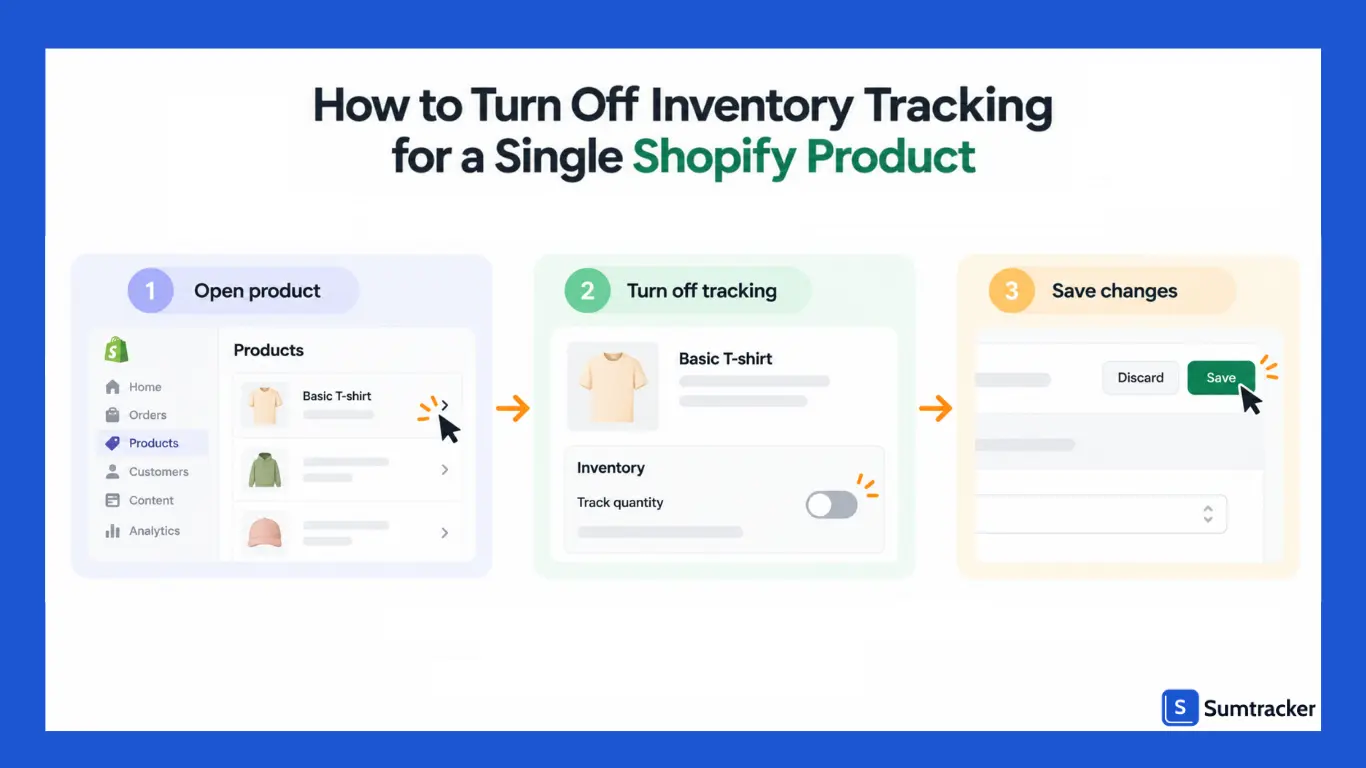
You can disable inventory tracking from your Shopify admin by opening the product, selecting the relevant variant, and switching off its tracking setting. Save your changes when you’re done.
On desktop
- In your Shopify admin, go to Products.
- Open the product you want to update.
- If the product has variants, select the specific variant you want to change.
- In the Inventory section, turn off Track quantity or the equivalent inventory-tracking setting shown in your admin.
- Click Save.
- Repeat these steps for any other variants that should no longer be tracked.
Remember that tracking is configured at the variant level. Changing one variant doesn’t necessarily change the settings for the others.
On the Shopify mobile app
- Open the Shopify app and tap Products.
- Select the product you want to update.
- Open the relevant variant, if applicable.
- Find the Inventory section and tap Edit, if shown.
- Turn off Track quantity.
- Tap Save.
For additional guidance, refer to Shopify’s inventory tracking instructions.
How to verify that tracking is disabled
After saving, reopen the product or variant and confirm that tracking is switched off. You can also check Products > Inventory; untracked variants generally won’t appear in the inventory list.
Finally, preview the product on your storefront and test the relevant variants. Confirm that the product is available as expected and that any low-stock messages reflect your current theme and app settings.
For a visual walkthrough, you can also watch How to Fix Inventory Not Tracked in Shopify & Learn to Stop Tracking Easily.
How to Disable Inventory Tracking for Multiple Shopify Products in Bulk
If you need to disable inventory tracking for multiple products, you can use Shopify’s inventory bulk editor or export your products, update the tracking settings in a CSV file, and import it again.
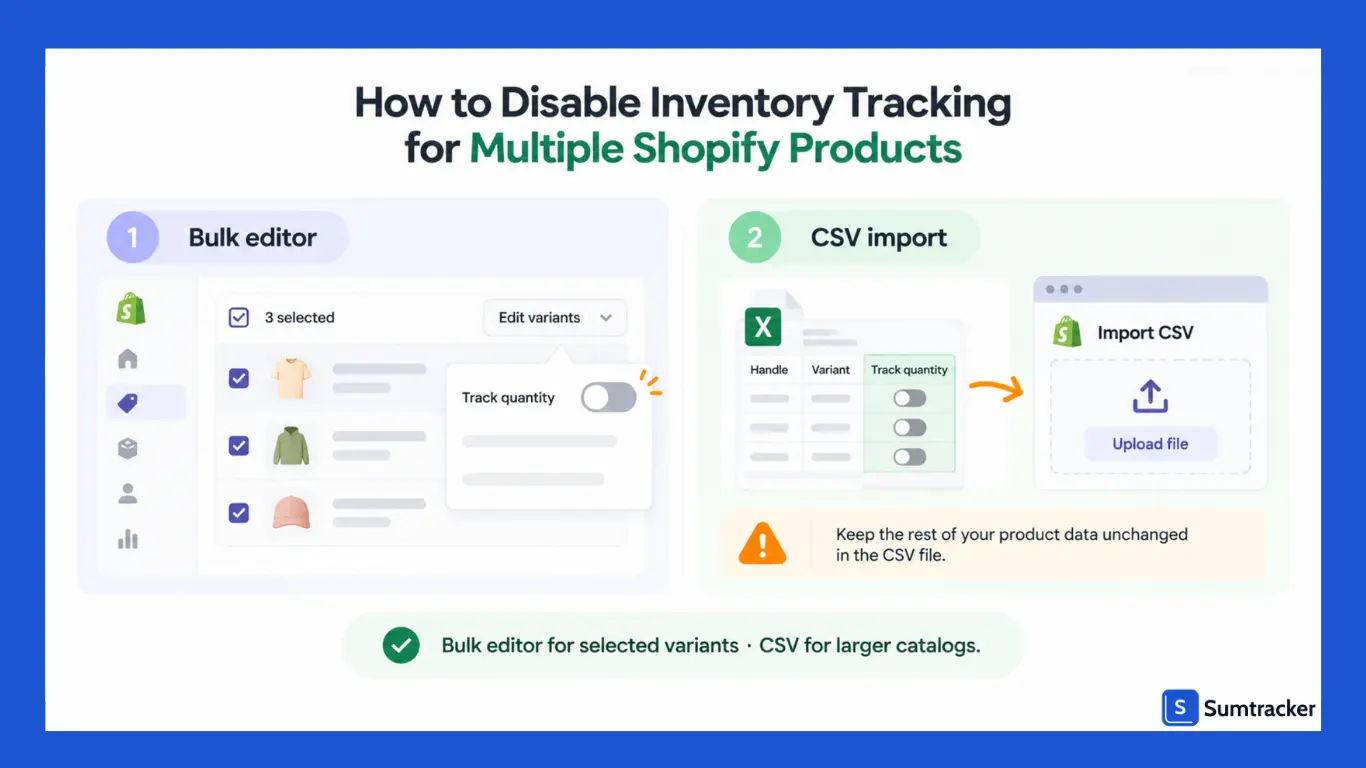
The bulk editor is convenient for smaller batches, while CSV imports can be more efficient for larger catalogs.
Method 1: Using Shopify’s Inventory Bulk Editor
- In your Shopify admin, go to Products > Inventory.
- If you manage stock across multiple locations, select the relevant location if needed.
- Select the variants you want to update.
- Click Edit variants to open the bulk editor.
- Open Columns and add Track quantity if it isn’t already visible.
- Turn off Track quantity for each selected variant. Use the editor’s fill or drag controls where available to update multiple cells.
- Click Save and confirm the changes if prompted.
Shopify’s bulk editing guide explains the editor and its restrictions. If a tracking checkbox is disabled, check whether an unfulfilled order or an active inventory transfer is preventing the change.
If you want to update variants belonging to a single product, open the product, select the relevant variants, and click Open bulk editor. See our guide to bulk editing inventory on Shopify for more details.
Method 2: Using Shopify’s Product CSV
For larger catalogs, you can update inventory tracking through Shopify’s product CSV import. This method requires extra care because importing a CSV can overwrite existing product information.
- Go to Products and export the products you want to update. Keep an untouched copy of the original file.
- Open the exported CSV and locate the Variant Inventory Tracker column.
- For each variant you want to stop tracking, clear the existing value in that column. Leave the values for other variants unchanged.
- Save the file in CSV format without changing the column headers or modifying unrelated fields.
- Import the updated file through Products > Import. Review the import options and choose to overwrite existing products with matching handles when appropriate.
- After the import, open several updated products in Shopify admin to confirm that tracking is disabled and the remaining product information is intact.
Shopify’s CSV troubleshooting guide and product CSV documentation explain how CSV values are handled during import. In particular, a blank value can clear existing data, so use a complete export and carefully review the rows you’re changing.
A bad import can’t be reversed with one click. Shopify has no undo for overwritten product data, so your export file is often the only way back.
In Shopify1Percent, host Jay Myers covers the recovery options already in your Shopify admin and where each one stops. It’s worth a listen before your first large import.
Use the product CSV, not the separate inventory CSV, for this change. The inventory CSV is intended for updating inventory quantities by location rather than changing the product’s inventory-tracking setting.
Practical tip: Before making bulk changes, save a dated copy of your product export. This gives you a reference for reviewing the original settings if you need to investigate an import error. See our guide to exporting Shopify inventory.
What Happens After You Disable Inventory Tracking in Shopify?
When you disable inventory tracking, Shopify stops maintaining a stock quantity for that variant.
The product can remain available for purchase regardless of how many orders are placed, provided it is active, published to the relevant sales channel, and otherwise available for sale.
Here’s what changes when tracking is disabled:
How Does Disabling Tracking Affect Inventory Management?
Sales reporting and inventory reporting are different.
Your orders and sales data remain available, but tools that rely on tracked stock quantities may no longer be able to calculate inventory levels, days of cover, or reorder recommendations for untracked variants.
Disabling tracking also doesn’t eliminate the need to manage limited materials.
For example, you might sell a made-to-order product without tracking its finished-item quantity in Shopify, but the fabric, packaging, bottles, or other components used to produce it can still run out.
If you manufacture products or assemble bundles, consider tracking the components separately so you can replenish materials before they become unavailable.
You can also identify untracked variants by exporting your products and filtering the Variant Inventory Tracker column for blank values. Review the results periodically to catch products that may have been unintentionally left untracked.
Practical tip: If you later re-enable tracking, verify the actual stock on hand before entering a new quantity. Shopify won’t have maintained the tracked quantity while tracking was disabled, so an old count may no longer be accurate.
How to Remove “Only X Left” and Other Low-Stock Messages
Turning off inventory tracking can remove Shopify-generated stock messages, but it won’t necessarily remove messages added by custom code or third-party apps.
To remove them all, identify where each message comes from.
Shopify’s free Dawn theme is one example. Its built-in Inventory status block displays stock information based on Shopify’s inventory data. When a variant is no longer tracked, that message may disappear automatically.
Other themes use different settings and logic, so check your theme’s documentation and preview the product page after making changes.
Steps for most Shopify themes
- Go to Online Store → Themes and click Customize.
- Open a product page template, such as Default product.
- Find the inventory or stock-status block in the product information section.
- Hide or remove it, or adjust its threshold if you still want a stock-status message.
- Repeat for any other product templates that display the message.
- Open App embeds in the theme editor and review any stock-counter or urgency apps.
Turning off a message isn’t just a design decision. A low-stock claim that isn’t supported by real inventory data can mislead customers.
The UK’s Competition and Markets Authority has identified online urgency and scarcity tactics as an area of consumer-protection enforcement.
Merchants should make sure their stock messages accurately reflect availability and aren’t creating false urgency.
If you still need early warnings when inventory runs low, send alerts to your team instead of displaying an unsupported countdown to customers.
Rule of thumb: Display a stock message only when it reflects reliable, current availability data.
How Disabling Inventory Tracking Affects Third-Party Apps and Integrations
Third-party apps can use Shopify’s inventory data to sync quantities, trigger alerts, update listings, or calculate replenishment needs.
When you turn off tracking for a variant, Shopify no longer maintains its inventory quantity in the usual way.
As a result, some integrations may treat the product as having unlimited availability, while others may skip it or stop performing quantity-based tasks.
The exact behavior depends on the app and its configuration.
Most stores have several apps to check. The same Hyperspeed analysis found an average of 5.94 detectable apps per store. That count covers storefront apps only, so the real number is likely higher.
Check inventory apps before disabling tracking
The biggest risk is turning off tracking for a product whose quantity is managed by an inventory app.
If an integration needs Shopify to accept quantity updates, an untracked variant may prevent those updates from working as intended.
The product could remain available for purchase without reflecting the actual stock held by your business.
Before making bulk changes, go to Settings → Apps and sales channels and identify apps that read or update inventory. Review each app’s documentation and test the change on a small number of variants first.
Practical tip: Before disabling tracking in bulk, list every app that reads or writes inventory. Confirm how each one handles untracked variants, and test the changes before applying them across your catalog.
Conclusion
Turning off inventory tracking is the right call for products with no shelf limit, and the wrong call for anything you physically hold.
Digital goods, services, gift cards, and uncapped made-to-order items can safely go untracked.
Before you switch, check three things: your apps, your theme's stock messages, and the components behind the product.
Then make the change one variant at a time or in bulk, and test it in your storefront.
If you're turning tracking off because Shopify can't show your real stock, fix the stock model instead. Our guide to Shopify inventory tracking covers how to set it up properly.
FAQs
Can I turn off inventory tracking for my whole Shopify store at once?
No. Shopify has no store-wide switch, because tracking is set on each variant. Use the inventory bulk editor or a product CSV to change many variants in one pass.
What is the difference between turning off tracking and Continue selling when out of stock?
Turning off tracking removes the stock count entirely. Continue selling keeps the count and lets it go below zero, so you can see how many units you owe. Continue selling only works when tracking is on.
Why does my product still show as sold out after I turned off tracking?
Check every variant, since each has its own setting. Then confirm the product is Active and published to your Online Store. If it still shows sold out, custom theme code or an app may be overriding Shopify's availability.
Why is the Track quantity box grayed out in the bulk editor?
The variant is part of an unfulfilled order or an active inventory transfer. Fulfill or close those first, then change the setting.
Can I turn inventory tracking back on later?
Yes, at any time, using the same toggle or bulk editor column. Recount the stock first, because Shopify recorded nothing while tracking was off.
Conclusion

Bhoomi writes about inventory management and multichannel selling at Sumtracker. Her focus is on solving real operational problems for Shopify, Amazon, and marketplace sellers through well-researched content. She covers everything from multi-location inventory syncing and stock error troubleshooting to replenishment planning and platform comparisons, turning complex eCommerce operations into clear, actionable guidance.
LinkedInRelated Articles
Tool and strategies modern teams need to help their companies grow.

.avif)

Ready to Simplify Your Inventory Management?
Join hundreds of e-commerce merchants who rely on Sumtracker to save time, eliminate errors, and grow their business.
