.svg)
Fulfillment Workflows for Shopify Inventory: Complete Guide


Every Shopify order sets off a chain of inventory events.
Stock gets committed, a location gets picked, items get packed, and the count drops.
When one link in that chain breaks, you oversell, ship from the wrong warehouse, or leave an order stuck for days.
The volume running through that chain keeps growing. US retail ecommerce sales hit $340.2 billion in Q2 2026, up 12.2% from Q2 2025, and made up 17.1% of all retail sales.
More orders mean more chances for a small inventory error to turn into a late shipment or a refund.
This guide explains how fulfillment workflows actually work inside Shopify.
You will learn how Shopify commits and allocates stock, how routing rules pick a location, how to handle split orders and exceptions, and how to automate the whole flow without losing inventory accuracy.
What Are Fulfillment Workflows for Shopify Inventory?
A fulfillment workflow for Shopify inventory is the set of steps an order follows from checkout to delivery, along with the inventory changes at each step.
It determines which units are set aside, which location fulfills the order, and when inventory counts update.
In Shopify, this workflow involves several connected components. An order can create one or more fulfillment orders, which organize the items that need to be fulfilled from a location.
Each fulfillment order is connected to the inventory tracked for a product variant at that location.
A workflow is only as reliable as the inventory data behind it. If your counts are wrong, Shopify may route orders based on incorrect availability, leading to delays or stockouts.
That's why inventory accuracy should come before automation. See our guide to Shopify inventory management for the basics.
Your workflow also depends on how you fulfill orders.
You might ship from your own warehouse, use a 3PL, or combine both. That mixed setup is becoming more common.
In ShipBob's 2026 survey of 416 ecommerce executives, 44% of brands use hybrid fulfillment, up 8 points from the year before. Every added fulfillment source is one more system touching your inventory counts.
See our guide to fulfillment options for Shopify inventory for an overview of these models.
Practical tip: Before changing your fulfillment settings, map your current flow. List each location, who ships from it, and which products it holds. This can reveal routing and inventory gaps before they cause fulfillment problems.
How Inventory Moves Through a Fulfillment Workflow
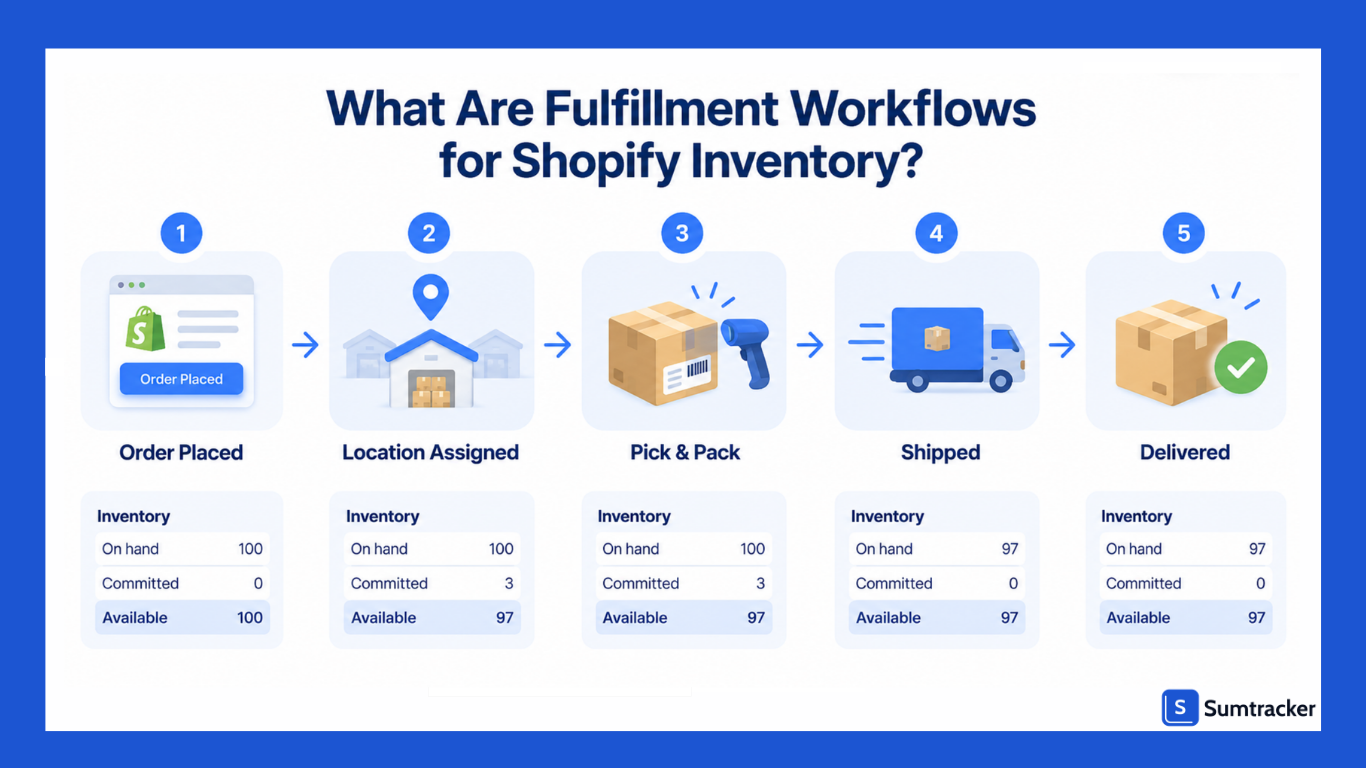
Inventory moves through several stages in a typical Shopify workflow. Each stage affects how much stock you can sell, even before the product leaves the shelf.
- Order placed. The customer checks out, and the ordered units move from Available to Committed. Your sellable inventory drops while the units remain part of On Hand.
- Location assigned. Order routing determines which location should fulfill the order, and Shopify creates the relevant fulfillment order.
- Picked and packed. Your team or 3PL picks and packs the units. Inventory counts generally don't change at this stage unless your fulfillment system records an adjustment.
- Fulfilled. The order is marked as fulfilled, and the units move out of Committed inventory. On-hand decreases as the products leave your inventory.
- Delivered. The carrier confirms delivery. This doesn't normally create another inventory change, but it completes the customer-facing fulfillment process.
- Returned or canceled. Canceled or returned units can be restocked and made Available again. If they aren't restocked, they remain unavailable for sale.
Here's a quick example: You have 20 candles at your warehouse, and a customer orders 3. After the order, Available shows 17, Committed shows 3, and On hand remains 20. After fulfillment, the 3 units leave your inventory, leaving 17 on hand.
This distinction matters because Available is the inventory you can sell, not your total On hand. A warehouse can have 20 candles physically present but show zero Available if all 20 are committed to open orders.
The full loop from purchasing stock to selling and replenishing it is often called the inventory order cycle. Our guide on the inventory order cycle explains how each stage affects cash and reorder timing.
Rule of thumb: If an order remains Committed for more than two business days, check whether it's on hold, assigned to the wrong location, or waiting for inventory rather than assuming it's simply delayed.
How Conditional Rules Control Shopify Fulfillment Workflows
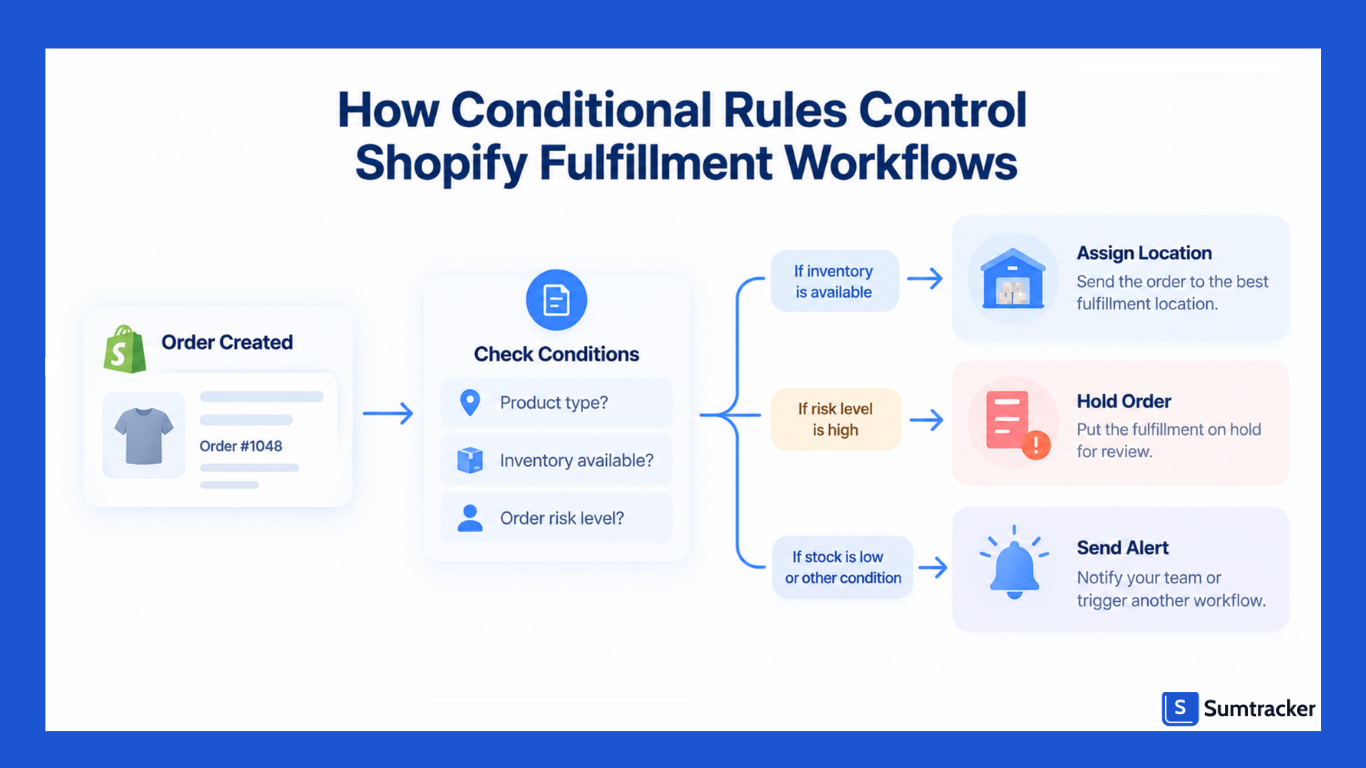
Conditional rules determine where an order is fulfilled and what happens when specific conditions are met.
In Shopify, you can control fulfillment through order routing rules, shipping profiles, and Shopify Flow.
Order Routing Rules
Beyond Shopify's default routing rules, you can use additional rules to control how locations are prioritized:
- Use ranked locations: Group locations and prioritize one group over another. For example, you could rank warehouses above retail stores so warehouse inventory is used first.
- Use location metafields: Rank locations based on custom values. Shopify supports integer, decimal, and true/false metafields. For example, a has_capacity field could help identify locations that are able to fulfill additional orders.
You can combine these rules in a routing strategy to narrow down eligible locations for an order.
Case study: Norwegian travel gear brand Db Journey ships from three distribution centers in the US, Belgium, and Norway. It routes orders across three warehouses natively.
Its team says deciding which goods ship from which location gets complex as markets, products, and inventory shift.
After moving to Shopify, the brand runs multi-warehouse routing across all three centers with no custom development. It also uses Sidekick to decide when to reorder and how to shift stock between warehouses.
Shipping Profiles
Use shipping profiles when certain products need to be fulfilled from specific locations. For example, oversized furniture could be limited to a warehouse equipped to handle it. Order routing then works within those fulfillment constraints.
Shopify Flow
Shopify Flow handles event-based automation around fulfillment. Its actions include Hold fulfillment order, Move fulfillment order, and Release fulfillment order holds.
For example, you could hold high-value orders for review or move orders with a specific tag to another fulfillment location.
When Shopify Doesn't Route an Order as Expected
If an order goes to an unexpected location, check the routing configuration before assuming there's an inventory error.
Source: Setting up order routing, Shopify Help Center
Practical tip: Use Ship from closest location after rules that define inventory or location priorities. This gives Shopify more specific criteria to narrow down eligible locations before distance becomes the deciding factor.
If you're still deciding how to distribute inventory across locations, see our guide to Shopify multi-location inventory setup.
How to Handle Split Orders and Partial Inventory Availability
A split order happens when no single location can fulfill an entire order. Shopify can then split the order across locations, or a location may oversell if you enable selling out of stock.
For example, if Location A has 1 shirt and Location B has 2, Location B can fulfill an order for 2 shirts entirely.
But if a customer orders 3, neither location has enough stock to fulfill the order on its own. Depending on your settings, Shopify may split the fulfillment or allow the priority location to oversell.
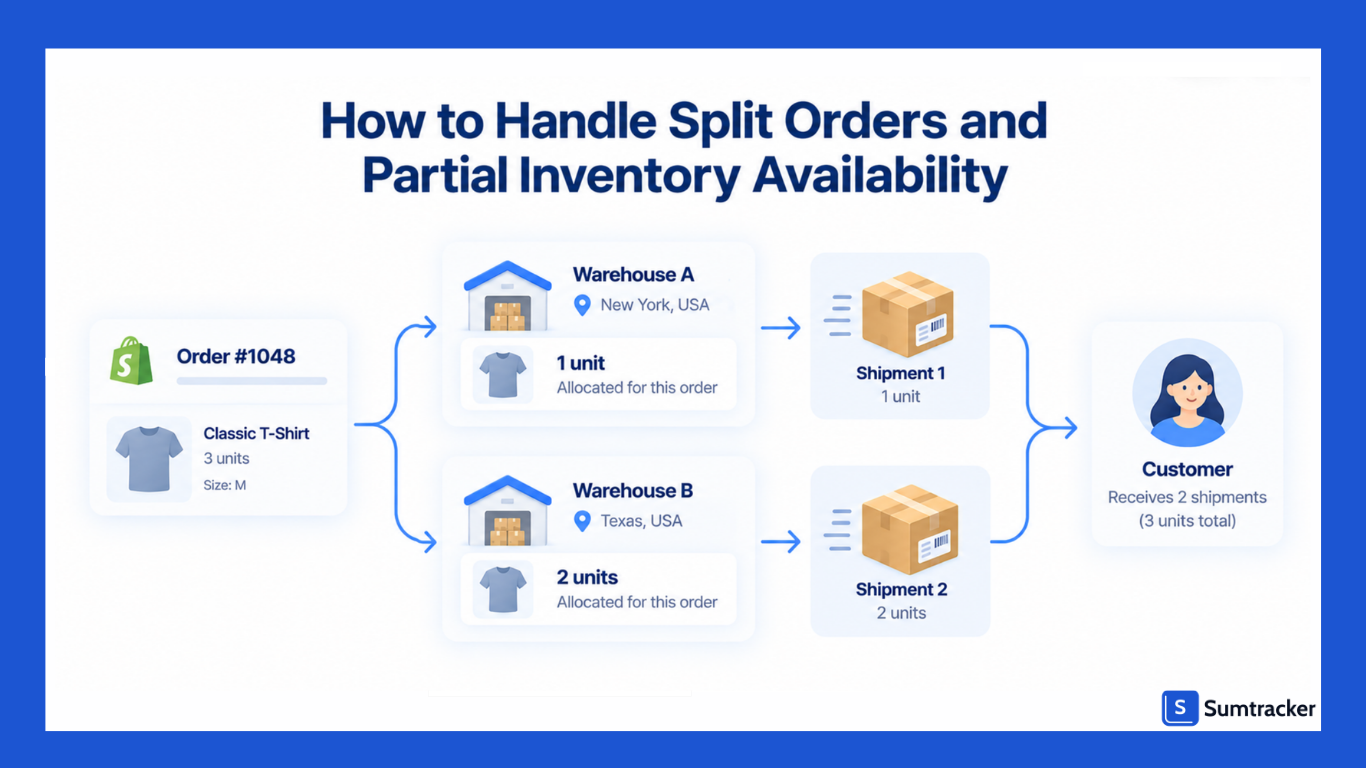
The Minimize split fulfillments rule can reduce unnecessary splits, but it can't eliminate them. Splits can still occur when inventory is spread across locations, or no single location can fulfill the complete order.
Retailers are watching this closely. In AlixPartners' 2026 Home Delivery Survey, 32% of retail and logistics executives said reducing split shipments is a current focus for their last-mile operations.
Options for Handling Partial Inventory
When an order can't be fulfilled from one location, you have several options:
- Ship what you have. Fulfill the available items and leave the remaining items unfulfilled. This works when getting part of the order to the customer quickly is more important than shipping everything together.
- Put the missing items on hold. Hold the unfulfilled items until inventory becomes available or another fulfillment decision is made.
- Change the fulfillment location. Move the unfulfilled items to another location that has sufficient stock. Shopify allows this for unfulfilled orders, with some exceptions such as local delivery and pickup orders.
- Transfer inventory first. Move stock to one location and then fulfill the complete order from there. This can avoid multiple shipments but adds transfer time.
Managing Split Fulfillment Statuses
When an order has multiple fulfillments, Shopify's order status reflects the state of those individual fulfillments. An order can therefore be partially fulfilled, unfulfilled, or on hold depending on what has happened to each part of the order.
Case study: Scalpers, a fashion brand, turned 370 stores into mini warehouses. Scalpers connected its store network to Shopify and uses RFID to keep store-level stock accurate.
Its own order-routing algorithm reads that data to pick the best location for each order, so customers are served from a nearby store.
When a size is missing, a store associate can order it for the customer from elsewhere in the network. Digital revenue grew from €4 million in 2018 to €40 million in 2025.
Rule of thumb: Don't split an order automatically just because inventory is available in multiple locations. Consider the extra shipping cost, delivery time, and customer experience before deciding whether to ship separately or transfer inventory first.
How to Automate Replenishment Within Fulfillment Workflows
Replenishment keeps fulfillment workflows running when inventory starts running low.
If stock reaches zero, you may need to split orders, put them on hold, or fulfill them from another location. The goal is to trigger replenishment before inventory runs out.
A typical replenishment workflow looks like this:
Inventory falls below the replenishment threshold → Purchase order or stock transfer is created → Inventory arrives → Stock is received → Inventory becomes available for fulfillment.
The receiving step is easy to overlook, but it decides when new stock can actually be sold. In Shopify, units stay in Incoming until they're received, and only then move to Available.
WERC's 2025 DC Measures report puts best-in-class dock-to-stock time under 3.5 hours. That's the time from goods arriving to being put away and recorded in the system. The longer receiving takes, the longer orders wait on stock that's already in your building.
For example, if a warehouse is running low on a bestseller, an automated workflow can trigger a purchase order before the remaining stock is exhausted. For a multi-location business, it could instead trigger a stock transfer from another location with available inventory.
Replenishment can also be connected to fulfillment exceptions. If an order can't be fulfilled because a location is out of stock, the workflow can identify another location with inventory or trigger replenishment for the affected SKU.
The important thing is to base replenishment on the inventory actually available for new orders, rather than simply the number of units physically sitting at a location. Committed or unavailable inventory may still be physically present but can't be used to fulfill new orders.
Practical tip: Set replenishment triggers early enough to account for supplier lead times and safety stock. The goal is to have inventory available before a stockout starts disrupting fulfillment, not after.
How to Handle Exceptions and Failed Fulfillment Workflows
An exception is any order that can't move to the next step on its own. The goal is to catch it quickly, pause it cleanly, and keep inventory accurate while you resolve the issue. Shopify's main tool for this is the fulfillment hold.
How Fulfillment Holds Work
When you put a fulfillment on hold, its status changes to On hold. Inventory can remain reserved, but the fulfillment can't proceed until the hold is released. On-hold fulfillments also drop out of the Unfulfilled list, helping prevent your team from picking an order that still needs attention.
You can add up to 10 manual holds to one fulfillment. Apps and sales channels can also add system holds for specific conditions.
Source: Marking your order as on hold, Shopify Help Center
You can override a system hold, but it may break your agreement with the app or service that placed it. Check with them first.
Common Exceptions and the First Move
Several of these signals, like a rejected fulfillment request, a failed fulfillment, or a canceled fulfillment order, are also Shopify Flow triggers, so you can turn them into alerts.
Practical tip: Use the same hold reasons every time. Consistent reasons let you filter held orders and see which problem keeps coming back.
Peak season puts the most stress on exception handling. In episode 308 of the High Voltage Business Builders Podcast, Neil Twa argues that peak fulfillment success depends on systems, not just logistics.
He suggests auditing carrier concentration, spreading parcel volume, and preparing systems before the rush. Listen to the episode here.
How Fulfillment Workflows Stay in Sync With Shopify Inventory
A fulfillment workflow stays in sync when each system updates the inventory it is responsible for, without multiple systems writing conflicting quantities to the same location. Most sync problems happen when two systems try to control the same inventory count.
Who Should Own Each Count?
Rule of thumb: One location, one writer. If both a 3PL and a spreadsheet update the same location, the inventory count can become inconsistent.
What Shopify Expects From Connected Systems
Shopify's developer documentation defines how apps and fulfillment services should manage inventory quantities and states:
- Committed inventory is controlled by Shopify. Apps shouldn't directly change committed quantities.
- Reserved inventory can represent stock allocated by an external fulfillment service that Shopify hasn't otherwise committed.
- Inventory changes can include a reason and reference so businesses can trace why a quantity changed and which system or document made the adjustment.
One newer change is worth noting: since API version 2026-04, apps can store inventory at a location where the product isn't stocked yet. Shopify treats this as an inactive inventory level until the item is activated at that location. If inventory appears at a location but isn't available for sale or fulfillment, this can be one reason.
Practical tip: Decide which system owns each inventory location before connecting your fulfillment tools. Syncing several systems is useful only when each one has a clearly defined responsibility.
How to Automate Shopify Inventory Fulfillment Workflows
You can automate Shopify fulfillment workflows using three tools: order routing to select a fulfillment location, Shopify Flow to handle exceptions, and an inventory app to keep stock synchronized across channels.
Start with the step that causes the most manual work or fulfillment errors.
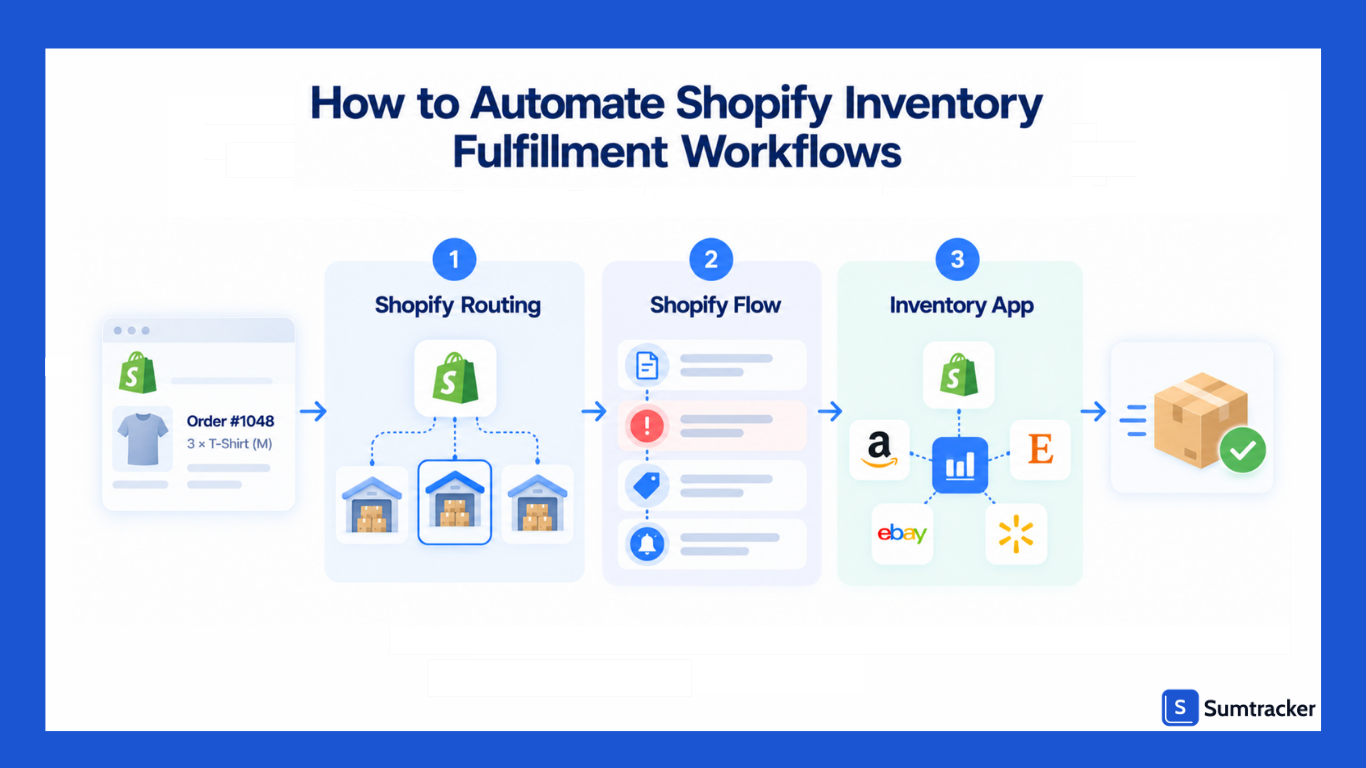
Step 1: Set Up Order Routing
Configure your routing strategy before adding other automations. Routing determines which location fulfills an order, so getting this step right helps prevent orders from being assigned to locations that can’t fulfill them.
Shopify’s built-in routing rules are enough for many stores. Start with these before adding custom workflows.
Step 2: Use Shopify Flow to Handle Exceptions
Shopify Flow uses a trigger to start a workflow, a condition to check the details, and an action to respond.
For example, you can use Flow to alert your team when inventory runs low or a fulfillment request fails.
Sources: Shopify Flow triggers and Shopify Flow actions.
Flow can also automate actions such as purchasing shipping labels and marking fulfillment orders as fulfilled. Use these carefully, since an incorrect automated action can be harder to reverse than a notification.
Practical tip: Start new workflows with alerts. Once you’ve confirmed they trigger correctly, automate actions such as holding or moving fulfillment orders.
Step 3: Automate Cross-Channel Inventory
Shopify Flow automates events within Shopify, but it doesn’t replace a multichannel inventory system that synchronizes stock across marketplaces, multiple stores, and bundle components.
Sumtracker handles this inventory layer by synchronizing stock across Shopify, Amazon, Walmart, Etsy, and eBay. It also supports bundle component deductions, purchase orders, and stock transfers. Shopify or your 3PL still handles order fulfillment, while Sumtracker helps keep inventory accurate across sales channels.
For more examples, see our guide to Shopify inventory automation.
Common Shopify Fulfillment Workflow Mistakes and How to Fix Them
Most fulfillment problems trace back to a handful of setup mistakes. The table below covers the ones we see most, along with the fix for each.
Mistake Spotlight: Skipping Inspection at Receiving
Damaged units that slip in at receiving end up in Available. Then they get picked, shipped, and returned. Shopify recommends inspecting every shipment before signing the delivery receipt.
Process fixes make a measurable difference here.
A University of Lima study of a beverage distributor in Peru modeled a warehouse redesign with standardized handling procedures.
In simulation, the damaged product rate fell from 8.45% to 3.92% (IEOM Society proceedings, April 2025).
Your numbers will differ, but the point holds: clear receiving steps cut damage before it reaches your counts.
Practical tip: If you can't inspect a shipment on arrival, move the received units to Unavailable as quality control right away. Move them back to Available only after they pass. This stops damaged stock from being sold.
Conclusion
A reliable Shopify fulfillment workflow connects every step, from assigning orders to the right location to keeping inventory accurate across channels. Clear routing rules, well-defined exception handling, and the right automations help prevent delays, overselling, and unnecessary manual work.
Start by fixing the parts of your workflow that cause the most problems. Make sure each location has accurate stock counts, use Shopify Flow to catch fulfillment issues early, and automate inventory syncing when you sell across multiple channels.
As your store grows, Sumtracker can help keep inventory synchronized across Shopify, Amazon, Walmart, Etsy, and eBay, while managing bundles, stock transfers, and purchase orders. This gives your fulfillment process more reliable inventory data to work with as order volumes increase.
Frequently Asked Questions About Shopify Fulfillment Workflows
What is a fulfillment workflow in Shopify?
A Shopify fulfillment workflow is the sequence of steps involved in processing an order, from assigning it to a fulfillment location to picking, packing, and shipping the items. It also includes the inventory updates and exception handling needed to keep orders moving.
How does Shopify decide which location fulfills an order?
Shopify uses order routing rules to select eligible fulfillment locations based on factors such as inventory availability, location priorities, and shipping destination. Merchants can configure routing rules to influence which location fulfills an order and reduce split fulfillments.
Can you automate Shopify fulfillment workflows?
Yes. Shopify’s built-in order routing determines fulfillment locations, while Shopify Flow can automate actions such as sending alerts, holding fulfillment orders, and responding to specific order or fulfillment events. Inventory management apps can handle cross-channel stock synchronization and replenishment.
How do you handle a failed fulfillment in Shopify?
First, identify why the fulfillment failed. Check the fulfillment request, inventory availability, and any errors reported by your fulfillment service or 3PL. Correct the underlying issue, then retry fulfillment or assign the order to another eligible location if appropriate. Shopify Flow can also help alert your team when certain failures occur.
What happens when Shopify splits an order across multiple locations?
Shopify can create separate fulfillment orders when items need to ship from different locations. Each location fulfills its assigned items, so an order may have multiple shipments and tracking details. Merchants can use order routing rules to reduce unnecessary splits, although splits may still be needed when no single location has all the required stock.
How do you keep Shopify inventory synchronized with a 3PL and other sales channels?
Assign clear inventory responsibilities to each system and avoid having multiple systems independently update the same location’s stock. For multichannel selling, an inventory management app can synchronize quantities across Shopify, marketplaces, and connected fulfillment locations to reduce discrepancies and overselling.
How can you prevent inventory shortages from disrupting fulfillment?
Monitor available inventory, establish replenishment triggers, and account for supplier lead times. When a location runs low, you can create a purchase order, transfer stock from another location, or reroute eligible orders. Inventory alerts and automated replenishment workflows can help you act before a stockout delays fulfillment.
Conclusion

Bhoomi writes about inventory management and multichannel selling at Sumtracker. Her focus is on solving real operational problems for Shopify, Amazon, and marketplace sellers through well-researched content. She covers everything from multi-location inventory syncing and stock error troubleshooting to replenishment planning and platform comparisons, turning complex eCommerce operations into clear, actionable guidance.
LinkedInRelated Articles
Tool and strategies modern teams need to help their companies grow.
![9 Best Order Management Systems for Shopify [Expert's Tested] - Updated 2026](https://cdn.prod.website-files.com/67907f49647e48895e5dc266/6ab14cc22365aa7145849842_Growth%20Unlocked%20with%20Sumtracker-30.avif)

Ready to Simplify Your Inventory Management?
Join hundreds of e-commerce merchants who rely on Sumtracker to save time, eliminate errors, and grow their business.
