Damaged Inventory in Shopify: How to Record, Hold and Write Off



Handling damaged inventory in Shopify requires separating unsellable stock from available inventory while keeping accurate On-hand quantities.
- Use Adjust by to move units from Available to Damaged (Unavailable).
- Damaged units remain in On hand inventory but are no longer available for sale.
- Use Damaged for broken or defective goods and Quality control for stock awaiting inspection.
- Move repaired units back to Available.
- When recording the adjustment, set a reason to categorize inventory losses.
For multiple warehouses: Sumtracker, an inventory management and forecasting platform for Shopify sellers, lets you record stock adjustments by warehouse, with a consistent reason and a note. You can then filter adjustments by reason to review monthly inventory losses.
Every Shopify store ends up with units it can’t sell: a crushed box, a faulty batch, or a return that came back broken. If you only lower the count, you lose the record of why, and your stock numbers drift from what’s on the shelf.
Every returned unit should be inspected before you decide whether to restock, repair or write it off. This guide shows how to record damaged inventory in Shopify, decide what happens to each unit, and report the losses by reason.
Managing damaged stock across multiple warehouses requires tracking its location and write-offs. Sumtracker helps you record and review stock adjustments by warehouse and reason. Jump to how to log damaged stock per warehouse in Sumtracker.
Before you start: Shopify only shows these controls for variants with Track quantity turned on. If it isn’t enabled, turn on inventory tracking first. The Inventory adjustment changes report in the reporting section requires Shopify's new Analytics.
Shopify damaged stock stays in On hand: Damaged vs Quality control vs Safety stock
Shopify holds damaged units as Unavailable: they stay in On hand but can’t be sold. Since August 2023, you can set stock aside as Safety Stock, Quality Control, Damaged or Other. For the full list of states and how Shopify reads them, see our guide to Shopify inventory levels.
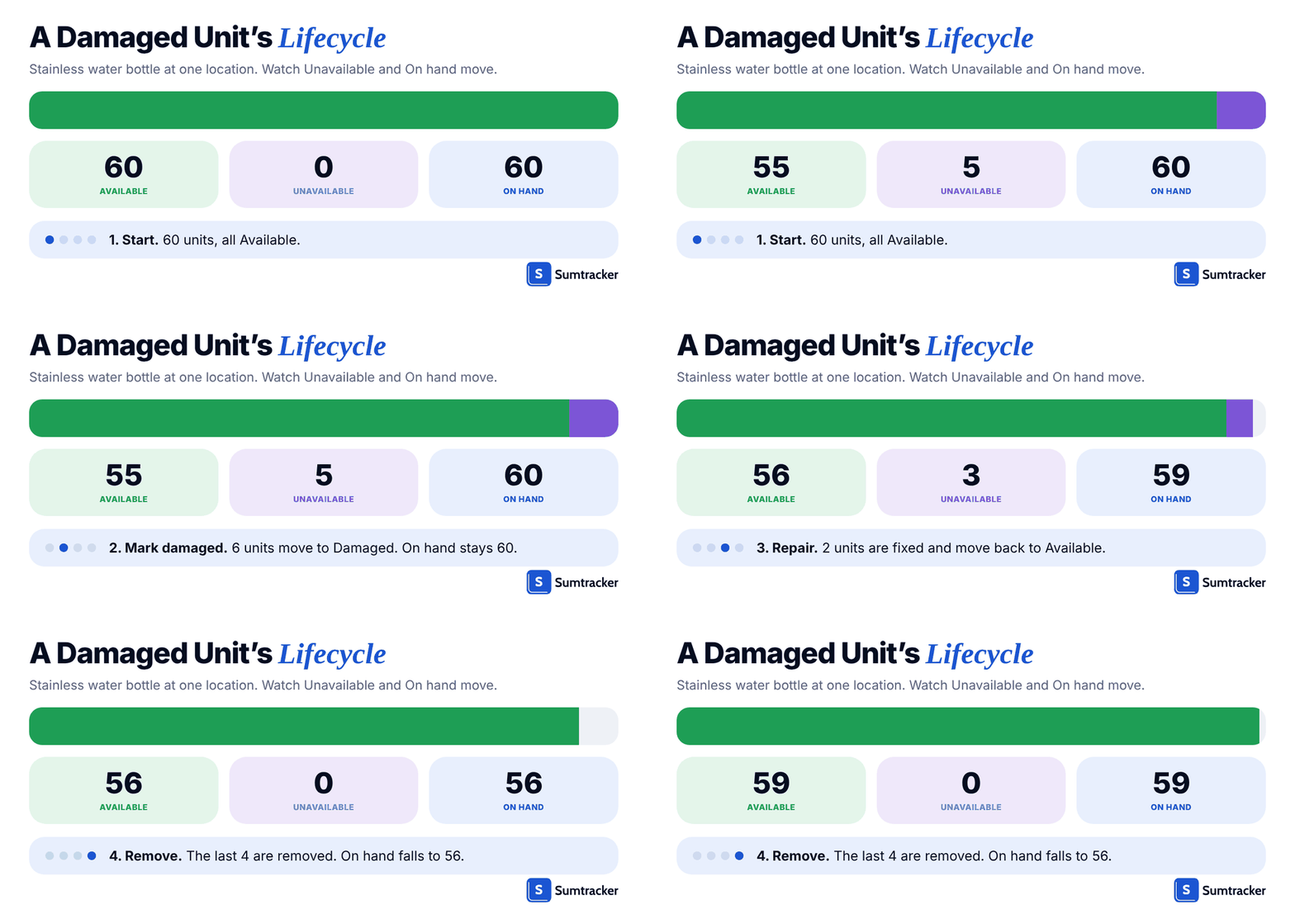
As an example, take a stainless water bottle SKU. The warehouse holds 60 sellable units. After you move 6 to Damaged, Available is 54 and Unavailable is 6. Because On hand = Committed + Unavailable + Available, it is still 60.
Why this matters: Shopify’s developer documentation says changes to the Damaged, Quality control, Reserved, Safety stock and Committed inventory states don't trigger webhooks. If a third-party app syncs your inventory, check how it detects these changes to keep stock quantities accurate.
How to record damaged inventory in Shopify?
Use Adjust by from your location to Damaged (Unavailable).
- Go to Products → Inventory.
- Find the variant and location, then click the number in the Available column.
- Change Set to to Adjust by, and enter the number of damaged units.
- Set the first dropdown to your location (for example Shop location), and the second to Damaged (Unavailable). Once selected, Shopify shows it as just Damaged.
- Click Add reason and select Damaged. Shopify offers seven reasons: Correction, Count, Received, Return restock, Damaged, Theft or loss, and Promotion or donation.
- Check the preview: Unavailable rises, Available falls, and On hand stays the same. Click the checkmark.
- Open the variant’s Adjustment history and confirm a Moved to Damaged row with the change in each column.
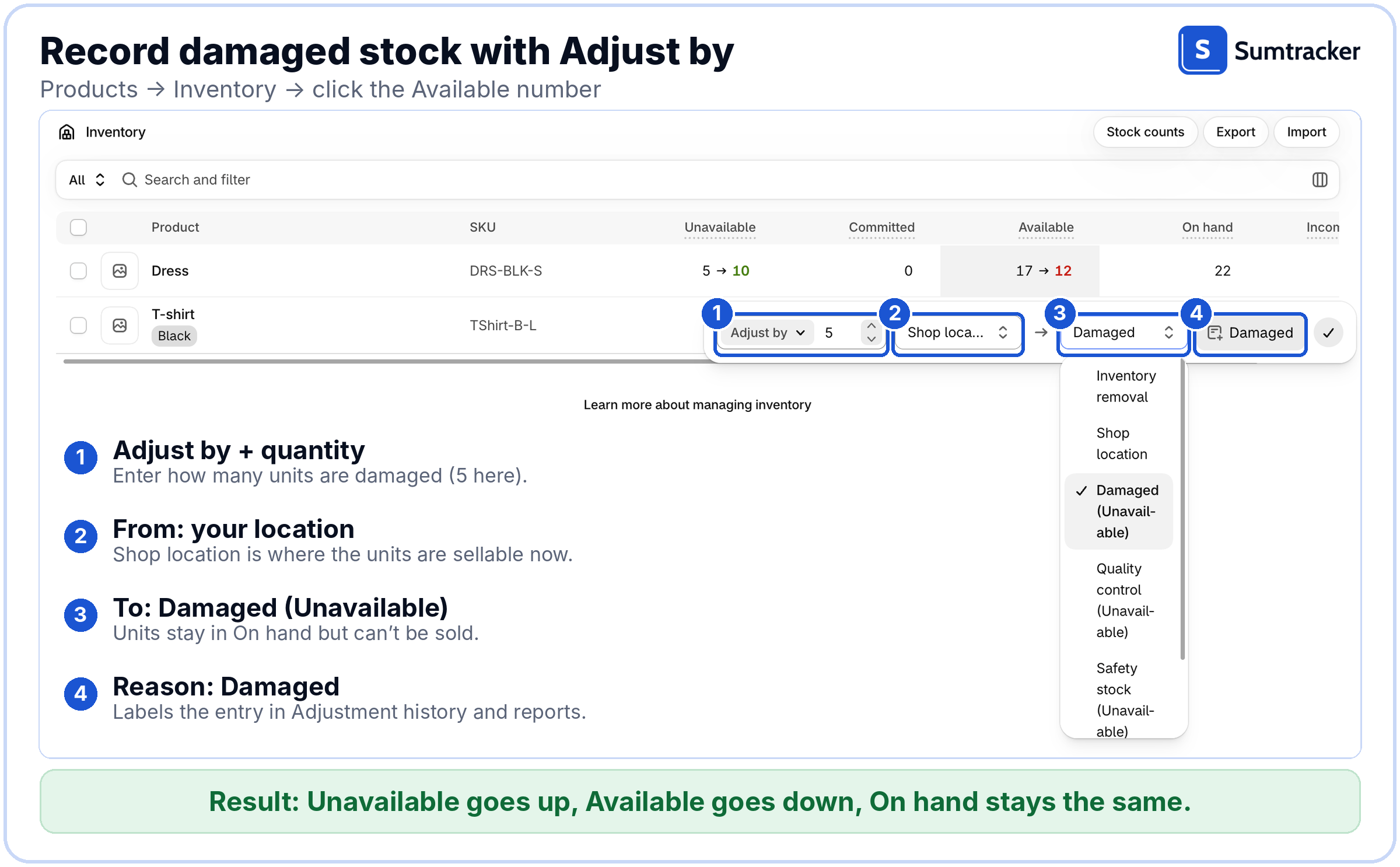
Common mistake: Choosing the reason Damaged but leaving the destination as your location. The reason only labels the entry; the destination decides whether the units stay sellable.

Repair, return or remove: managing unsellable inventory unit by unit
Decide what to do with each damaged unit based on the cause and whether it can be recovered. Repairable units can return to Available after inspection. If the damage is the supplier's fault, keep the units unavailable while you arrange a return or claim. If a unit cannot be repaired, returned or resold, remove it from On hand through a stock adjustment.
To move repaired units back to Available:
- Go to Products → Inventory and click the Available number for the variant.
- Choose Adjust by and enter the number of repaired units.
- Set the first dropdown to Damaged (Unavailable) and the second to your location.
- Check the preview: Unavailable falls, Available rises, and On hand stays the same. Click the checkmark.
To remove written-off units:
- Go to Products → Inventory and click the Available number for the variant.
- Choose Adjust by and enter the number of units.
- Set the first dropdown to Damaged (Unavailable) and the second to Inventory removal.
- Add the reason that matches the cause.
- Check the preview: Unavailable falls and On hand falls by the same amount. Click the checkmark.
You can also write stock off through a transfer. Shopify’s January 2026 update lets you leave the destination blank to write off or discard inventory, or to send it to places Shopify doesn’t track, and the movement stays in your records.
Damaged on arrival: hold new stock in Quality control before it sells
Receive the shipment, then move any units you haven’t inspected out of Available. Received stock usually becomes Available automatically, so it can sell before you’ve checked it.
- Receive the purchase order or transfer.
- Right away, use Adjust by to move uninspected units from your location to Quality control (Unavailable).
- Inspect and photograph the units.
- Move passing units back to Available and failing units to Damaged (Unavailable).
- Raise the supplier claim with your photos and the history entry.
Common mistake: Receiving into Available and inspecting later. Fast-selling items can sell in that gap.
What to keep for a supplier claim: suppliers and carriers usually ask for proof, and their time limits differ, so check your terms and raise it soon after the shipment arrives.
- Photos of the outer packaging and of each damaged unit.
- The purchase order number, the supplier’s invoice or packing slip, and the date received.
- How many units arrived damaged out of how many received.
- The Adjustment history entry that shows when you moved the units to Damaged.
Customer returns that arrive broken: restock or skip the restock
When you process a return, Restock at is optional. Skip it for broken items, or restock and then move the units to Damaged so the loss is recorded.
Tip: Decide before you click. Shopify’s returns documentation says you can’t cancel a return once its items are restocked.
How to report damaged inventory by reason in Shopify
Shopify’s per-product Adjustment history shows only the last 180 days. For anything older, or for all products at once, use the Inventory adjustment changes report, which you can filter by SKU, location, staff member, app and adjustment reason.
If you used Stocky for stock adjustments, note that it shut down on August 31, 2026, so use Shopify’s report instead.
- Go to Analytics → Reports and open Inventory adjustment changes.
- Set the date range.
- Open Controls and add the dimensions Inventory change reason and Inventory state.
- Filter or group by those dimensions so damaged stock shows separately from normal sales and restocks.
- Click Export and save the file monthly.
For the per-product log, see our guide to Shopify inventory adjustment history.
What a 25-unit damaged batch costs: write-off math before you talk to your accountant
The loss equals units times unit cost, minus any supplier credit or insurance payout.
Net loss = (Units × Unit cost) − Reimbursements
Example: 25 units at $14.00 is $350. A supplier credit of $200 leaves a net loss of $150. Shopify keeps counting the units in On hand until you remove them, so record the loss when you remove stock.

To run the same math on your own batches, use the free damaged stock log, an Excel sheet whose monthly summary applies this formula.
Rule of thumb: Book the loss in the same month you remove the units.
Tax and accounting treatment depends on your method and country, so confirm it with an accountant. In the US, IRS Publication 538 says goods you can’t sell at normal prices because they’re damaged or defective are valued at their bona fide selling price minus the direct cost of disposing of them, which can differ from the unit cost you paid. This is general information, not tax advice.
For prevention, see our guide to preventing inventory shrinkage. If your counts keep drifting from the shelf, our guide to inventory reconciliation covers how to find the gap.
Tracking damaged stock across several warehouses with Sumtracker
With several warehouses, damaged units end up logged in several places, each naming the cause differently. The fix is one record per loss: a warehouse, a fixed reason and a note, all in one list you can filter.
Sumtracker, our inventory management and forecasting platform for Shopify sellers, does this with a Stock Adjustment: pick the warehouse and a Damaged reason, subtract the units and complete it. Then filter the list by reason, warehouse and date to see that period’s losses.

Tip: Reasons are free text, so agree on one label such as Damaged and keep the detail in the note.
Frequently asked questions
Can I mark damaged inventory in bulk?
Not in the Shopify admin. CSV import updates only Available and On hand quantities, so use Adjust by on each variant or an inventory app. Developers can use the inventoryMoveQuantities GraphQL mutation, which moves units between Available and the damaged, safety stock and quality control states.
Is damaged inventory tax deductible?
It can be, but it depends on your accounting method and country. Rules vary, and damaged goods are often valued below cost rather than written off in full. Confirm the treatment with an accountant before filing.
Conclusion
Record your next damaged unit with both a Damaged destination and a Damaged reason. At month end, export the Inventory adjustment changes report and total the cost of your damaged inventory.
If damaged stock is spread across several warehouses, a spreadsheet gets harder to keep right. A Sumtracker Stock Adjustment records the warehouse, reason and note for each loss, and the list filters by reason and date.
If you want to see how that works with your own products, you can start a 14-day trial below.
Related Articles
Tool and strategies modern teams need to help their companies grow.


Ready to Simplify Your Inventory Management?
Join hundreds of e-commerce merchants who rely on Sumtracker to save time, eliminate errors, and grow their business.