Preventing Duplicate Inventory Listings on Shopify: A Practical Guide


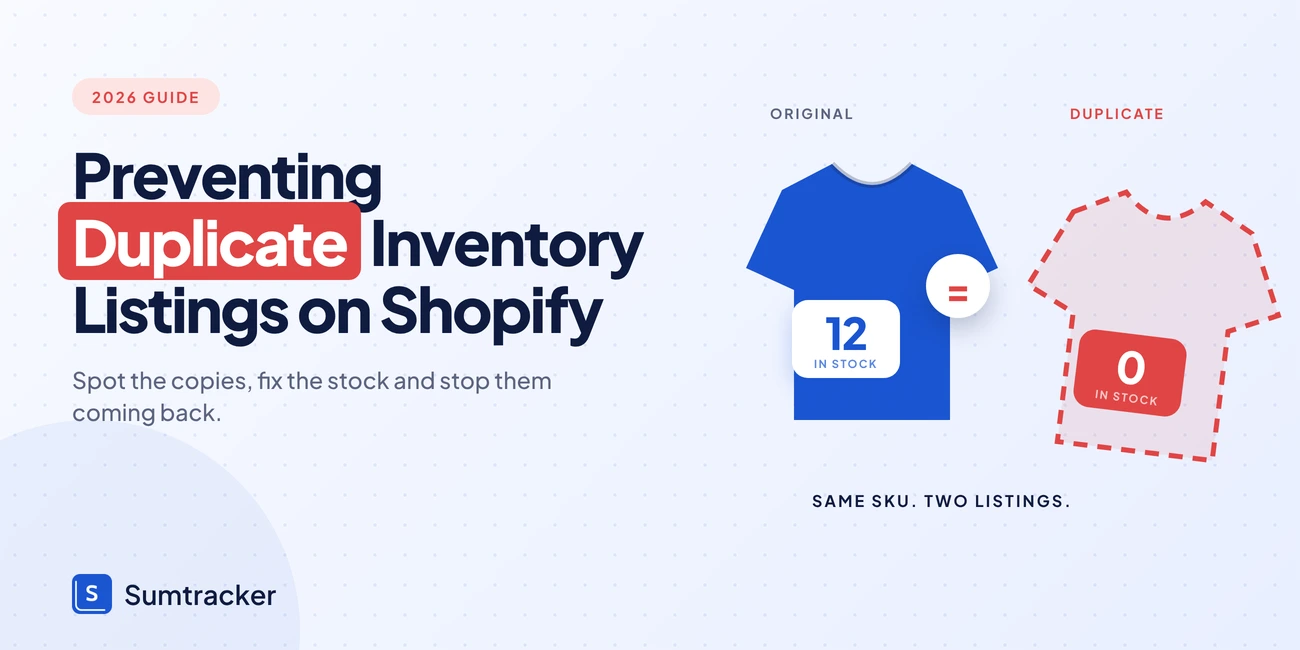
Duplicate listings are one real item listed more than once in Shopify, each with its own stock count, so only one count can be right.
- Why they happen: the Duplicate button copies the SKU, a CSV import with a changed handle creates a new product, and a new sales channel can create a second listing.
- Find them: export your products and use COUNTIF on Variant SKU, Variant Barcode and Title. Any count above 1 is a possible duplicate.
- Fix them: keep the listing with the best history, set one correct stock count, then remove the copy and redirect its URL.
- Prevent them: one unique SKU per variant, copies saved as Draft, a 5-row CSV test, linking before you connect a channel, and few people with product rights.
You open your Shopify admin and see 12 units of the Blue Tee in stock.
Then you spot a second listing, “Blue Tee (Copy)”, showing 0.
Which count is right?
Maybe neither.
Shopify does not stop two products from sharing a SKU, so a copy made in a hurry can sit in your catalog for months.
Meanwhile it splits your stock, skews your reports and can lead to oversold orders.
This guide shows why duplicate listings happen, how to find and fix them in your Shopify admin, and the rules that keep them from coming back. It also comes with a free duplicate listing checker you can use today.
What Are Duplicate Inventory Listings in Shopify?
A duplicate inventory listing is one real item that exists more than once in your Shopify catalog. Each copy has its own stock count. Only one of them can be right.
There are three common shapes:
- Two products for one item. For example, “Blue Tee” and “Blue Tee (Copy)”.
- Two variants with the same SKU. The SKU is meant to be unique, but nothing forces it to be.
- The same item listed in more than one store or channel. Each listing tracks its own stock.
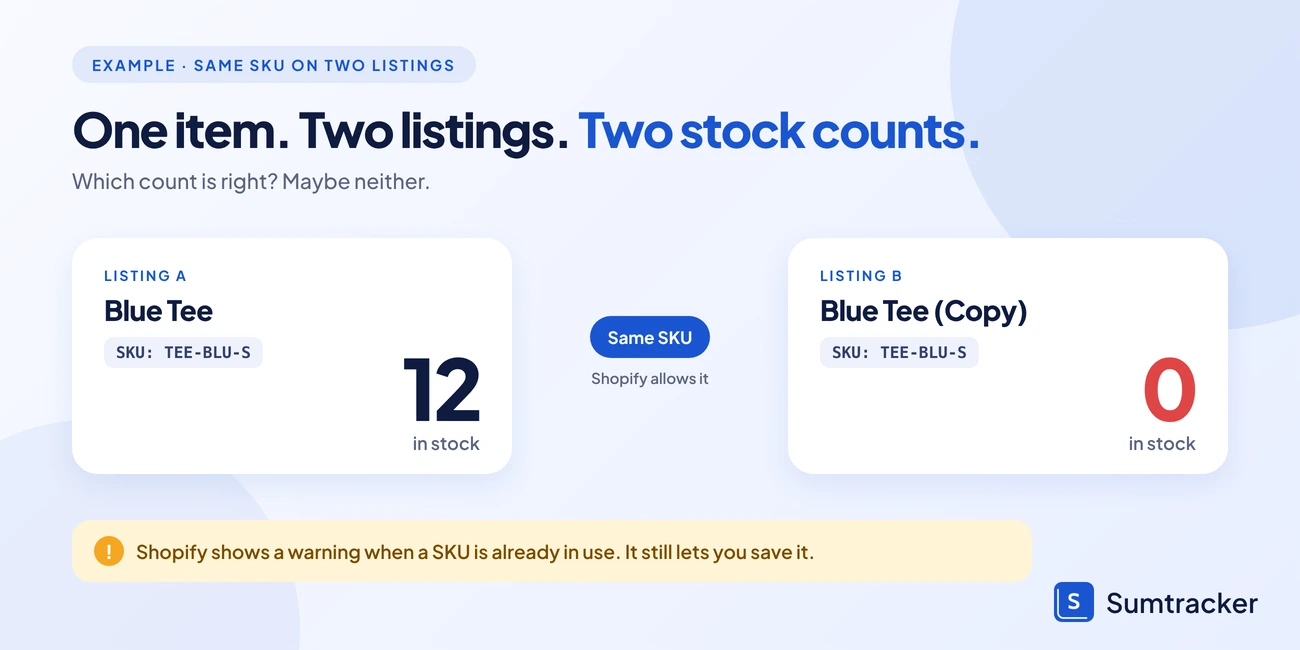
The SKU is the root of the problem. A SKU is your own code for one sellable item. Shopify does not require SKUs to be unique. It only shows a warning in the inventory card when you enter one that is already in use. A warning is easy to ignore.
Mismatched listings also cost sales.
In Salsify's consumer survey (2,712 shoppers in the US, Canada and the UK), up to 45% of Gen Z and 43% of millennials said they abandon a purchase when product details do not match across sites. Two listings of one item rarely stay identical for long.
Tip 1: Treat the SKU as the ID of the item, not a label. One item, one SKU, one listing.
Why Duplicate Listings Happen in Shopify Stores
Most duplicates are not careless mistakes. They come from normal tasks done in a rush. If you sell the same product in more than one place, this guide on managing inventory for the same product listed many times shows how it looks in practice.
Tip 2: Search before you create. Type the product name and SKU into the Shopify products search bar first. It takes ten seconds.
How Duplicate Listings Affect Your Shopify Inventory Counts
Duplicates do not just make your catalog messy. They break the numbers you rely on.
Overselling also costs you trust. In a Queue-it survey of more than 1,000 consumers, 66% said they are less likely to trust a business after experiencing overselling.
The damage grows with every channel you add. A duplicate on Shopify alone is a clean-up job. A duplicate across Shopify and Amazon is a stock count nobody can trust.
How to Find Duplicate Listings in Your Shopify Admin
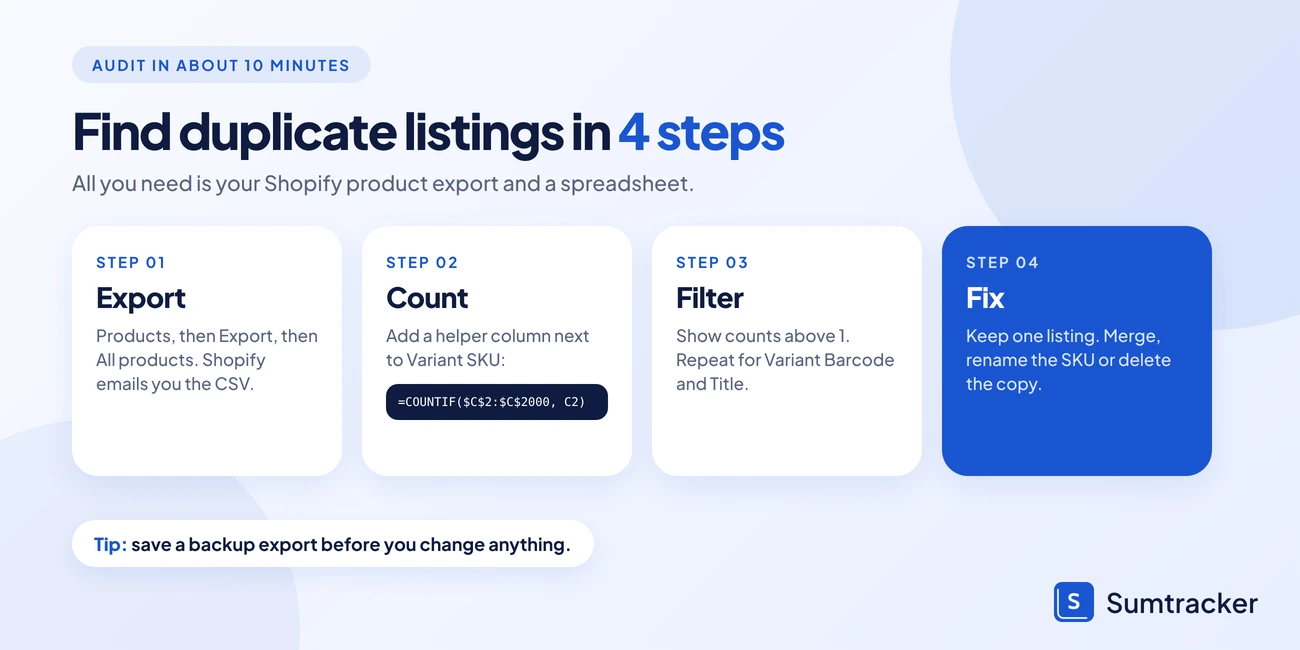
Shopify has no built-in “show me duplicates” filter that we could find in its help docs. The reliable way is to export your products and check them in a spreadsheet. It takes about 10 minutes.
Export your products and count repeats
- In Shopify admin, go to Products and click Export.
- Choose All products and the CSV format for spreadsheets. Shopify emails you the file.
- Open the file in Google Sheets or Excel.
- Add a helper column next to Variant SKU with this formula:
- Filter the helper column for any value above 1. Those are duplicate SKUs.
- Repeat the same steps for Variant Barcode and Title.
Which column catches which problem
Use this table to pick the right check:
Extra image rows in the export have a handle but no title and no SKU. Ignore them.
Tip 3: Export a backup first. Save the CSV with today's date before you delete or merge anything. Apps for finding duplicate products also exist in the Shopify App Store. Read the reviews and test on a small batch first.
How to Fix Duplicate Listings Once You Find Them
Finding a duplicate is half the job. Fix them one at a time, and start with a small batch.
Choose the listing to keep
Keep the listing with the best history: the most sales, the reviews and the URL people already use. Check that it has the right SKU and barcode.
Set the right stock count
Count the units on the shelf. Then set that number on the listing you keep, from the Inventory page, and set the copy to 0. Shopify records every adjustment, so you can review who changed a quantity, when and why.
Remove the copy and redirect its URL
Save a backup export first (Tip 3). Then remove the copy from your store. A URL redirect only works from an old URL that no longer loads a page, so create it after the copy is gone. In Shopify admin, go to Content, then Menus, then View URL Redirects, and click Create URL redirect. Put the old URL in Redirect from and the URL of the product you kept in Redirect to.
Fix the SKU before anything syncs again
If the item is also sold on other channels, make sure every listing now has one unique SKU before you reconnect or sync. If you use Sumtracker, see the flag steps further down.
Use One Unique SKU per Variant in Shopify
Every variant needs its own SKU. A product with three sizes needs three SKUs, not one.
Good SKUs are short, readable and built the same way every time. A common pattern is BRAND-ITEM-COLOR-SIZE, for example ACM-TEE-BLU-M. Our guide to SKU management goes deeper on naming.
- Use letters, numbers and hyphens only.
- Never reuse a SKU, even after you stop selling the item.
- Do not use spaces.
TEE-BLU-MandTEE-BLU-Mlook the same but are not. - Write the format down where your whole team can find it.
If Shopify shows the duplicate SKU warning, stop and fix it then. Do not save and move on.
Tip 4: Never edit a SKU on a live item without a note. A SKU change can break links to other channels and tools. If you use Sumtracker and the SKU is linked to more than one listing, pause data sync first, change the SKU in Sumtracker and in every store, then turn sync back on.
Use the Duplicate Button Safely (or Skip It)
The Duplicate button is fast. That is the problem. When you click it, Shopify asks for a new title and a status (Active, Draft or Unlisted). It also lets you pick which details to copy. If you copy everything, the SKU and barcode can come along too. If you pick Active, the copy is published to the same channels as the original.
What to do instead:
- Need a new color or size? Add a variant to the existing product. Do not duplicate it.
- Need a similar new product? Duplicate it as Draft, then change the title, handle, SKU and barcode before you publish.
- Not sure which boxes to tick? Leave SKU, barcode and inventory unticked, then add new ones by hand.
Shopify Academy has a short walkthrough of the basics: How to add a product. It was published in 2022, so some screens may look different today. The steps for adding a product are the same.
Tip 5: Make Draft your default. Anything created from a copy starts as Draft and goes live only after a second person checks the SKU.
Check Your Shopify CSV Import Before You Upload
Bulk imports are where one small mistake becomes hundreds of duplicates. A CSV import cannot be cancelled once it starts, and Shopify does not keep an import history. You can only look at the activity log afterward.
So check the file first. Hand-edited spreadsheets are rarely clean. In a 2009 audit of 50 real business spreadsheets, researchers at Dartmouth College found errors in 47 of them, or 94%. Although it did not look at Shopify files. Still, it is a good reminder that an import file you edited by hand needs a second look.
What each CSV mistake does
If you leave the overwrite option unticked, Shopify ignores any row whose handle already exists. That keeps old products safe but means your changes will not apply.
Pre-import checklist
Before every import:
- Export your current products as a backup.
- Copy your new rows into the export file. Do not build the CSV from scratch.
- Sort by Variant SKU and look for repeats.
- Test with 5 rows. Check them in the admin.
- Then import the full file.
Clean data matters beyond Shopify too. The Amazon Strategist Show episode Amazon Sellers: Why Scaling Fails Without Clean Product Data (January 2026) is a good listen if you sell on more than one channel. It is about Amazon, but the lesson holds for any catalog.
We cover the file format in more detail in our Shopify inventory CSV guide.
Tip 6: Test with 5 rows. A bad 5-row import takes two minutes to fix. A bad 5,000-row import takes a day.
Match Product Handles to Avoid Overwrites and Copies
The handle is the last part of a product URL. For yourstore.com/products/blue-tee, the handle is blue-tee. Shopify uses the handle to decide if a CSV row is an existing product or a new one.
This makes handles more important than SKUs during an import. Two rules keep you safe:
- Never retype handles. Copy them from the export. One missing hyphen makes a new product.
- Keep the handle on every row of a product. All variants of one product share the same handle.
For example, blue-tee and blue-tee-1 with the same SKU become two products. Shopify will not merge them. You will see two listings with the same SKU and two stock counts.
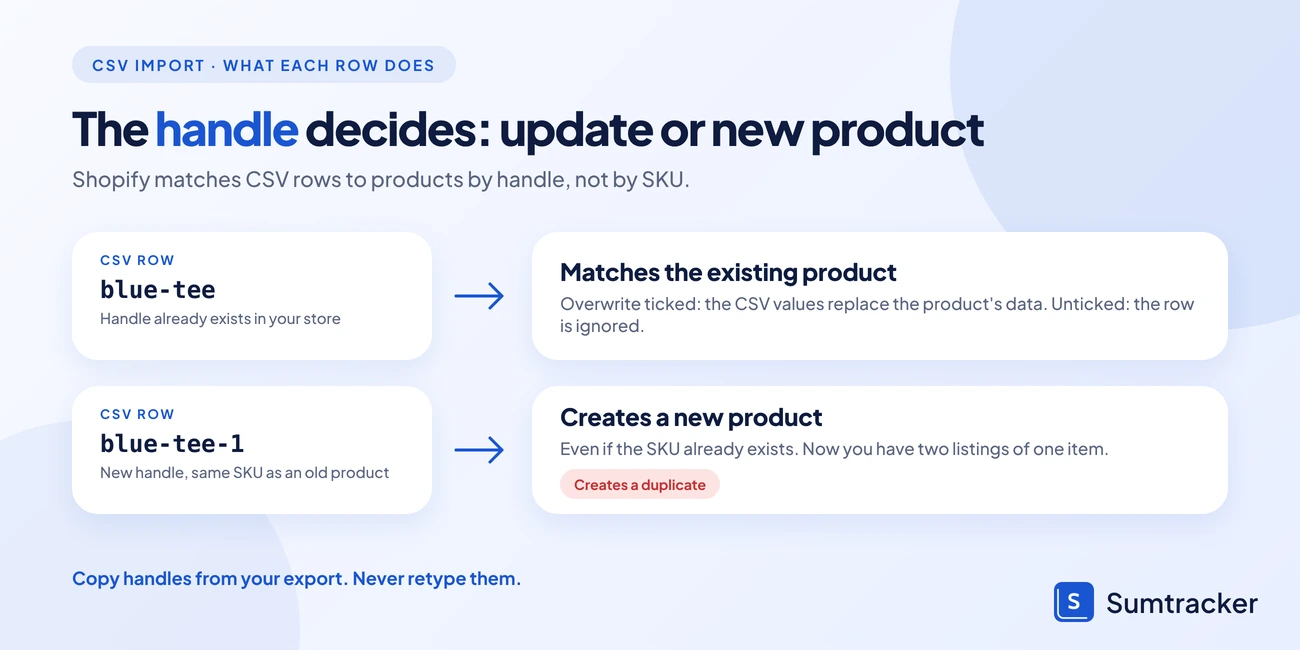
If you change a handle on purpose, Shopify can create a redirect from the old URL. Check the redirect option so you do not lose your SEO.
Link Existing Listings Before You Connect a Sales Channel
Connecting a new channel is another way to create copies. The stakes are high on big marketplaces. Marketplace Pulse estimates that Amazon and its sellers sold $830 billion of goods in 2025, and that third-party sellers made up 69% of it (Marketplace Pulse, February 2026). Many tools offer to “create new listings” by default. If the item already exists on the other channel, you now have two.
Look for a link existing products option. In Shopify Marketplace Connect, for example, you can link an existing marketplace listing to a Shopify product. It matches by SKU, UPC or title, and then syncs orders and inventory.
The pattern is the same for any channel. Match first, create second. Our guide to syncing inventory across Shopify, Amazon and eBay shows how this works across channels.
Tip 7: Fix SKUs before you connect. A channel link is only as good as the SKU match behind it.
Spot Duplicates Faster With One Inventory Dashboard
A clean catalog today does not stay clean on its own. New channels, new staff and new imports bring new copies. The best defense is one place where you can see every listing and its stock.
When inventory from all channels sits in one dashboard, you check one list instead of a separate admin for each store. A SKU that is linked to more than one listing is easy to spot. Without it, you find out when a customer complains.
On marketplaces, a wrong count can also cost you your account standing. Walmart's seller performance standards ask sellers to keep their seller-initiated cancellation rate at 2% or below. Out-of-stock cancellations count against the seller. Missing the standard can lead to suppression, suspension or termination (Walmart Marketplace Learn, page last updated July 28, 2026). A duplicate that shows stock you do not have is a quick way to cancel orders.
An inventory tool that matches by SKU also gives you a single source of truth. See our guide on multi-channel inventory sync for Shopify for how to set that up.
How Sumtracker Flags Duplicate SKUs Before You Turn On Sync
Sumtracker uses the SKU as the source of truth. Here is what that means in practice, based on our help article on store review flags:
- When you connect a Shopify store, Sumtracker only syncs listings that have a SKU.
- Listings with the same SKU are linked to one product, so they share one inventory count. In your product list, the Online Listings column shows how many listings a product is linked to.
- If duplicate SKUs are found, the store is flagged for review before sync is turned on, and you are asked to contact the support team before you go ahead.
- You can find the list of listings with duplicate SKUs in your Sumtracker account, in your Shopify store's settings under Sales Channels.
One more thing to know. When sync is turned on, Sumtracker copies the inventory from one of the listings that share a SKU and applies it to the others. If your two Blue Tee listings show 12 and 0, you cannot be sure which number wins. Check the counts first.
How to clear the flag
- Duplicates on purpose? For example, several designs that share the stock of one blank item. Reply to the support email to confirm, and support removes the flag.
- Not on purpose? Give each listing that tracks its own stock a unique SKU in Shopify, then reply to support to confirm.
- Flag removed? Support lets you know. Then click Turn On Sync next to your Shopify store in Sumtracker.
This is a safety check, not a fix. You still need to decide which listing to keep. Inventory from all channels sits in one dashboard. Learn more about inventory sync.
Real example. Ozdingo sells the same products across two Shopify stores and Amazon FBA. Their team spent 12 to 15 hours a week reconciling stock by hand. Stock accuracy was 70 to 85 percent. After they moved to Sumtracker, accuracy rose to 98 to 100 percent, according to the Ozdingo case study. Their situation was about the same products on several channels, which is where duplicates and mismatches start.
Set Rules for Who Can Create Products in Your Shopify Store
The fewer people who can create products, the fewer accidental copies you get. Shopify uses staff permissions and roles for this. You can give a person only the permissions they need. Shopify does not let you restrict permissions for a single product, so set rules by person and by task.
A simple rule: one or two people own the catalog. Everyone else gets view-only access. Check the current options in Shopify's store permissions help page, because Shopify updates them. Our guide to controlling inventory access in Shopify covers more ways to protect your stock.
FAQs
Does Shopify allow duplicate SKUs?
Yes. Shopify does not require SKUs to be unique. It shows a warning in the inventory card when a SKU is already in use, but you can still save it.
How do I find duplicate products in Shopify?
Export your products from the Products page. Open the CSV in a spreadsheet and use COUNTIF on the Variant SKU, Variant Barcode and Title columns. Any count above 1 is a possible duplicate. Our free checker sheet does this for you.
Does the Duplicate button copy the SKU?
It can. Shopify lets you choose which details to copy. If you copy everything, SKU and barcode may be included, so check the boxes before you confirm.
Can a CSV import create duplicate products?
Yes. Shopify matches rows by handle. If a handle in your file does not exist in the store, Shopify creates a new product, even when the SKU already exists.
Can I stop staff from creating products?
Yes. Use staff permissions and roles. Give Products: Create and edit only to the people who manage the catalog. Shopify does not let you limit access to a single product.
What does Sumtracker do with duplicate SKUs?
Sumtracker uses the SKU to link listings. Listings with the same SKU share one inventory count, and stores with duplicate SKUs are flagged for review before sync starts. To clear a flag, you update the SKUs in Shopify and confirm with the support team.
How often should I audit for duplicates?
Once a month is a good rule of thumb for most stores. Do it right after big imports or when you add a new channel.
Conclusion
Duplicate listings are easy to create and slow to notice. Shopify will not block them. The fix is a few habits: one unique SKU per variant, no blind use of the Duplicate button, a checked CSV before every import, matching before connecting channels, and few people with product rights. Run the audit once a month and log what you fix.
Want a check before your stock syncs? Start a free trial of Sumtracker and keep inventory from all channels in one dashboard.

Bhoomi writes about inventory management and multichannel selling at Sumtracker. Her focus is on solving real operational problems for Shopify, Amazon, and marketplace sellers through well-researched content. She covers everything from multi-location inventory syncing and stock error troubleshooting to replenishment planning and platform comparisons, turning complex eCommerce operations into clear, actionable guidance.
LinkedInRelated Articles
Tool and strategies modern teams need to help their companies grow.

Ready to Simplify Your Inventory Management?
Join hundreds of e-commerce merchants who rely on Sumtracker to save time, eliminate errors, and grow their business.