.svg)
How to Control Inventory Access in Shopify (Complete Guide)


Are you not sure about who in your need should have what permissions of your Shopify store?
Or are you unaware of how to set up these inventory control permissions?
You are at the right place to know this.
You have a number of people included in your team.
Like warehouse staff, customer support agents, operations managers, and marketing teams, not all of them need to have the same level of access to your inventory.
Giving employees more permissions than they need can lead to accidental stock adjustments, inventory discrepancies, and fulfillment issues that are often difficult to trace.
That's where inventory access control comes in.
Shopify allows you to assign staff permissions based on each person's role, helping you protect inventory accuracy while keeping day-to-day operations running smoothly.
In this guide, you'll learn how Shopify inventory permissions work, how to assign the right level of access to different team members, and the best practices for securing your inventory.
What Does 'Controlling Inventory Access' Mean in Shopify?
Controlling inventory access in Shopify means deciding who can view, edit, and manage your store's inventory based on their responsibilities.
Instead of giving every employee full access, you assign permissions that allow each team member to perform only the tasks they need to do.
This sounds like a small administrative task, but it has a significant impact on your day-to-day operations.
Imagine a warehouse employee accidentally updating the inventory count for a bestselling product or a new team member transferring stock between locations without realizing the impact.
Even a single unintended change can lead to inaccurate inventory levels, overselling, delayed replenishment, or fulfillment delays.
By controlling inventory access, you reduce the chances of these errors while ensuring your team can work efficiently.
Recommended Permission Sets by Staff Role
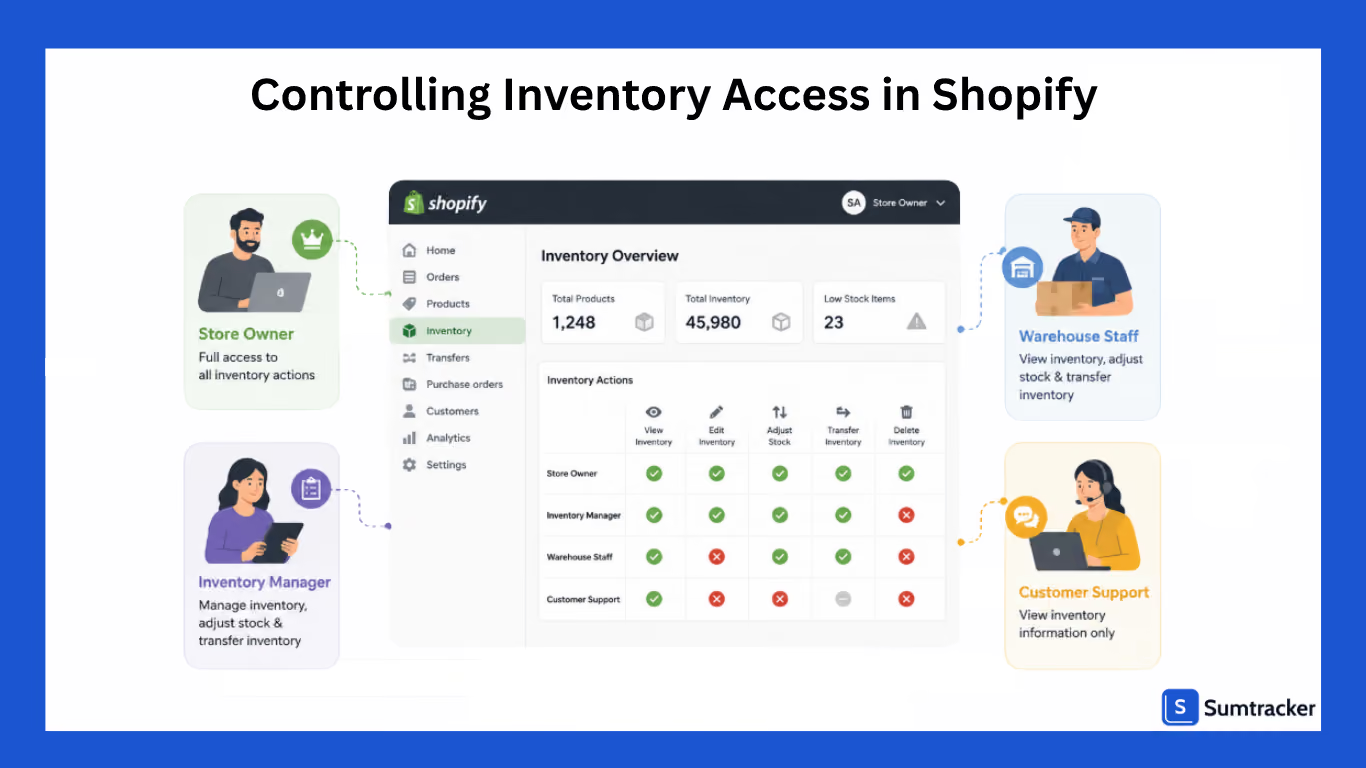
The right permission setup depends on how your business operates, but creating role-based access is generally easier to manage than assigning permissions individually for every employee.
The table below outlines a practical permission structure for common ecommerce roles.
As your team multiplies, role-based permissions are easier to maintain than assigning permissions on a case-by-case basis.
New employees can be onboarded faster, responsibilities remain clearly defined, and the chances of unauthorized inventory changes are significantly reduced.
How to Control Inventory Access in Shopify
Now that you understand how Shopify staff permissions work, the next step is configuring them for your team.
Shopify makes it easy to add staff members and assign permissions, allowing you to control who can manage inventory without sharing your store owner's credentials.
The exact permissions available may vary depending on your Shopify plan and your role as the store owner or administrator, but the overall process remains the same.
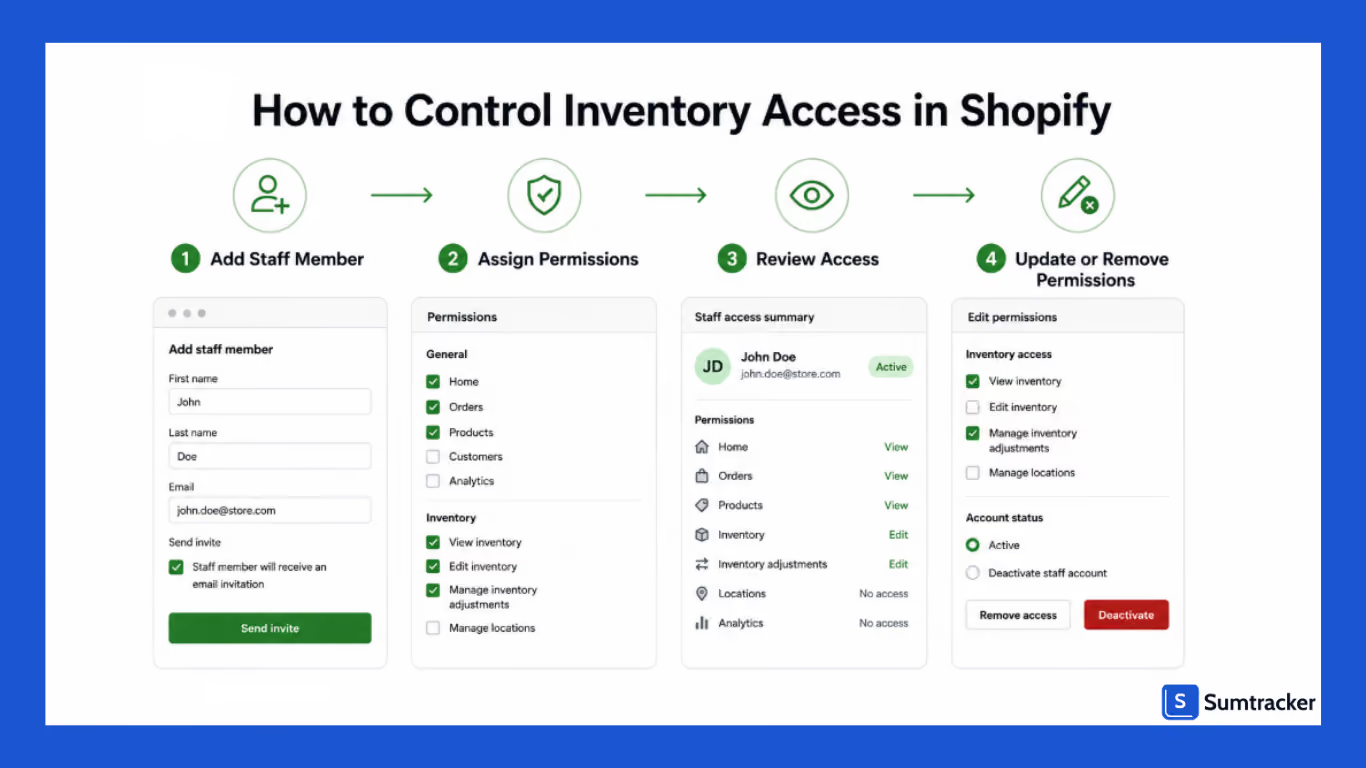
Step 1: Add a Staff Member
From your Shopify admin, go to Settings → Users (or Users and Permissions, depending on your Shopify version).
Click Add staff, then enter the employee's name and email address.
Shopify will automatically send them an invitation to create their account.
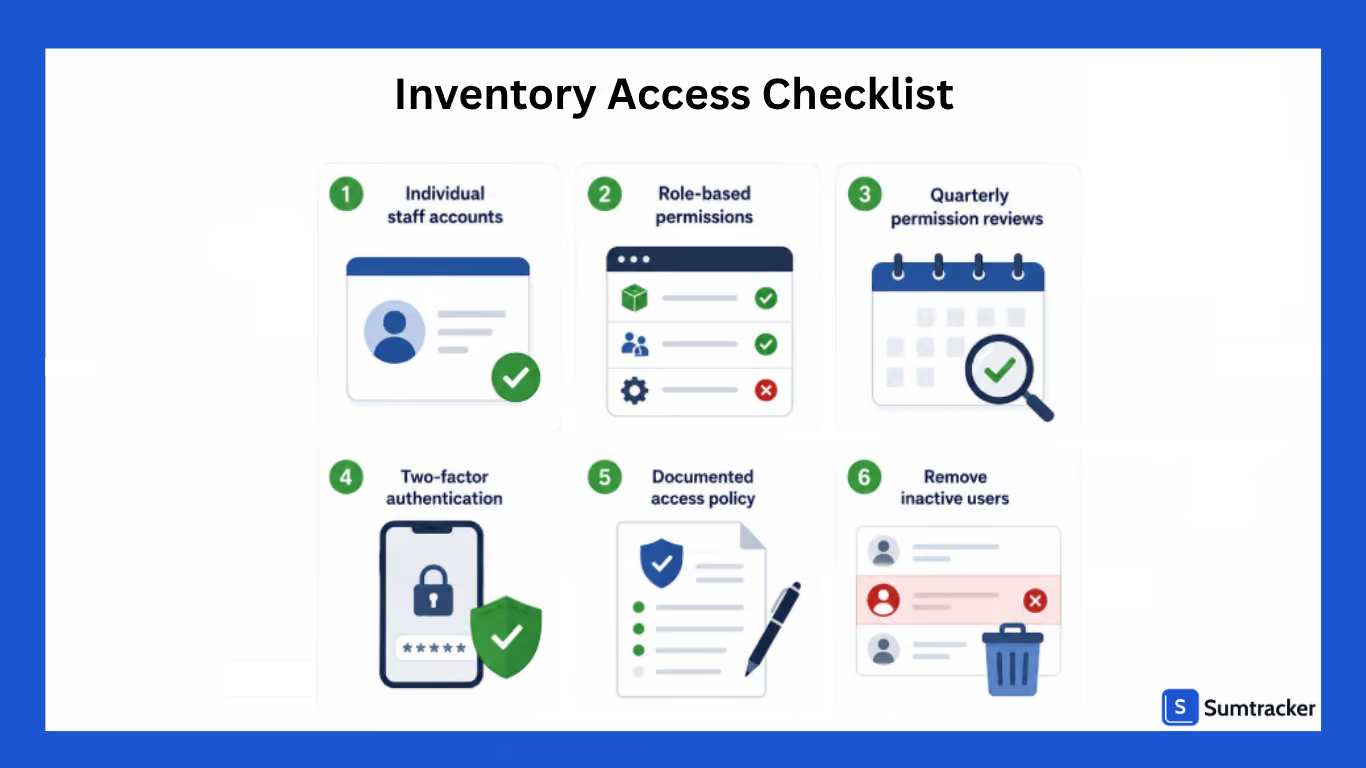
Using individual staff accounts instead of shared logins makes it easier to manage permissions and maintain accountability across your team.
Step 2: Assign the Appropriate Permissions
Before sending the invitation, Shopify lets you choose what the staff member can access.
Review the available permissions carefully and enable only those required for the employee's role.
For example:
- An inventory manager may need permissions to manage inventory and products.
- A warehouse associate may only need access to inventory updates and order fulfillment.
- A customer support representative may only need to view products and orders without editing inventory.
Avoid selecting all permissions simply because it's faster.
Granting unnecessary access increases the risk of accidental changes and makes permission management harder.
Step 3: Review Permissions Regularly
Staff responsibilities don’t always stay the same. Employees get promoted, switch roles, or leave the company, which means you need to change their access too.
Make sure to regularly review staff access to ensure permissions stay aligned with each employee's current responsibilities.
During your review, ask questions like:
- Does this employee still need inventory editing permissions?
- Can any permissions be removed without affecting their work?
- Are there inactive staff accounts that should be deleted?
A quick quarterly review can help prevent unnecessary access from accumulating over time.
Step 4: Remove or Update Access When Roles Change
Make sure to update permissions immediately for the people who leave your company or move to a different role.
For example, if a warehouse employee transitions into customer support, they may no longer need permission to adjust inventory quantities.
Similarly, staff members who no longer work for your business should have their access removed as part of your offboarding process.
Keeping permissions up to date reduces security risks and ensures your inventory remains protected.
Controlling Access to Specific Inventory Locations
If your business operates from multiple warehouses, retail stores, or fulfillment centers, you need to control which team members can manage inventory at each location.
For example, a warehouse employee in Texas typically doesn’t need permission to be able to adjust inventory for your California warehouse.
Now you might think since Shopify supports multi-location inventory tracking, it might also allow you to control access for different locations.
But no.
Shopify doesn't offer location-specific inventory permissions.
For smaller businesses, this may not be a concern.
But if you handle bigger operations, giving every inventory manager access to every location can prove to be a wrong step.
What You Can Do Instead
Although Shopify doesn't support location-level access controls, you can still reduce risk by putting the right processes in place.
- Assign each warehouse or store a dedicated inventory manager.
- Limit inventory editing permissions to employees who regularly work with stock.
- Clearly define which team is responsible for each location.
- Review inventory changes regularly to identify unexpected adjustments.
- Remove inventory permissions from employees who no longer require them.
These operational controls won't replace location-specific permissions, but they can help maintain inventory accuracy while reducing unnecessary access.
Limit Inventory Transfer Permissions to Authorized Staff
Not every employee who works with inventory should be able to transfer stock between locations.
Inventory transfers directly impact stock availability across your business, making them a responsibility that should typically be limited to inventory managers, warehouse supervisors, or operations teams.
When too many employees have the ability to transfer inventory, the likelihood of errors increases.
A transfer to the wrong location or an incorrect transfer quantity can quickly disrupt inventory planning and fulfillment.
Although Shopify doesn't provide separate permissions specifically for inventory transfers, you can still reduce risk by limiting overall inventory management permissions to employees who genuinely need them.
Regularly reviewing staff access also helps ensure former employees or team members with changing responsibilities don't retain unnecessary permissions.
Establish an Approval Process for Inventory Transfers
As your business grows, relying on a single employee to initiate and complete inventory transfers can become risky.
Introducing an approval process adds an extra layer of oversight and helps catch mistakes before inventory records are updated.
For example, a warehouse associate may identify the need to move inventory from one location to another, but the transfer isn't processed until it's reviewed by an inventory manager or operations lead.
This simple verification step helps confirm that the right products, quantities, and locations have been selected.
Approval workflows are especially valuable during busy sales periods when inventory moves more frequently, and teams are working under tighter deadlines.
Maintain Clear Records of Inventory Transfers
Every inventory transfer should leave a clear record of what was moved, where it was moved, when the transfer took place, and why it was necessary.
Keeping this information organized makes it much easier to investigate inventory discrepancies and identify the source of any unexpected stock changes.
A well-documented transfer history also improves accountability.
Instead of spending hours tracing inventory issues, your team can quickly review previous transfers to understand what happened and resolve problems more efficiently.
As your operations become more complex, maintaining accurate transfer records is about creating a reliable process that supports smoother warehouse operations.
Securing Inventory Access in Shopify
A secure inventory access process starts before a staff member receives their login credentials and continues throughout their time with your business.
Following a consistent approach helps protect your inventory from unauthorized changes while ensuring employees always have the access they need to perform their roles.
When Granting Inventory Access
Before inviting a new staff member to your Shopify store, determine exactly what they'll need access to.
Rather than assigning broad permissions by default, match their access to the responsibilities they'll handle.
For example, a warehouse associate may only need permission to update inventory during receiving and fulfillment, while an inventory manager may require additional permissions to oversee stock levels across locations.
Giving every employee full access may seem convenient, but it increases the risk of accidental inventory changes and makes permission management more difficult as your team grows.
It's also a good idea to require each employee to use their own staff account and enable two-factor authentication. This improves accountability and adds an extra layer of security if login credentials are ever compromised.
When Employees Leave
Employee departures are one of the most commonly overlooked aspects of access management. If a staff member no longer works for your business, their Shopify access should be removed as part of the offboarding process.
Similarly, if an employee moves into a role that no longer involves inventory management, update their permissions to reflect their new responsibilities instead of leaving their previous access unchanged.
Taking a few minutes to remove or update access reduces security risks and ensures only active team members can manage your inventory.
Best Practices for Managing Inventory Access
Setting up staff permissions is only part of the process.
To keep your inventory accurate and your operations running smoothly, it's important to establish clear practices around how inventory access is managed.
These habits become even more valuable as your team grows and more people interact with your Shopify store.
Give Employees Only the Access They Need
As we have already been discussing, match access levels to each employee's responsibilities.
Warehouse staff, customer support representatives, and purchasing managers all interact with inventory differently, so their permissions should reflect the tasks they perform.
Limiting access reduces the likelihood of accidental inventory changes and makes it easier to identify who is responsible for specific inventory activities.
Review Staff Permissions Regularly
Your team's responsibilities will naturally change over time. Employees may move into new roles, temporary staff may join during busy seasons, and former employees may no longer need access to your Shopify store.
Reviewing staff permissions on a regular basis helps ensure access remains aligned with current responsibilities and reduces unnecessary security risks.
Avoid Sharing Staff Accounts
Each employee should have their own Shopify staff account instead of sharing login credentials with other team members.
Individual accounts improve accountability, make permission management easier, and help you understand who made specific inventory changes if issues arise.
Document Your Inventory Access Policy
As your team expands, having a documented process for granting, updating, and removing inventory access helps maintain consistency.
Your policy doesn't need to be complicated. It can simply outline:
- Who approves new inventory access.
- Which roles receive which permissions.
- When permission reviews are conducted.
- How access is removed when employees leave.
Documenting these procedures helps new managers follow the same standards and reduces confusion as your business scales.
When Shopify's Native Inventory Permissions Aren't Enough
For many Shopify merchants, the platform's built-in staff permissions are enough.
You can create staff accounts, assign permissions, and control who has access to inventory-related tasks.
However, when your business grows, you may start running into situations where Shopify's native permission system isn’t what you actually need.
You Can't Create Custom Inventory Roles
Shopify offers predefined permissions, but it doesn't let you create custom inventory roles for different responsibilities.
For example, you can't allow one employee to adjust inventory quantities while preventing them from transferring stock between locations.
If multiple team members have inventory permissions, they generally receive the same level of access.
This makes it difficult to tailor permissions for larger teams with specialized responsibilities.
Location-Based Access Is Limited
If you operate multiple warehouses or retail locations, you may want employees to manage inventory only at the locations they're responsible for.
Shopify doesn’t allow this.
As a result, staff with inventory access may be able to work across all locations rather than just one.
For businesses with distributed teams, this can increase the risk of accidental inventory updates.
Managing Multiple Stores Becomes More Difficult
Instead of managing inventory from a single place, teams often switch between stores to monitor stock levels, update inventory, or reconcile discrepancies.
This not only takes more time but also increases the chances of manual errors.
As businesses scale, they often rely on multiple tools to manage different parts of their operations. Shopify has also acknowledged this shift.
Consider a Dedicated Inventory Management System
As your inventory operations become more complex, you may need greater control over what each team member can access than Shopify's native permissions provide.
For example, you may want your warehouse manager to update inventory and create stock transfers, while your purchasing team manages purchase orders and your finance team only has access to billing and sales orders.
Shopify's permission system isn't designed for this level of granularity.
Inventory management platforms like Sumtracker offer more flexible, role-based access controls.
You can invite team members to your workspace, assign them as administrators or regular users, and configure permissions for specific areas such as inventory, purchase orders, stock transfers, warehouses, sales channels, and billing.
This allows every team member to access only the features they need while reducing the risk of unauthorized changes.
As your business scales, this type of granular permission management can help improve accountability, simplify day-to-day operations, and ensure your inventory workflows remain secure.
Frequently Asked Questions
1. Can I control who can edit inventory in Shopify?
Yes. Shopify allows you to create individual staff accounts and assign permissions based on each employee's responsibilities. Instead of giving everyone full access, you can limit inventory-related permissions to team members who need them, helping reduce accidental stock changes.
2. Can I restrict inventory access to specific Shopify locations?
No. Shopify currently doesn't support location-specific inventory permissions. Staff members with inventory management access can generally work across all locations, so businesses often rely on internal processes to control location-based responsibilities.
3. How do I assign inventory permissions to staff in Shopify?
You can assign inventory permissions by creating a staff account in your Shopify admin and selecting the appropriate permissions during setup. It's best to grant only the access required for an employee's role and review those permissions regularly as responsibilities change.
4. How can I prevent unauthorized inventory changes in Shopify?
The best way to prevent unauthorized inventory changes is to give employees only the permissions they need, avoid sharing staff accounts, enable two-factor authentication, and review user access periodically. Clear internal processes also help reduce accidental or unauthorized inventory updates.
5. When should I use an inventory management app instead of Shopify's built-in permissions?
If you're managing multiple stores, warehouses, or sales channels, or have larger teams handling inventory, Shopify's native permissions may become limiting. A dedicated inventory management software can centralize inventory operations and provide greater visibility as your business grows.
Conclusion
Controlling inventory access in Shopify is about creating a secure and efficient workflow for your entire team.
By giving employees access based on their responsibilities, reviewing permissions regularly, and establishing clear processes for inventory management, you can reduce errors and maintain accurate stock levels as your business grows.
While Shopify's built-in permissions are sufficient for many merchants, businesses with multiple locations, larger teams, or more complex inventory operations may eventually require more advanced inventory controls.
Understanding both the capabilities and limitations of Shopify's permission system will help you build a process that supports your current needs while preparing your business to scale with confidence.

Bhoomi writes about inventory management and multichannel selling at Sumtracker. Her focus is on solving real operational problems for Shopify, Amazon, and marketplace sellers through well-researched content. She covers everything from multi-location inventory syncing and stock error troubleshooting to replenishment planning and platform comparisons, turning complex eCommerce operations into clear, actionable guidance.
LinkedInRelated Articles
Tool and strategies modern teams need to help their companies grow.

.avif)
Ready to Simplify Your Inventory Management?
Join hundreds of e-commerce merchants who rely on Sumtracker to save time, eliminate errors, and grow their business.
