Managing Seasonal Inventory Variations on Shopify: A Complete Guide


To manage seasonal inventory on Shopify, plan from last season's reports, keep products in Draft until a scheduled launch, take pre-orders only against confirmed stock, rebalance with inventory transfers, then clear leftovers and archive (not delete) products for next year.
- Patterns: Analytics > Reports > Inventory shows sell-through, days of stock remaining and ABC grades. History starts October 1, 2023, and from October 1, 2026 reports count On hand instead of Available.
- Setup: tag products by season, feed an automated collection and use future publishing. Unarchived products come back as Draft.
- Pre-orders: Continue selling when out of stock suits short, confirmed delays; a pre-order app adds deposits but can't take Shop Pay, Apple Pay or Google Pay.
- During and after the peak: move stock between locations before reordering, then use bundles and markdowns to clear leftovers.
Seasonal products make or break a lot of Shopify stores.
Order too little and you sell out in week two of your busiest month. Order too much and you sit on boxes of stock nobody wants until next year.
Most guides stop at forecasting. This one covers what happens inside Shopify: how to spot seasonal patterns in your reports, set up seasonal products, take pre-orders, move stock between locations, clear what's left, and get everything ready for next season.
If you want the planning side first (forecasting, reorder timing and buffer stock), start with our guide to seasonal inventory planning. Then come back here to run the season in Shopify.
Quick answer: To manage seasonal inventory on Shopify, use your Shopify inventory reports to find last season's patterns, keep seasonal products in Draft or scheduled until launch, use pre-orders or Continue selling when out of stock carefully, rebalance stock with inventory transfers, clear leftovers with bundles and markdowns, then archive (not delete) seasonal products so they're ready for next year.

Free download: Seasonal Inventory Planner (Excel)
Enter last season's sales, your stock and your supplier's lead time. The planner tells you how many units to order, the last day to order them, and what to do with leftovers after the season. Download the free planner →
What Seasonal Inventory Variations Look Like on a Shopify Store
Seasonal inventory variation is the rise and fall in how much stock you need as demand changes through the year.
On a Shopify store, it shows up in three places:
- Sales velocity jumps for a few weeks, then drops fast.
- Stock levels run low during the peak and pile up after it.
- Product visibility changes, because some items should only be live for part of the year.
Not every seasonal spike looks the same. Here's how the common types differ.
| Type of seasonality | Example products | What it does to your inventory |
|---|---|---|
| Holiday and gifting peaks (BFCM, Christmas, Valentine's Day) | Gift sets, decor, candles, jewelry | Sharp, short spike. Returns arrive after the peak. |
| Weather seasons | Outerwear, swimwear, garden supplies | Long build-up, then a hard stop when the weather turns. |
| Life events and calendar moments | Back-to-school, wedding season, graduation | Predictable dates, but demand is concentrated in a few weeks. |
| Limited drops and trends | Seasonal flavors, collabs, limited colors | Small fixed quantity. Sells out fast or not at all. |

The stakes are getting bigger, not smaller. Deloitte forecasts U.S. holiday e-commerce sales of $316.1 billion to $318.9 billion for November 2026 to January 2027, up 7.5% to 8.4% year over year.
Real example: when the season ends overnight
Glade Optics, a ski goggle brand on Shopify, lives with extreme seasonality. Founder Curt Nichols told Shopify Masters (March 2021): "After March 15th, the demand for anything ski-related just drops off a cliff."
His main selling window runs from November to February. In the early years, he put each season's profit straight into the next season's inventory, then waited months for revenue to return. To even things out, the brand started adding sunglasses and summer mountain gear.
The lesson: a seasonal store doesn't just need more stock at the peak. It needs a plan for before, during and after every season. The rest of this guide walks through each stage inside Shopify.
How to Spot Seasonal Patterns in Your Shopify Reports
Your best forecast is last season's data. Shopify already has most of it.
Go to Analytics > Reports, click the Category filter and choose Inventory. These are the reports that matter most for seasonal products:
| Shopify report | What it tells you | How to use it for seasonal stock |
|---|---|---|
| Inventory sold daily by product | Average units sold per day for each variant | Compare the same weeks last year to set this year's daily run rate |
| Products by sell-through rate | Units sold ÷ (units sold + units still in stock) | Spot which seasonal SKUs sold through and which got stuck |
| Inventory remaining per product | Days of stock left at the current sales rate | Catch SKUs that will run out before your next delivery |
| ABC product analysis | Grades variants A, B or C by share of revenue | Make sure your A-grade seasonal items never run out |
| Month-end inventory snapshot | Stock on hand at the end of each month | See how much was left when last season ended |
A few details from Shopify's inventory reports documentation are worth knowing before you compare seasons:
- History only goes back to October 1, 2023 for inventory-based metrics.
- ABC analysis and days of inventory remaining are based on the last 28 days of sales. Shopify notes the ABC window can't be adjusted. So these reports reflect the present, not last December.
- From October 1, 2026, inventory reports count "On hand" stock instead of "Available" stock. On hand includes committed and unavailable units. Your 2026 numbers may look higher than 2025 even if nothing changed. Keep that in mind when you compare this season with last.
The sell-through formula Shopify uses is simple:
Sell-through rate = Units sold ÷ (Units sold + Units still in stock)
So if you sold 300 units of a holiday sweater and have 100 left, your sell-through is 75%.
Pro tip: Save a filtered copy of each report with a date range that covers last season's peak. When the next season comes around, you can open it in one click instead of rebuilding it.
For a full walkthrough of each report, see our Shopify inventory reports guide.
Worth a listen: buying in rhythm with the season
In this Shopify Masters episode (November 2025), Matthew Burrows of Plant Material explains how he runs three Los Angeles nurseries with very lean stock. He says the general trend of seasonality in his business stays the same year to year. Once he learned the pattern, he could forecast each season. He checks what sold during the week, then buys small amounts before the weekend rush, instead of placing one big seasonal order.
Setting Up Seasonal Products in Shopify
Good seasonal setup means your products are ready before shoppers are, and hidden when they're not needed.
Shopify gives you four product statuses. Each one fits a different stage of the season.
| Status | What it means | Best seasonal use |
|---|---|---|
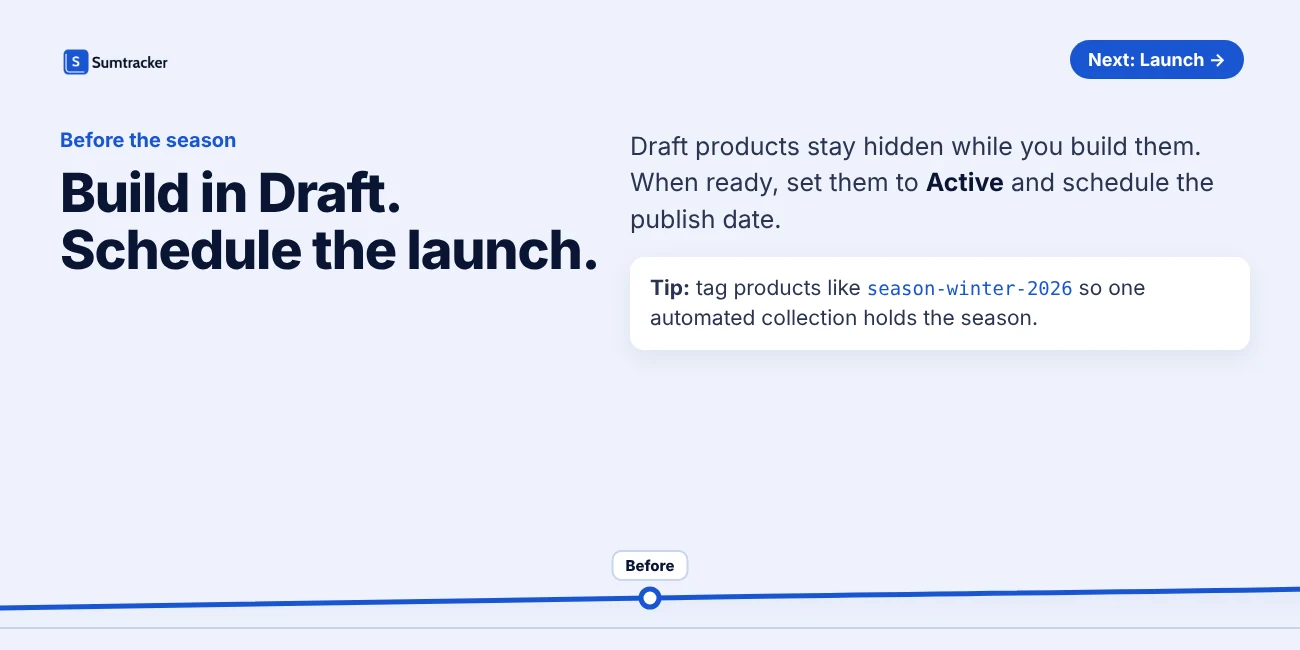
| Draft | Details aren't complete. Not for sale. | Building next season's products before launch |
| Active | Ready to sell on the channels you publish it to | The live season |
| Unlisted | Can be bought, but only with the direct link. Hidden from search, collections, recommendations and your sitemap. | Early access for VIP customers, or a gift-with-purchase item |
| Archived | No longer for sale. Hidden from your storefront and the main product list. | After the season ends |
Two rules to remember:
- Customers can only buy a product that is Active or Unlisted and published to that sales channel.
- When you unarchive a product, it comes back as Draft. You need to set it to Active again.
Use tags and automated collections
Tag every seasonal product with the season, for example season-winter-2026. Then create an automated collection with the condition "Product tag is equal to season-winter-2026".
New products with that tag drop into the collection on their own. Next year, you only update the tag.
Pro tip: Archived products stay inside collections, even though customers can't see them. Add a product status condition to your seasonal collection so archived items are kept out of it.
Schedule the launch instead of doing it by hand
Shopify's future publishing lets you pick a date and time for a product to go live on your online store and on some sales channels.
To use it, open the product, make sure its status is Active, then click the calendar icon next to Online Store in the Publishing section. You can schedule whole collections the same way.
Don't launch late
Seasonal demand starts earlier than the calendar suggests. Adobe expects U.S. shoppers to spend $95.8 billion online in October 2026, up 8% year over year, before the November–December holiday season even begins.
Rule of thumb: Work backwards from your peak. Your products should be live before early shoppers arrive, and your stock should land before that. The free Seasonal Inventory Planner works out your order-by date.
Launching Seasonal Products Early with Shopify Pre-Orders
Pre-orders let you sell seasonal stock before it arrives. You capture early demand, and the orders tell you how much to buy.
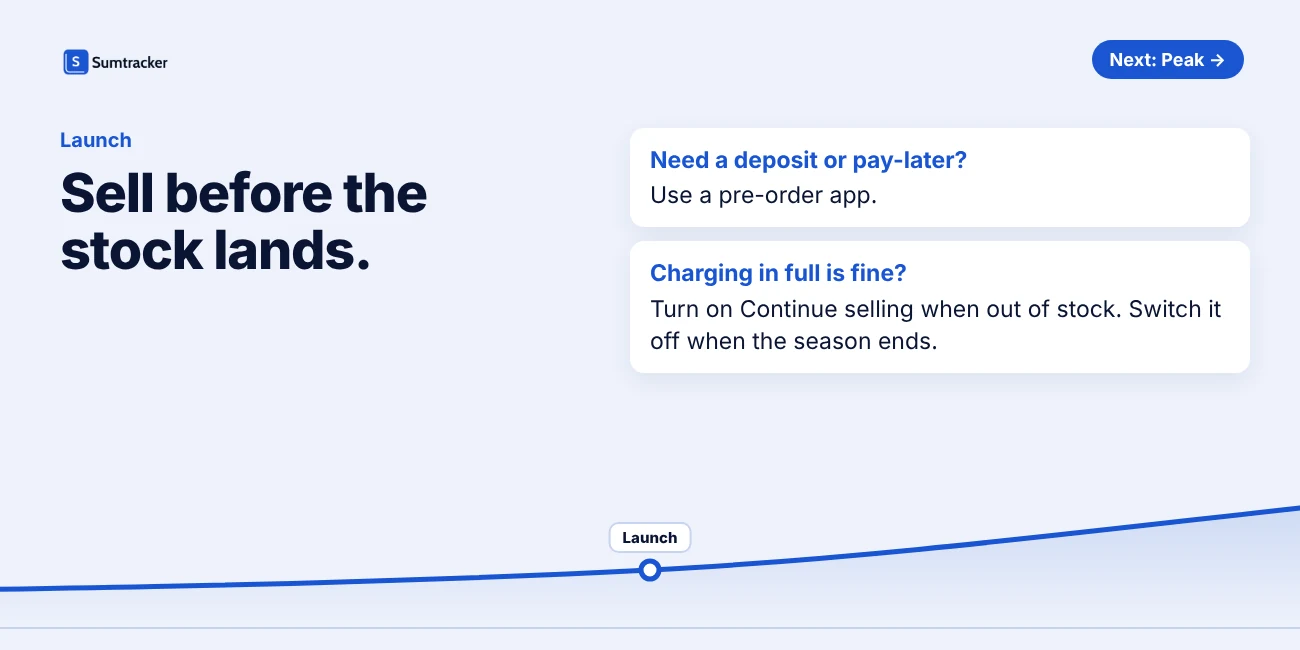
Early demand is real. In Shopify's 2025 Global Holiday Retail Report, 26% of shoppers said they start holiday shopping by the end of September. If your holiday stock lands in November, a pre-order is how you catch those buyers.
Two ways to take pre-orders on Shopify
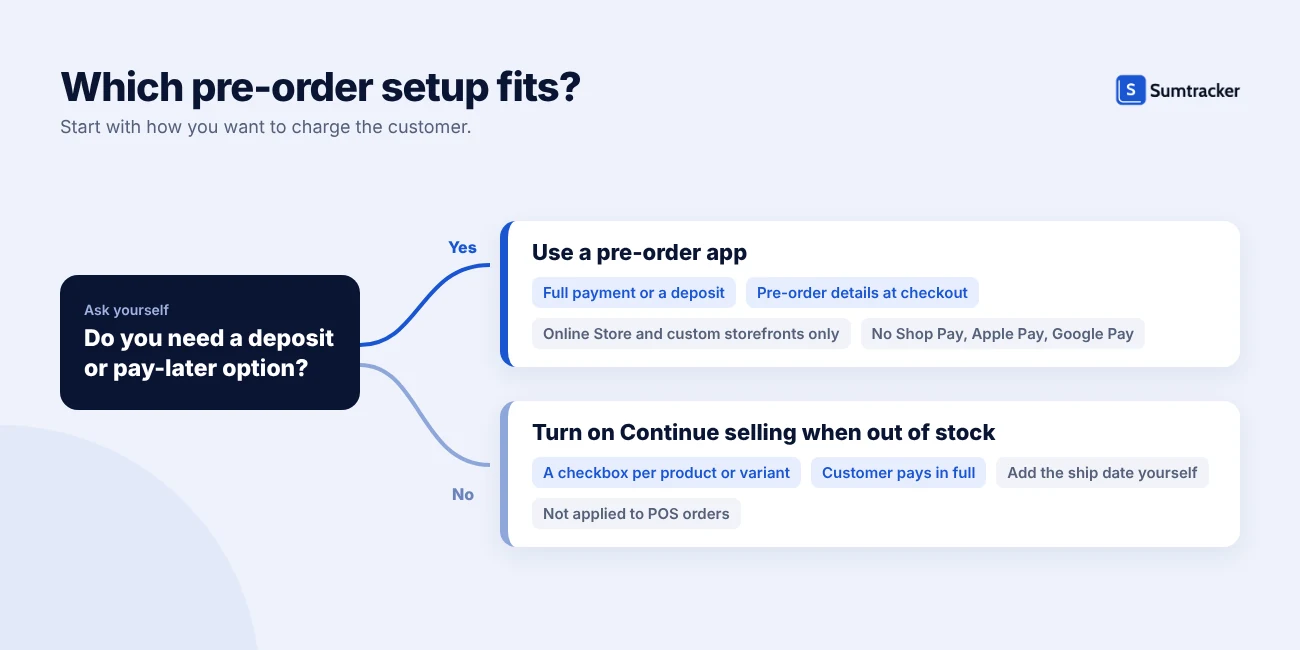
| Continue selling when out of stock | Pre-order app (Shopify purchase options) | |
|---|---|---|
| Setup | A checkbox on the product or variant | Install a pre-order app from the Shopify App Store |
| Payment | Customer pays in full at checkout | The app can collect full payment or a deposit, with the rest due later |
| Labels and ship dates | You add them yourself in the product description | The app shows pre-order details on the product page and at checkout |
| Where it works | Online sales channels (it doesn't apply to Shopify POS orders) | Online Store and custom storefronts only |
| Best for | Short delays on stock you know is coming | Planned seasonal launches and deposits |
If you use a pre-order app, check these Shopify pre-order restrictions first:
- Shop Pay, Apple Pay and Google Pay can't be used to buy a pre-order.
- Local payment methods such as Klarna aren't supported for pre-orders.
- Buy X get Y discounts don't work on pre-orders.
- A product can't be pre-ordered and bought as a subscription in the same checkout.
- Deferred payments need a supported payment provider. Shopify's developer docs list Shopify Payments, PayPal Express, Adyen on Shopify, and Stripe for some merchants.
Shopify also sets clear rules on ship dates. You need a reasonable basis for the date you promise. If no date is given, you should reasonably expect to ship within 30 days. If you can't ship on time, you must give a new date and explain the customer's right to cancel or get a refund.
Rule of thumb: Never take more pre-orders than your confirmed incoming purchase order can cover. Set a pre-order limit in your app, or turn pre-orders off once you reach that number.
When to Turn On "Continue Selling When Out of Stock"
Continue selling when out of stock lets customers buy a product after its inventory hits zero. It's useful in a seasonal rush, but it can also leave you with orders you can't fill.
You'll find it in the Inventory section of a product or variant. A few things Shopify flags about this setting:
- It only works when Inventory tracked is turned on.
- It doesn't apply to Shopify POS orders. POS warns staff before they sell an item that isn't available.
- With multiple locations, the stock at the location that fulfills online orders decides what shows as out of stock online.
Turn it on when:
- A restock is already confirmed and on its way, with a delivery date you trust.
- You make or print products to order, so zero stock doesn't stop you from shipping.
- You're running a simple pre-order and you've told customers the ship date on the product page.
Keep it off when:
- The product is a limited seasonal run you won't reorder.
- Your supplier's lead time is longer than your customers will wait.
- The season is ending. A December order for stock that arrives in February usually turns into a refund.
Pro tip: At the end of every season, filter your products by your season tag and switch this setting off in the bulk editor. It's one of the easiest ways to stop overselling products you've stopped restocking.
For more ways to avoid running out in the first place, read our guide on preventing out-of-stocks on Shopify.
Moving Seasonal Stock Across Shopify Locations
Seasonal demand is rarely even across your locations. Winter gear sells faster in cold regions. A store near a holiday market moves gift sets faster than your main warehouse.
Before you place a new purchase order, check if another location already has the stock. Moving it is often faster than reordering.
Shopify tracks inventory separately at each location. To move it, use inventory transfers under Products > Transfers. Here's what they let you do:
- Move stock between your locations, or to and from external locations such as suppliers.
- Process a transfer at your own pace: mark it ready to ship, in transit, or transferred.
- Receive the full or partial quantity at the destination.
- Add tracking details, or split one transfer into several shipments.
Shopify's official video walks through creating transfers in the admin, receiving them in Shopify POS, and using Sidekick to analyze stock balances.
A simple seasonal transfer routine
- Before the peak: Move seasonal stock to the locations that sold the most last season.
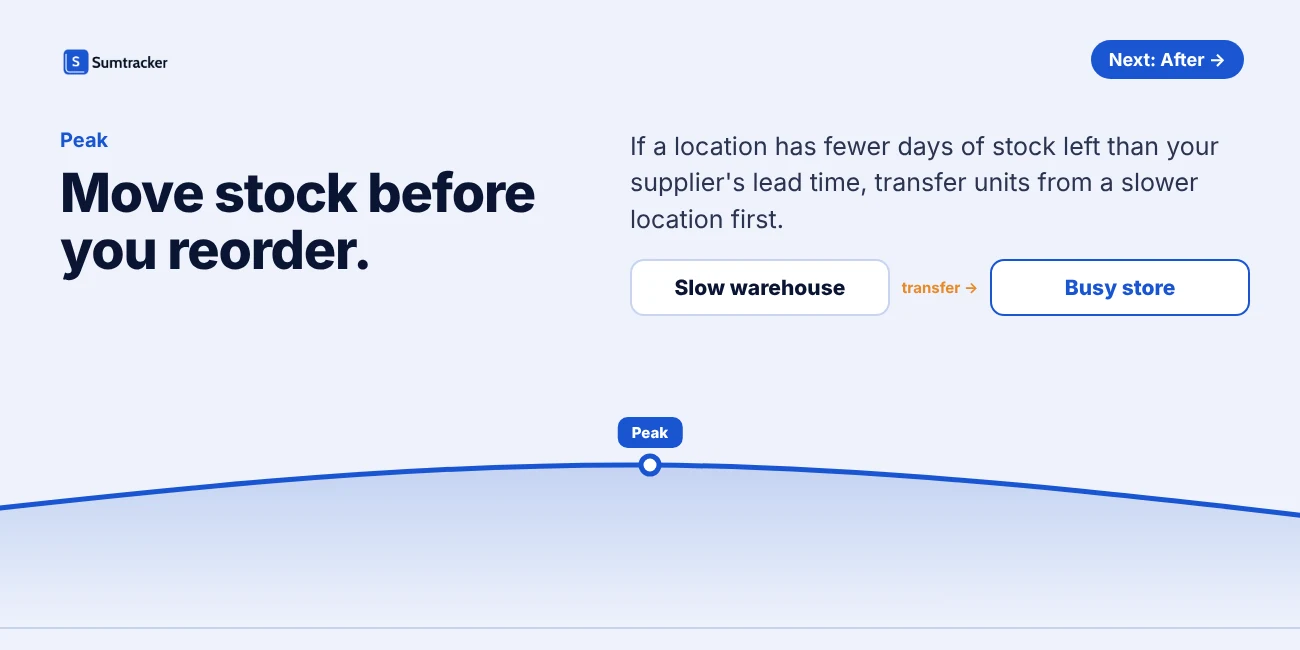
- During the peak: Check days of inventory remaining for each location once a week. Move stock from slow locations to fast ones.
- After the peak: Pull leftover stock back to one location. Clearance and counting are much easier from one place.
Rule of thumb: If a location has fewer days of stock left than your supplier's lead time, a transfer is usually the faster fix. Reorder only when no other location has spare units.
We cover the full process in our guides to moving inventory between Shopify locations and stock transfers for Shopify sellers.
Using Bundles to Move Seasonal and Slow-Moving Stock
Bundles do two jobs for seasonal sellers. They create gift sets shoppers want during the peak, and they help clear slow stock after it. Shopify itself lists clearing old inventory as one of the benefits of bundles.
Shopify Bundles: what it can and can't do
Shopify Bundles is Shopify's free bundles app. It's available on all plans and creates fixed bundles and multipacks.
Before you build your seasonal gift sets with it, know its limits:
- Inventory isn't tracked by location. Bundles use overall stock, not stock per location.
- Prices don't update on their own. If a component's price changes, you update the bundle price by hand.
- New bundles start as Draft. Set them to Active when you're ready to launch.
- Limits apply: up to 30 components in a fixed bundle, and up to 3 options and 100 variants per bundle.
- Mix-and-match (customers pick their own items) needs a different bundle app.
Bundle ideas for each stage of the season
- Before the peak: Pre-built gift sets that combine your best sellers. They're easy gifts and raise order value.
- During the peak: Add a slow-moving item to a popular bundle, so it moves along with the bestseller.
- After the peak: Turn leftover seasonal pieces into a "holiday box" at a clear discount.
Pro tip: Build bundles around the component you have the most of, not the one you like best. A bundle can only sell as many units as its scarcest component allows.
Real example: gift sets and discovery sets
Tarifé Attär, a handcrafted perfume brand on Shopify, sells promotional discovery sets and gift bundles alongside its core perfumes. Each perfume uses shared parts: liquid, bottles, labels and boxes.
Shopify's native inventory didn't deduct those components when a perfume sold. With Sumtracker, each perfume is set up as a bundle of its components. Every sale deducts the bottle, label, box and liquid it uses. The brand also gets low-stock email alerts for each component, so it knows when to fill the next batch.
If you're comparing tools for this, see our list of Shopify bundle inventory sync apps.
How to Clear Leftover Seasonal Inventory on Shopify
Leftover seasonal stock costs you twice. Your cash is tied up in it, and it takes up space you need for the next season.
The goal is to decide fast, product by product, instead of marking everything down by the same amount.

Step 1: Count what's really left, including returns
Your stock count on December 31 isn't final. Returns keep coming back for weeks.
Retailers surveyed for the NRF and Happy Returns 2025 Retail Returns Landscape expected 17% of holiday sales to be returned. Use your own return rate if you track it. If not, add an estimate to your leftover count before you plan clearance.
Step 2: Check value and sell-through
- Month-end inventory value report shows what your leftover stock is worth at cost. It only counts products that have a cost per item set.
- Products by sell-through rate shows how well each product sold during the season.
Step 3: Pick a next step for each product
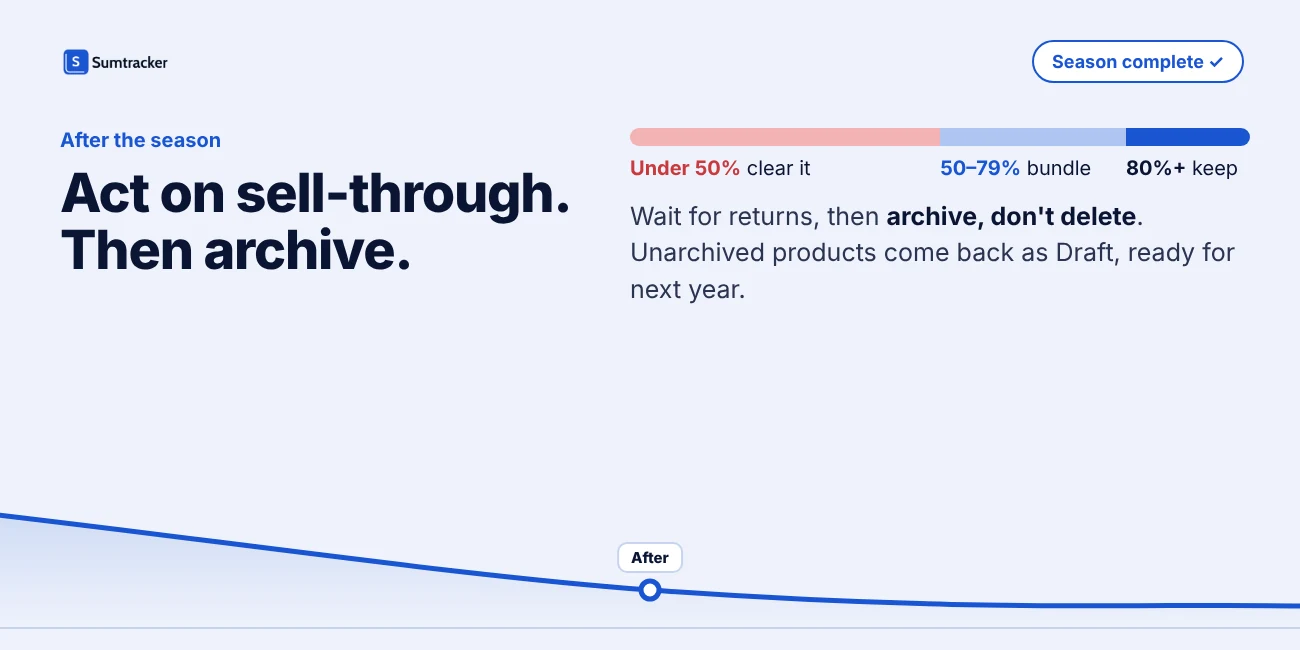
| Season sell-through | What it usually means | Suggested next step |
|---|---|---|
| 80% or higher | A proven seller. You may have under-ordered. | Hold the rest for next season, or a small markdown |
| 50% to 79% | Decent demand, but you bought too much | Bundle with a bestseller, or a moderate markdown |
| Below 50% | Weak demand or the wrong price | Deep markdown, a clearance bundle, or sell to an outlet or wholesale buyer |
These thresholds are starting points, not industry benchmarks. Adjust them to your margins and storage costs. The free planner uses the same cut-offs.
Step 4: Run the clearance in Shopify
- Create an automated "End of Season" collection using your season tag.
- Use an automatic discount on that collection, so shoppers don't need a code.
- Show the original price as the compare-at price, so the saving is clear.
Rule of thumb: Clear stock that won't sell at full price next season while it's still in season. A winter coat at 30% off in January sells. The same coat in April often doesn't.
Archiving and Restocking Seasonal Products for Next Year
When the season ends, archive your seasonal products instead of deleting them. You keep the product, its variants, images and description ready for next year.
| Option | What happens | When to use it |
|---|---|---|
| Draft | Hidden from customers, stays in your main product list | Products you'll relaunch soon or are still editing |
| Archive | Hidden from your storefront and the main product list. Comes back as Draft when unarchived. | Seasonal products you'll sell again next year |
| Delete | Removed permanently | Products you will never sell again |
You can archive in bulk too. Select the products, open the bulk editor, and set Status to Archived.
Wait for returns before you archive
The days right after a holiday are a busy return window. Adobe found that returns rose 4.7% from December 26 to 31, 2025, and 1 in every 7 returns of the holiday season happened in those six days.
Give returns time to settle before you lock in your final count and archive the product.
Rule of thumb: Set your archive review date at peak end plus your return window. If you offer 30-day returns on a December 24 peak, review in late January.
Keep the history, not just the product
Deleting a product also affects your reports. For products deleted after January 14, 2026, Shopify no longer shows their inventory data past the date they were deleted. Archiving keeps the product in your store, so you can compare it season to season.
If you need to trace what happened to a product's stock during the season, see how to view a variant's inventory history in Shopify.
Your restock checklist for next season
- Unarchive the products. They'll come back as Draft.
- Update the season tag, for example from
season-winter-2026toseason-winter-2027. - Check on-hand quantities at every location.
- Review last season's sell-through and notes before you order.
- Re-check Continue selling when out of stock on every variant.
- Schedule the publish date, then set the products to Active.
Pro tip: At season end, write a one-line note for each product in your planning sheet: what sold out, what didn't, and why. Next year, you'll make your buying decision in minutes.
Keeping Seasonal Stock in Sync Across Shopify and Marketplaces
If you sell on Amazon, eBay, Etsy or Walmart as well as Shopify, the seasonal peak hits all your channels at once. That's when overselling happens.
One gift set can sell on Shopify and on Amazon in the same minute. If stock isn't updated across both, you end up cancelling an order in your busiest week.
Where seasonal sync usually breaks
- Status changes don't travel everywhere. You can't publish Unlisted products to third-party sales channels. Apps that don't support the Unlisted status, including Marketplace Connect, show them as Active.
- Limited runs sell out unevenly. A small seasonal batch split across five channels leaves each channel with only a few units.
- Returns land on one channel but the stock needs to be available on all of them again.
- Bundles and gift sets share components with single products, so one sale changes the stock of several listings.
How to keep seasonal stock in line
- Keep one source of truth for each SKU's quantity, and let every channel read from it.
- Hold a small buffer on the channels where an oversell hurts most, such as a marketplace with strict cancellation rules.
- Set low-stock alerts for your seasonal SKUs before the peak. Here's how to automate low inventory alerts in Shopify.
- End the season on every channel at once. When you archive on Shopify, end or pause the matching marketplace listings the same day.
Rule of thumb: If a seasonal SKU has fewer units than you have sales channels, pull it back to the one or two channels where it sells best.
How Sumtracker Handles Seasonal Inventory Changes
Shopify's built-in tools cover a single store well. Seasonal selling gets harder when you add marketplaces, bundles and more than one warehouse. That's where Sumtracker helps.
Sumtracker keeps inventory from Shopify, Amazon, eBay, Etsy and Walmart in sync in a single dashboard, so every channel works from the same stock numbers.
| Seasonal challenge | How Sumtracker helps |
|---|---|
| Peak orders on several channels at once | Keeps inventory in sync across your stores and marketplaces from one dashboard |
| Gift sets and seasonal bundles | Tracks bundles and kits from their components, and links different SKUs to one master SKU |
| Stock spread across warehouses and 3PLs | Manages multiple locations, transfers stock between them, and gives location-wise reports |
| Limited seasonal runs | Lets you keep reserve inventory for fast-selling products |
| Post-season returns | Handles refunds, returns and cancellations in inventory |
| Running low mid-season | Sends low-stock alerts for each SKU |
| Deciding what to reorder | Forecasting reports show what to order, when and how much, and you can create purchase orders from them |
| Tracing stock changes | Keeps a log of inventory movements for every SKU |
Real example: moving stock to new warehouses without overselling
Babymaxi, a baby carrier and babywearing brand from Amsterdam, moved from its own warehouse to two 3PL partners while its Shopify store stayed live.
Using Sumtracker's stock transfers and Shopify sync, the team:
- Cut overselling from 5–7 incidents a month to near zero.
- Reached 99%+ inventory accuracy across warehouses.
- Reduced weekly inventory work from about 10 hours to about 3 hours.
If you're facing a busy season across several channels or locations, you can try Sumtracker free for 14 days.
FAQs
How do I hide seasonal products in Shopify without deleting them?
Set them to Draft if you'll relaunch soon, or Archive them if they're done for the year. Both hide the product from customers. Archived products also leave your main product list.
Should I delete or archive seasonal products after the season?
Archive them. Archiving keeps the product, variants, images and description for next season. When you unarchive, the product comes back as Draft, ready to update and relaunch.
Can I take pre-orders for seasonal stock on Shopify?
Yes. For simple pre-orders, turn on Continue selling when out of stock and add the ship date to the product page. For deposits or pay-later options, use a pre-order app. Pre-order apps work on the Online Store and custom storefronts, and don't support Shop Pay, Apple Pay or Google Pay.
How do I keep last year's sales data for seasonal products?
Shopify's inventory reports keep data back to October 1, 2023. Archive products instead of deleting them, and save a copy of each key report for your peak dates so you can reopen it next season.
How early should I order seasonal inventory?
Count back from the day your peak starts. Subtract your supplier's lead time, then add a safety buffer for delays. The free planner works out this "order by" date for you.
Does Shopify Bundles track bundle stock by location?
No. Shopify Bundles uses overall stock, not stock per location. If you sell gift sets from several warehouses, you'll need a tool that tracks bundle components by location.
Conclusion
Seasonal inventory isn't one big decision. It's a series of small ones made at the right time.
Use last season's reports to plan. Launch on schedule. Take pre-orders only for stock you can deliver. Move stock to where it sells. Clear what's left while it's still in season. Then archive, take notes, and start next season with better data.
If you sell across several channels or warehouses, Sumtracker keeps all that stock in sync in a single dashboard, so your busiest weeks don't turn into your messiest ones.

Bhoomi writes about inventory management and multichannel selling at Sumtracker. Her focus is on solving real operational problems for Shopify, Amazon, and marketplace sellers through well-researched content. She covers everything from multi-location inventory syncing and stock error troubleshooting to replenishment planning and platform comparisons, turning complex eCommerce operations into clear, actionable guidance.
LinkedInRelated Articles
Tool and strategies modern teams need to help their companies grow.


Ready to Simplify Your Inventory Management?
Join hundreds of e-commerce merchants who rely on Sumtracker to save time, eliminate errors, and grow their business.