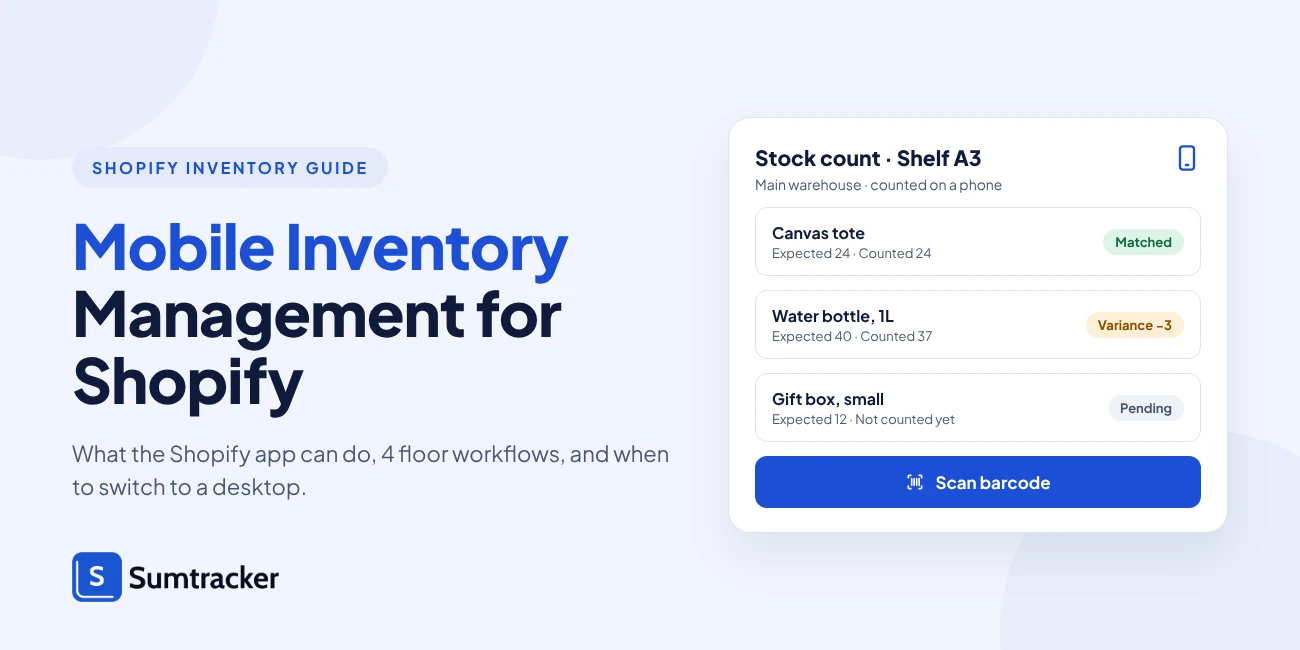
Mobile Inventory Management for Shopify: How to Track Stock From Your Phone


Mobile inventory management for Shopify means scanning, counting, receiving and moving stock from a phone or tablet, right where the products sit. It closes the gap between what happens on the floor and what Shopify shows.
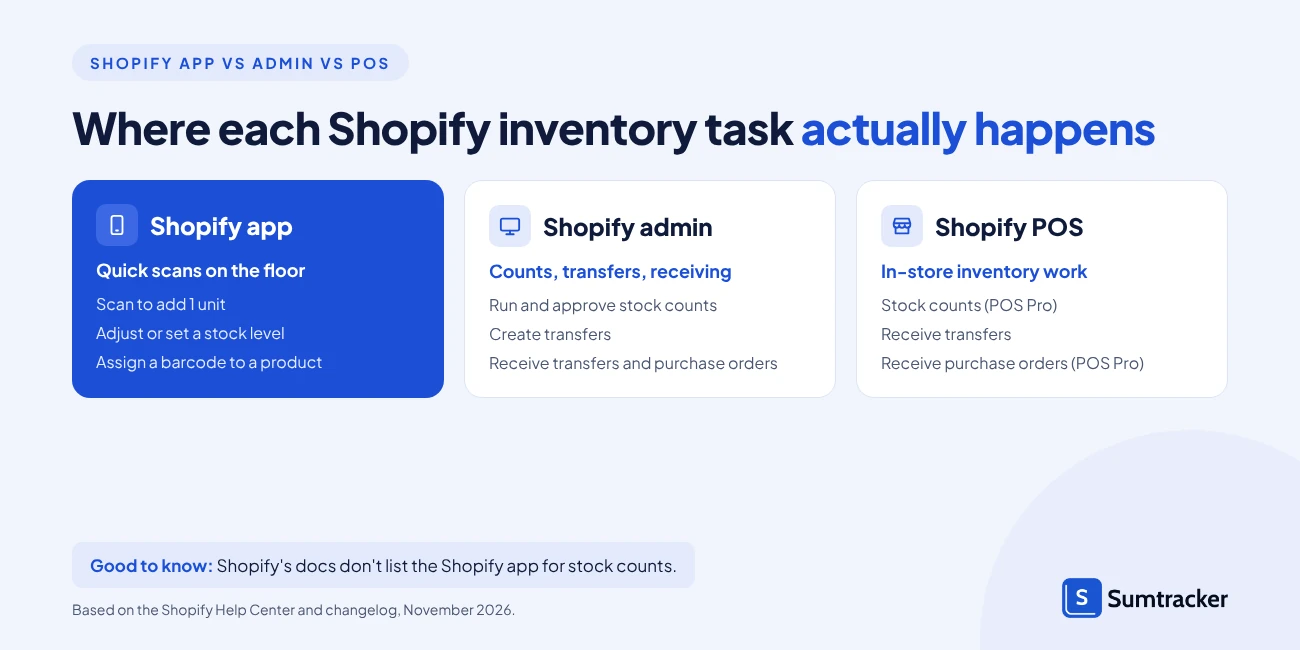
- The Shopify app: its inventory scanner can add one unit, adjust or set a stock level, and assign barcodes. Stock counts and receiving run in the Shopify admin or Shopify POS.
- Native app vs browser: what matters is whether the right person can record the right change at the right location, not whether the tool has an app icon.
- Setup: label every variant, pick an input method (camera or Bluetooth scanner), and set the location before you scan.
- Split the work: scanning, shelf counts, receiving and transfers suit a phone. Bulk edits, bundles, reports and settings belong on a desktop.
The guide includes four floor workflows, common mistakes, and how Sumtracker supports mobile inventory in the browser.
A delivery arrives three units short. Someone notes it on the packing slip. By the time it reaches Shopify, those "missing" units have already sold online.
That's the gap mobile inventory management closes.
Instead of walking back to a desk, your team scans, counts, and receives stock on a phone or tablet, right where the products sit. The record is updated while the item is still in their hand.
In this guide, we'll cover what the Shopify app can do today, where it falls short, and four floor workflows you can run from your phone.
Quick answer: Mobile inventory management for Shopify means using a phone or tablet to scan, count, receive, and move stock where it physically sits. The Shopify app handles quick barcode scans and quantity edits. Stock counts and receiving run in the Shopify admin or Shopify POS. Multichannel stock needs a dedicated inventory tool.
What Is Mobile Inventory Management for Shopify?
Mobile inventory management is the practice of updating your Shopify inventory from a phone or tablet instead of a desktop.
It is not a separate set of numbers. It is the same inventory, updated from a different place.

Every mobile setup has three parts:
- A device. A phone, tablet, or handheld that your team carries around the stockroom.
- An input method. The device camera, a Bluetooth barcode scanner, or plain manual entry.
- A system that saves the change. The Shopify app, Shopify POS, or a browser-based inventory tool that syncs with Shopify.
If any one of these is weak, the whole setup breaks. A great scanner is useless if the app it feeds can't record a stock count.
Rule of thumb: If a task happens where the stock is, do it on mobile. If it touches your whole catalog at once, do it on a desktop.
Why Shopify Sellers Need Mobile Inventory Management
Most inventory errors don't start in software. They start on the floor.
A box arrives short. A damaged unit gets binned. A staff member moves stock to the front shelf. If nobody records it on the spot, your Shopify numbers drift.
Mobile tools fix this in three ways:
- Fewer handoffs. The person who sees the stock is the person who records it.
- Faster updates. Changes land in Shopify while the item is still in your hand, not at the end of the day.
- Better buying decisions. You can check real stock before you reorder, even away from your desk.
That last point is a real-world one. On a Shopify Masters episode, Matthew Burrows, cofounder of Plant Material, explains how he uses mobile inventory tracking to buy only what he needs. Plant Material runs three nurseries in Los Angeles, so checking stock on the go matters.
Practical tip: Before you buy any tool, walk your stockroom for one day. Write down every time someone changes stock without updating Shopify. That list is your mobile workflow.
Is Mobile Inventory Worth It? A Quick Cost Check
You don't need an industry benchmark to answer this. You need your own numbers.
Add up the time your team spends on:
- Counting stock and recounting when numbers don't match
- Typing changes from paper notes into Shopify
- Fixing stock on each sales channel one by one
- Canceling and refunding orders you oversold
Then run a simple check. Here's an example with made-up numbers:
Compare that saving with the monthly cost of the tool and any scanners you buy. If the saving is bigger, the tool pays for itself from the first month.
The Sweet Wink example later in this guide shows how much time manual counting can take before a team switches.
Rule of thumb: Time one week of counts and fixes before you switch, and one week a month after. The difference is your real return.
What You Can (and Can't) Do in the Shopify Mobile App
The Shopify app (iOS, iPadOS, and Android) has a built-in inventory scanner. It uses your device's camera to read barcodes.
According to Shopify, the scanner can do three things:
- Assign a barcode to an existing product.
- Increase a product's inventory by one.
- Adjust or set a product's inventory level.
You can also pick an inventory location before you start scanning.
But the app is only one piece of Shopify's inventory toolkit. Here's where each task actually happens today.
Table 1: Where each Shopify inventory task happens
Sources: Shopify Help Center on stock counts and transfers, and Shopify's June 22, 2026 changelog.
Where the Shopify app falls short
- Stock counts aren't listed for the app. Shopify's stock count docs cover the admin and POS. They don't list the Shopify app.
- Quick scans add one unit. Each quick scan adds one unit. For larger quantities, you open the product and type the new number.
- Shopify data only. If you also sell on Amazon, Etsy, eBay, or Walmart, those stock levels live outside the Shopify app.
- POS features need POS Pro. Shopify lists POS counting and POS receiving of purchase orders as POS Pro features.
Practical tip: The scanner's quick flow only adds stock. To remove a damaged unit, open the scanned product, tap the quantity, and use the minus button. Then review and apply the change.
Native App vs Browser-Based: What Actually Matters on Mobile
Many inventory tools push you to download their app. It's easy to assume a native app is always better.
It isn't. What matters is whether the right person can record the right change, at the right location, without errors.
A browser-based tool can do that just as well. You open it in your phone's browser, log in, and get the same system your team uses on the desktop.
Here's how the two approaches usually compare.
Table 2: Native mobile app vs browser-based tool
The table shows typical patterns. Check how each specific tool works before you decide.
Rule of thumb: Choose by workflow, not by app icon. List the four or five jobs your team does on the floor. Then test whether each tool can finish those jobs on a phone, start to finish.
Ask these questions in any free trial:
- Can I scan inside stock counts, receiving and transfers, or only on one screen?
- Can I pick the location before I scan?
- Does every change show who made it and why?
- Does it work with the scanner I already own?
Key Features to Look for in a Mobile Inventory Tool
A mobile tool is only as good as the jobs it can finish on a small screen. Use this checklist when you compare options.
Table 3: Mobile inventory tool checklist
Practical tip: Give your trial to the person who will actually use it on the floor. Ask them to run one real count. If they need help twice, the tool is too complex for daily use.
Which Mobile Setup Do You Need?
The right setup depends on three things: how many places you keep stock, where you sell, and how much you scan at once. Find your store type below.
Table 4: Which mobile setup fits your store
Not sure which row fits? Answer four quick questions.
How to Set Up Your Phone and Barcode Scanner
You have three ways to get barcodes into a phone. Each suits a different volume of work.
Table 5: Barcode input methods compared
Set up in five steps.
- Label every product. Give each variant its own barcode in Shopify. If two products share one, the scanner makes you pick the right product by hand.
- Pair and test the scanner. Scan five products and confirm each one opens the right variant.
- Set the location. Choose the warehouse or store before you scan anything.
- Assign user access. Give floor staff only the permissions they need.
- Charge everything. A dead scanner halfway through a count means paper notes again.
Rule of thumb: If your team scans more than a few dozen items in one session, use a dedicated Bluetooth scanner. Camera scanning is fine for spot checks, not for counts.
What If Your Stockroom Has Weak Signal?
Back rooms, basements, and metal-roofed warehouses often have patchy Wi-Fi. That matters, because a browser-based tool needs a connection to save each change.
Before you roll out mobile counts:
- Walk the floor with your phone. Check signal in every aisle and bin area, not just near the door.
- Fix dead spots first. A Wi-Fi extender or mesh point costs less than a recount.
- Enter counts as you go. Record each shelf as you finish it, instead of holding a long list on screen.
- Have a fallback. If a zone has no signal, count it on a printed sheet and enter it as soon as you're back in range.
- Ask about offline mode in every trial. Some native apps store scans and sync them later. Check what happens to a half-finished count when the connection drops.
Practical tip: Run your first mobile count in the area with the worst signal. If it works there, it works everywhere.
4 Real Mobile Inventory Workflows for Shopify Stores
Features only matter if they fit real work. Here are four jobs that happen away from a desk, and how to run each one from a phone.
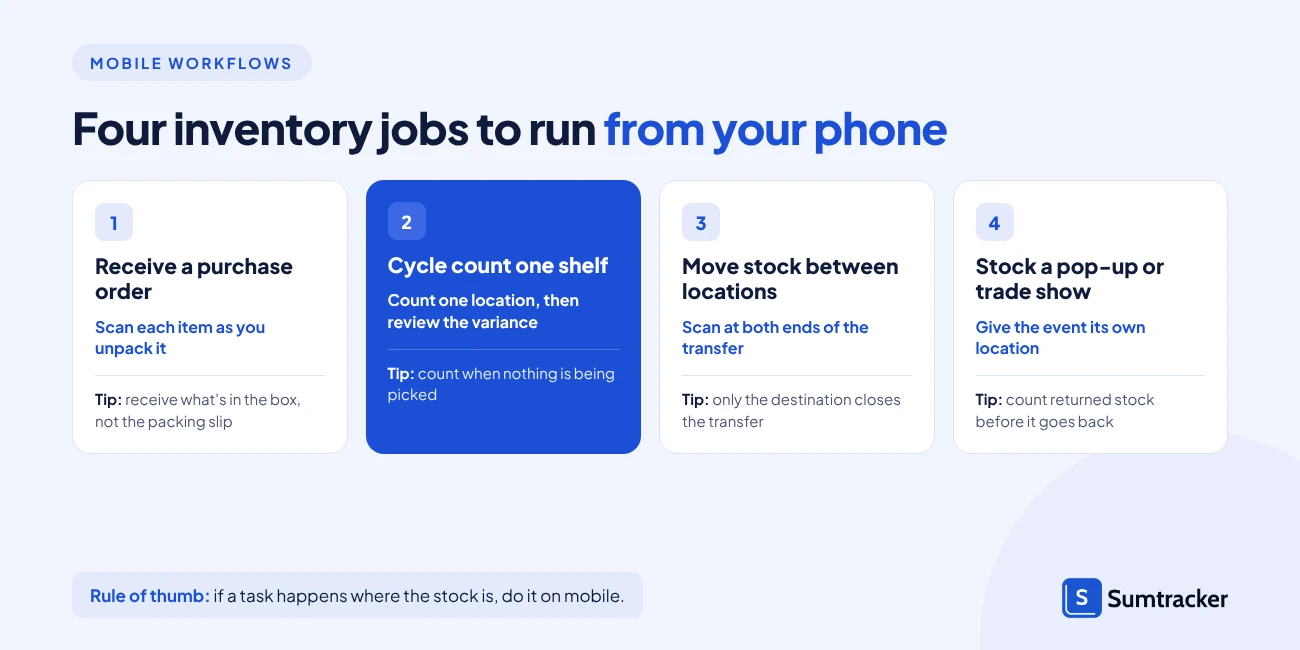
1. Receiving a Purchase Order at the Dock
The supplier's box is on the floor. The paperwork says 50 units. You need to know what actually arrived.
- Open the purchase order on your phone.
- Scan each item as you unpack it.
- Compare the scanned quantity with the ordered quantity.
- Receive only what arrived. Leave the rest open if more is coming.
- Note damaged units with a reason, so they don't count as sellable stock.
In Shopify, purchase orders now create a transfer when you receive them. One transfer can hold several shipments, so partial deliveries are tracked separately.
Practical tip: Receive what's in the box, not what's on the packing slip. The slip tells you what the supplier meant to send.
2. Running a Quick Cycle Count on One Shelf
A cycle count checks a small part of your inventory instead of everything at once. A phone makes it easy to do one shelf in a few minutes.
That's why small, frequent counts beat one big annual count. You find errors while they're still easy to trace.
- Pick one shelf, bin, or product group.
- Start a count for that location only.
- Scan each unit, or scan once and type the quantity.
- Review the variance for each product.
- Recount anything with a large gap before you approve.
Our guide to cycle counting in Shopify covers which methods suit which stores.
Rule of thumb: Count when nothing is moving. Counting a shelf while orders are being picked from it creates fake variances.
3. Moving Stock Between Two Locations
Transfers break down when they're recorded in one place but not the other. Mobile helps because both ends can scan.
- Create the transfer with the origin, destination, and quantities.
- Scan items at the origin as they're packed.
- Mark the transfer as shipped.
- Scan items again at the destination.
- Receive the full or partial quantity.
Practical tip: Never mark a transfer as received from the origin. Only the person who scans it at the destination should close it.
4. Checking Stock at a Pop-Up or Trade Show
Events pull stock away from your main location. Customers still order online while you're away.
- Set up the event as its own location before you pack.
- Transfer the event stock to that location.
- Check stock levels on your phone during the event.
- Transfer unsold stock back when you return.
- Count the returned stock before it goes back on the shelf.
This keeps event sales from eating into stock your online store thinks it still has.
Managing Multi-Location and Multichannel Inventory From Your Phone
Mobile gets harder once you have more than one location or more than one sales channel.
The risk is simple. A change recorded at one location, or on one channel, doesn't reach the others. Then you oversell.
Three habits keep multi-location stock accurate on mobile:
- Always confirm the location at the top of the screen before you scan.
- Use transfers, not adjustments, when stock moves between your own locations. An adjustment hides where the stock went.
- Keep one source of truth for stock across every channel, so every channel works from the same numbers.
Babymaxi learned this during a move. The Amsterdam-based baby carrier retailer shifted from an in-house warehouse to two 3PL warehouses while keeping its Shopify store live. Stock spread across locations led to overselling.
Using Sumtracker, the team created and tracked stock transfers between warehouses and saw stock across every location in one place. You can read the full story in the Babymaxi case study.
Rule of thumb: If the same product sells on two or more channels, never fix stock on just one of them. Fix it at the source that feeds all of them.
Where a Mobile Change Goes Next
A scan on the floor only helps if it reaches every system that depends on that number. Before you pick a tool, map where each stock change needs to go.
In Sumtracker, one change keeps Shopify, Amazon, Etsy, eBay, and Walmart in sync in a single dashboard. On the Replenish plan, received purchase orders also go to QuickBooks Online as bills. For 3PL locations that update Shopify directly, you can set Shopify as the master, so Sumtracker copies its numbers.
If you're weighing a full ERP instead, our guide to ERP with seamless Shopify integration explains when you actually need one.
Rule of thumb: Every stock number should have one owner. Mobile changes go to that owner, and everything else copies from it.
When Mobile Isn't Enough
Mobile is great for jobs done where the stock is. It's not great for jobs that need a big view of your whole catalog.
Be honest with your team about the split. It saves a lot of frustration.
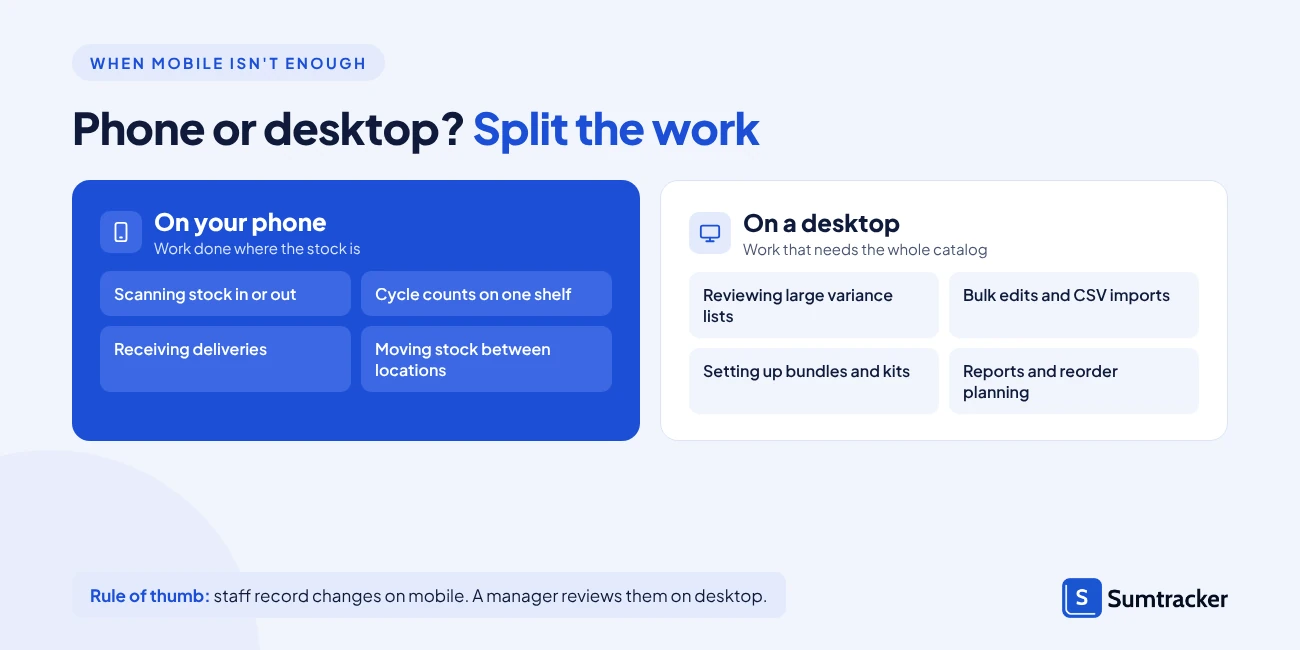
Table 6: Phone vs desktop by task
Practical tip: Split roles, not just devices. Floor staff record changes on mobile. A manager reviews and approves them on desktop. That one check catches most mistakes.
Common Mobile Inventory Mistakes and How to Avoid Them
Most mobile errors come from habits, not tools. Here are the most common ones.
- Scanning at the wrong location. The count is right, but it lands on the wrong warehouse. Fix: make location the first thing staff check on every screen.
- Using adjustments instead of transfers. Stock leaves one location and appears in another with no link between them. Fix: use a transfer every time stock moves between your own locations.
- Skipping the reason. A minus-five adjustment with no reason tells you nothing later. Fix: require a reason for every manual change.
- Counting during order picking. Orders ship while you count, so the numbers never match. Fix: count before picking starts or after it ends.
- Approving counts without reviewing. One mis-scan can wipe out real stock. Fix: recount any line with a large variance before you approve.
- Giving everyone full access. Floor staff ends up editing settings or other locations. Fix: assign only the permissions each role needs.
How Sumtracker Supports Mobile Inventory Management
Sumtracker is browser-based. Your team can open it in a phone, tablet, or laptop browser today, with nothing extra to install, and work in the same system.
That means the floor and the office always see the same numbers.
Scanning where the work happens
Pair a Bluetooth barcode scanner with your device, open a supported page, and tap Scan. According to Sumtracker's help docs, scanning is available in:
- Purchase orders
- Stock adjustments
- Stock transfers
Stock takes support barcode scanning or manual entry. Sumtracker calculates the variance between counted and system stock as soon as you enter a quantity. You can also see which products are counted and which are still uncounted.
Device setup at a glance
Table 7: Using barcode scanners with Sumtracker by device
Source: Sumtracker Help Center, "Using barcode scanners with Sumtracker."
Control over who changes what
- Adjustments with reasons. Each adjustment lets you pick the warehouse, the adjustment type, and a reason.
- Granular permissions. For example, give a warehouse manager access to inventory and stock transfers only.
- Warehouse permissions. Limit each user to specific warehouses. This is available on the Replenish plan.
One dashboard for every channel
Sumtracker keeps inventory from Shopify, Amazon, Etsy, eBay, and Walmart in sync in a single dashboard. So whether a change is recorded on the floor or at a desk, stock from every channel sits in one place.
Sweet Wink shows why that matters. The New York children's apparel brand runs separate retail and wholesale Shopify stores. Before Sumtracker, its warehouse staff spent 10 to 20% of their time manually counting stock just to check the system. After switching, COO and CFO Joe Nixon said, "Inventory accuracy became reliable almost overnight." Read the Sweet Wink case study.
Sumtracker is rated 4.8 on the Shopify App Store and is used by 2,000+ brands in 50+ countries.
FAQs
Can I manage Shopify inventory from my phone?
Yes. The Shopify app for iOS, iPadOS, and Android lets you scan barcodes, add stock, and adjust inventory levels. Stock counts and receiving run in the Shopify admin or Shopify POS.
Can I do a stock count in the Shopify mobile app?
Shopify's help docs describe stock counts in the Shopify admin and in Shopify POS at POS Pro locations. They don't list the Shopify app as a place to run counts.
Do I need a barcode scanner for mobile inventory?
Not for small jobs. A phone camera works for spot checks. For full counts or large deliveries, a Bluetooth scanner is faster and more reliable.
Does mobile inventory management work without internet?
Whether mobile inventory management works without internet depends on the tool. Browser-based tools need a connection to save each change, while some native apps store scans offline and sync them later. Either way, check the signal in your stockroom before you roll out mobile counts, and keep a printed count sheet for areas with no coverage.
Why doesn't my Bluetooth scanner work with web apps on my iPhone?
Some web-based inventory tools can't take input from a standard keyboard-mode scanner on iOS. Socket Mobile scanners in app mode, used with Socket's Rumba browser, are one common fix.
Do I need to install an app to use Sumtracker on my phone?
No. Sumtracker runs in the browser, so you open it in your phone or tablet browser and log in. Barcode scanning works with Bluetooth scanners in purchase orders, stock adjustments, and stock transfers.
Conclusion
Mobile inventory management isn't about having an app on your phone. It's about recording every stock change where it happens, by the person who sees it.
Start small. Pick one workflow, like receiving or a weekly shelf count, and move it to mobile first. Once your team trusts it, add the next one.
If you sell on more than one channel, make sure every mobile change lands in one shared view of stock. Try Sumtracker free for 14 days and run your next count from your phone.

Bhoomi writes about inventory management and multichannel selling at Sumtracker. Her focus is on solving real operational problems for Shopify, Amazon, and marketplace sellers through well-researched content. She covers everything from multi-location inventory syncing and stock error troubleshooting to replenishment planning and platform comparisons, turning complex eCommerce operations into clear, actionable guidance.
LinkedInRelated Articles
Tool and strategies modern teams need to help their companies grow.

Ready to Simplify Your Inventory Management?
Join hundreds of e-commerce merchants who rely on Sumtracker to save time, eliminate errors, and grow their business.