How to Set Reorder Points in Shopify (Step by Step)



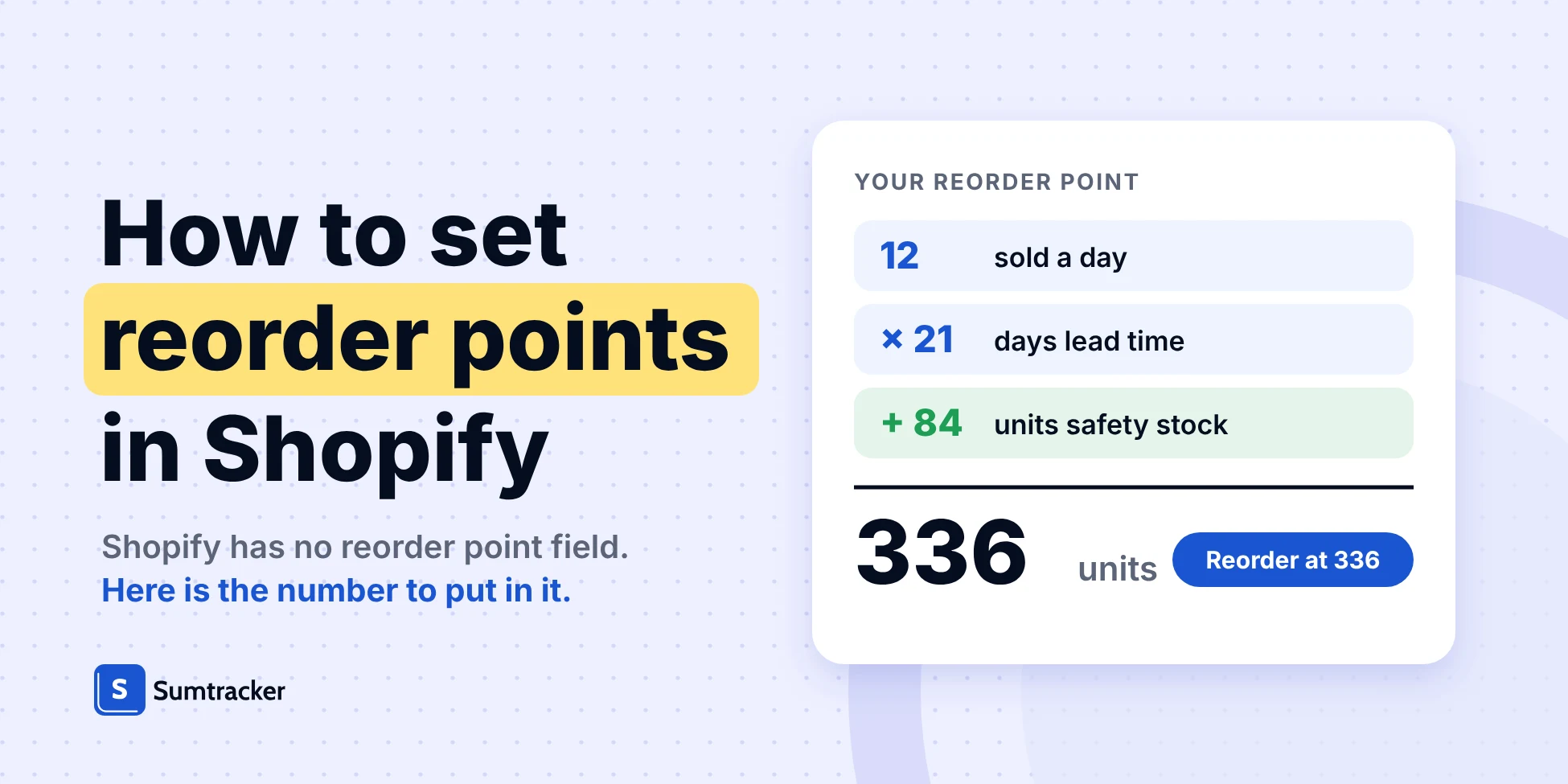
To set reorder points in Shopify, work out average daily sales × lead time + safety stock for each product, save it in a variant metafield, and alert on it with Shopify Flow, because Shopify has no reorder point field.
- Sales input: pull at least 28 days of daily sales and leave out days the product was out of stock.
- Lead time: count until stock is sellable, not until the supplier ships.
- Safety stock: one SKU needs 31, 84 or 308 units depending on the method.
- What to compare: against available stock plus confirmed incoming inventory, not On hand.
- Scale: spreadsheets and Flow suit small catalogs; Sumtracker suggests reorder dates and quantities once they outgrow that.
If you sell on Shopify, you have probably noticed that the admin tracks how many units you hold but never tells you when to buy more. The reorder point (ROP) is that missing number: the stock level at which a purchase order has to go out so the delivery lands before you sell out.
This guide explains how to set reorder points in Shopify using the reports, metafields and Flow workflows already in your admin. It also covers how to choose the right safety stock method, account for changing customer demand and supplier lead times, and understand where the standard formula breaks.
A spreadsheet works for a small catalog; the upkeep is what hurts as it grows, and that is where a tool like Sumtracker comes in.
Before you start: you need at least 28 days of sales history per product. Newer products are covered in the special-cases table below.
Does Shopify Have a Reorder Point Setting?
Shopify does not have a built-in reorder point field or an automatic rule to create purchase orders when stock crosses a threshold. To manage reorder points in Shopify, you need to store the number yourself using a variant metafield, spreadsheet or inventory management app.
The quantity you compare it with matters as much as the reorder point itself. For accurate reorder points, consider current stock, incoming inventory and the inventory levels actually available to fulfill orders.
Shopify's inventory states documentation splits stock into four states, and only some belong in a reorder check:
Why this matters: Shopify's inventory reports show On hand quantities. A report figure that looks like sellable stock can therefore include units already promised to customers.
Common mistake: Shopify lets you move units into an Unavailable state labelled Safety stock. If you park the buffer there, compare Available with lead time demand alone. Comparing it with the full reorder point counts the buffer twice and fires every alert early.
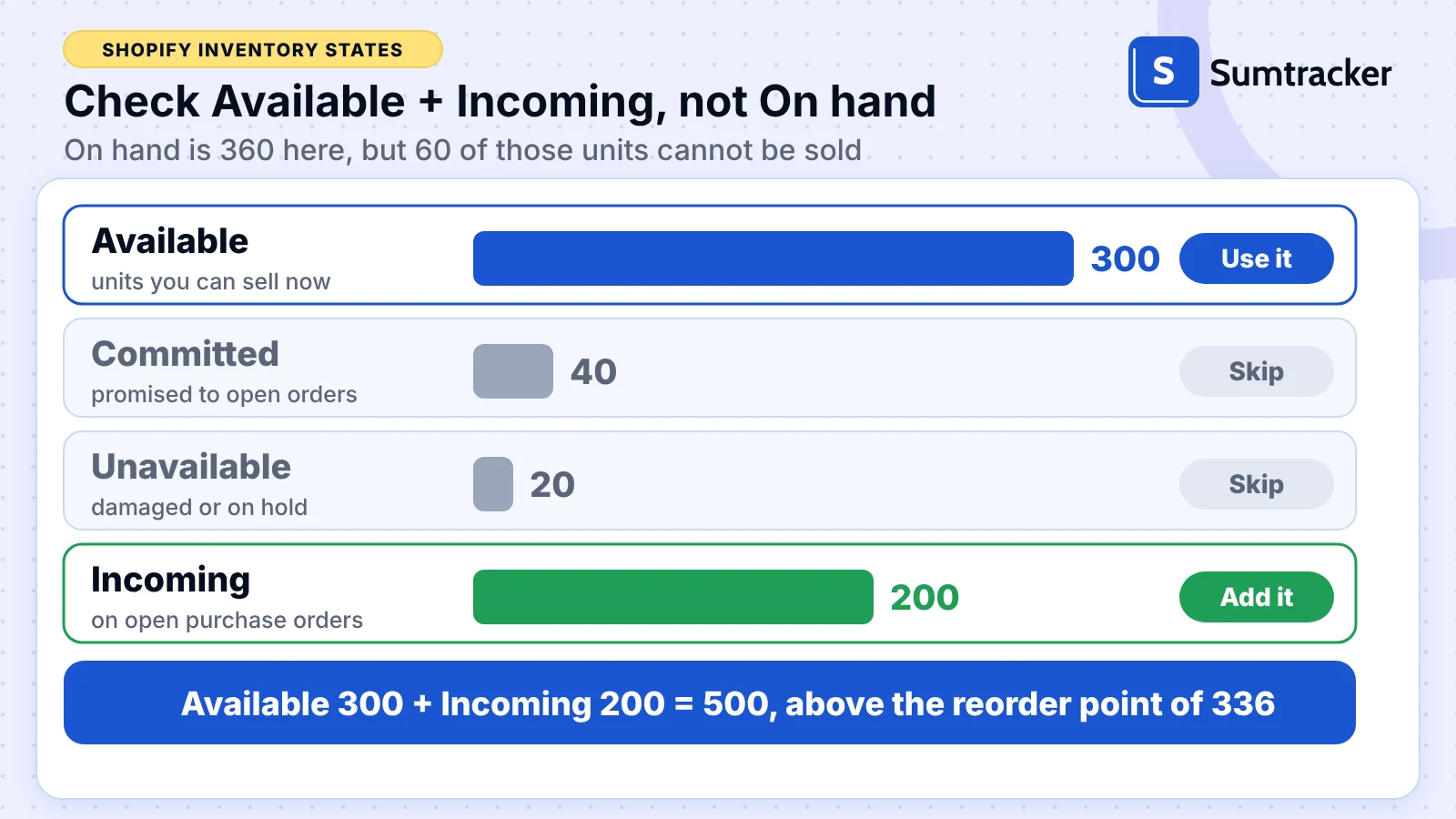
Comparing Available stock plus Incoming inventory (500 units) shows this SKU is covered against its reorder point of 336 units. Available stock alone (300 units) would trigger an unnecessary second order, while On hand stock (360 units) would overstate sellable inventory by 60 units.
Shopify Reorder Point Software: When to Move Beyond Spreadsheets and Shopify Flow
A spreadsheet and a Flow alert are enough to manage reorder points in Shopify for a small catalog. Inventory management software such as Sumtracker takes over when the recalculation job grows with every SKU, supplier and location. Three things wear the manual method down:
- The number is static. A reorder point typed into a spreadsheet or metafield does not change when sales velocity increases or supplier lead times change, so you have to recalculate it by hand.
- The sales input is easy to get wrong. A plain average counts sold-out days as zero demand, underestimating customer demand and potentially leaving you with insufficient stock.
- Flow only alerts. It tells you stock crossed a line, not which date to order or how many units.
Sumtracker is an inventory management and demand forecasting platform for Shopify and multichannel eCommerce brands. It keeps stock matched across your channels, with sync running every few minutes, and on the forecasting side it works out when to reorder and how much.
You set lead time and safety days per supplier and days of cover per product and warehouse. Sumtracker then suggests an order date, an order quantity and a stock-out date for each product, based on 12 months of sales, and you create the purchase orders yourself from those suggestions.
Here is the part of Sumtracker that does this:
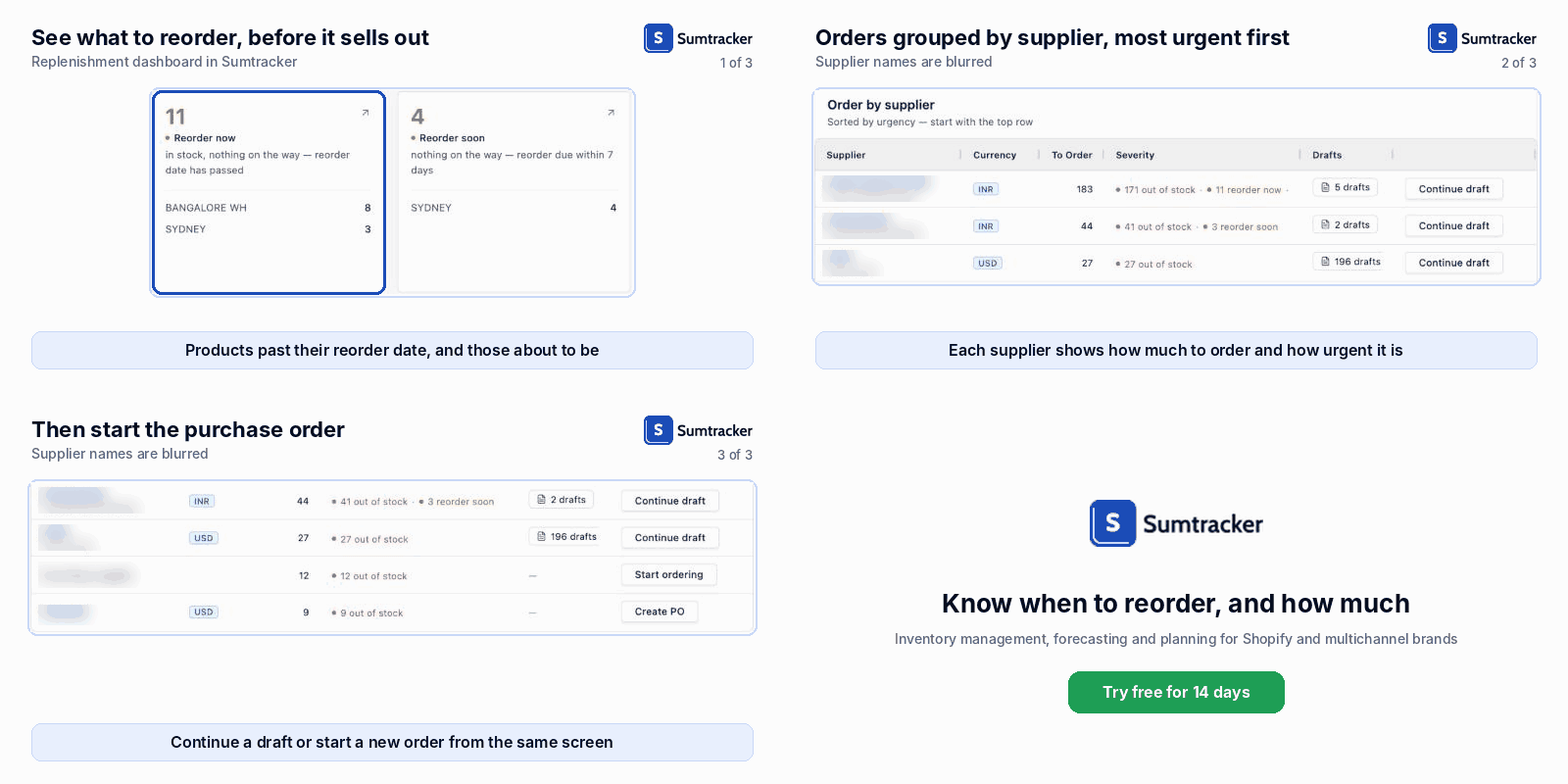
The list does the sorting for you: products to reorder now come first and orders are grouped by supplier, so you decide from one screen instead of checking a sheet SKU by SKU.
Two limits to know. Safety is set in days, not as a service-level percentage, so the service-level method later in this guide stays a spreadsheet job. And Close at Quantity is a different setting: it stops a product selling at a stock level you choose and is not a reorder point (see Close at Quantity).
How to Calculate a Reorder Point in Shopify: Formula and Example
A reorder point (ROP) is the stock level that triggers a purchase order: the units you expect to sell while the order is on its way, plus a safety stock buffer. The standard reorder point formula uses average daily sales, supplier lead time and safety stock to determine when to replenish inventory and prevent stockouts.
We use one example SKU from here on, selling 12 units a day with a 21-day lead time.
Reorder point = (Average daily sales × Lead time) + Safety stock
For the example SKU: 12 × 21 = 252 units of lead time demand. Add 84 units of safety stock (7 days of sales) and the reorder point is 336 units. This helps you maintain enough stock to meet customer demand without holding unnecessary excess inventory.
Here is how that plays out over time:
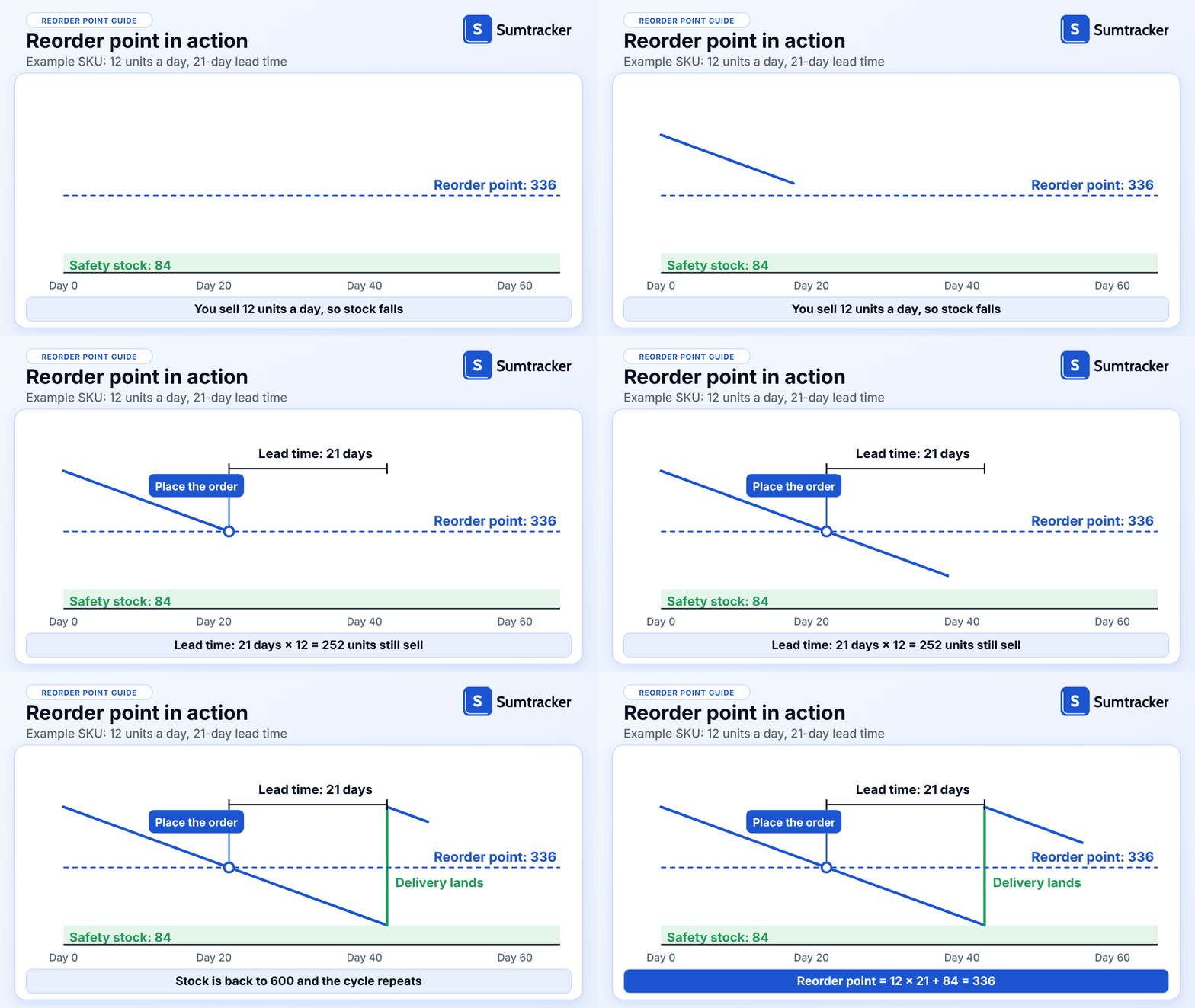
Place the order when stock reaches 336, not when it reaches the safety stock: the 21-day delivery then lands while the 84 units of buffer are still on the shelf.
- Open Analytics → Reports → Inventory and run Inventory sold daily by product for the last 28 days or more.
- Export the report and divide total units sold by the days the product was in stock, not by calendar days. This gives you average daily sales based on actual sales data and a more accurate sales velocity.
- Measure supplier lead time from the day you place the purchase order to the day the new stock is Available at the location that sells it, including production, shipping, receiving and transfers.
- Choose a safety stock method and amount (next section).
- Add lead time demand and safety stock to get the reorder point, and round up to a whole unit.
This is the same formula as in our guide to reorder points for inventory replenishment; this post covers the Shopify-specific parts. Lead time is where most calculations go wrong: StoreBuilt, a Shopify agency, reports that a UK accessories brand cut avoidable stockouts more by extending its lead time to include warehouse receiving and transfers than by raising every order quantity (StoreBuilt).
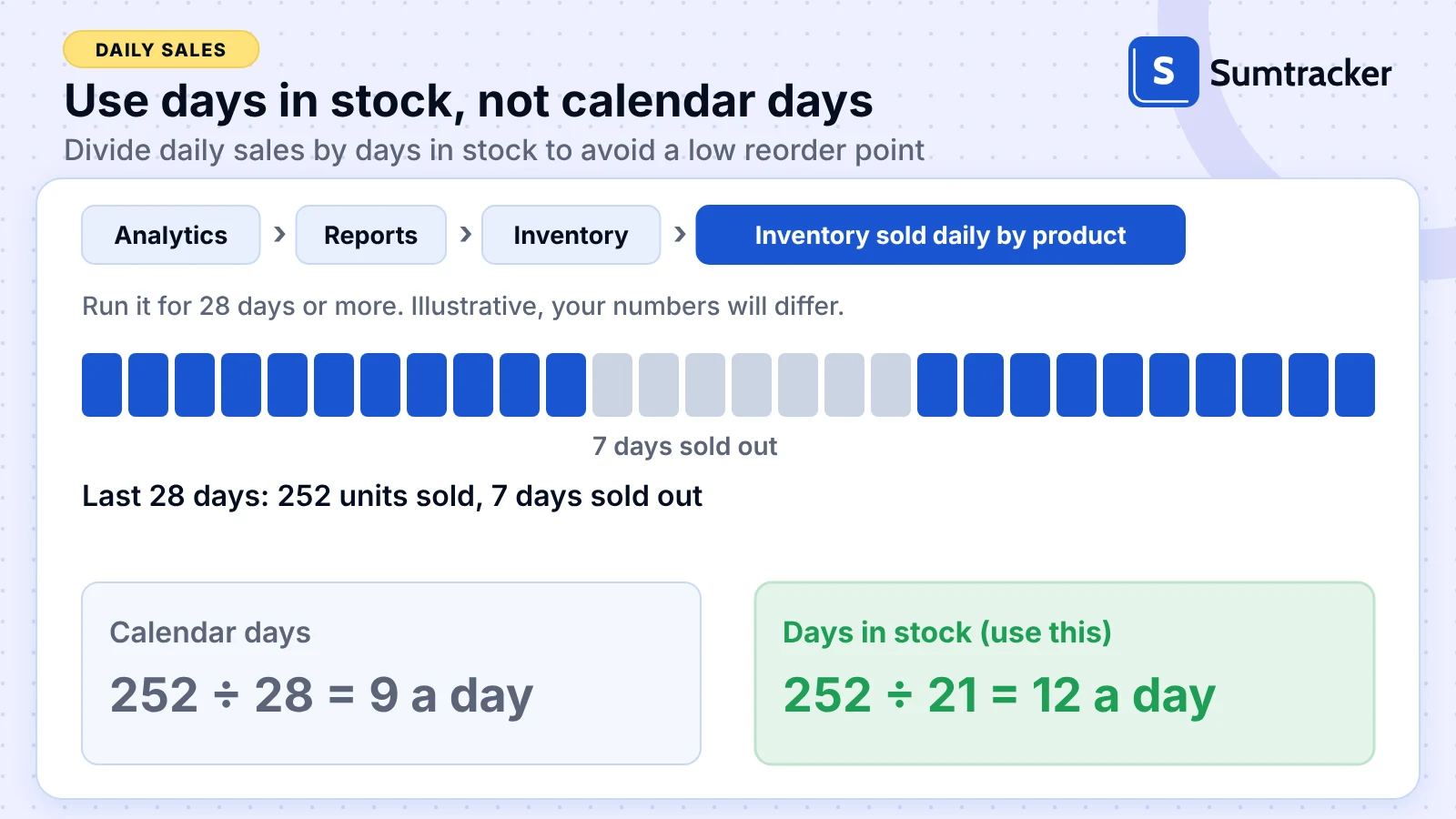
Dividing by calendar days gives 9 a day and a reorder point of 252 (9 × 21 plus 63 for 7 safety days). Dividing by days in stock gives 12 a day and 336, so ignoring the sold-out days leaves this SKU 25% short of the stock it needs.
Now try it on one of your own products. Change the numbers and the result updates as you type:
If days in stock is lower than the days in the period, the yellow line shows how far a plain average would leave your reorder point short, so a sold-out product is never planned from zero-sales days.
How to Calculate Safety Stock: 3 Methods Compared for Shopify Inventory
Safety stock is extra inventory held back to cover demand fluctuations and supplier delays. The desired safety stock quantity depends on how predictable customer demand is, how consistent supplier lead times are and how much risk of a stockout your business can accept.
For the example SKU, a 21-day lead time calls for 31, 84 or 308 units depending on the method, so the method is a business decision, not a detail of the maths.
Choosing the right safety stock level helps maintain enough stock to meet future demand without tying up too much cash in excess inventory.
- Days of cover: Safety stock = Average daily sales × Safety days. 12 × 7 = 84. It is the simplest method and works well when demand is predictable, but it does not account for sudden changes in sales trends.
- Service level: multiply the service-level factor (1.65 for 95%) by the standard deviation of daily sales (4 units for this SKU) by the square root of the lead time in days. In a spreadsheet:
=NORMSINV(0.95)*STDEV.S(daily sales)*SQRT(21). The result is about 30, which rounds up to 31. It works best when demand patterns are relatively consistent, but promotions and sudden sales spikes can make the calculation less reliable. - Worst case: Safety stock = (Max daily sales × Max lead time) − (Average daily sales × Average lead time). With a best day of 20 units and a slowest delivery of 28 days: 560 − 252 = 308.
The worst-case reorder point sits 224 units above the days-of-cover one. At a $9 unit cost, that is $2,016 of cash held in the warehouse as insurance.
Rule of thumb: match the method to the cost of a stockout. Shopify's ABC analysis ranks products by their share of sales over the last 28 days, roughly 80%, 15% and 5% for A, B and C. Use service level or worst case for A products, where a stockout loses the most revenue, and days of cover for B and C.
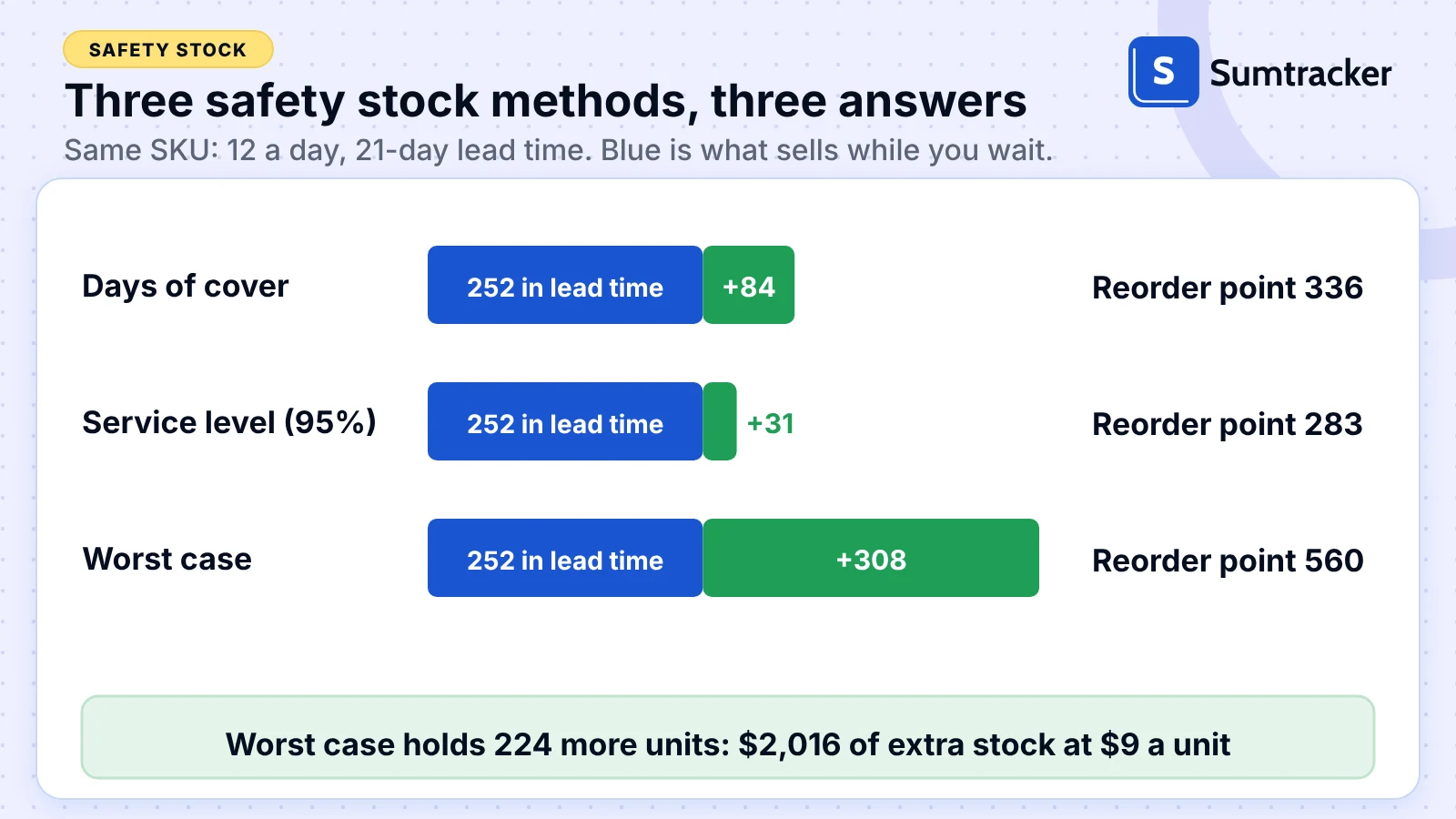
Choose the method by what a stockout costs you, not by habit: keep worst case for the few A products where a stockout hurts most, and use days of cover for the rest so you do not tie up $2,016 per SKU in extra stock.
Numbers on a page only go so far, so test the three methods against a late supplier. Pick a method, then slide the delay and the sales spike to see what is left on the shelf when the order lands:
Set the delay to 7 days with normal sales: days of cover lands with 0 units to spare, the service-level reorder point is 53 units short, and worst case still has 224 left. Add 60% more sales on top and only worst case holds (22 units left), which is what its extra $2,016 of stock pays for.
Plug your own SKUs into the calculator to get a reorder point for each one.
How to set a reorder point in Shopify with a variant metafield and a Shopify Flow low stock alert
Store each reorder point in a variant metafield and build a Shopify Flow workflow that notifies your buyer when a variant's stock falls to that number.
- Open Settings → Custom data → Variants, choose Add definition, and create an integer metafield named Reorder point.
- Enter each variant's reorder point on its variant page, or in the product bulk editor with the metafield added as a column.
- In Shopify Flow, create a workflow that starts with the inventory quantity changed trigger.
- Add a condition that the new quantity is at or below the variant's Reorder point metafield.
- Add a second condition that the prior quantity was above the reorder point, so the workflow fires once when stock crosses the line instead of after every sale below it.
- Add an action that emails your buyer or posts to Slack with the SKU, location and quantity.
- Test the workflow on one product by adjusting its stock across the line before you roll it out.
Tip: when the alert arrives, create the order from Products → Purchase orders in Shopify, or in your purchasing tool. Shopify does not raise it for you.
Common mistake: a Flow quantity condition reads one location's stock. If you stock several locations, build the reorder point from that location's sales, not the store total.
If you relied on Stocky for reorder suggestions, note that it stopped on August 31, 2026; our Stocky migration guide covers the options.
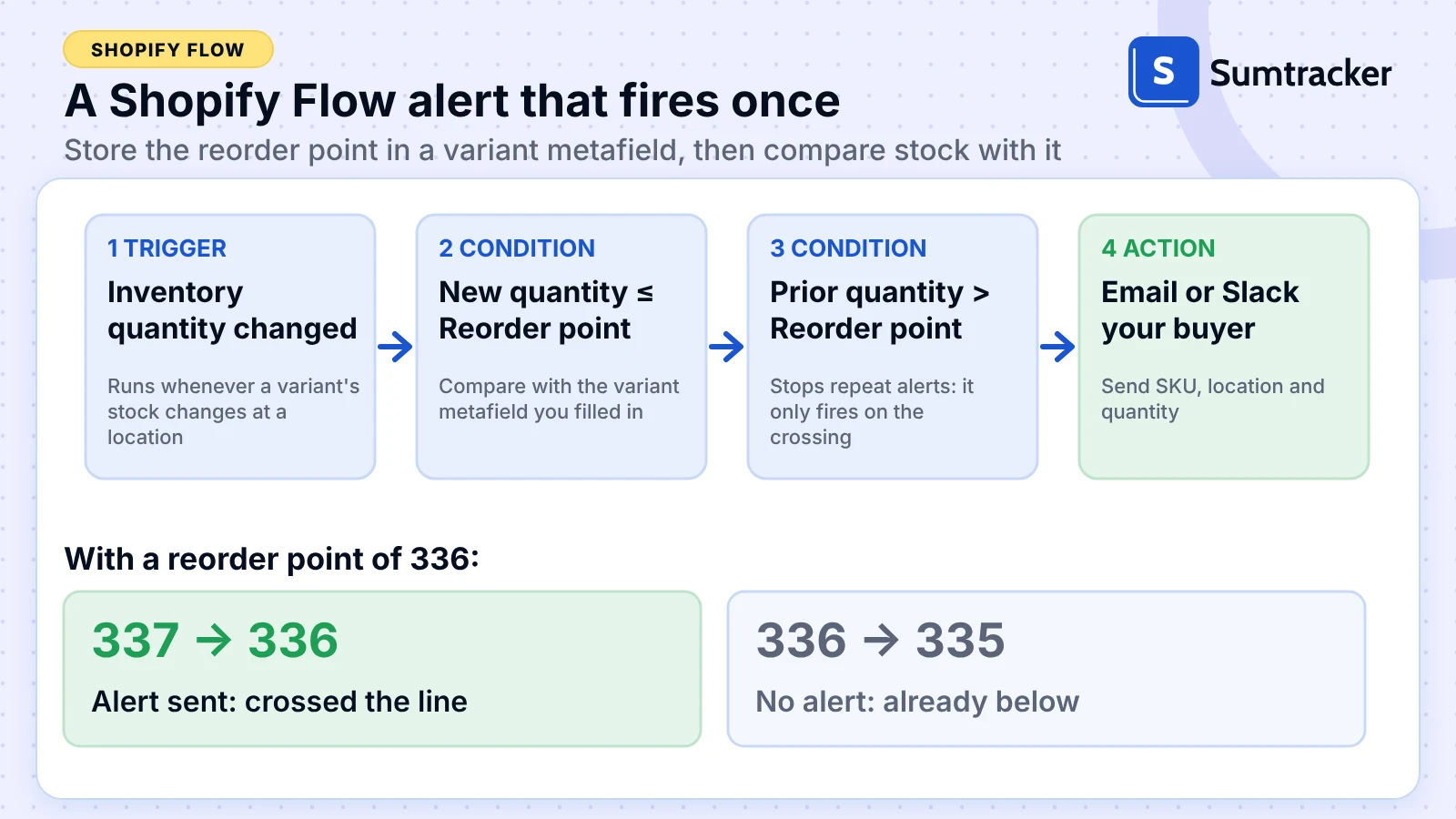
The prior-quantity condition is what makes the alert useful: it fires once at 337 → 336 and stays silent at 336 → 335, so your buyer gets one message per crossing instead of one per sale.
When the reorder point formula breaks: MOQs, bundles, new products, seasons and multiple locations
The standard formula assumes steady demand, one stocking location and orders of any size. When one of those is false, change the input rather than the formula.
Rule of thumb: the reorder point decides when to order, and the MOQ only changes how much. If the MOQ is many weeks of sales, the extra cost is carrying stock, so compare it with the discount the larger order earns.
FAQ
How often should I update reorder points?
Review them quarterly and recalculate straight away after a supplier changes lead time, a promotion shifts sales, or a peak season approaches. A reorder point is built from past sales and lead times, so it goes stale as either changes.
Can Shopify create purchase orders automatically at the reorder point?
No. Shopify lets you create purchase orders yourself, and Shopify Flow can alert someone when stock crosses a threshold, but Shopify does not raise a purchase order from a reorder point on its own. Inventory apps can suggest orders.
How is a reorder point different from safety stock?
Safety stock is the buffer held for demand spikes and late deliveries. The reorder point is the stock level that triggers an order, and it equals the units you expect to sell during lead time plus that buffer.
Is it safe to set safety stock to zero?
Only when demand is steady and the supplier delivers on the same day count every time, which is rare. With zero safety stock, any late delivery or sales spike turns directly into a stockout.
Conclusion
Start with your five fastest-selling products: calculate their reorder points, save them in a metafield and switch on the Flow alert, then work down the catalog and recheck before Black Friday on November 27. That is the practical way to set reorder points in Shopify without waiting for a stockout to show you the number. The calculator above does the sums for any SKU, and Sumtracker can take over the reorder dates once the spreadsheet stops scaling.
Related Articles
Tool and strategies modern teams need to help their companies grow.



Ready to Simplify Your Inventory Management?
Join hundreds of e-commerce merchants who rely on Sumtracker to save time, eliminate errors, and grow their business.