.svg)
Common Shopify Inventory Mistakes and How to Avoid Them


A Shopify inventory mistake rarely looks like a mistake at first.
You add a product, receive some stock, make a few inventory adjustments, and keep selling.
The problem usually shows up later when Shopify says you have 20 units left, your warehouse has 12, and you can’t figure out where the other 8 went.
Before you start: pick a few products with recent inventory discrepancies and check their adjustment history, current stock, recent orders, and connected apps. This gives you a quick way to see whether the problem is a one-time error or part of a bigger inventory issue.
What you’ll learn: This guide covers the most common Shopify inventory mistakes across setup, variants, daily workflows, multiple locations, sales channels, third-party apps, and seasonal demand. You’ll also learn how to spot the warning signs, diagnose what’s causing the discrepancy, and fix it without creating another inventory problem.
What Makes Shopify Inventory Mistakes So Common
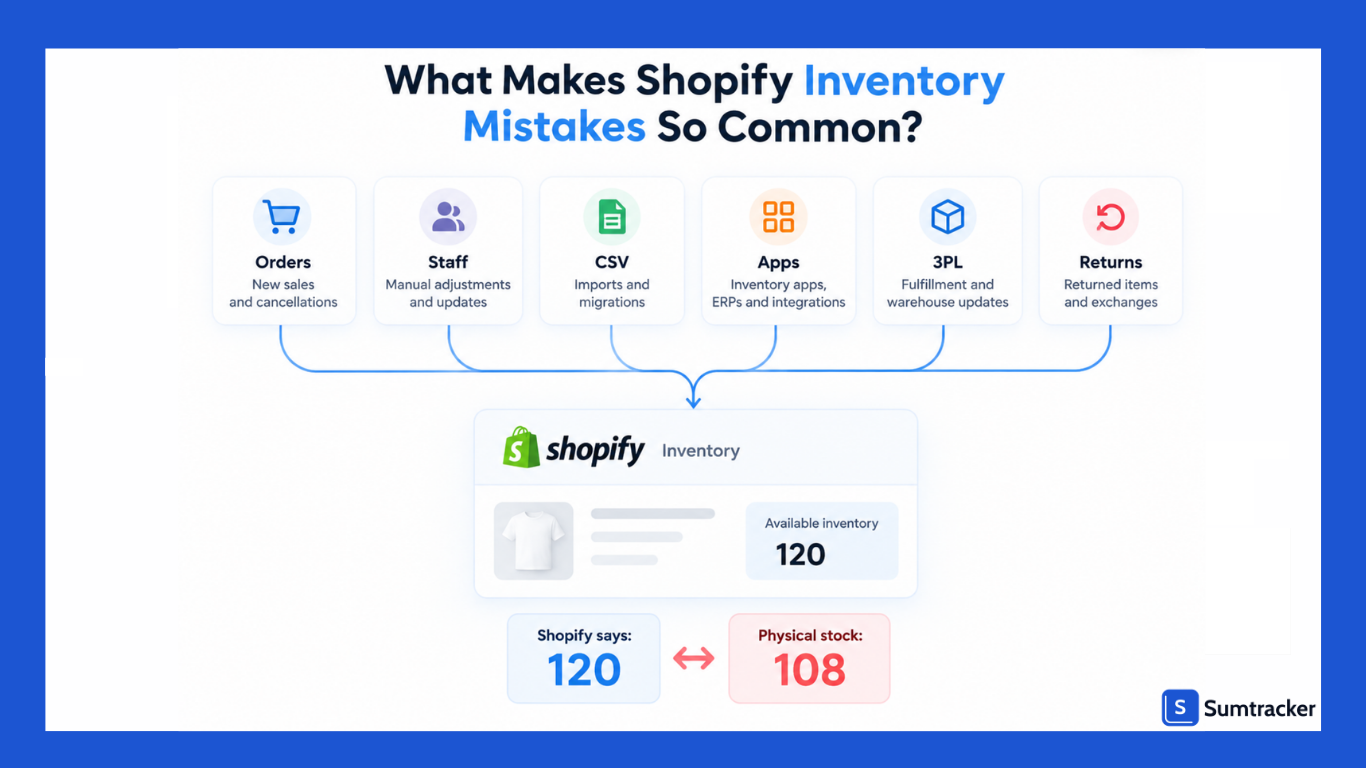
Shopify inventory problems rarely start with a major error.
More often, they begin with something small: a variant that isn't being tracked, a CSV import that overwrites a recent change, two apps updating the same inventory, or stock being received twice.
The problem is that these small errors can compound over time.
A number that looks correct in Shopify may not reflect what's actually available to sell once you account for committed, unavailable, incoming, and on-hand inventory.
When multiple people, apps, sales channels, or fulfillment systems change inventory, it becomes increasingly difficult to identify where the discrepancy started.
Inventory distortion is also a much larger problem. IHL Group's 2026 study estimates that inventory distortion costs retailers $1.7 trillion globally each year, equivalent to 6.2% of global retail sales.
The study covers more than 4,500 enterprise retailers with at least 50 locations, so these figures aren't directly representative of small Shopify stores.
However, the underlying problems like stockouts, overstocks, and supplier and planning issues can affect businesses of any size.
For a deeper look at how Shopify's inventory states work, see our guide to Shopify committed inventory.
Practical tip: If Shopify's numbers don't match what you see physically, don't change the quantity right away. First check recent orders, inventory adjustments, transfers, returns, and connected apps to find out where the discrepancy came from.
Setup and Migration Mistakes
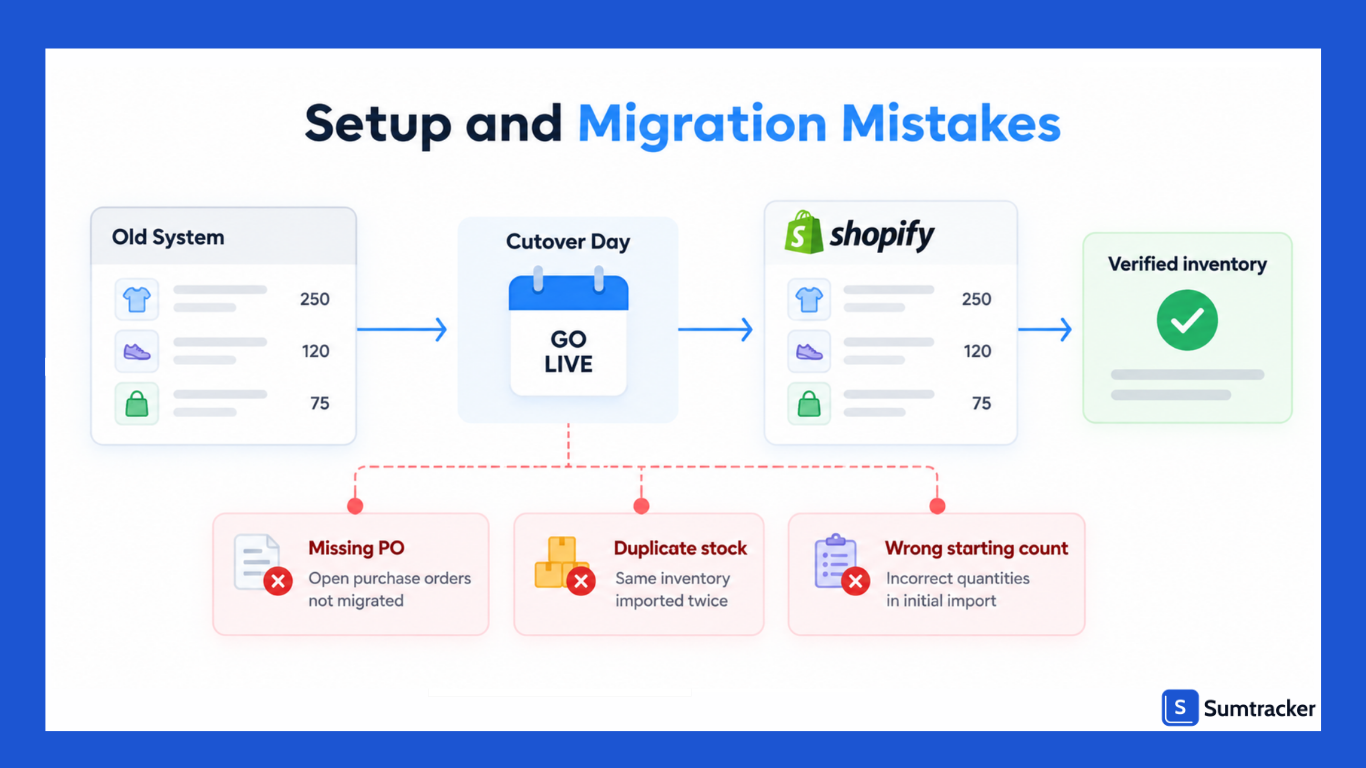
Setup mistakes are costly because later calculations depend on them. They usually happen when you set up a store, add a location, import stock in bulk, or switch from one inventory tool to another.
Not Tracking Inventory on Every Stocked Variant
If Track quantity is turned off for a variant, Shopify can’t track how many units you have.
The product can continue to be purchased even when you've sold all the stock you physically have.
Make sure inventory tracking is enabled for every variant you want Shopify to track. If you have multiple locations, also check that the product is stocked at the correct locations.
This is particularly easy to miss when products are created through imports or third-party apps.
Assuming a New Location Is Ready to Sell From
Adding a new location doesn't automatically make your existing products available there.
New products are assigned to all locations with a quantity of 0, but existing products aren't automatically stocked or activated at a newly added location. Each location has its own inventory.
Another issue here is easy to miss. If you record stock at a location where the product isn't active, the Available column shows a dash.
This can happen after transfers, receiving, bulk edits, or CSV imports because those actions can add or change the quantity without activating the product at that location.
Importing a CSV That Overwrites Recent Sales
Shopify provides some protection against this with the All states inventory CSV format. It includes On hand (current) and On hand (new) columns.
When both are included, Shopify compares the quantity in your file with the current inventory.
If the quantity has changed since the export, Shopify skips that row and emails you the details. The simpler Available format doesn't offer the same protection.
Migrating Tools Without a Cutover Plan
Switching inventory systems gets tricky when stock is still moving during the migration.
Orders are being placed, purchase orders are arriving, and transfers may already be in progress.
If you update both the old and new systems during this period, it's easy to duplicate or miss inventory changes.
Stocky is a good example from 2026. Stocky shut down on August 31, 2026, and its APIs stopped on the same date.
Shopify moved workflows such as suppliers, purchase orders, receiving, and transfers into Shopify Admin, but it wasn't a one-to-one migration. Past purchase orders and stocktakes didn't transfer automatically.
Note: If you moved off Stocky, check for open POs that weren't recreated, missing supplier records, and stock that was received in both the old and new systems.
Case Study: Babymaxi's Move From One Warehouse to Multiple 3PLs
Babymaxi, an Amsterdam-based online retailer of baby carriers and babywearing gear, moved from an in-house warehouse to two 3PL partners.
During the move, the team didn't have a central view of where its stock was and saw 5–7 overselling incidents per month.
After centralizing transfers, purchase orders, and Shopify sync, Babymaxi reports that overselling dropped to near zero. Weekly inventory work also fell from around 10 hours to about 3 hours. (Babymaxi case study)
During a migration, stock that's moving between locations should be recorded as a transfer rather than removed from one location and manually added to another.
This keeps the movement visible and makes it easier to avoid missing or double-counting stock.
Product and Variant-Level Inventory Mistakes
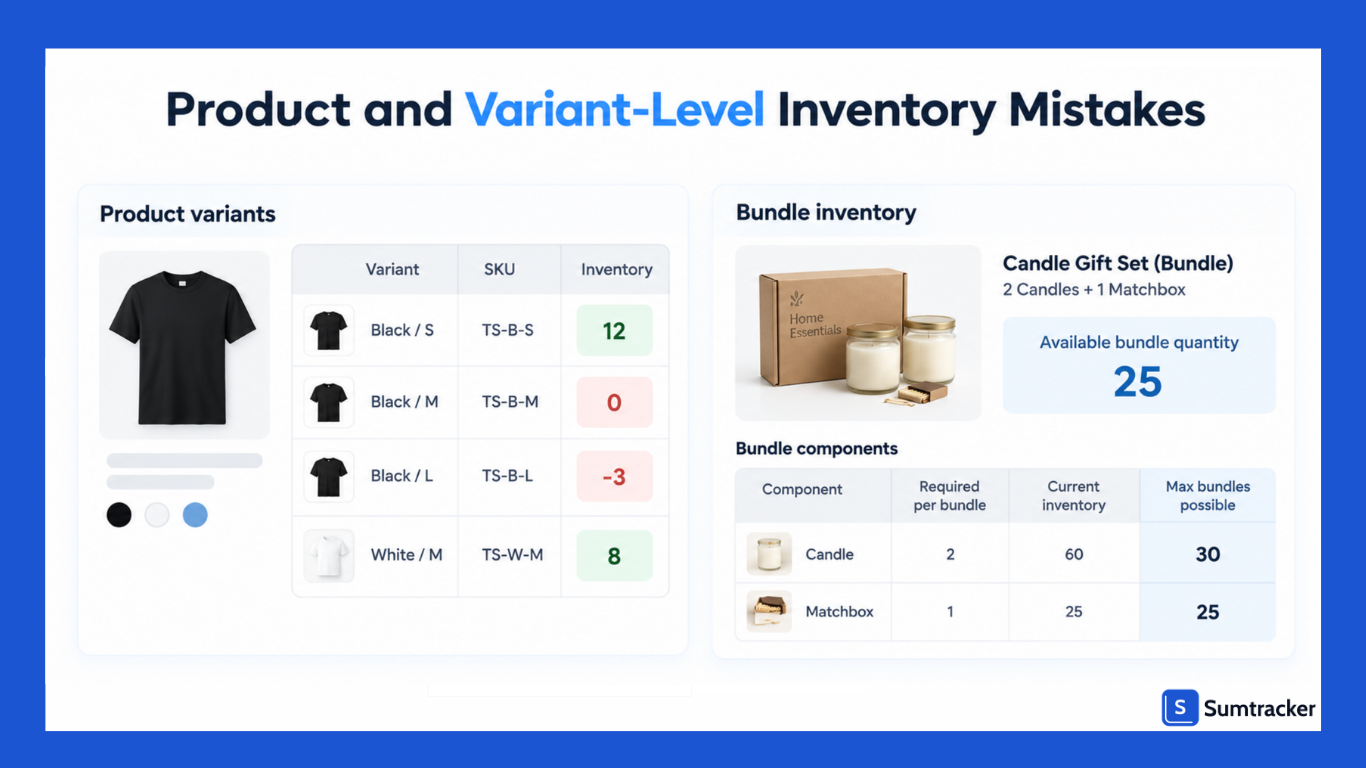
Shopify tracks stock at the variant level. A T-shirt in five sizes and four colors is 20 separate stock records, which gives small errors plenty of places to hide.
Leaving "Continue Selling When Out of Stock" On
Shopify lets you choose what happens when a variant reaches zero inventory: you can stop selling it or continue selling it. The API represents these options as DENY and CONTINUE, and the setting applies at the variant level rather than the location level. (Sumtracker)
The problem is when Continue selling when out of stock is turned on for convenience and then forgotten.
The variant can go into negative inventory, leaving you with orders you can't fulfill on time. It also doesn't give customers the same clarity as a proper pre-order setup with an expected delivery date.
Rule of thumb: Use continue selling when you have confirmed incoming stock, know when it is expected to arrive, and can communicate that timeline to customers.
Duplicate or Missing SKUs
Most inventory apps, 3PLs, and marketplaces use SKUs to match products and variants. If two variants share the same SKU, or a variant lacks one, a sync can update the wrong item or skip the variant altogether.
This often happens when you duplicate an existing product to create a new color or style and forget to update its SKU.
Scaling Variant Counts Without Testing Your Apps
Shopify now allows up to 2,048 variants per product for all merchants. However, apps that don't use Shopify's supported GraphQL product APIs may experience issues with products that have more than 100 variants.
Other limits still apply. A product can have up to three options, and Liquid limits product variants to 250 variants, so your theme may not load every variant on a product with a large number of variants.
Before combining several products into one large product, test your inventory, feed, and fulfillment apps with a product that has more than 100 variants.
Tracking Bundles as Separate Stock
If you sell a 3-pack as its own product with its own inventory count, it won't drop when singles sell, and singles won't drop when the pack sells. Both records can drift.
As per Shopify.dev, a fixed bundle can have up to 30 components, and nested bundles aren't supported.
Mix-and-match or more complex bundles usually need a tool that calculates bundle stock from components.
Most tools use this formula for fixed bundles:
Bundle availability = lowest value of (component available ÷ units of that component per bundle)
So if a gift set needs 2 candles and 1 matchbox, and you have 40 candles and 15 matchboxes, you can sell 15 sets.
Why Customers Notice
Variant errors show up as "sold out" on items you have, or orders for items you don't. Both cost you. A DOSS survey found shoppers hit online stockouts about three times a year, and when it happens, 45% buy from a different retailer while 32% temporarily switch brands (Chain Store Age).
Operational and Workflow Mistakes
Even a clean setup can fail if daily processes are loose. These mistakes come from how your team receives, adjusts, counts, and restocks.
Adjusting Stock Without a Reason
Shopify lets you record why stock changed. Reasons include Correction, Count, Received, Return restock, Damaged, Theft or loss, and Promotion or donation. If you don't pick a reason with the "Set to" method, the history shows only "Manually adjusted."
A history full of those entries makes it very hard to trace where units went.
Using "Set To" When You Mean "Adjust By"
"Set to" records a new quantity with a reason. "Adjust by" lets you pick an origin and a destination, like moving units into Safety stock or out of Quality control.
Using "Set to" for everything hides the movement behind a change.
Receiving Stock Outside the Purchase Order Flow
Shopify's purchasing system got a meaningful update this year. Since June 22, 2026, receiving a purchase order creates a linked transfer.
You can receive it in the admin or on POS, and one transfer can hold multiple shipments for partial deliveries while staying linked to its PO.
If you skip this and just type in new quantities, you lose the link between what was ordered, what arrived, and what it cost.
You also make it easy to receive the same shipment twice (you'll see exactly what that costs in the compounding example below).
Counting Rarely, or All at Once
A single annual count lets inventory errors build up for months.
Auburn University RFID Lab researchers estimated that a typical brick-and-mortar retailer without RFID has around 60% SKU-level inventory accuracy. This shows how quickly manual inventory records can drift.
Cycle counting helps catch these errors earlier. Shopify POS supports planned inventory counts, which can be run from a phone or tablet.
SKU-level accuracy (%) = SKUs where system count matches physical count ÷ SKUs counted × 100
Restocking Returns Before Inspecting Them
Returns often go straight back to Available, even when they're damaged or missing parts. Route them to Quality Control first, and move them to Available only after inspection.
Multi-Location and Multi-Channel Inventory Mistakes
The more places you store and sell stock, the more ways the numbers can split. Shopify handles its own online store, POS, and locations well. Most problems appear at the edges.
Moving Stock Without Using Transfers
Subtracting stock at one location and adding it at another leaves no record of units in transit.
Shopify transfers let you move and track stock between your locations, or to and from external locations like suppliers, and automatically create shipments when you process a transfer.
📺 Watch: How to move inventory between locations in Shopify
Misreading Which Stock Shows Online
A location that doesn't fulfill online orders, such as a retail-only store, can have inventory that counts toward your total but not toward the quantity available online.
That's why a product can show “sold out” online even when Shopify Admin shows stock at another location.
Order routing matters too. Shopify decides which location fulfills an order based on your routing and shipping profile settings.
If you use a 3PL, review how its location is configured.
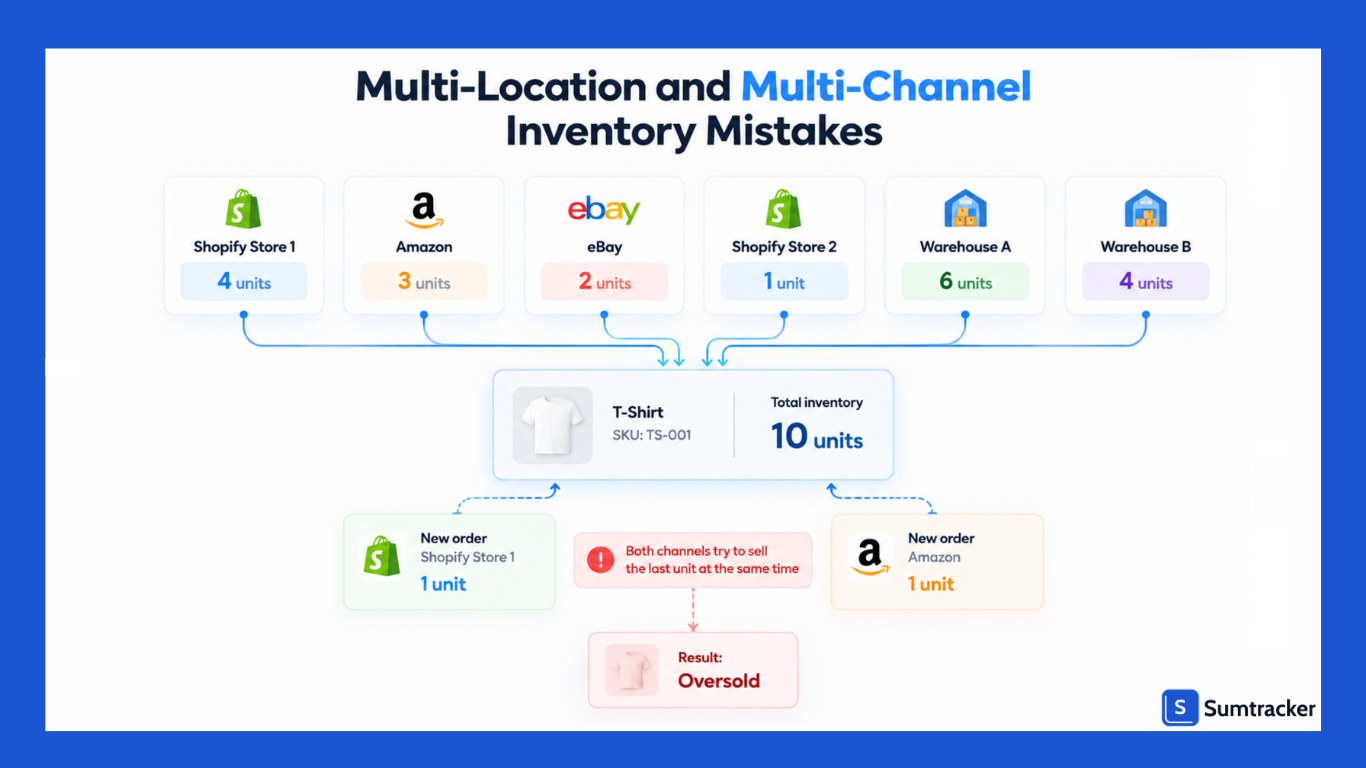
Selling on Several Channels Without a Single Source of Truth
Shopify's own Marketplace Connect app can sync listings, orders, and inventory with some marketplaces. It supports Amazon, eBay, Walmart (US only), and Target Plus (US only), though you can't add new Etsy connections right now.
Etsy, other marketplaces, and multiple separate Shopify stores sharing one stock pool usually need a third-party sync tool like Sumtracker.
If your channels keep separate counts, the last unit can sell twice. The in-store version of this is common.
In GreyOrange's June 2026 survey of 1,035 US shoppers, 57% said that in the previous 90 days they'd found items marked "available" online that were actually out of stock in stores.
Case study: Crafter's Lab across multiple Shopify stores
Crafter's Lab, a US seller of custom products, ran several Shopify stores and marketplaces from the same stock. After moving to real-time sync, bundle tracking, and automated reordering, the brand reports cutting overselling by 99.7% and saving 8–10 hours a week.
Third-Party App Conflicts and Inventory Drift
Inventory drift is when the gap between your records and your shelves grows slowly, with no single obvious error. Apps are a frequent cause.
Letting More Than One App Write to the Same Location
Inventory apps, ERPs, WMSs, 3PL connectors, and POS integrations can all change stock. Shopify's adjustment history includes a "Created by" column showing whether a staff member, app, or sales channel made each change.
If two different apps keep setting quantities on the same variant, they're probably overwriting each other.
The classic pattern: App A reads stock, a sale happens, App B updates stock, then App A writes back its older number. The sale disappears from the record.
Relying on Apps That Only Listen for Changes
Not every inventory movement triggers a signal to outside apps. Shopify's developer docs note that changes to the committed, reserved, damaged, safety_stock, and quality_control states don't trigger webhooks.
An app that only reacts to webhooks can miss these changes. Apps that also reconcile inventory periodically can catch discrepancies that webhook-only syncing misses.
Keeping Old Apps Installed "Just in Case"
An app you've stopped using may still have permission to edit inventory. Uninstall anything you don't rely on, and confirm that disconnected integrations aren't still writing.
Seasonal and Demand-Related Inventory Mistakes
Seasonal mistakes are about the future, and many stores blur three different jobs together. It helps to separate them first.
Forecasting predicts. Planning decides. Replenishment executes.
A great forecast with no plan ties cash up in the wrong stock. A great plan with sloppy replenishment still runs out.
Using the Same Reorder Settings All Year
Peak demand is lumpy. US shoppers spent a record $257.8 billion online during the 2025 holiday season, up 6.8% year over year.
So, your reorder points based on summer sales won't hold up in November.
Running Promotions Without Checking Stock
Marketing and inventory often plan in separate rooms. A campaign goes live, sells out in two days, and the ads keep running.
🎧 Listen: On the Winning With Shopify podcast, host Nick Trueman talks with Alan Grimsley about five Shopify inventory mistakes, including running out of stock, overstock, cash flow, data visibility, marketing without inventory, and ignoring lead times.
Forgetting That Lead Times Stretch in Peak Season
Suppliers and carriers slow down before big holidays. If your normal lead time is 21 days, plan for longer in Q4, and update the number in your formula, not just in your head.
Letting Stockout Days Distort Your Forecast
If a product was sold out for two weeks, its history shows zero sales for those days. Forecasts built on that history come out too low. Leave stockout days out when you calculate average daily sales. The next section shows how much this matters.
How to Diagnose Shopify Inventory Errors
Diagnosis means finding where the gap started before you change anything. Fix the number without finding the cause, and it usually comes back.
1. Confirm the basics
Is the variant tracked, active at the right location, and set to the right out-of-stock policy?
2. Read the adjustment history
Shopify shows the last 180 days of history per product or variant. For older data, the Inventory adjustment changes report lets you filter by SKU, location, staff member, app, and reason.
Look for:
- Big jumps with no reason attached
- Two apps changing the same variant close together
- "Transfer created" entries next to a manual addition of the same size (a sign of double receiving)
- Reservation entries. Draft order reservations show as Committed, while third-party app holds show as Unavailable.
3. Compare against a fresh count
Count when no picking is in progress, and compare to On hand, not Available, since Available excludes units waiting on orders.
4. Match the symptom to a likely cause
How to Fix Inventory Errors Once They Happen
Once you know the cause, fix the record and the process together. This order works for most stores:
- Pause the extra writers. If an app conflict caused it, pause the extra sync before correcting stock, or your fix may get overwritten.
- Handle open orders first. Contact customers with oversold orders. Offer a realistic ship date, a substitute, or a refund. Speed matters more than the perfect wording.
- Count and correct with reasons. Use "Count" for counts and "Correction" for fixes. Move unsellable units into the right Unavailable state instead of deleting them.
- Use safe bulk updates for big fixes. For many SKUs, export an All states CSV, update "On hand (new)," and import. Rows that changed since your export get skipped and reported instead of overwritten.
- Fix the root cause. Remove the duplicate app, tighten receiving, clean up SKUs, or change the variant policy. A corrected count without a process change doesn't last.
- Rebuild affected forecasts. Exclude stockout days from recent sales and recalculate reorder points for affected SKUs.
- Set up alerts. Shopify suggests an inventory alert app or Shopify Flow for low stock notifications.
- Recheck in one to two weeks. Recount the affected SKUs to confirm the fix held.
Conclusion
Most Shopify inventory problems don't come from one major mistake. They build up through small errors in setup, stock adjustments, receiving, transfers, apps, or forecasting.
By the time you notice the problem, the result can be a stockout, an oversold order, or inventory numbers that no longer match what you actually have.
The first step is to find the source of the discrepancy instead of simply changing the quantity.
Check your adjustment history, recent orders, transfers, returns, and connected apps. Then fix the process that caused the error so the same problem doesn't keep coming back.
As your store grows, regular inventory counts, clear receiving and transfer processes, and a single source of truth for inventory become increasingly important.
If you're looking for a way to keep inventory synced across Shopify stores, marketplaces, and locations, Sumtracker can help you manage inventory from one place.
Frequently Asked Questions
What are the most common Shopify inventory mistakes?
Common mistakes include not tracking inventory for variants, using incorrect SKUs, managing bundles as separate stock, making unexplained manual adjustments, receiving stock incorrectly, moving inventory without transfers, and allowing multiple apps to update the same inventory.
Why is my Shopify inventory quantity incorrect?
Incorrect inventory can come from manual adjustments, CSV imports, unrecorded transfers, returns, duplicate receiving, or third-party apps changing the same inventory. Check the product's adjustment history and recent inventory activity to find the source.
How do I prevent inventory discrepancies in Shopify?
Use consistent processes for receiving, transfers, returns, and stock counts. Make sure every stocked variant is tracked, keep SKUs consistent, review connected apps regularly, and reconcile physical stock with Shopify inventory on a regular schedule.
Can multiple Shopify apps cause inventory problems?
Yes. If multiple apps, ERPs, 3PLs, or other systems update the same inventory, they can overwrite each other's changes or create inventory drift. Check the Created by information in Shopify's adjustment history to see which system is changing the quantity.
How often should I count Shopify inventory?
There isn't one schedule that works for every store. A practical approach is to count high-value or fast-moving SKUs more frequently and slower-moving products less often. Cycle counting can help you catch discrepancies before they become large.
How do I fix Shopify inventory discrepancies?
Start by comparing Shopify's quantity with a physical count. Then check recent orders, adjustments, transfers, returns, CSV imports, and connected apps to identify the cause. Correct the quantity using the appropriate inventory adjustment reason, then fix the process that caused the discrepancy.
Conclusion

Bhoomi writes about inventory management and multichannel selling at Sumtracker. Her focus is on solving real operational problems for Shopify, Amazon, and marketplace sellers through well-researched content. She covers everything from multi-location inventory syncing and stock error troubleshooting to replenishment planning and platform comparisons, turning complex eCommerce operations into clear, actionable guidance.
LinkedInRelated Articles
Tool and strategies modern teams need to help their companies grow.


Ready to Simplify Your Inventory Management?
Join hundreds of e-commerce merchants who rely on Sumtracker to save time, eliminate errors, and grow their business.
