.svg)
Shopify POS Inventory Management Features: Complete Guide


Are you selling through both the Shopify store and retail locations?
And now you are not sure how to manage inventory between the two?
As your business grows, keeping inventory synchronized across online and in-store sales becomes increasingly difficult. Every sale, return, exchange, or stock transfer affects your inventory, making manual tracking both time-consuming and error-prone.
In fact, more than 60% of retailers are prioritizing POS software upgrades or replacement, highlighting the growing need for better retail and inventory management.
Shopify POS addresses this by centralizing inventory across your Shopify store and retail locations. In this guide, we'll explore its inventory management features, how they work, where they fall short, and when you might need additional inventory management software.
What is Shopify POS Inventory Management?
Shopify POS inventory management is Shopify's built-in system for tracking inventory across your retail stores, warehouses, and online store from a single platform.
Whenever you sell, return, exchange, or transfer a product between locations, Shopify automatically updates inventory levels.
This is unlike those traditional POS systems that only track inventory from physical stores; Shopify POS helps in managing both your online and in-store inventory.
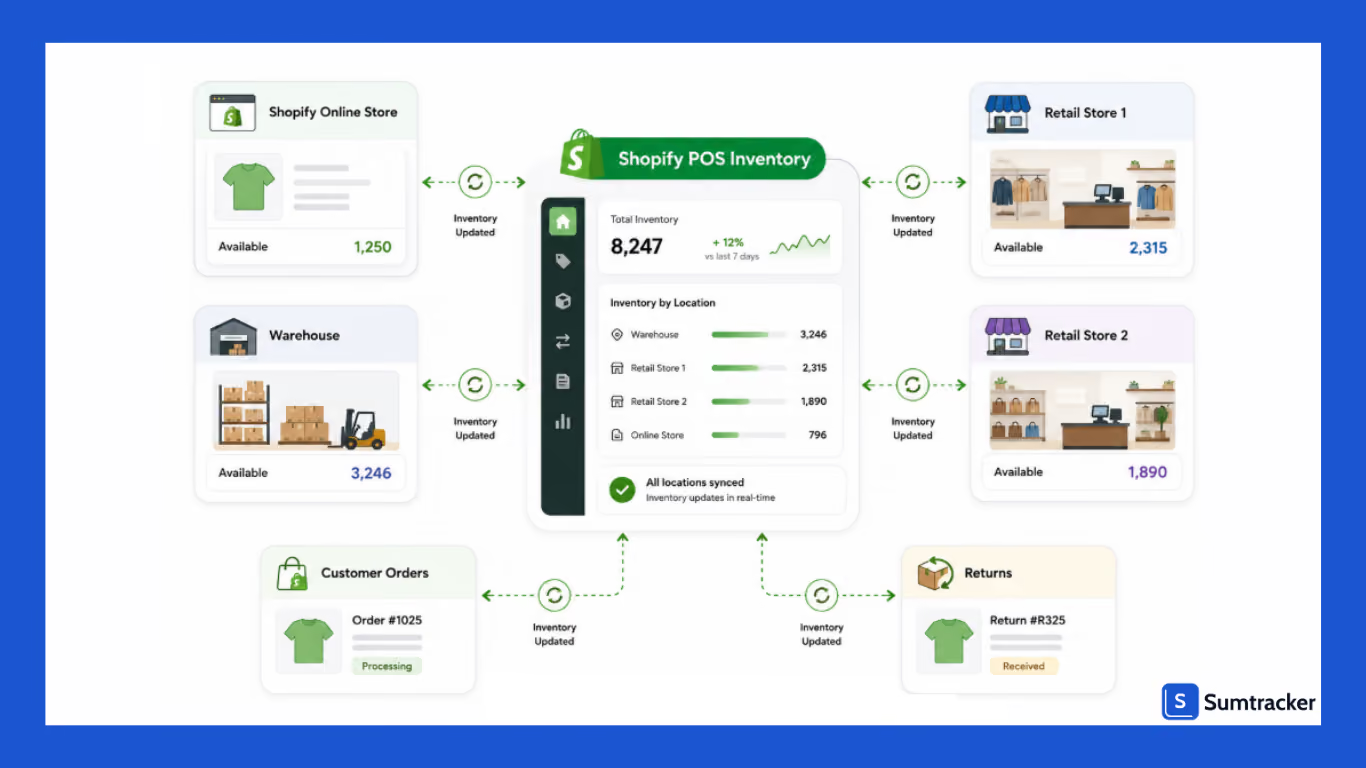
One of the key concepts behind Shopify POS inventory management is location-based inventory.
Every retail store, warehouse, pop-up shop, or fulfillment center you add to Shopify is treated as a separate inventory location.
Each location maintains its own stock levels, allowing you to see exactly where inventory is available and fulfill orders from the most appropriate location.
Core Shopify POS Inventory Management Features
Shopify POS includes a range of inventory management features that help retailers keep stock accurate across physical stores and online sales channels.
It provides the essential tools needed to track inventory movement, manage multiple locations, and reduce manual inventory updates.
Let's look at the key inventory management features available in Shopify POS.
Real-Time Inventory Sync Across Online and In-Store Sales
You can keep your inventory in sync with Shopify POS's.
Every time a product is sold, returned, exchanged, or restocked, Shopify adjusts the inventory quantity for the corresponding location.
For example, imagine you sell through both your Shopify website and a retail store in Chicago.
A customer purchases the last coffee grinder online for in-store pickup. Since the order is assigned to your retail location, Shopify immediately updates the available inventory.
If a store associate checks inventory moments later, they'll see that the product is no longer available, preventing an accidental oversell.
Real-world example:
An electric mobility retailer, Weebot, implemented Shopify POS to centralize inventory across its retail stores and warehouses.
As a result, the company reported a 15% increase in retail revenue, a 50% reduction in in-store processing time, and a 50% improvement in customer satisfaction.
Centralized inventory visibility also enabled staff to locate products faster and arrange fulfillment from any location.
Read the full case study here.
Multi-Location Inventory Tracking
You may be dealing with several retail stores, a warehouse, or temporary locations for pop-up events.
Shopify lets you create multiple inventory locations, each with its own stock levels. Instead of viewing inventory as one combined quantity, you can see exactly how many units are available at each location.
One thing to plan for is that when you add a new location, your existing products aren't automatically stocked or activated there.
Each product needs to be explicitly assigned to the new location before it can be tracked or sold from it.
Barcode Scanning and SKU Management
You can speed up your everyday inventory counting with the help of barcode scanning.
Shopify identifies products using SKUs, making it easier to organize and manage inventory, especially when products have multiple variants such as size, color, or style.
For example, instead of searching manually for a "Blue Medium Hoodie," an employee can simply scan the product's barcode or search using its SKU, making transactions and inventory counts much faster.
Inventory Transfers Between Locations
After the sunset of Stocky, Shopify's transfer system now runs natively through Shopify Admin and Shopify POS together, with fulfillment and receiving both handled directly inside the POS app.
A typical workflow looks like this:
- Create a transfer from the source location (in Shopify Admin, under Products > Transfers).
- Select the destination location.
- Add the products and quantities being moved.
- Fulfill (ship) the transfer — staff can do this from Shopify POS, with barcode scanning and packing slip printing.
- Receive the transfer at the destination — also directly in Shopify POS, with support for partial receiving.
Requirements to note: You need to have a Shopify POS Pro subscription for both the origin and destination locations, and staff need both the Inventory and Manage Transfers permissions to fulfill or receive transfers from the POS app. POS Lite does not support this.
Stock Adjustments and Inventory Counts
With Shopify POS, you can manually adjust inventory quantities whenever necessary.
Regular inventory counts help ensure your system matches what you actually have.
If discrepancies are found, you can update inventory within Shopify to restore accurate records.
Many retailers perform cycle counts throughout the month instead of conducting one large annual inventory count, making inventory management more manageable and reducing operational disruptions.
Adjustment history is also no longer limited to a 180-day window; all inventory changes are now tracked permanently, which is useful for audits and longer-term planning.
Inventory Reports and Low Stock Alerts
Shopify provides inventory reports that help monitor stock levels and identify products that may need replenishment.
You can review inventory by location, check available quantities, and identify items that are running low.
These reports can help answer questions like:
- Which products are close to selling out?
- Which locations need additional inventory?
- What products haven't moved recently?
- Are inventory levels aligned across stores?
Native reporting has limits. Shopify doesn't offer true demand forecasting or bills-of-materials/raw-material tracking out of the box, so businesses with complex operations turn to third-party apps.
Shopify POS Lite vs Shopify POS Pro: Inventory Feature Comparison
Both Shopify POS Lite and Shopify POS Pro allow retailers to sell in person and track inventory, but they're designed for businesses at different stages of growth.
While POS Lite covers the essentials, POS Pro adds features that make day-to-day inventory management much easier for retailers operating multiple stores or handling higher sales volumes.
If you only run a single retail location with a relatively simple inventory setup, POS Lite may be sufficient.
However, businesses with multiple stores, larger teams, or more complex inventory workflows often benefit from the additional tools included in POS Pro.
The table below highlights the key inventory-related differences.
Note: Feature availability may vary depending on your Shopify plan and POS subscription.
When Shopify POS Lite Is Enough
POS Lite works well for merchants whose inventory operations are relatively straightforward.
For example, a boutique clothing store with one retail location and an online Shopify store can comfortably manage inventory using the built-in tools.
POS Lite is typically a good fit if you:
- Operate a single retail location.
- Have a small product catalog.
- Don't require detailed staff permissions.
- Perform inventory counts manually.
- Don't need advanced retail analytics.
For many small businesses, these features are enough to maintain accurate inventory without introducing unnecessary complexity.
When Shopify POS Pro Makes More Sense
If you need to coordinate inventory across multiple stores, give different levels of access to managers and store associates, or make faster decisions about where inventory should be sold or replenished.
POS Pro is designed to support these larger retail operations.
It's particularly useful if you:
- Operate multiple retail locations.
- Have several employees managing inventory
- Need more detailed retail reporting.
- Offer services like in-store pickup.
- Want better visibility into inventory performance across stores.
For example, imagine a retailer with five stores across Texas. One location is consistently selling out of popular products, while another location has excess inventory of the same products.
With the additional reporting and operational tools available in POS Pro, store managers can identify these trends more quickly and redistribute inventory before sales are lost.
Which Option Should You Choose?
The right choice depends on the complexity of your retail operations.
Choose Shopify POS Lite if your inventory workflow is simple and you're primarily looking for reliable inventory tracking during checkout.
Consider Shopify POS Pro if you're managing multiple stores, coordinating larger teams, or need more control over retail operations and inventory management.
It's also worth remembering that POS Pro isn't a replacement for dedicated inventory management software.
While it adds valuable retail features, businesses with advanced requirements often complement Shopify POS with a specialized 3rd-party solution.
How to Set Up Inventory Management in Shopify POS
Setting up inventory management correctly is one of the most important steps before you start selling through Shopify POS.
Whether you're opening your first retail location or expanding to multiple stores, the setup process follows the same core principles.
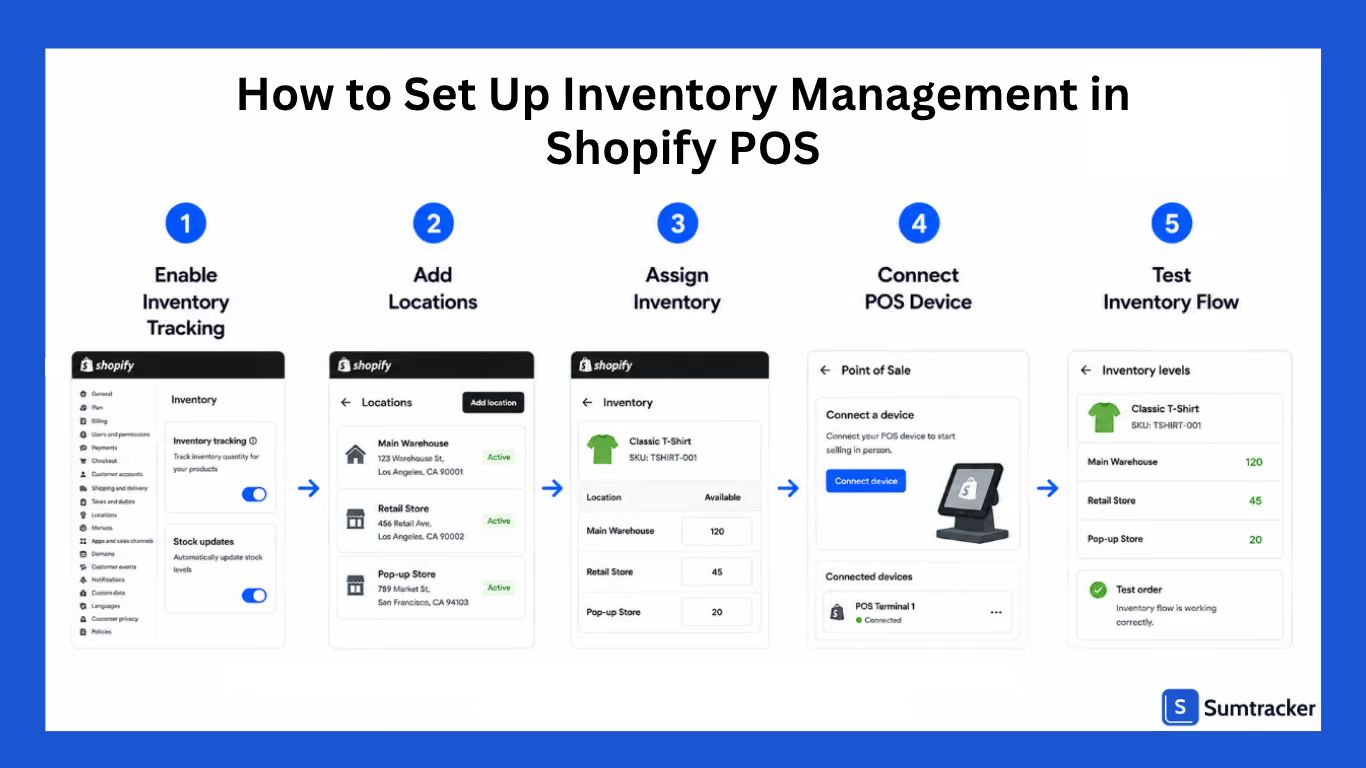
Step 1: Enable Inventory Tracking for Your Products
Before Shopify can track stock, make sure to enable inventory tracking for each product.
From your Shopify admin, open the product you want to manage and enable the Track quantity option.
This tells Shopify to automatically increase or decrease inventory whenever the product is sold, returned, or adjusted.
One thing to keep in mind is that you need to track inventory for each variant separately.
Tip: Review newly imported products to ensure inventory tracking is enabled. It's common for merchants migrating from another platform to overlook this setting.
Step 2: Create and Configure Your Inventory Locations
Shopify manages inventory at the location level, so the next step is to create every place where you store or sell inventory.
Depending on your business, locations may include:
- Retail stores
- Warehouses
- Distribution centers
- Pop-up shops
- Third-party fulfillment locations
Each location maintains its own inventory quantities, allowing Shopify to know exactly where products are available.
Instead of showing one combined inventory number, Shopify tracks stock separately for each location.
Step 3: Assign Inventory to Each Location
Once your locations are created, allocate inventory to the appropriate locations.
Maintaining accurate inventory quantities at each location helps Shopify determine where orders can be fulfilled and gives your staff accurate visibility into available stock.
If you're moving from another POS or inventory system, it's worth verifying opening inventory quantities before processing your first sale.
Step 4: Connect Your Shopify POS Device to the Correct Location
Every Shopify POS device is assigned to a specific location.
This setting helps in knowing which inventory is reduced when a customer makes an in-store purchase.
For example, if a POS terminal is assigned to your Dallas retail store, every sale processed through that device reduces inventory only from the Dallas location, not from your warehouse or another retail store.
Take a few minutes to verify each device's assigned location to prevent inventory discrepancies.
Step 5: Test Your Inventory Workflow
Before serving your customers, run a few store workflow tests to confirm everything is working as expected.
A simple test might include:
- Selling a product through Shopify POS
- Placing an online order for the same product
- Processing a return
- Adjusting inventory manually
- Creating a transfer between locations
After each action, check whether inventory updates correctly in your Shopify admin.
Testing your workflow early helps identify configuration issues before they affect real customers.
How Inventory Transfers Work Between Shopify POS Locations
One store may sell out of a popular product while another has excess stock sitting on the shelves.
So, instead of placing a new purchase order, you can move inventory between locations using inventory transfers.
Shopify's inventory transfer feature helps you track products as they move from one location to another.
Rather than manually adjusting inventory at both locations, transfers provide a structured workflow that records where inventory is coming from, where it's going, and its current status.
For retailers with multiple stores or warehouses, this creates better visibility into inventory movement and reduces the chances of misplaced or incorrectly counted stock.
Creating an Inventory Transfer
You can create an inventory transfer directly from your Shopify admin by selecting the source and destination locations, then adding the products and quantities you want to move.
A typical transfer includes:
- The location inventory is moving from
- The location inventory is moving to
- Products being transferred
- Quantity for each product
- Optional notes or reference information
Sending and Receiving Inventory
Creating a transfer doesn't immediately update inventory at the destination.
Instead, Shopify tracks the movement through different stages.
The process helps ensure inventory isn't counted as available at the receiving location before it physically arrives.
For example, if 50 units are being transferred from your warehouse to a retail store, your team can see that those products are in transit rather than assuming they're already available for sale.
Tracking Transfer Status
One advantage of using inventory transfers instead of manual stock adjustments is that every transfer has a status.
Depending on where it is in the process, a transfer may be:
- Draft – The transfer has been created but hasn't been shipped.
- Ready to ship – Products have been prepared for transfer.
- In transit – Inventory goes on its way to the destination.
- Received – The destination location has accepted the inventory.
This visibility becomes increasingly valuable when multiple transfers are happening at the same time across several locations.
Shopify Admin vs Shopify POS: Where Are Transfers Managed?
Although inventory transfers support retail operations, they're primarily managed through the Shopify admin, not directly within the Shopify POS app.
The Shopify admin is where you:
- Create new transfers
- Edit transfer details
- Add or remove products.
- Track transfer progress
- Receive inventory at the destination.
The Shopify POS app, on the other hand, is designed for day-to-day retail activities such as processing sales, returns, exchanges, and inventory counts.
This separation works well for many businesses because store associates can focus on customer transactions while inventory managers oversee stock movement behind the scenes.
Advanced Inventory Management Capabilities
Shopify POS provides the essential tools needed to manage day-to-day inventory, but as retail operations become more complex, businesses often need additional capabilities to streamline purchasing, improve inventory control, and support larger teams.
For example, managing inventory across ten retail stores is very different from managing it across a single location. Instead of simply tracking stock levels, retailers need to know when to reorder products, who can make inventory changes, and how to maintain consistency across their operations.
Let's look at some of the advanced inventory capabilities that growing retailers typically rely on.
Purchase Order Management
Purchase order management is a native Shopify Admin feature.
Merchants can create purchase orders directly in Shopify Admin.
Using Shopify's native purchase order tools, retailers can:
- Create a purchase order from Products > Purchase Orders, selecting a supplier, destination location, products, and payment terms.
- Save a purchase order as a draft while it's being reviewed, then mark it as Ordered once the supplier confirms
- Create and manage supplier records, including contact details, payment terms, and currencies.
- Bulk-import products onto a purchase order using a CSV file
- Once a PO is marked Ordered, create a linked inventory transfer to track shipments, receive inventory, and add cost adjustments.
It's also worth noting that native Shopify purchase orders are intentionally basic.
Businesses with more complex procurement workflows will need a dedicated inventory management app layered on top.
Staff Permissions and Inventory Access Control
You shouldn't give every employee the same level of access to your inventory.
For example, a cashier should be able to process sales and returns, while an inventory manager may need permission to adjust stock quantities or approve inventory transfers.
Shopify allows businesses to assign staff roles and permissions so employees only have access to the inventory tasks relevant to their responsibilities.
Depending on your setup, you can control access to activities such as:
- Viewing inventory
- Adjusting stock quantities
- Processing returns and exchanges
- Creating and approving inventory transfers or purchase orders
- Accessing inventory reports
Limiting inventory permissions helps reduce accidental stock changes while giving managers greater control over inventory-related operations.
This becomes even more important in larger retail environments.
Some retailers deploy up to 18 mobile POS devices per store, making granular staff permissions essential for controlling who can adjust inventory, process transfers, or access inventory reports.
Inventory Forecasting and Replenishment with Third-Party Apps
One area where Shopify is intentionally lightweight is inventory planning.
The platform can tell you how much inventory you have today, and now handles purchase orders and transfers natively, but it doesn't predict how much you'll need next month.
There's no built-in demand forecasting, automated reorder-point calculation, or landed cost tracking.
This is where dedicated inventory forecasting tools become valuable and increasingly necessary.
This is also something retail implementation experts talk about.
In a podcast discussion, Joseph Brown, Operations Director at Kubix, explained that Shopify POS provides a strong foundation for retail businesses.
But retailers with complex inventory workflows should carefully evaluate where the platform's native capabilities end and where additional tools may be needed.
Listen to the full discussion here.
Forecasting tools help retailers move from reactive inventory management to proactive inventory planning, allowing purchasing decisions to be based on expected demand rather than last-minute shortages.
Common Shopify POS Inventory Challenges
Shopify POS makes it easier to manage inventory across retail and online sales channels, but no system completely eliminates inventory challenges.
Understanding these common challenges and knowing how to address them can help you maintain accurate inventory and deliver a better customer experience.
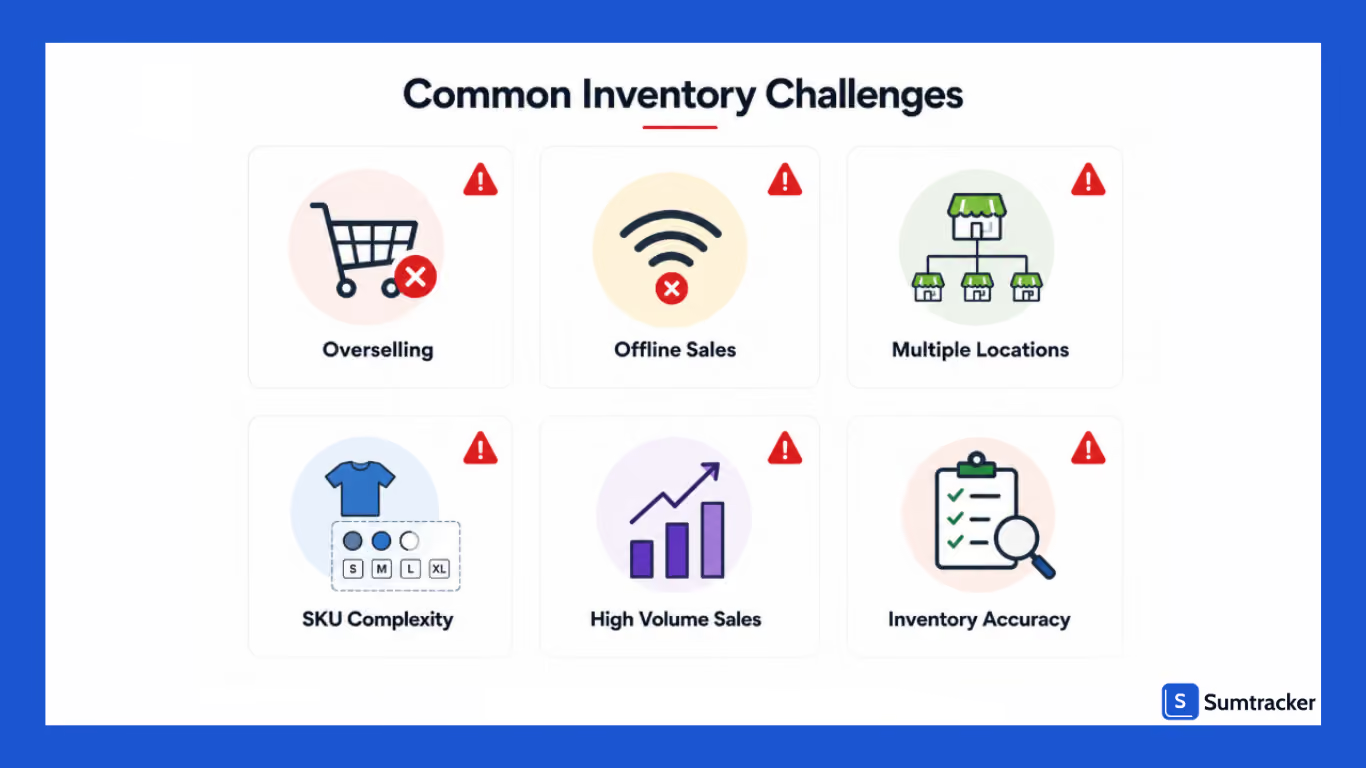
Maintaining Inventory Accuracy During High-Volume Sales
Busy shopping periods like holiday sales, product launches, or weekend promotions can put significant pressure on your inventory processes.
During these periods, products move quickly, returns increase, and you have to be more focused on serving customers rather than checking inventory accuracy.
A missed inventory adjustment, an item scanned incorrectly, or inventory placed on the wrong shelf can result in inaccurate stock levels that affect both in-store and online sales.
Managing Inventory Across Multiple Locations
When you have inventory across multiple locations, each store has its own sales patterns, customer preferences, and replenishment needs.
One location may frequently sell out of certain products, while another consistently carries excess inventory.
Handling Offline Sales and Inventory Sync
Retail operations usually don't always have a reliable internet connection. If your store temporarily loses connectivity, Shopify POS can continue processing sales using its offline capabilities.
Once the device reconnects to the internet, the transactions sync with your Shopify admin, and your inventory is updated automatically.
While this helps avoid interruptions during checkout, retailers should be aware of a few operational considerations.
If the same product is being sold through multiple channels while one location is offline, there may be a temporary delay before inventory is fully synchronized across the business.
This is usually resolved once the POS reconnects and pending transactions are synced.
Preventing Overselling Across Sales Channels
Many retailers sell through their Shopify store, physical stores, social commerce channels, and marketplaces simultaneously.
If inventory isn't updated promptly or fulfillment locations aren't configured correctly, the same product may be sold more than once.
As your sales channels grow, maintaining a single source of truth for inventory becomes increasingly important.
Managing Product Variants and Large SKU Catalogs
Inventory becomes harder to manage as your catalog expands. A retailer selling 500 products with five size variants and four color options is managing thousands of individual SKUs.
Without consistent SKU naming conventions, inventory issues such as duplicate products, incorrect stock counts, and fulfillment errors become more common.
A well-organized product catalog makes inventory counts, reporting, and replenishment much easier.
Keeping Inventory Counts Accurate
Even with automated inventory tracking, discrepancies can develop over time due to damaged products, returns, misplaced inventory, or human error.
Instead of waiting for annual physical inventory counts, many retailers perform cycle counts throughout the month.
Frequent inventory verification helps prevent small errors from becoming larger operational problems.
Scaling Inventory Operations as Your Business Grows
The inventory processes that work for a single retail store often become inefficient once a business expands.
As retailers add more locations, employees, warehouses, or sales channels, inventory management becomes increasingly difficult to coordinate manually.
Recognizing these operational changes early allows retailers to build inventory processes that scale alongside the business rather than constantly reacting to inventory issues.
Extending Shopify POS with Third-Party Inventory Management Apps
Shopify POS is designed to handle the day-to-day aspects of retail inventory management, such as tracking stock, processing sales, managing returns, and transferring inventory between locations.
If you deal with a lot of SKUs, these might not be enough.
This is where you take help from third-party inventory management apps.
Rather than replacing Shopify POS, they extend its capabilities by supporting inventory planning, purchasing, forecasting, and multi-channel inventory management.
Retailers can continue using Shopify POS at checkout while managing more advanced inventory workflows from a centralized platform.
Solutions like Sumtracker integrate with Shopify POS to support workflows such as multi-channel inventory sync, purchase order management, inventory replenishment, and bundle inventory tracking.
FAQs
Does Shopify POS automatically update inventory?
Yes. Shopify POS automatically updates inventory whenever a product is sold, returned, exchanged, or manually adjusted. Inventory is updated at the assigned location, helping keep stock levels accurate across your retail and online sales channels.
Can Shopify POS track inventory across multiple locations?
Yes. Shopify POS supports multi-location inventory management, allowing you to track stock separately for each retail store, warehouse, or fulfillment center. You can view inventory by location and transfer products between locations.
What's the difference between Shopify POS Lite and Shopify POS Pro?
Both Shopify POS Lite and POS Pro include core inventory features such as inventory tracking, barcode scanning, inventory transfers, and stock adjustments. Shopify POS Pro adds more advanced retail capabilities, including enhanced staff permissions, improved reporting, and additional tools.
Can Shopify POS manage inventory across Shopify and other sales channels?
Shopify POS primarily manages inventory within the Shopify ecosystem. If you also sell on marketplaces like Amazon, Etsy, Walmart, or eBay, you'll typically need a third-party inventory management solution.
Is Shopify POS enough for growing retail businesses?
For retailers with straightforward inventory operations, Shopify POS provides the essential tools needed to manage stock efficiently. However, businesses managing multiple locations, channels, or large product catalogs require advanced features that are provided by third-party apps.
Conclusion
Shopify POS provides the core inventory management tools that most retailers need.
The provided features make it easier to manage inventory across your online and physical stores from a single platform.
As your business grows, selling across multiple channels, managing larger product catalogs, forecasting demand, or coordinating purchase orders often requires capabilities beyond Shopify's built-in tools.
That's where integrating a dedicated inventory management solution can help streamline operations while allowing Shopify POS to remain your point-of-sale system.
Start with the features Shopify POS offers, establish consistent inventory processes, and add specialized tools only when your operations require them.
This approach helps you build an inventory management system that can scale alongside your business instead of becoming a bottleneck as you grow.

Bhoomi writes about inventory management and multichannel selling at Sumtracker. Her focus is on solving real operational problems for Shopify, Amazon, and marketplace sellers through well-researched content. She covers everything from multi-location inventory syncing and stock error troubleshooting to replenishment planning and platform comparisons, turning complex eCommerce operations into clear, actionable guidance.
LinkedInRelated Articles
Tool and strategies modern teams need to help their companies grow.
.avif)

Ready to Simplify Your Inventory Management?
Join hundreds of e-commerce merchants who rely on Sumtracker to save time, eliminate errors, and grow their business.
